Overview
The Contact Search screen is the primary interface for finding, viewing, and managing contact records in the CRM system. This tool allows users to search through the contact database using multiple filter criteria and perform various operations on contact records.
Accessing the Screen
Navigate to CRM > Contact Search from the main menu to access this screen. (Figure 1)
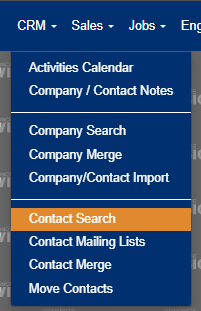 Figure 1
Screen Layout
Filter Section
The filter section appears at the top of the screen in a collapsible panel. Click on the Filter tab to expand or collapse the search criteria.
Results Grid
Below the filter section, the main results grid displays contact records in a paginated table format.
Action Buttons
Located in the top-right corner, providing quick access to key functions like Export, Outlook Export, and Add New Contact.
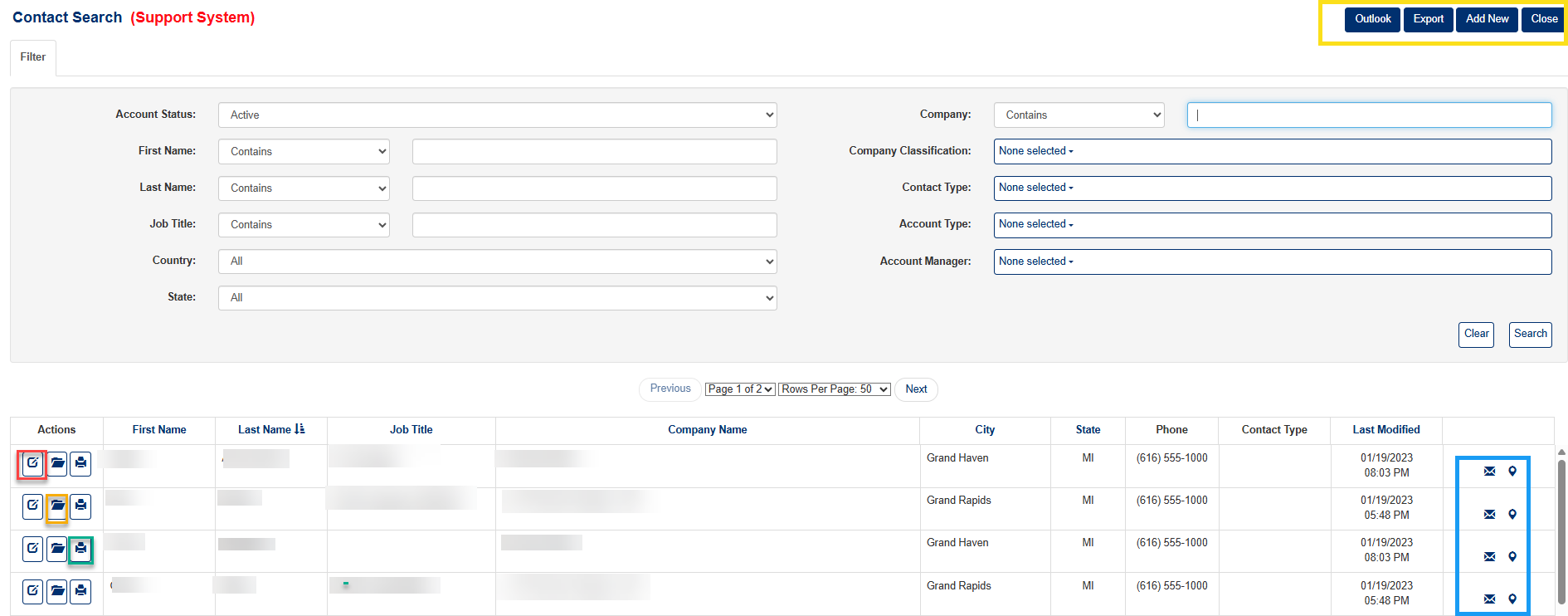
Figure 2
Search and Filter Options
Basic Filters
Account Status
- Active: Shows only active contact records
- Inactive: Shows only inactive contact records
- All: Shows both active and inactive records
First Name
- Enter partial or complete first name
- Choose search method:
- Begins With: Matches contacts starting with entered text
- Contains: Matches contacts containing entered text anywhere
- Equals: Exact match only
- Ends With: Matches contacts ending with entered text
Last Name
- Enter partial or complete last name
- Same search method options as First Name
Job Title
- Enter partial or complete job title
- Same search method options as First Name
Company Name
- Enter partial or complete company name
- Same search method options as First Name
Location Filters
Country
- Select from dropdown list of available countries
- Choosing a country will populate the State dropdown with relevant states
State
- Dynamically populated based on selected country
- For countries without predefined states, an "Other State" text field appears
Other State/County
- Free-text field for locations not covered by standard state lists
Business Classification Filters
Classification
- Multi-select dropdown supporting multiple classifications:
- General Contractor
- Construction Manager
- Architect
- Engineering Firm
- Owner
- Erector
- Carrier
- Flag Car Carrier
- Competitor
- Crane Operator
Contact Type
- Select specific contact type from available options
- Categories like Primary Contact, Decision Maker, Technical Contact, etc.
Management Filters
Account Manager
- Filter by assigned account manager
- Dropdown shows all active account managers in the system
- Filters contacts based on their company's account manager assignment
Search Operations
Performing a Search
- Set desired filter criteria in the Filter section
- Click the Search button to execute the search
- Results will display in the grid below
Clearing Filters
- Click the Clear button to reset all filter criteria to default values
- This will show all active contacts with default sorting
Results Grid Features
Column Information
The results grid displays the following columns:
- Actions: Edit, view details, print, and selection checkboxes
- First Name: Contact's first name
- Last Name: Contact's last name
- Job Title: Contact's position or role
- Company Name: Associated company with child company indicators
- City: Contact's primary city location
- State: Contact's state/province
- Phone: Primary phone number
- Type: Contact classification/type
- Last Modified: Date of last update
- Social/Communication: Icons for social media, email, and location
Special Indicators
- (c): Indicates contact works for a child company (subsidiary)
- Social media icons: Direct links to Facebook, Twitter, LinkedIn, YouTube, Instagram profiles
- Email icon: Direct email link (Blue box, Figure 2)
- Map icon: Location mapping integration (Blue box, Figure 2)
Sorting
Click on column headers to sort results:
- First Name, Last Name, Job Title, Company Name, City, State, Last Modified
- First click sorts ascending, second click sorts descending
Contact Actions
Viewing Contact Details
- Edit Button (pencil icon): Opens full contact editing screen (Red box, Figure 2)
- View Details Button (folder icon): Opens contact details in popup window (Orange box, Figure 2)
- Print Button (printer icon): Generates printable contact report (Green box, Figure 2)
Adding New Contacts
- Click Add New button in top toolbar (Yellow box, Figure 2)
- In the modal dialog:
- Use typeahead search to find and select a company
- Click New Company to create a new company first
- Click New Contact to create a contact for the selected company
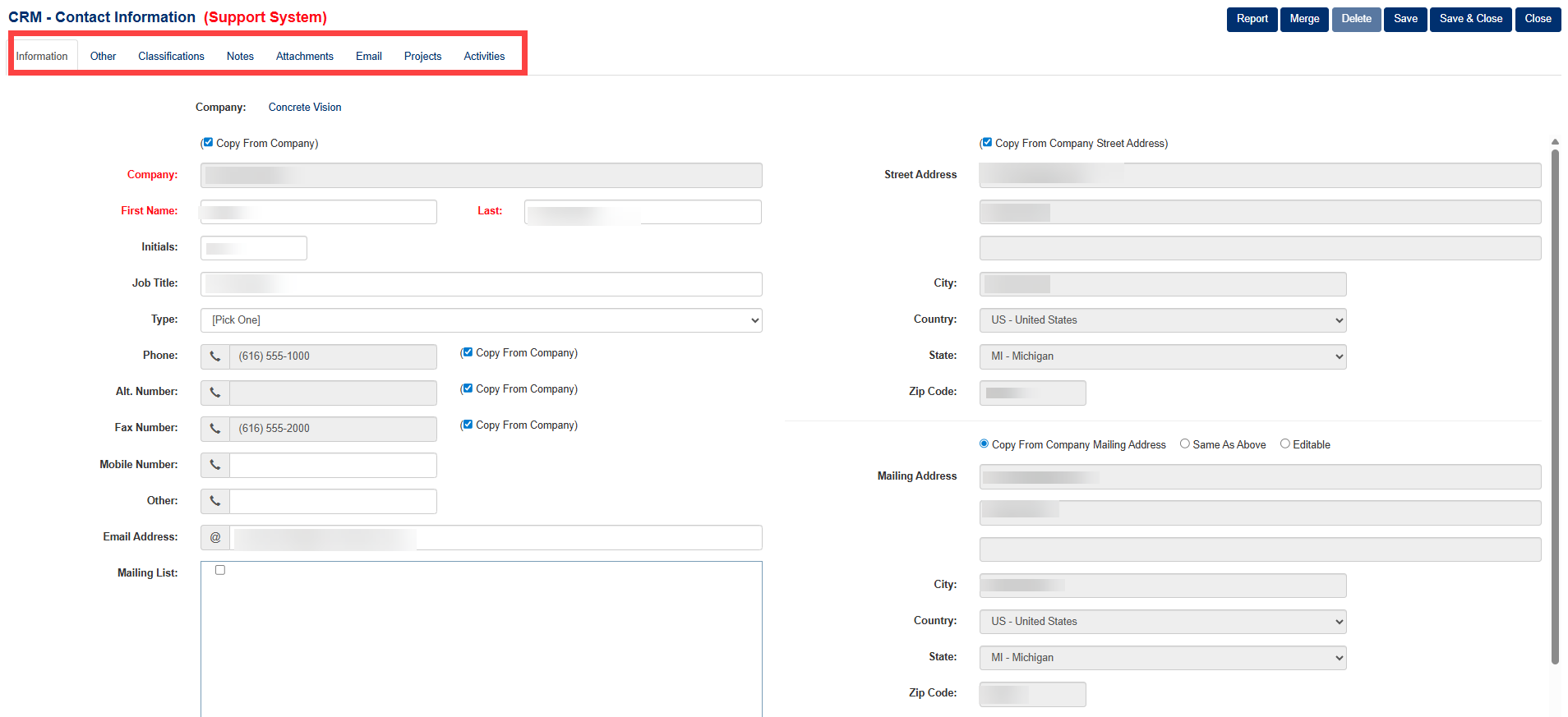
Figure 3
Social Media and Communication
Icons in the rightmost column provide direct access to:
- Facebook profile
- Twitter profile
- LinkedIn profile
- YouTube channel
- Instagram profile
- Email address (mailto link)
- Google Maps location
Export Functions
Custom Export
- Click Export button in toolbar (Yellow box, Figure 2)
- Select columns to export using the dual-list interface: (Figure 4)
- Available columns on left
- Selected columns on right
- Use arrow buttons to move columns between lists (Red box, Figure 4)
- Use up/down arrows to reorder selected columns (Blue box, Figure 4)
- Click Export to download CSV file (Green box, Figure 4)
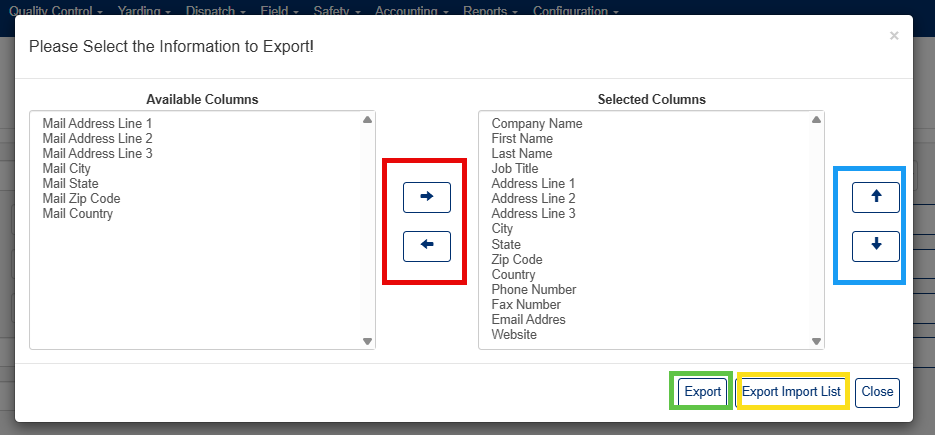
Figure 4
Import Template Export
- Click Export button, then Export Import List (Yellow box, Figure 4)
- Downloads an Excel file formatted for re-importing contact data
- Includes all contact fields and company classifications in import-ready format
Outlook Export
- Click Outlook button in toolbar (Yellow box, Figure 2)
- Downloads a CSV file formatted specifically for Microsoft Outlook contact import
- Includes fields mapped to Outlook contact properties
- Automatically removes commas from text fields to prevent import issues
Was this article helpful?
That’s Great!
Thank you for your feedback
Sorry! We couldn't be helpful
Thank you for your feedback
Feedback sent
We appreciate your effort and will try to fix the article