Overview
The Contact Merge screen is a sophisticated data consolidation tool that allows users to merge duplicate or redundant contact records within a specific company. Unlike simple one-to-one mergers, this system uses a staging approach that enables users to set up multiple contact merge operations and execute them all at once, ensuring data integrity across the entire database system.
Purpose
- Contact Consolidation: Eliminate duplicate contact entries within companies
- Data Integrity: Maintain all historical relationships and communications
- Batch Processing: Handle multiple contact merges efficiently
- Relationship Preservation: Automatically update all system references to merged contacts
- Company-Scoped Operations: Prevent accidental cross-company contact merging
Key Features
Two-Phase Operation Model
- Company Selection Phase: Select the company whose contacts need merging
- Contact Merge Phase: Set up and execute multiple contact merge operations
Accessing Contact Merge
To access the Contact Merge feature:
- Navigate to the CRM tab in the main menu at the top of the screen.
- Click Contact Merge (Figure 1)
User Restrictions: Cannot merge contacts that are system users (i.e users with login credentials)
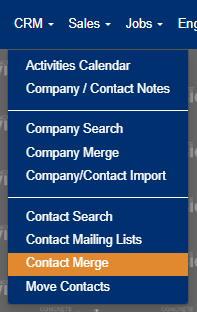
Figure 1
Screen Interface
Phase 1: Company Selection
- Company Search Field: Typeahead search with minimum 2-character trigger (Figure 2)
- Search Button: Confirms company selection and proceeds to merge phase (Blue box, Figure 2)
- Clear Button: Resets company selection and clears any staged merges (Yellow box, Figure 2)

Figure 2
Phase 2: Contact Merge Operations
- Company Display: Shows selected company name (read-only) (Red box, Figure 3)
- Merge From Dropdown: Multi-select dropdown showing all company contacts (Yellow box, Figure 3)
- Merge To Dropdown: Multi-select dropdown showing only active company contacts (Blue box, Figure 3)
- Add Button: Stages a new merge pair (Purple box, Figure 3)
- Merge Table: Displays all staged merge operations

Figure 3
Contact Merge Limitations
User Contacts Cannot Be Merged: Contacts with user login credentials cannot be merged during the company merge process.
Before merging, verify contact types:
- Go to CRM Menu > Contact Search
- Search for and edit the contact
- Navigate to the Other tab
- Check for a username field:
- Username present: User contact - cannot be merged
- No username: Non-user contact - can be merged
Step-by-Step Procedure
Standard Contact Merge Process
Step 1: Select Target Company
- On initial screen load, enter company search criteria (Figure 2)
- Type at least 2 characters in the Company field to trigger search suggestions
- Select the desired company from the dropdown list
- Click "Search" button to proceed to merge phase (Blue box, Figure 2)
- Screen displays company name and switches to merge interface
Step 2: Stage Contact Merge Pairs
Select Source Contact (Merge From): (Yellow box, Figure 3)
- Use the "Merge From" dropdown (includes inactive contacts and shows status)
- Select contact(s) that will be merged and deleted
- Note: Inactive contacts are marked with "(Not Active)"
Select Destination Contact (Merge To): (Blue box, Figure 3)
- Use the "Merge To" dropdown (active contacts only)
- Select contact that will retain all merged data
- This contact will become the consolidated record
Add to Staging:
- Click "Add New" button (Purple box, Figure 3)
- System validates selections:
- Both contacts must be selected
- Source and destination cannot be the same contact
- Visual feedback shows validation status (green checkmark or red X)
- Successfully added pairs appear in the table below (Figure 4)
Repeat for Additional Merges:
- Add as many merge pairs as needed for the company
- Each pair is staged independently
- Review all staged operations in the merge table
Step 3: Review Staged Merges
- Verify Merge Pairs: Check the merge table showing all staged operations
- Remove Incorrect Entries: Use the delete button (X icon) to remove staging entries (Red box, Figure 4)
- Confirm Contact Details: Ensure correct source and destination contacts selected
- Note Status Indicators: Inactive contacts are clearly marked
- Confirmation: Success message displays: "Completed Successfully!"

Figure 4
Step 4: Verify Results
- Contact Records: Source contacts are deleted, destination contacts remain
- Data Transfer: All relationships, notes, and associations transferred
- System References: All database references updated to destination contacts
- Clean State: Staging area cleared and ready for new operations
Was this article helpful?
That’s Great!
Thank you for your feedback
Sorry! We couldn't be helpful
Thank you for your feedback
Feedback sent
We appreciate your effort and will try to fix the article