Overview
The Company Merge feature allows you to consolidate two separate companies into one, transferring all associated contacts, projects, notes, and loads from a source company to a destination company.
Note: This process is irreversible, so please proceed with caution.
Accessing Company Merge
To access the Company Merge feature:
- Navigate to the CRM tab in the main menu at the top of the screen
- Click Company Merge (see Figure 1)
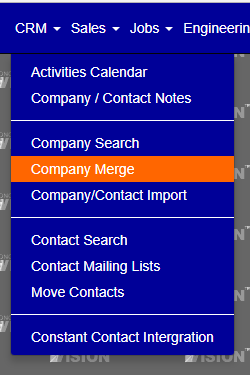
Figure 1
Understanding the Merge Process
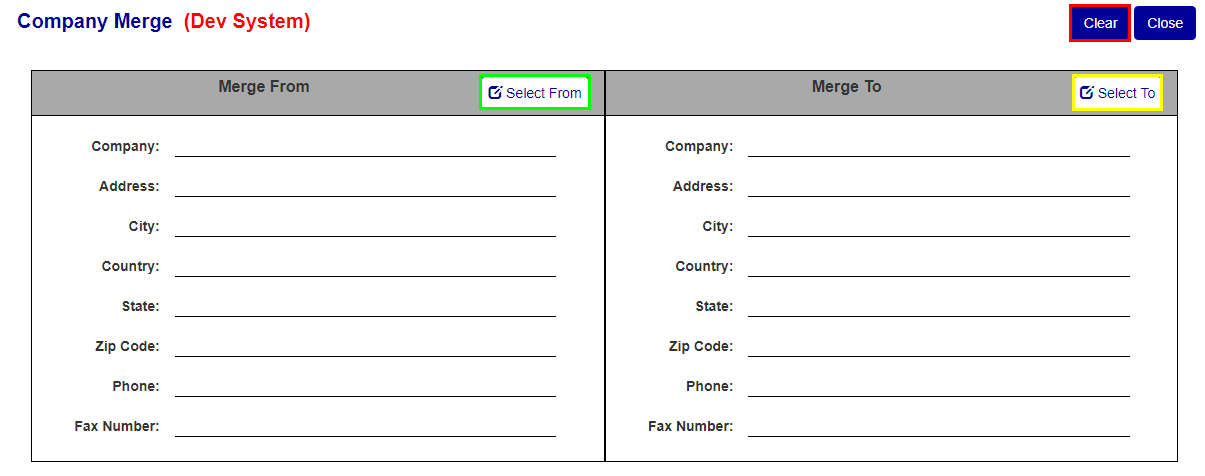
Figure 2
The Company Merge screen (Figure 2) contains two main sections:
- From Company (left side): The source company that will be removed after the merge
- To Company (right side): The destination company that will remain and receive all transferred data
Important: The destination company retains all its original address information, while the source company's data is transferred and the company record is deleted.
Key Controls
- Clear Button: Resets the form and clears all selected companies (Red box, Figure 2)
- Select From Button: Opens search modal for source company selection (Green box, Figure 2)
- Select To Button: Opens search modal for destination company selection (Yellow box, Figure 2)
- Update Button: Executes the merge process
Step-by-Step Merge Process
Step 1: Select the Source Company (From)
- Click the Select From button to open the company search modal
- Type the name of the company you want to merge (the one that will be removed)
- Select the correct company from the dropdown results (Figure 3)
- Verify the company appears in the search box after selection
- Click Save to return to the main screen
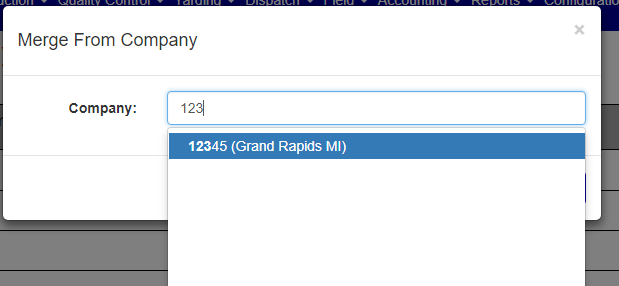
Figure 3
The selected source company information should now appear in the left section (Figure 4).
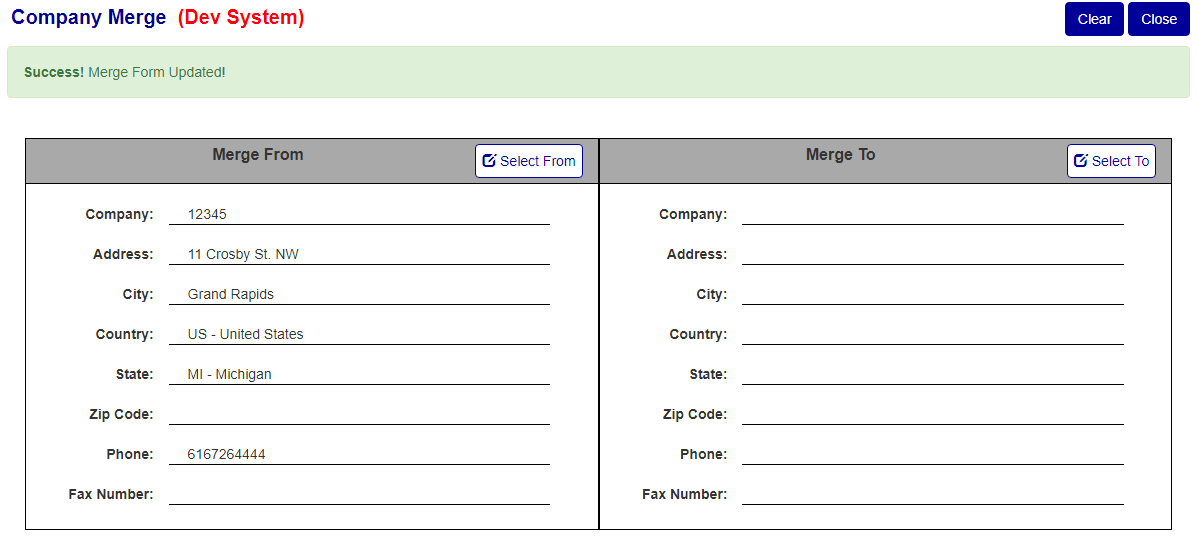
Figure 4
Note: If the company information doesn't appear after clicking Save, repeat the search process and ensure the company name appears in the search box before saving.
Step 2: Select the Destination Company (To)
- Click the Select To button to open the company search modal (Yellow box, Figure 2)
- Search for and select the company that will receive all merged data
- Click Save to return to the main screen
The destination company information should now appear in the right section (Figure 5).
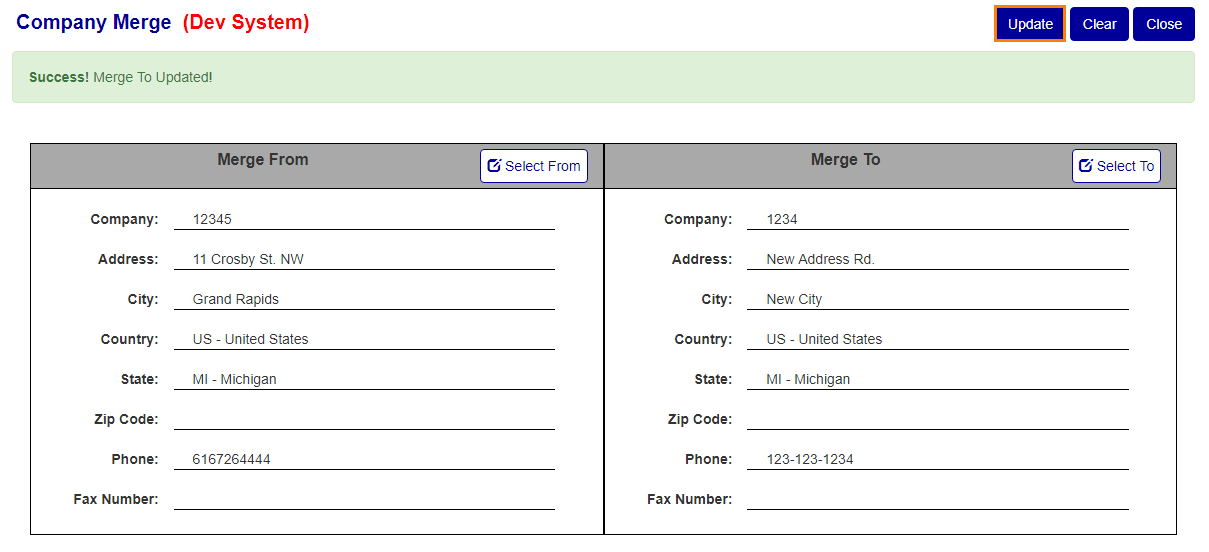
Figure 5
Step 3: Execute the Merge
Once both companies are selected and their information is displayed:
- Review the company details to ensure you've selected the correct companies
- Click the Update button to complete the merge (Yellow box, Figure 5)
- The system will transfer all data from the source company to the destination company
- The source company record will be permanently deleted
Pre-Merge Checklist
Before executing a merge, ensure:
- [ ] You have identified the correct source and destination companies
- [ ] You understand that the source company will be permanently deleted
- [ ] All user contacts have been identified and handled appropriately
- [ ] You have appropriate permissions to perform this action
- [ ] You have backed up any critical data if necessary
Was this article helpful?
That’s Great!
Thank you for your feedback
Sorry! We couldn't be helpful
Thank you for your feedback
Feedback sent
We appreciate your effort and will try to fix the article