Overview
Contact details can be viewed and edited at any time in the CRM module of Concrete Vision.
Accessing the Contact Information Screen
Navigate to CRM > Contact Search from the main menu (Figure 1).
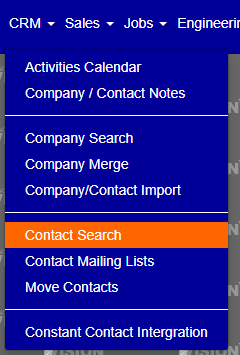
Figure 1
All contacts in the CRM are listed on the Contact Search screen (Figure 2). Use the column headings (Orange box, Figure 2) or the Filter tab (Purple box, Figure 2) to locate the contact you want to edit.
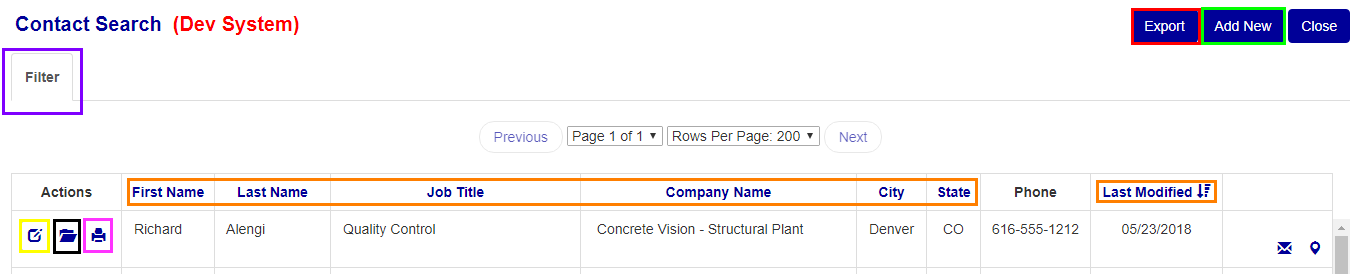
Figure 2
Finding a Contact
Option A: Sort by Column Headings
- Click any column heading (Orange box, Figure 2) to sort the table by that category. The active sort column displays a sort icon (↕) next to its heading (Orange box, Figure 2).
- Click the same heading again to toggle between ascending and descending order.
- Once you've located the contact, click the Edit icon (Yellow box, Figure 2) in the Actions column to open that contact's record.
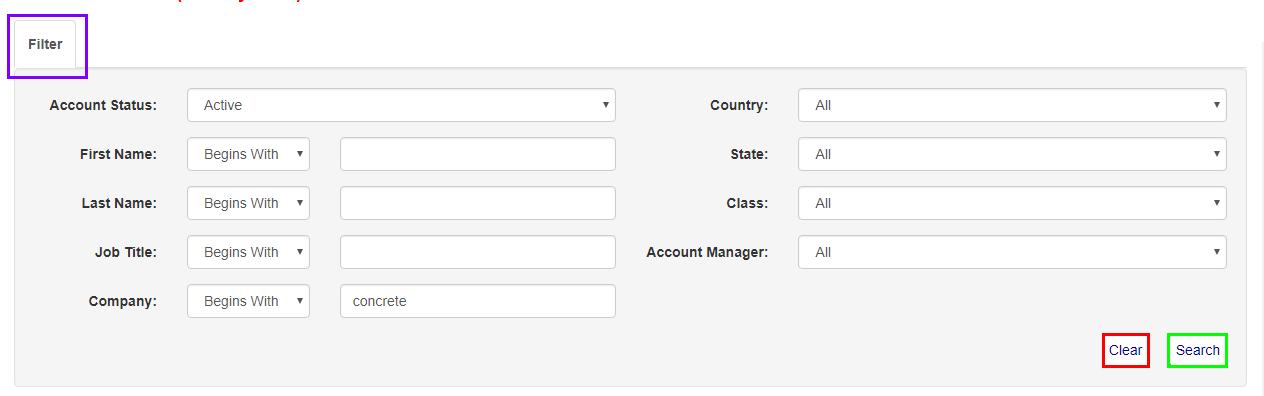
Figure 3
Option B: Use the Filter Tab
Note: Searching or clearing the filter will refresh the current screen. Save any unsaved changes before using these actions.
- Click the Filter tab (Purple box, Figure 2) to expand the filter panel (Figure 3).
- Enter or select values in any of the available fields (e.g., First Name, Last Name, Company, State) to narrow the results.
- Click Search (Green box, Figure 3) to apply the filter and refresh the contact list.
- Once you've located the contact, click the Edit icon (Yellow box, Figure 2) to open that contact's record.
Additional filter options:
- Click Clear (red box, Figure 3) to reset all filter fields to their defaults.
- Click the Filter tab again (purple box, Figure 3) to collapse and hide the filter panel.
Editing a Contact
The Contact Information screen (Figure 4) opens after clicking the Edit icon. From here:
- Edit or add any contact information in the available fields.
- To save your changes:
- Click Save (Green box, Figure 4) to save and remain on the screen.
- Click Save & Close (Red box, Figure 4) to save and return to the Contact Search screen.
Note: Click Save before switching to another tab within the Contact Information screen. Unsaved changes will be lost when navigating away.
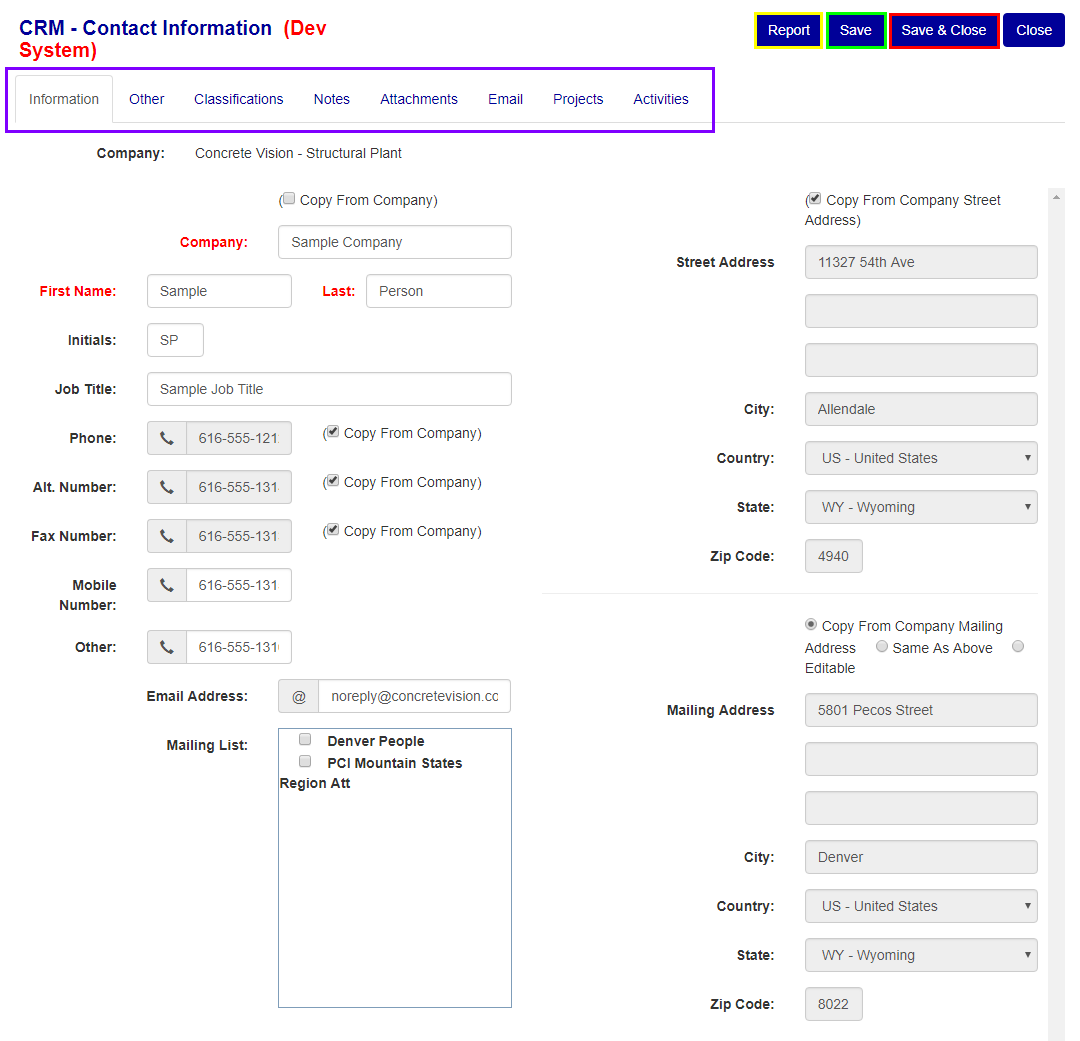
Figure 4
Additional Tabs in the Contact Record
The Contact Information screen includes multiple tabs (Purple box, Figure 4) — such as Other, Classifications, Notes, Attachments, Email, Projects, and Activities — each containing additional contact details that can be viewed and edited.
The same save options apply across all tabs:
- Save (Green box, Figure 4) — saves changes and keeps you on the current tab.
- Save & Close (Red box, Figure 4) — saves changes and returns you to the Contact Search screen.
Note: Some tabs, such as the Information tab, include additional functions like the Report button (yellow box, Figure 4).
Was this article helpful?
That’s Great!
Thank you for your feedback
Sorry! We couldn't be helpful
Thank you for your feedback
Feedback sent
We appreciate your effort and will try to fix the article