Overview
The Sales Region module is a core component of the CRM system that allows you to:
- Organize sales territories into logical sub-categories
- Associate contacts with specific sales regions and territories
- Manage regional sales operations efficiently
- Track performance by geographic or organizational divisions
Accessing Sales Regions
To access the Sales Region configuration:
- Navigate to the Configuration tab in the main menu
- Select CRM Setup from the dropdown menu
- Click on Sales Regions
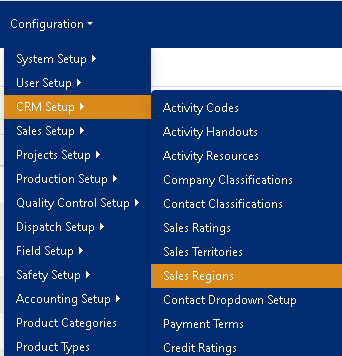
Figure 1
Viewing and Managing Sales Regions
Search and Filter Options
The Sales Region interface provides multiple ways to locate specific regions:
- Abbreviation: Quick search by region code
- Description: Search by full region name
- Territory: Filter by associated territory
- Status: Filter by Active/Inactive status
List View Features
- Sortable columns: Click any column header to sort
- Bulk operations: Select multiple regions for batch actions
- Status indicators: Visual cues for active/inactive regions
- Quick actions: Edit, delete, and manage contacts directly from the list
Adding a New Sales Region
Step-by-Step Process
Initiate Creation
- Click the Add new record button (green box, top-left)
- The "Add New" dialog window will open (Figure 3)
Complete Required Fields
Field Requirements Description Abbreviation Required, max 25 characters Short code for the region (e.g., "NE", "SW", "CA") Description Required, max 50 characters Full descriptive name (e.g., "Northeast Region") Territory Required selection Parent territory for this region Configure Optional Settings
- Order By: Set display order (default value provided)
- Active Status: Toggle between Active/Inactive (default: Active)
Save the Record
- Click Save to create the new sales region
- Click Cancel to discard changes
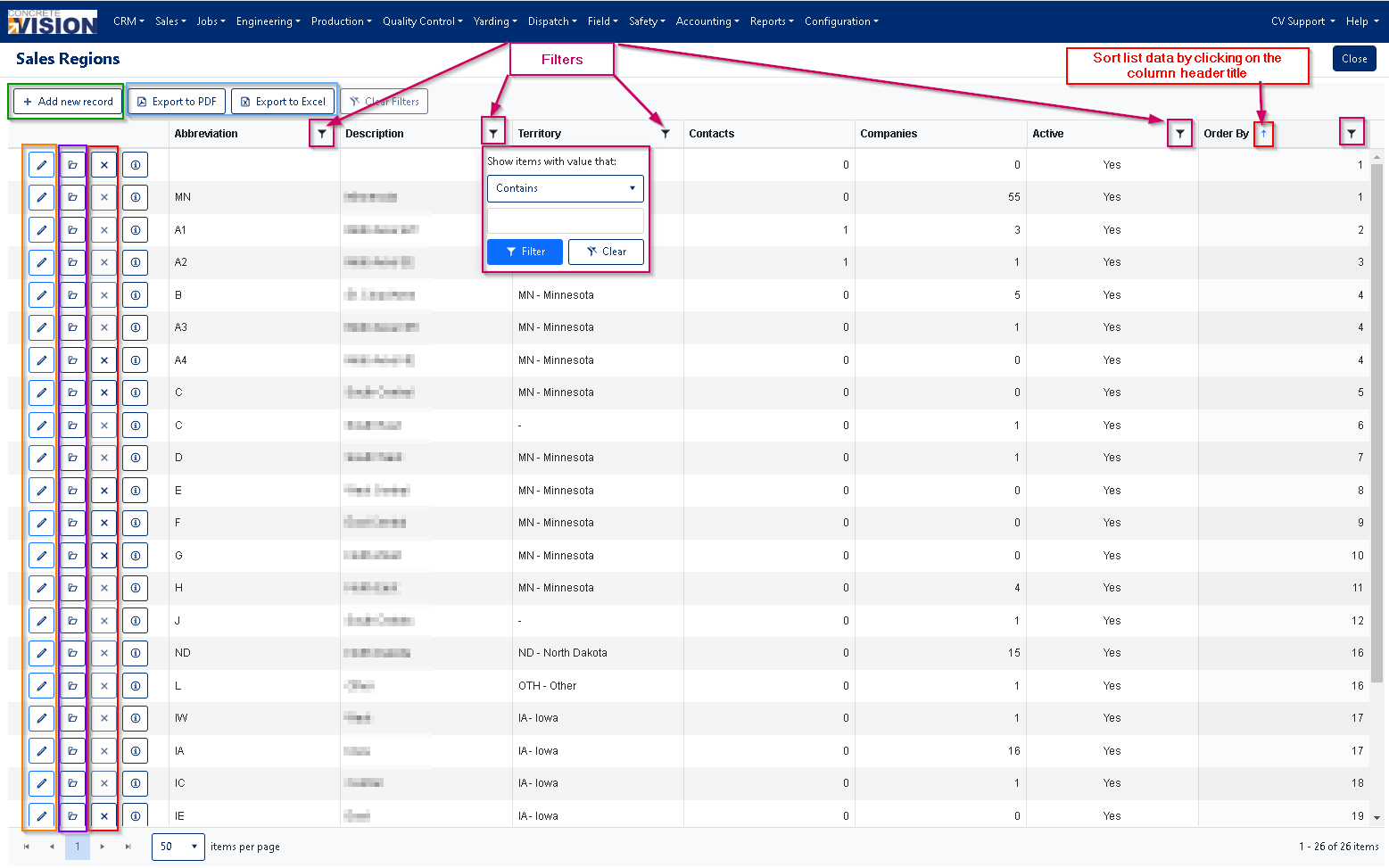
Figure 2
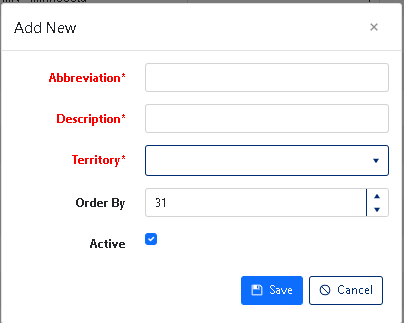
Figure 3
Validation Rules
- Abbreviations must be unique within the system
- Descriptions should be descriptive and professional
- Inactive regions won't appear in dropdown selections for new records
Editing Sales Regions
Edit Process
Access Edit Mode
- Locate the target sales region in the list
- Click the pencil icon (orange box, Figure 2) to open the edit dialog
Modify Fields
- Update any of the fields following the same requirements as creation
- All fields remain editable except system-generated IDs
Save Changes
- Click Save to apply modifications (Green box, Figure 4)
- Changes take effect immediately across the system
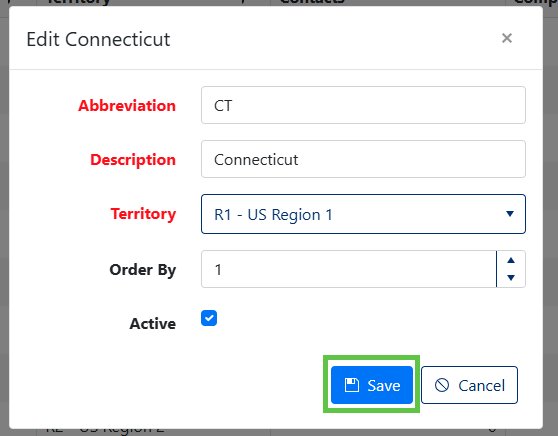
Figure 4
Deleting Sales Regions
Deletion Rules
⚠️ Important: You can only delete sales regions that have no associated details or contacts.
Before Deleting
- Review all associated contacts and reassign them if necessary
- Check reporting dependencies
- Consider deactivating instead of deleting for historical data preservation
Deletion Process
Verify Eligibility
- Ensure the region has no linked contacts
- Check for dependencies in other modules
Initiate Deletion
- Click the delete button (Red box, Figure2 ) next to the edit button
- If the region has dependencies, the delete button will be disabled
Confirm Deletion
- A confirmation dialog will appear: "Are you sure you want to delete this record?" (Figure 5)
- Click OK to proceed with deletion
- Click Cancel to abort the operation
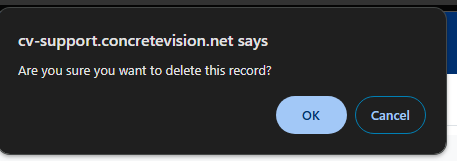
Figure 5
Managing Contacts in Sales Regions
Adding Contacts to Sales Regions
Access Contact Management
- Click the folder button (Purple box, Figure 2) next to the edit button
- This opens the "Sales Regions - Details" screen (Figure 6)
Add New Contacts
- Click the Add Contact button (Green box, Figure 6)
- The Contact Search window will appear
Search and Select Contacts
- Use column header tools to filter and search
- Apply multiple search criteria as needed
- Select contacts using the checkbox (orange box) to the left of each name
Confirm Selection
- Click the Add button (Green box, Figure 7) to associate selected contacts
- Contacts will now appear in the Sales Region details

Figure 6
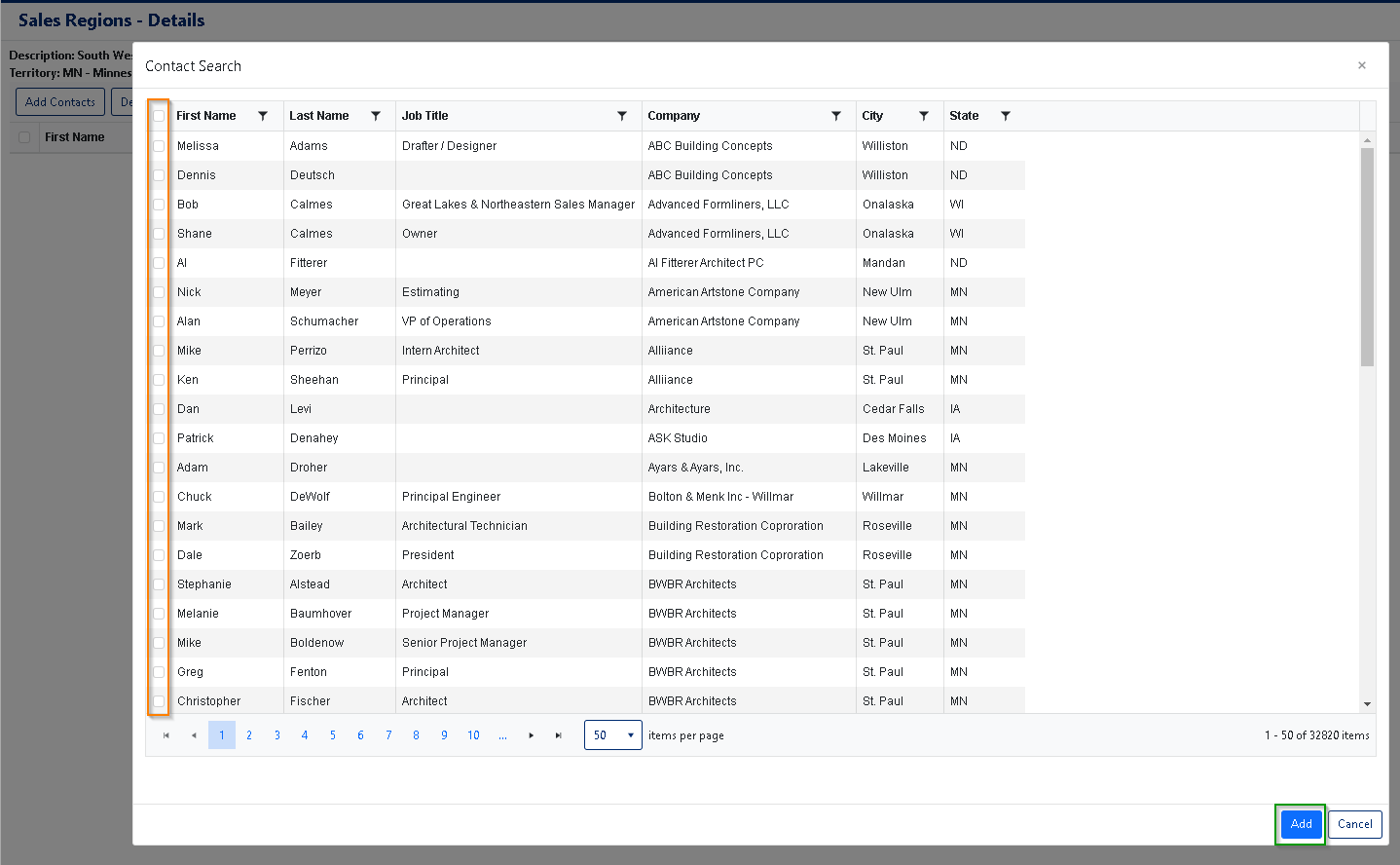
Figure 7
Removing Contacts from Sales Regions
Select Contacts for Removal
- In the Sales Regions - Details screen
- Check the box next to each contact you want to remove (Orange box, Figure 6)
Delete Association
- Click the Delete Contact button (Red box, Figure 6)
- Confirm the removal when prompted
Note: This only removes the association; it doesn't delete the contact from the system.
Contact Management Best Practices
- Regularly review and update contact associations
- Ensure contacts are assigned to appropriate regions
- Avoid duplicate assignments across overlapping regions
- Maintain accurate contact information for effective regional management
Was this article helpful?
That’s Great!
Thank you for your feedback
Sorry! We couldn't be helpful
Thank you for your feedback
Feedback sent
We appreciate your effort and will try to fix the article