Overview
The Cancel Bids module allows you to manage Sales Bids by either canceling them or exporting a list of pending Sales Bids. This guide covers how to access the module, find specific bids, cancel bids, and export data.
Accessing the Cancel Bids Screen
- Click on the Sales tab in the main menu at the top of the screen
- Select Cancel Bids from the dropdown menu
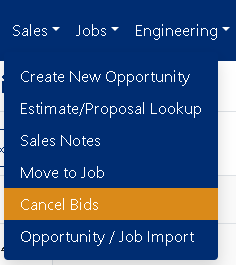
Figure 1
Finding Specific Sales Bids
You can easily locate specific Sales Bids using the sorting and filtering features:
- Sort or filter by:
- Estimate Number
- Job Name
- Sales Person
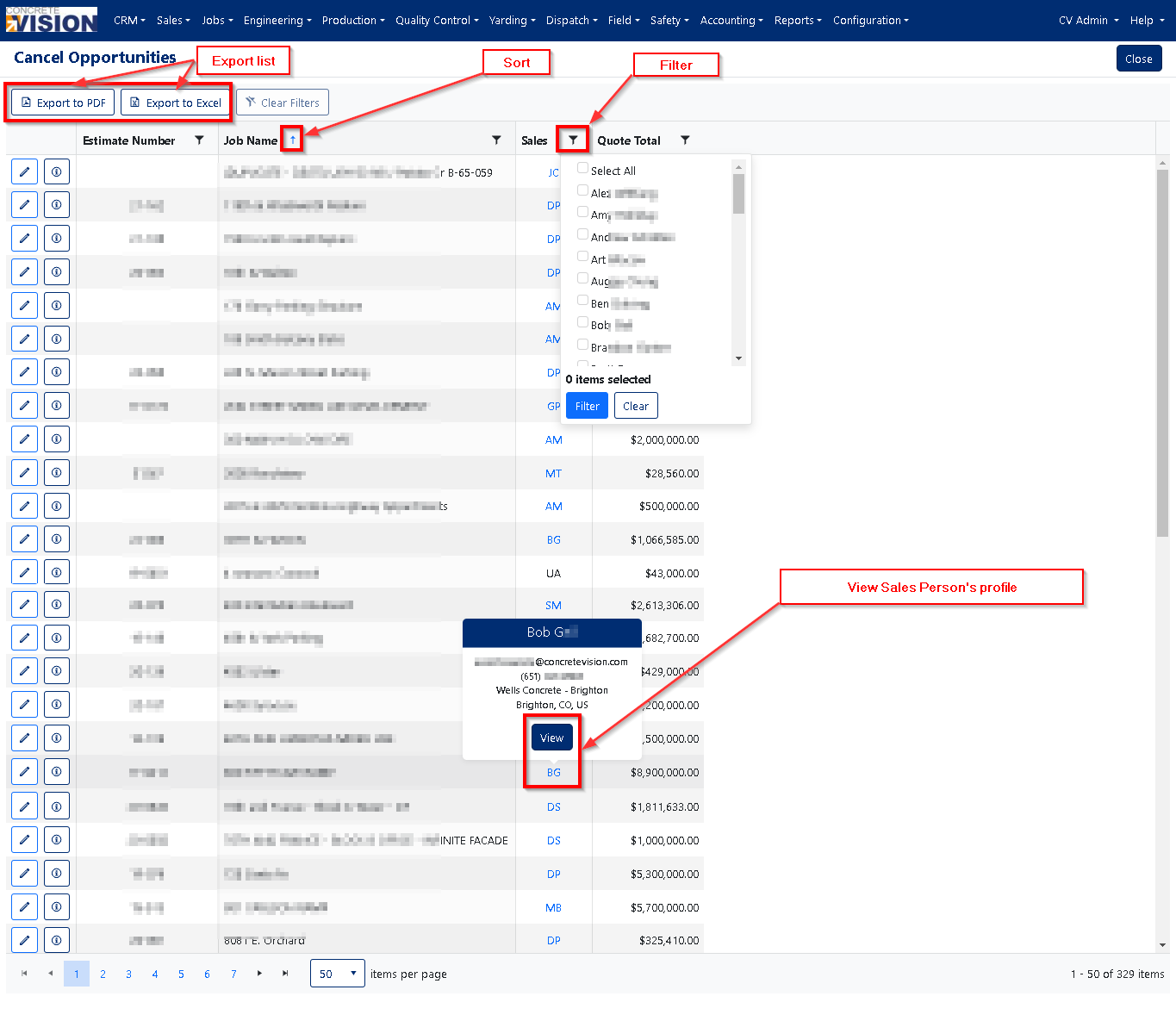
Figure 2

Figure 3
Cancelling a Bid
- Click the Edit icon (see Figure 3 below) to the left of the Sales Bid.
- A window will open (see Figure 4 below).
- Select the Action for the Sales Bid. (Required)
- If the Action for the Sales Bid is either Lost or Qualified Not Bid additional fields are available (see Figure 5 below) .
- The "Awarded To" field will show a list of active companies found in the CV CRM. (Required)
Refer: https://helpdesk.concretevision.com/a/solutions/articles/1000067211 - The additional "Awarded" number fields can be left with a zero value.
- Set the 'Canceled Date' date. (Required)
- Select the 'Reason' the bid is being cancelled. (Required)
- Enter all other required items (required items have an asterisk ( * ) next to its label)
- Enter any 'Notes' (Optional)
- These notes can be seen later using the Sales Notes module.
- Once you've entered all the necessary items, click on the √ Save button (seen in orange Figure 4 & Figure 5 below).
- A success message will appear at the top of the screen as soon as the bid has been cancelled, and an email notification will be sent out.
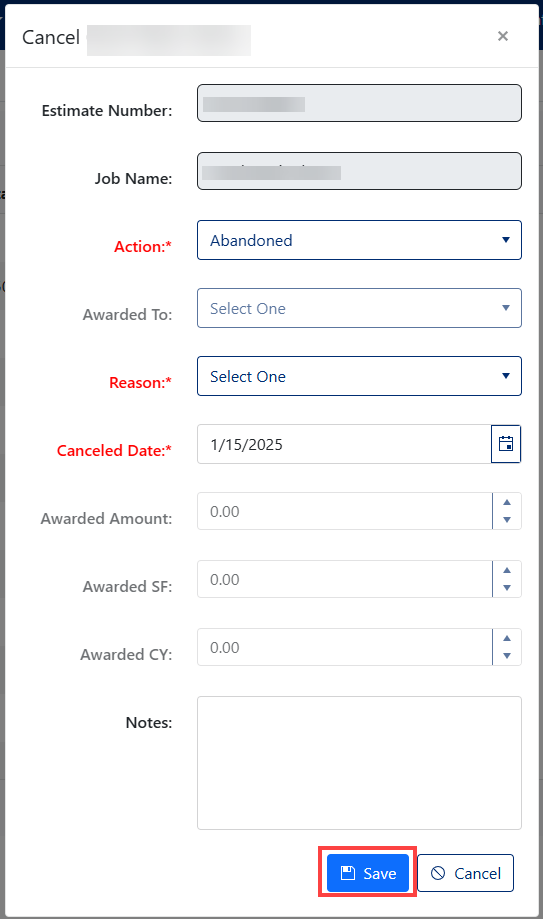
Figure 4
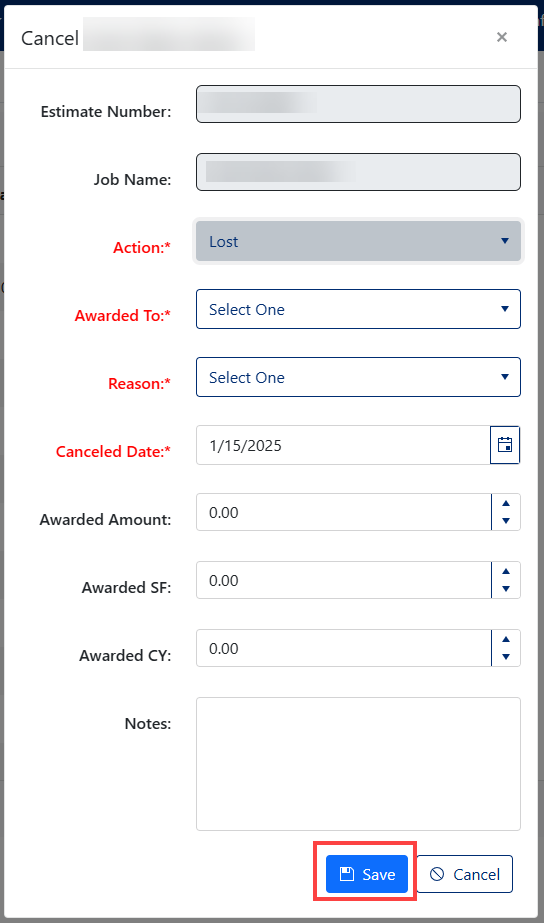
Figure 5
Exporting Bid Data
You can export your bid data in two formats:
Export to PDF
Click the Export to PDF button to generate a full list of Cancelled Bids in PDF format. (Figure 2 - red outline).
Export to Excel
Click the Export to Excel button to generate a full list of Cancelled Bids in Excel spreadsheet format.
Both export buttons are located at the top of the Cancel Bids screen (Figure 2 - red outline).
Was this article helpful?
That’s Great!
Thank you for your feedback
Sorry! We couldn't be helpful
Thank you for your feedback
Feedback sent
We appreciate your effort and will try to fix the article