Overview
The Cancel Bids module allows you to manage Sales Bids by either canceling them or exporting a list of pending Sales Bids. This guide covers how to access the module, find specific bids, cancel bids, and export data.
Accessing Cancel Bids Screen
Access Cancel bids from the Sales menu item (Figure 1).
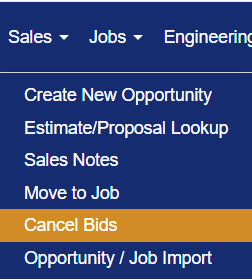
Figure 1
The Cancel Opportunities screen (see Figure 2) allows you to:
- Cancel a job.
- Export a list of job opportunities as either a PDF or Excel file
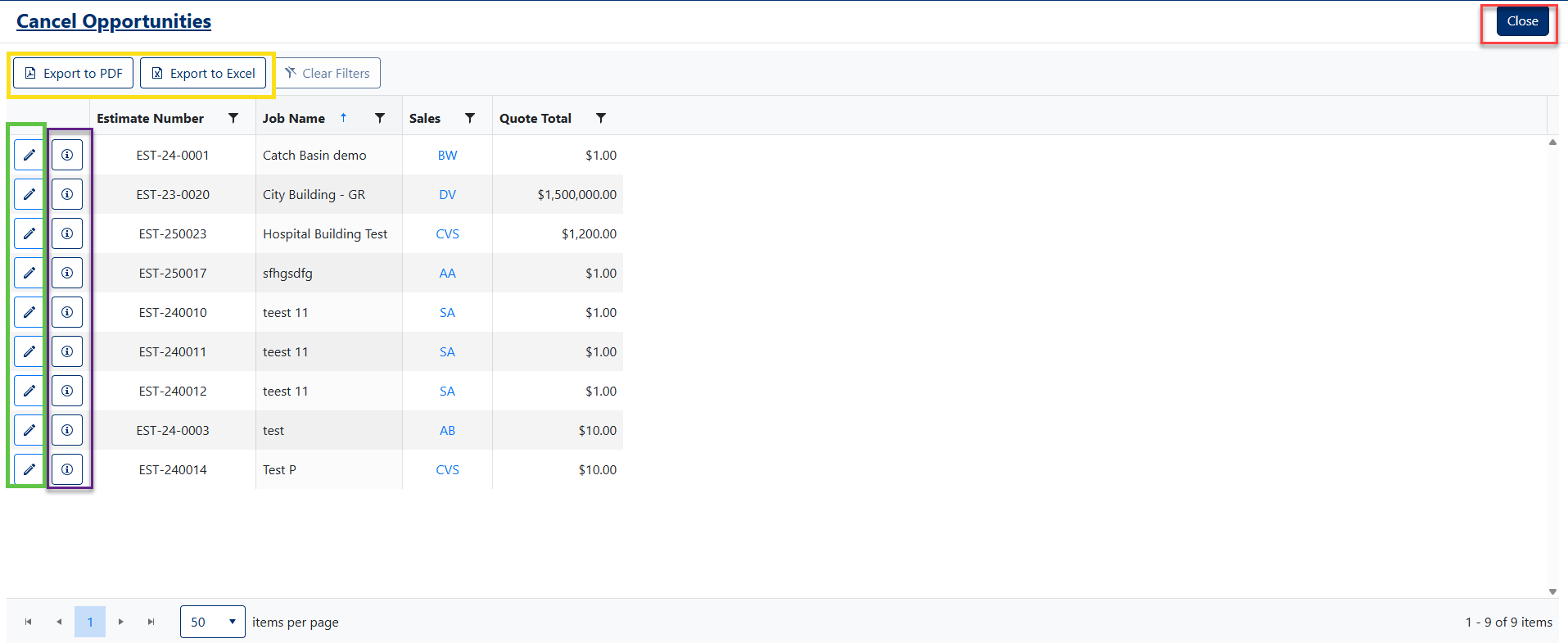
Figure 2
How to Cancel a Bid / Opportunity
- Click the Edit icon next to the job opportunity you want to cancel (Green box, Figure 2).
- A popup window will appear (Figure 3).
- Make a selection from the Action dropdown (Yellow box, Figure 3).
- It is optional to make a selection from the Awarded To dropdown, the Awarded Amount, Awarded SF, and Awarded CY. NOTE: These are only available if "Lost" or "Qualified Not Bid" was selected from the Action dropdown.
- Make a selection from the Reason dropdown (Purple box, Figure 3).
- Select a date from the Cancelled Date calendar (Green box, Figure 3).
- Use the Notes field to record any other details in regards to the cancellation.
- Click the Save button (Red arrow, Figure 3) to cancel the bid / opportunity and return to the Cancel Opportunities screen.
- Exit the Cancel Opportunities screen by clicking the Close button (Red box,, Figure 2).
NOTE: Action, Reason, and Canceled Date are required selections to cancel an opportunity.
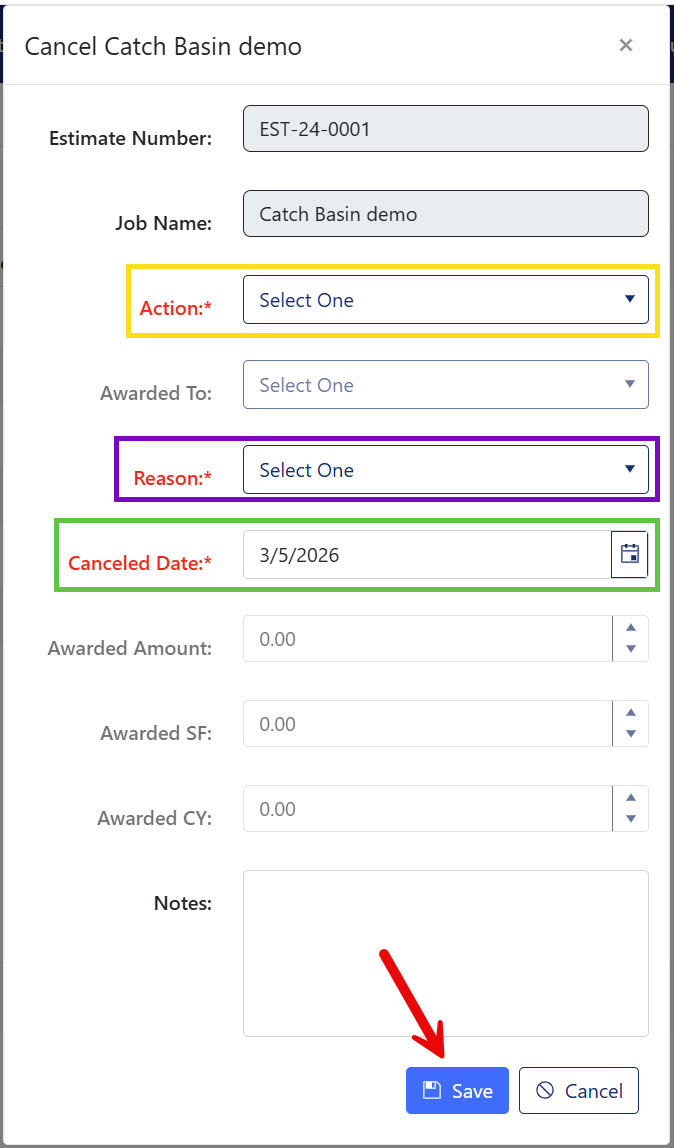
Figure 3
Cancel Bids Summary Details
Click the information button (Purple box, Figure 2) to open the Project/Opportunity log, providing details on when the Project was created, who created it, who last modified it, and the corresponding timestamp (Figure 4).
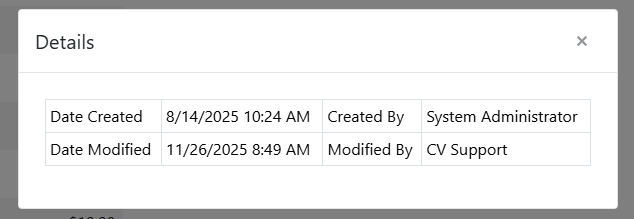
Figure 4
Exporting Cancel Bids
Export to PDF
Click the [Export to PDF] button to generate a complete list of Cancelled Bids in PDF format (Yellow box, Figure 2).
Export to Excel
Click the [Export to Excel] button to export all Cancelled Bids to an Excel spreadsheet (Yellow box, Figure 2).
Was this article helpful?
That’s Great!
Thank you for your feedback
Sorry! We couldn't be helpful
Thank you for your feedback
Feedback sent
We appreciate your effort and will try to fix the article