Estimate / Proposal Lookup Overview Video
Location: Sales Module
How to Use Estimate / Proposal Lookup in Concrete Vision
The Estimate / Proposal Lookup screen:
- Filters a list of all estimates within CV
- Provides a quick view of estimate details
- Exports estimates to Excel
Accessing the Estimate / Proposal Screen
Navigate to Sales menu > Estimate/Proposal Lookup (Figure 1). Information for a specific estimate can be found using the Estimate / Proposal Lookup screen.
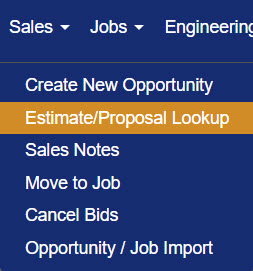
Figure 1
Estimates / Proposals Screen Display Defaults
The only filters selected by default are the first 4 Status options: Sales Lead, In Quoting, In Estimate, and Proposal Sent. (Figure 2) All Estimates/Proposals fitting that criteria will be displayed in a table in order of oldest Bid Date.
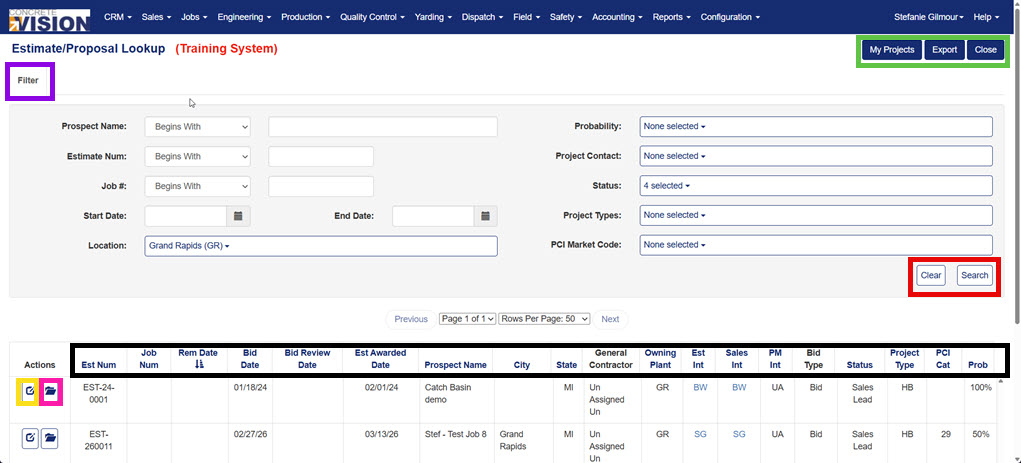
Figure 2
Sorting the Estimate / Proposal Table
The currently selected heading to sort by will have the sort by icon next to it ( )
)
- Click any of the blue headings (black box in Figure 2) to sort the table by that heading's category.
- Click the same heading again to change the sort by function to be descending instead of the default ascending.
Filtering the Estimate / Proposal Table
NOTE: Searching and clearing the filter leaves the current screen. Ensure you have saved all changes before completing one of these actions.
- Click the Filter button (purple box in Figure 2) at the top of the screen to open the filter menu.
- You can enter, change, and select any of the inputs/items to obtain specific results or fewer.
- To clear/reset a current filter, click the Clear button (red box in Figure 2).
- To re-generate the table using the filter, click the Search button (red box in Figure 2).
- To close/hide the filter, click the Filter button again (purple box in Figure 2).
To quickly change the filter to only display items you are included on, click the My Projects Button (green box in Figure 2).
Edit an Estimate / Proposal
To edit the information associated with an Estimate or Proposal, click the Edit button (yellow box in Figure 2).
Editing will be covered on a separate page.
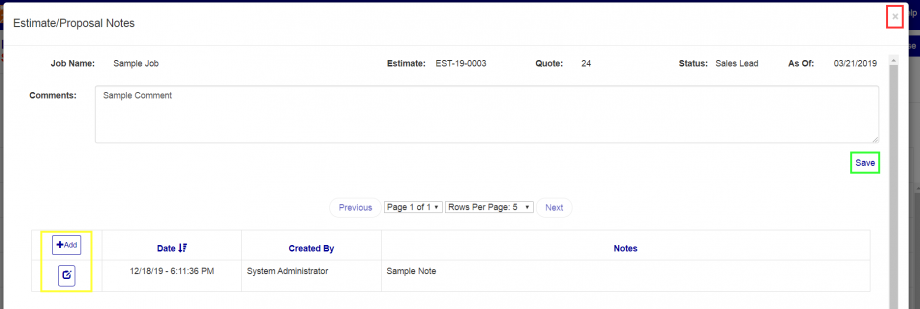
Figure 3
How to Add Notes and Comments to an Estimate / Proposal
- Click the corresponding Notes Button (pink box in Figure 2).
- Add notes within the window that opens (Figure 3).
- Click the Save button (green box in Figure 3).
To edit the Notes, click the Edit button to the left of the existing note (yellow box in Figure 3).
Was this article helpful?
That’s Great!
Thank you for your feedback
Sorry! We couldn't be helpful
Thank you for your feedback
Feedback sent
We appreciate your effort and will try to fix the article