You access Permissions – Project Screen from the Configuration > System Setup > Permissions – Project Screen, shown below in Figure 1
The screen is used to change permissions for different fields on Jobs Information Tab, Project Contacts Tab, Molds Tab, Contracts Tab, Sales Information Tab and Loads Tab.
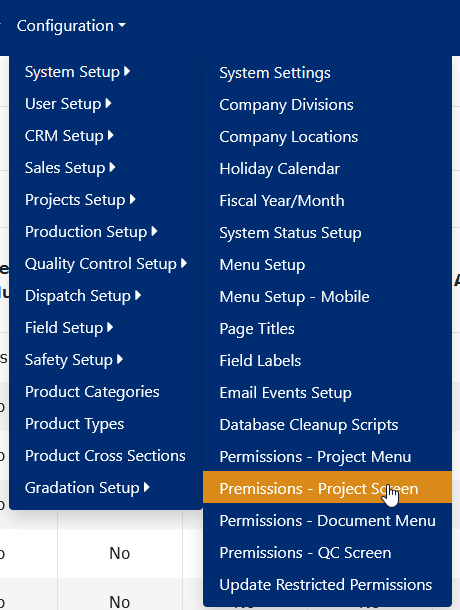
Figure 1
Project Screen Permissions List
This screen lists the permissions for the different project fields under the different screens (Job Information, Project Contacts, Molds, Contracts, Sales Information, Loads, etc.) for each module. To edit permissions for specific module, click on the “edit” button as shown in Figure 2.
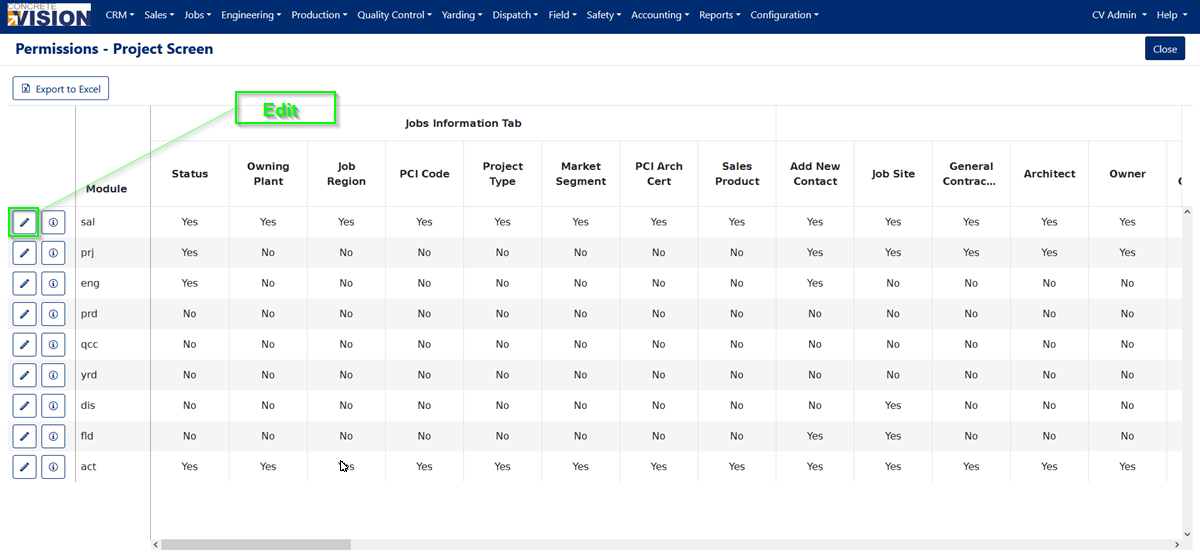
Figure 2
Jobs Information Tab
In the Job Information Tab (Red Box in Figure 3) section of the screen it will allow you to modify which are fields are editable for each module. (Red Box in Figure 4)
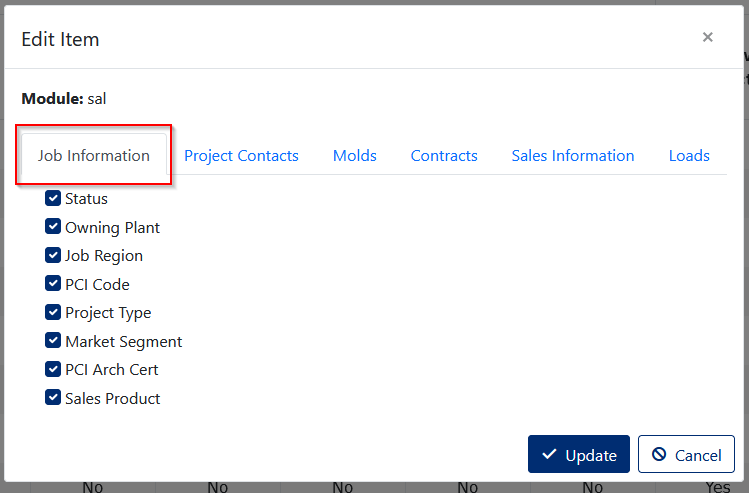
Figure 3
[Module] > Job Lookup > Job – Information
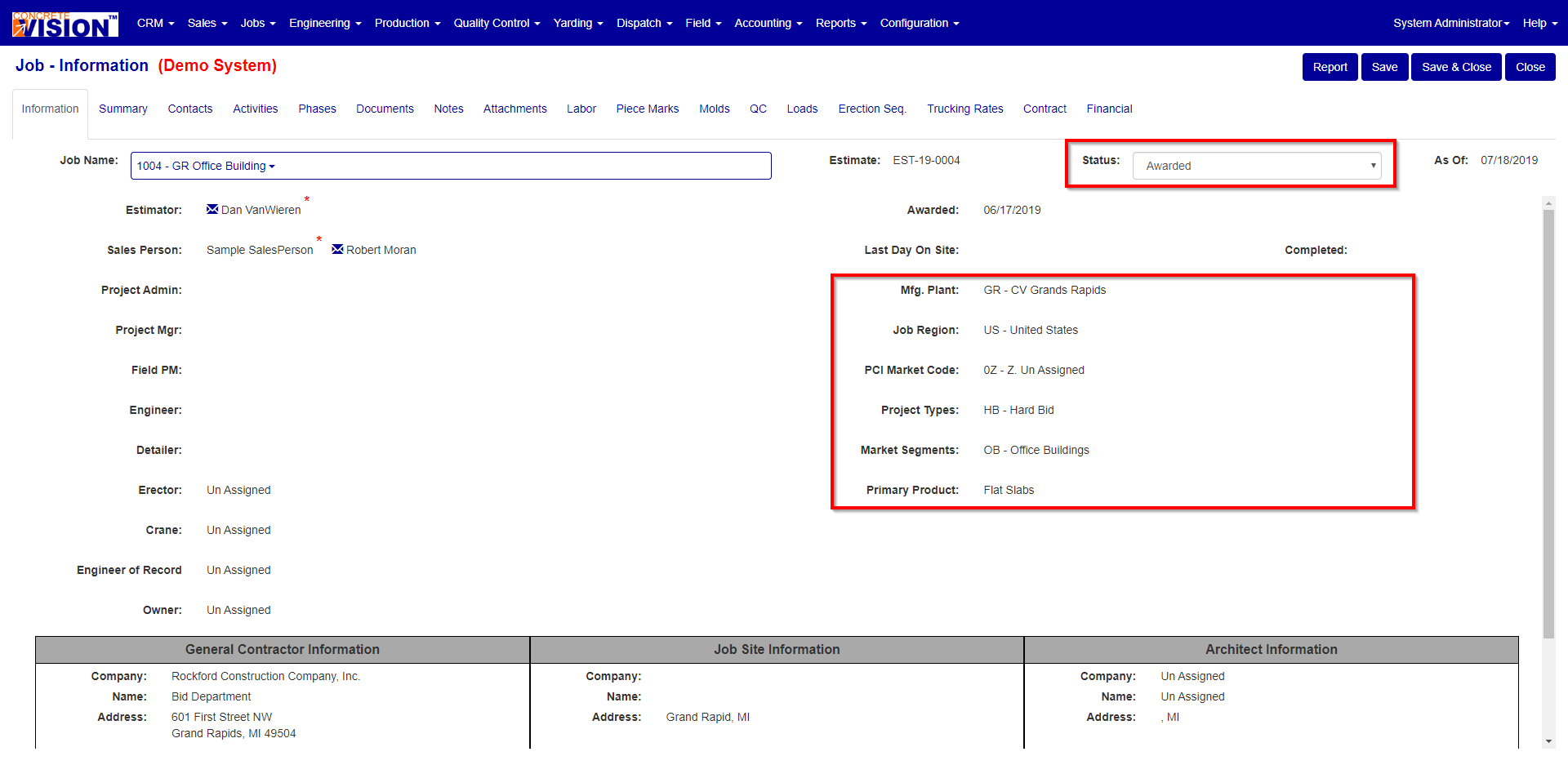
Figure 4
Project Contacts Tab
In the Project Contacts Tab (Red Box in Figure 5) section of the screen it will allow you to modify which Project Contacts are editable for each module. (Red Box in Figure 6)
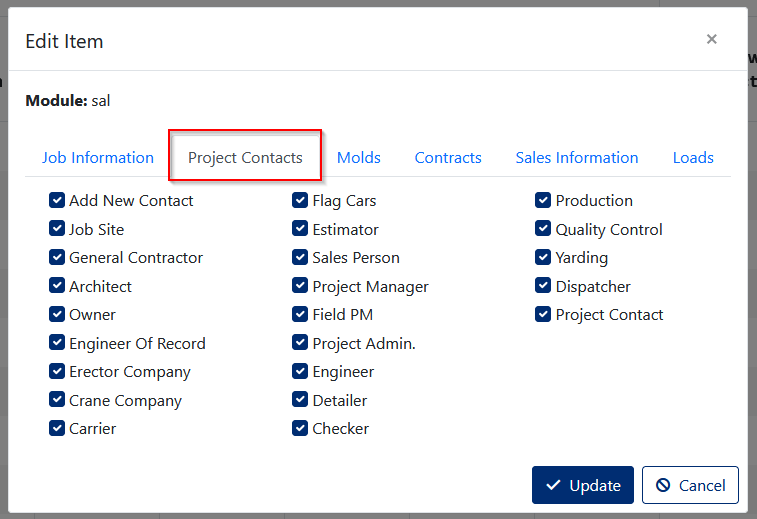
Figure 5
[Module] > Job Lookup > Contacts
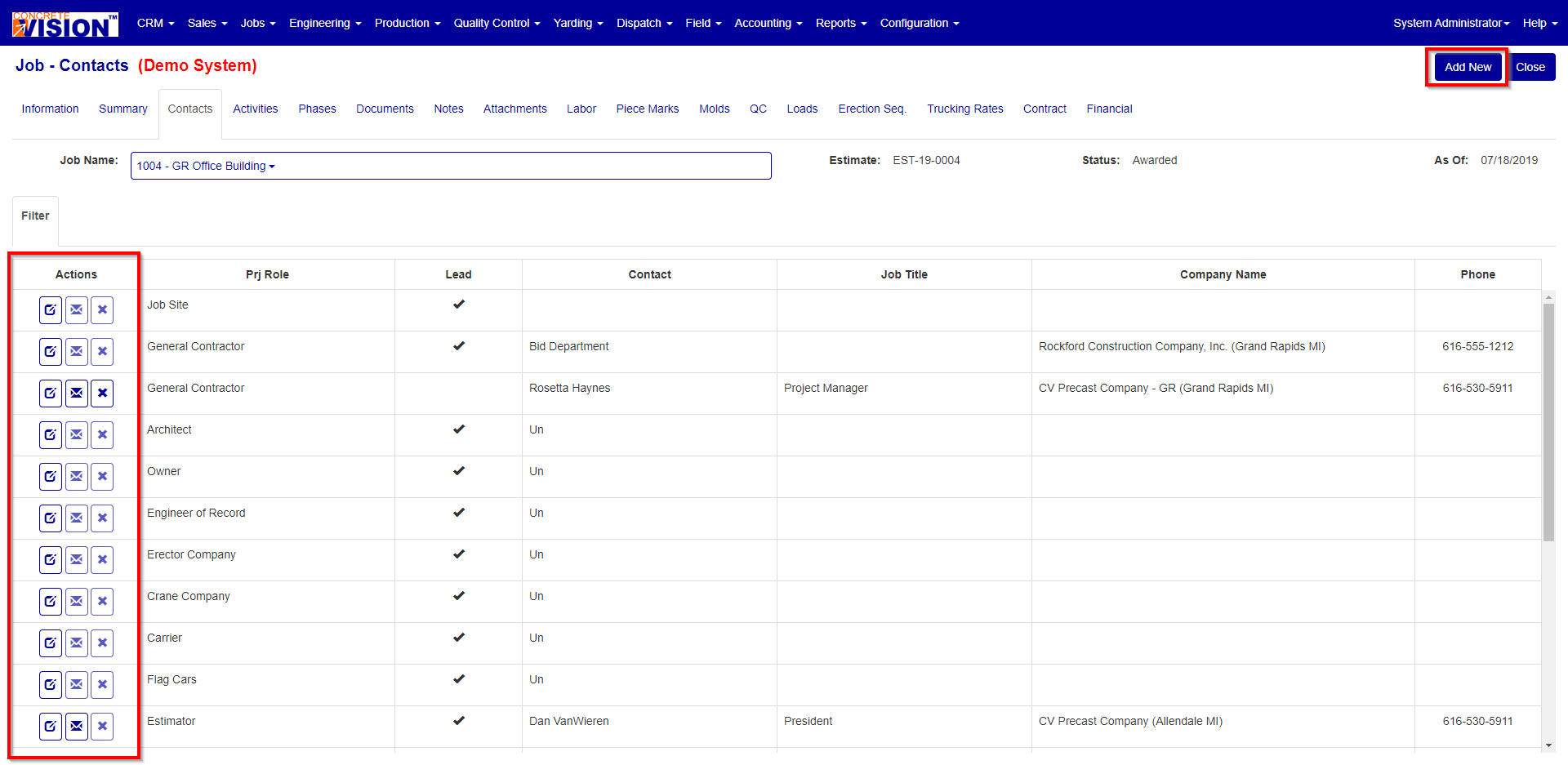
Figure 6
Molds Tab
In the Molds Tab (Red Box in Figure 7) section of the screen it will allow you to modify if a module will be able to Add, Edit or Delete Molds (Red Box in Figure 8)
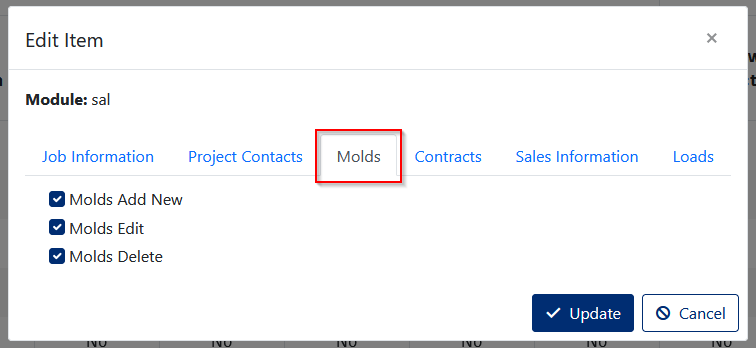
Figure 7
[Module] > Job Lookup > Molds
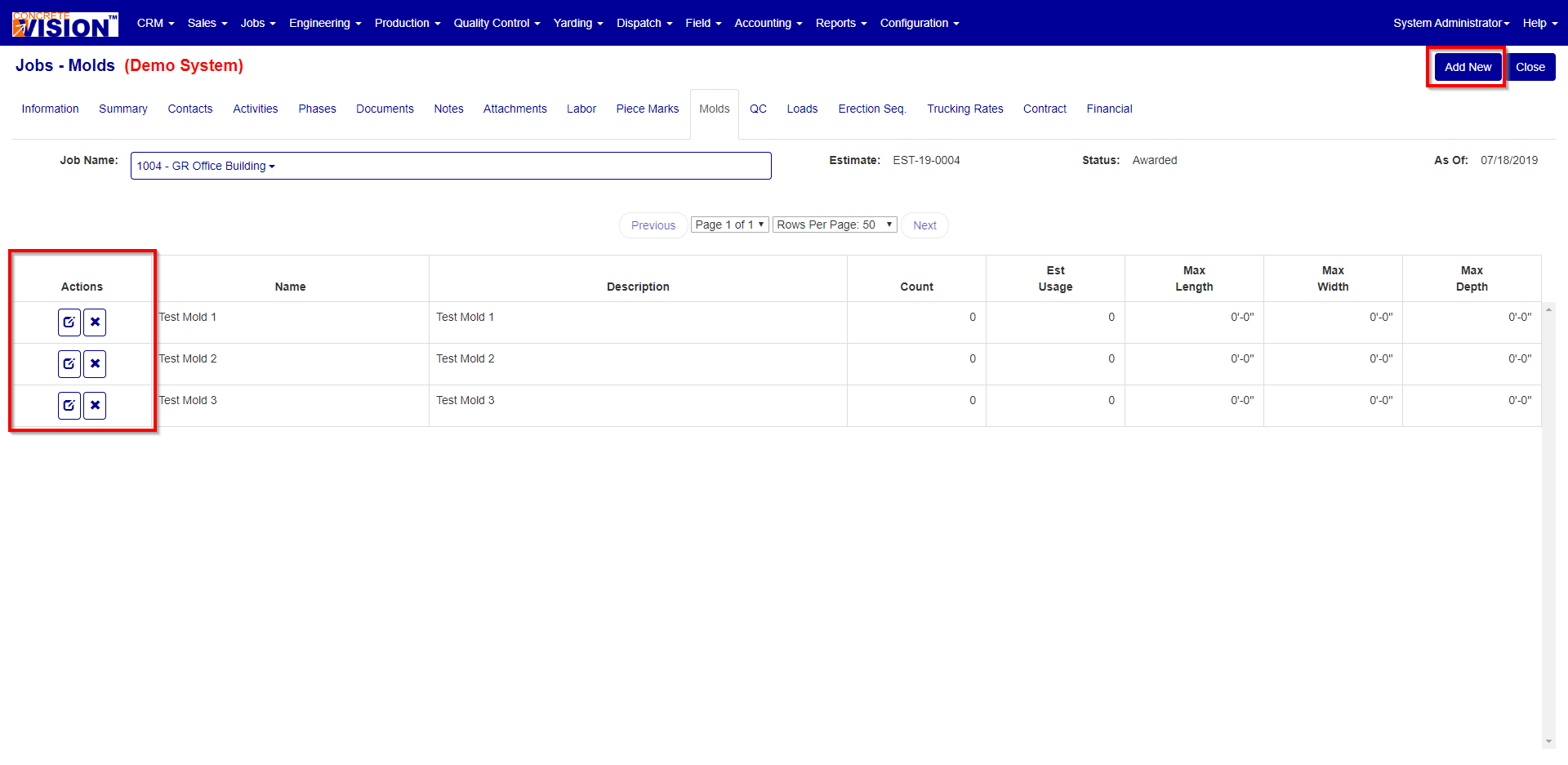
Figure 8
Contracts Tab
In the Contracts Tab (Red Box in Figure 9) section of the screen it will allow you to modify which are fields are editable for each module. (Red Box in Figure 10)
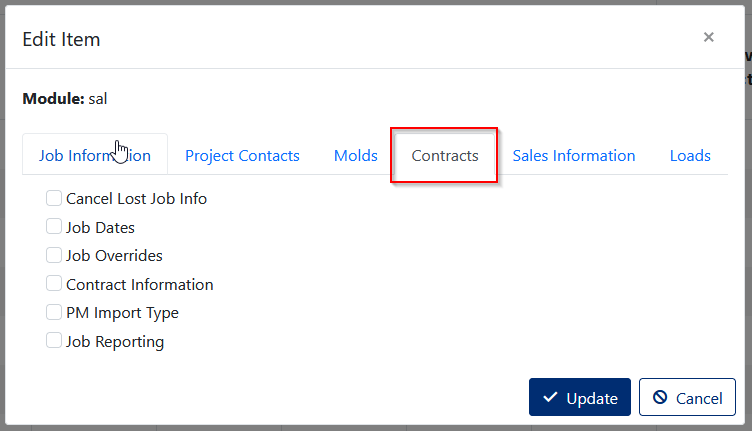
Figure 9
[Module] > Job Lookup > Contracts
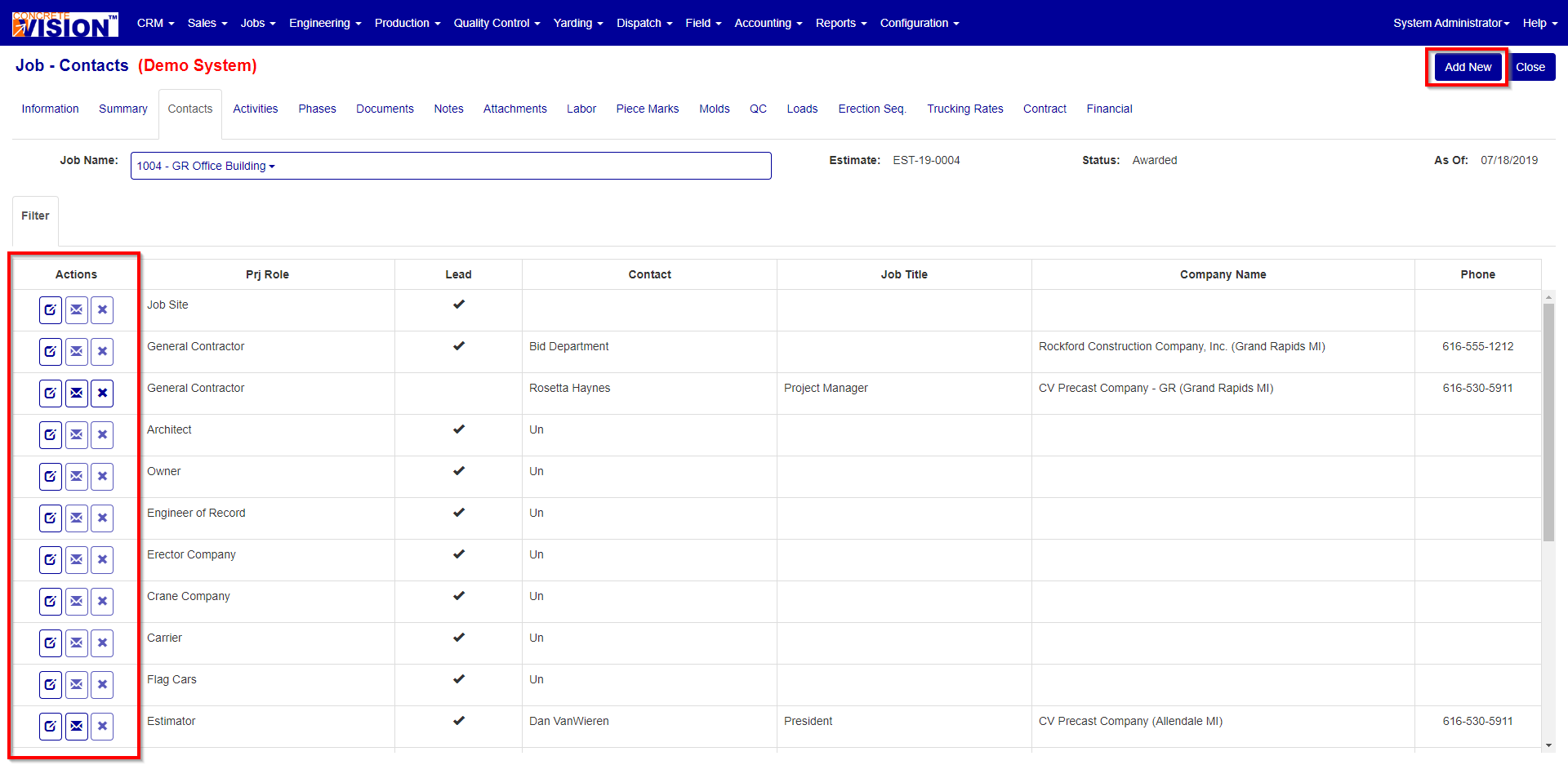
Figure 10
Sales Information Tab
In the Sales Information Tab (Red Box in Figure 11) section of the screen it will allow you to modify which are fields are editable for each module. (Red Box in Figure 12)
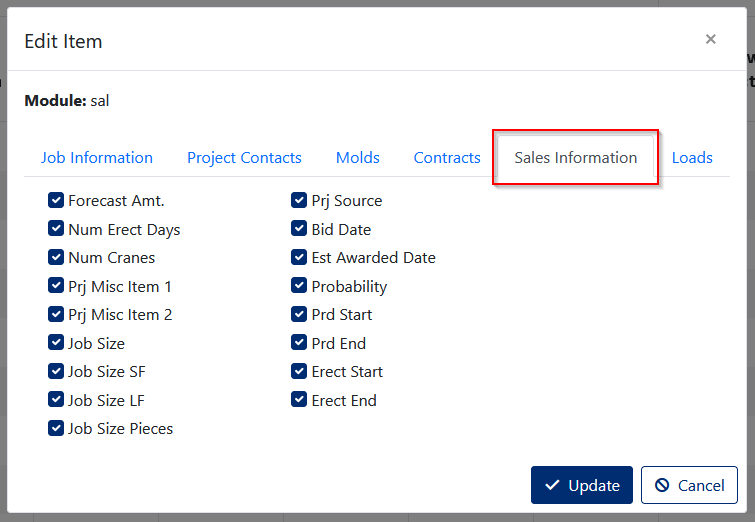
Figure 11
Sales > Estimate/Proposal Lookup > Sales Information
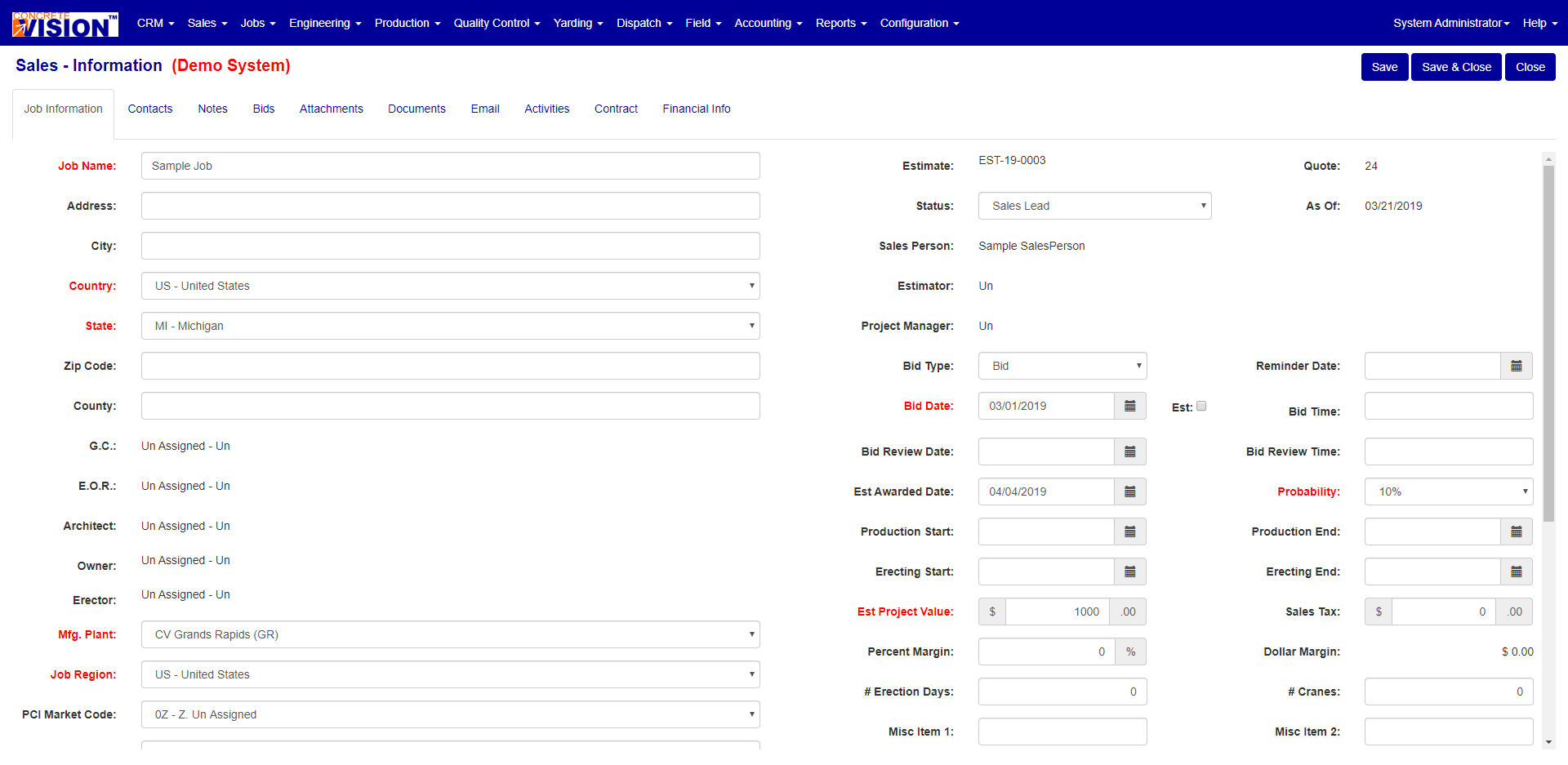
Figure 12
Loads Tab
In the Loads Tab (Red Box in Figure 13) section of the screen it will allow you to modify if the Special Instructions are editable for the module in question. (Red Box in Figure 14)
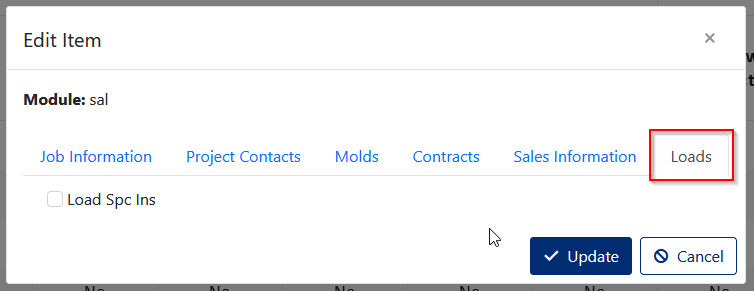
Figure 13
[Module] > Job Lookup > Loads
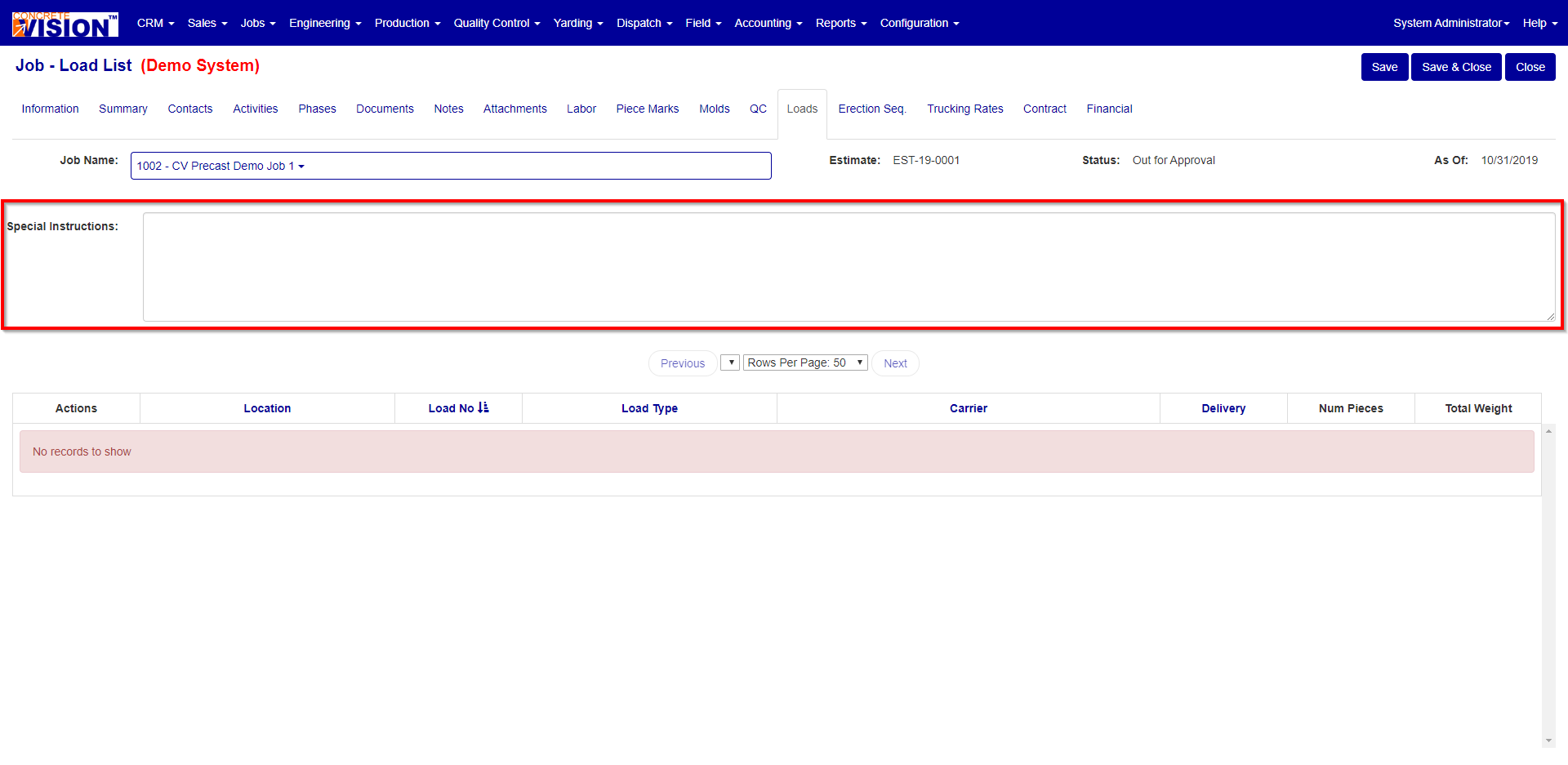
Figure 14
Was this article helpful?
That’s Great!
Thank you for your feedback
Sorry! We couldn't be helpful
Thank you for your feedback
Feedback sent
We appreciate your effort and will try to fix the article