Overview
The RFI (Request for Information) project document allows you to manage information requests throughout your project lifecycle. You can edit multiple aspects of each RFI including general information, distribution lists, responses, notes, attachments, emails, and audit logs.
Accessing RFI Documentation
- Navigate to Jobs Menu > Project Documents.
- Select RFI tab (Red box, Figure 2)
- Edit a Project (Green box, Figure 2)
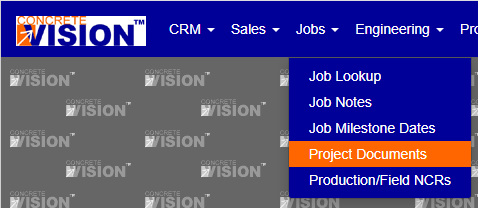
Figure 1

Figure 2
Adding Notes to Reports
Notes can be appended to any RFI report using the Report W/ Notes button (shown in orange in Figure 3).
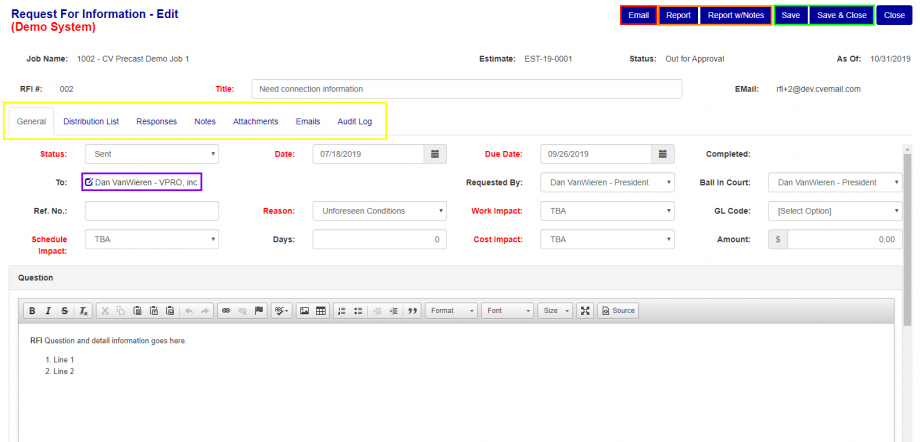
Figure 3
Edit Permissions
Important: You can only edit RFI information when ALL of the following conditions are met:
- The RFI status is Open, Sent, or Rejected
- You are one of the following:
- The Creator
- The Requester
- The person to whom "The Ball is in your Court"
- A member of the Distribution List
Navigation
The edit interface uses a tabbed navigation system (Yellow box, Figure 3) that allows you to quickly move between different sections:
- General - Basic RFI information
- Distribution List - Manage who receives notifications
- Responses - View and manage RFI responses
- Notes - Add supplementary information
- Attachments - Manage supporting documents
- Emails - View email history
- Audit Log - Track all changes
General Information
The General Information tab appears first when you open an RFI for editing (Figure 3).
Default Settings
- Requester: Automatically set to the RFI creator
- Ball in Court: Starts with the Requester
- Assigned To: No one is assigned by default
Assigning the RFI
To assign the RFI to someone:
- Click the edit icon (purple box, Figure 3)
- The Assigned To Edit screen will appear (Figure 4)
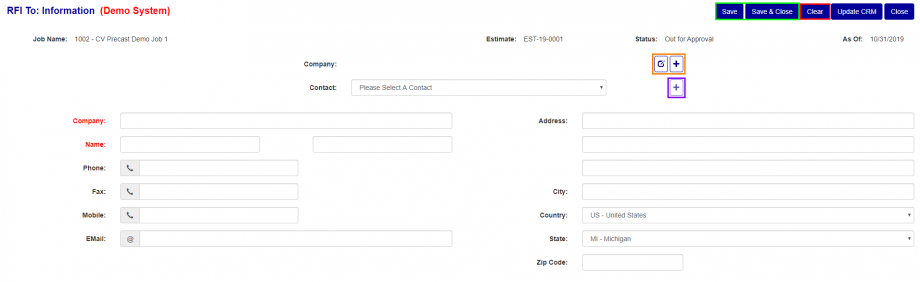
Figure 4
RFI To: Assignment Information
This screen allows you to manage who is responsible for responding to the RFI.
Editing the Assignee
To clear all assignee information:
- Click the Clear button (Red box, Figure 4)
To edit existing assignee information:
- Modify the relevant fields
- Ensure both Company and Name are filled out
- Click either Save or Save & Close (Green box, Figure 4)
Managing Companies
- Edit existing company: Click the Edit button (Orange box, Figure 4)
- Add new company: Click the +/Add button (Orange box, Figure 4)
Changing the Assignee
You have two options:
- Select an existing contact from the dropdown menu
- Create a new contact using the +/Add button (Purple box, Figure 2)
Note: Adding a new contact or company will redirect you to the standard add page for that field type.
Distribution List
The Distribution List shows everyone involved with the RFI and determines who receives email notifications.
Managing the Distribution List
To remove a contact:
- Click the X button (Red box, Figure 5) next to their name
To add contacts:
- Click the + button (Green box, Figure 5)
- You'll be redirected to the standard Contact search screen
- Check the boxes next to all contacts you want to add (checkboxes appear in the first column)
- Click Save to add the selected contacts
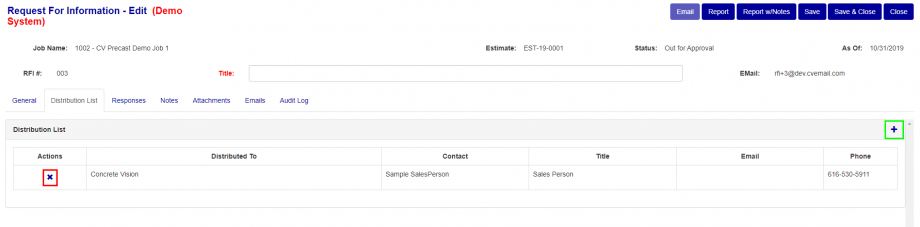
Figure 5
RFI Response
The Response tab displays all responses submitted for the RFI.
Adding a Response
- Click the +/Add button (Green box in Figure 6)
- Enter your response in the text box on the next screen
- When ready, check the Accepted checkbox (Orange box in Figure 6)
- Click either Save or Save & Close (Figure 6)
Managing Responses
To delete a response:
- Click the X/Delete button (Red box, Figure 6)
To edit a response:
- Click the Edit button (Yellow box, Figure 6)
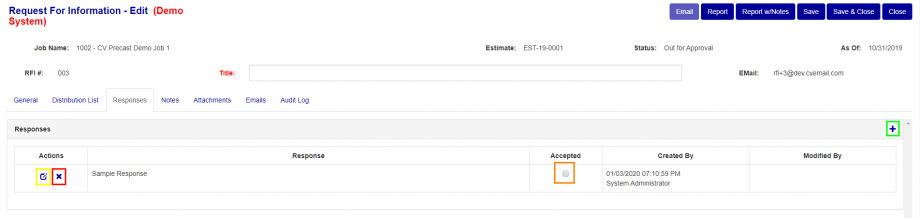
Figure 6
Notes
The Notes section uses the standard notes interface (Figure 7).
For detailed documentation, visit: https://helpdesk.concretevision.com/support/solutions/articles/11000114500-notes
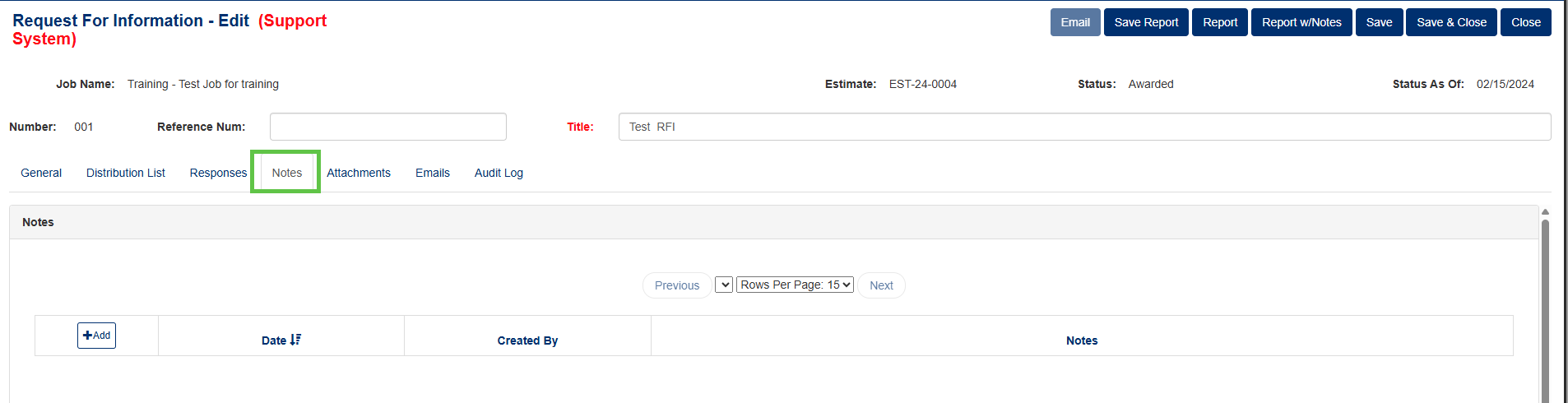
Figure 7
Attachments
The Attachments section uses the standard attachments interface (Figure 8).
For detailed documentation, visit: https://helpdesk.concretevision.com/support/solutions/articles/11000114501-working-with-attachments
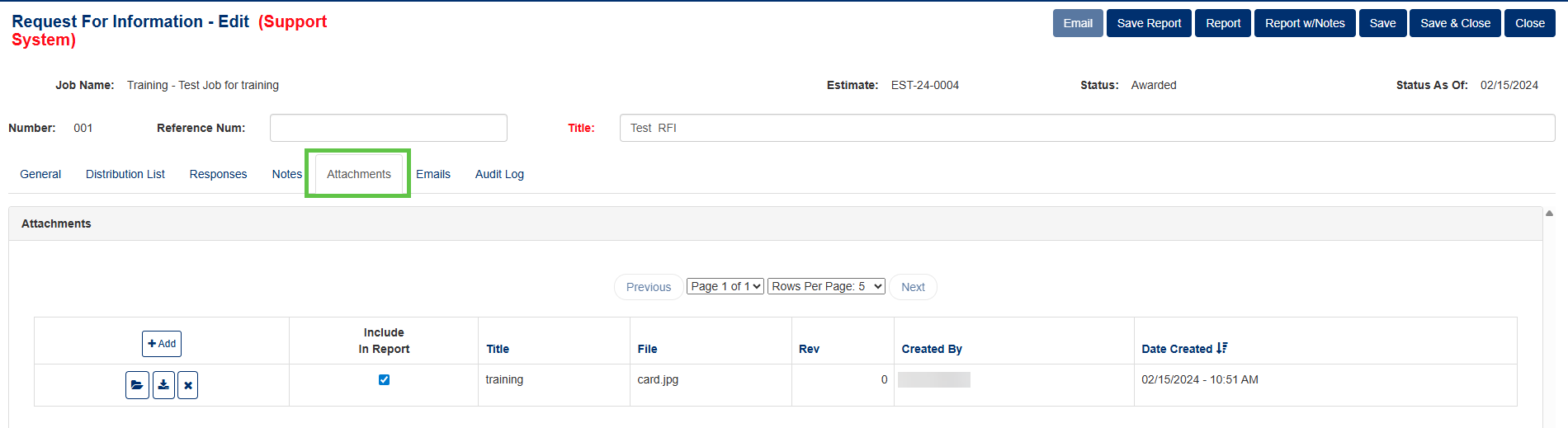
Figure 8
Important: You can only send emails when the RFI status is Sent or Rejected.
Viewing Email History
Once emails have been sent, you can review them in this tab:
To view email details:
- Click the View/folder button (Orange box, Figure 9)
- A window will open displaying the complete email content
To download email attachments:
- Click the PDF link (Green box, Figure 9)
To sort emails:
- Click any blue column header (Purple boxes, Figure 9):
- Date - Sort by when the email was sent
- From - Sort by sender
- Subject - Sort alphabetically by subject line
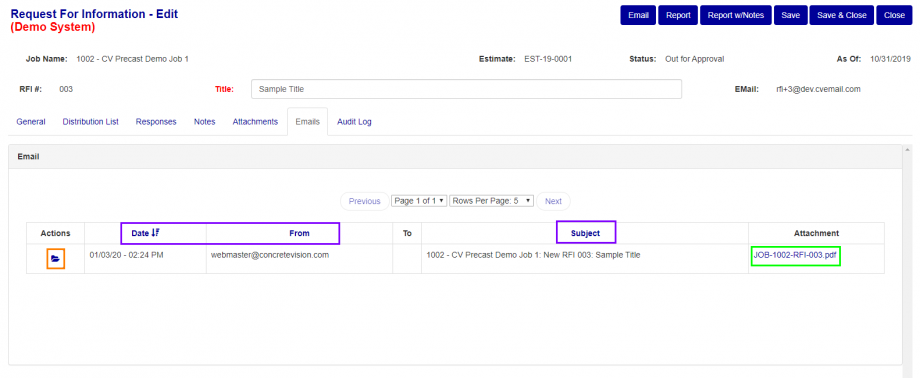
Figure 9
Audit Log
The Audit Log provides a complete history of all changes made to the RFI (Figure 10), including:
- Who made each change
- When the change occurred
- What was modified
This creates a transparent record of the RFI's evolution throughout the project lifecycle.
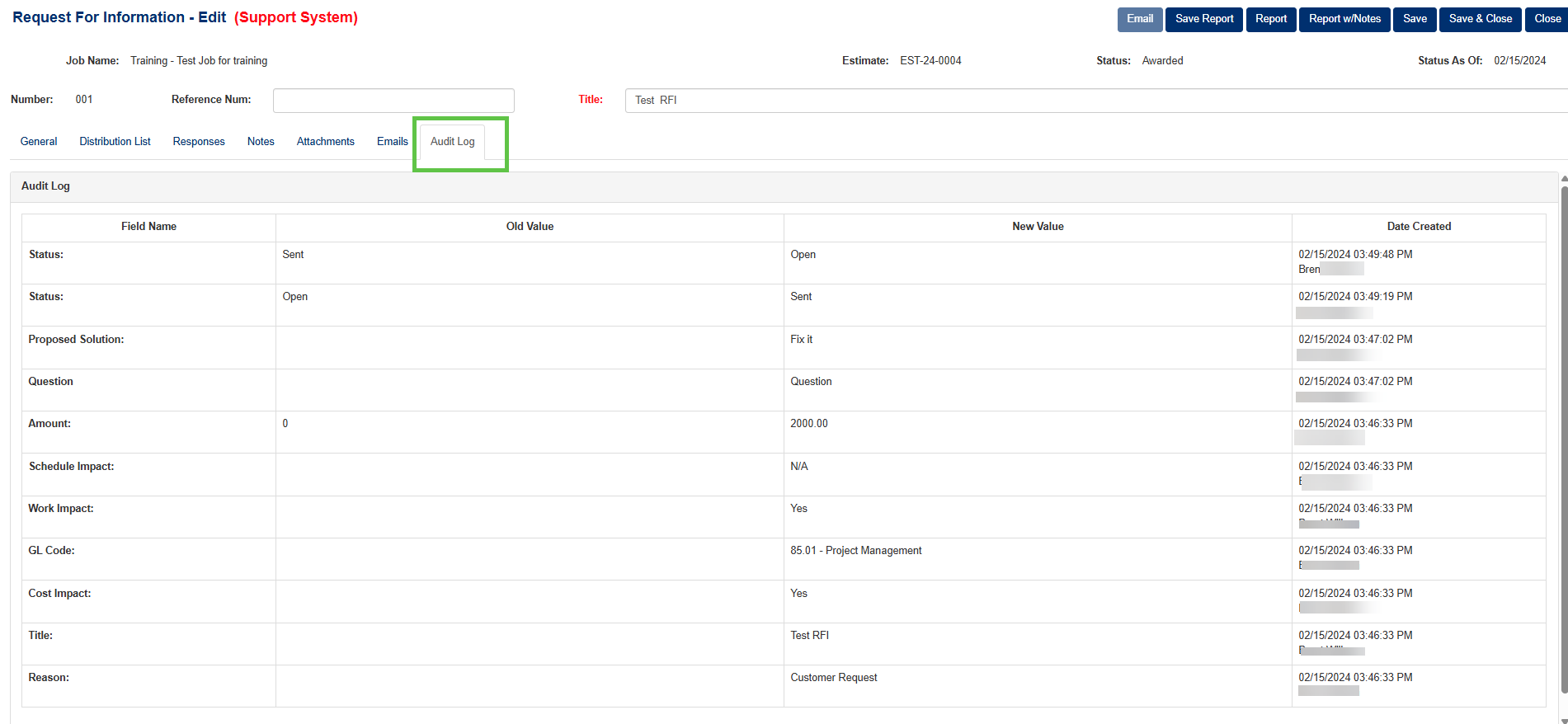
Figure 10
Was this article helpful?
That’s Great!
Thank you for your feedback
Sorry! We couldn't be helpful
Thank you for your feedback
Feedback sent
We appreciate your effort and will try to fix the article