Overview
The Project Documents screen allows you to manage various project-related documents including Checklists, RFI, Transmittals, Issues, Meetings, Letters, CO Requests, Handling Documents, Field Reports, and Job Itemized Tracking.
Accessing Project Documents
The Project Documents screen can be accessed in multiple modules in Concrete Vision, including Jobs, Engineering and Fields.
Navigate to Jobs Menu > Project Documents (see Figure 1).
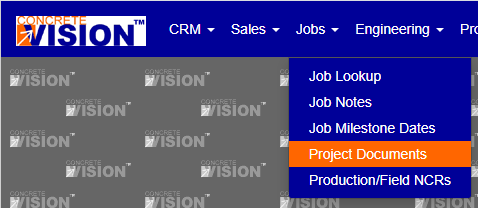
Figure 1
Screen Layout and Navigation
When you first access Project Documents, the Checklist tab displays by default (Figure 2) which highlights all the Projects. All document types share the same layout and functionality, with only the title changing between tabs.
Navigate between document types using the tabs at the top of the screen:
- Checklist
- RFI
- Transmittals
- Issues
- Meetings
- Letters
- CO Requests
- Handling Documents
- Field Report
- Job Itemized Tracking
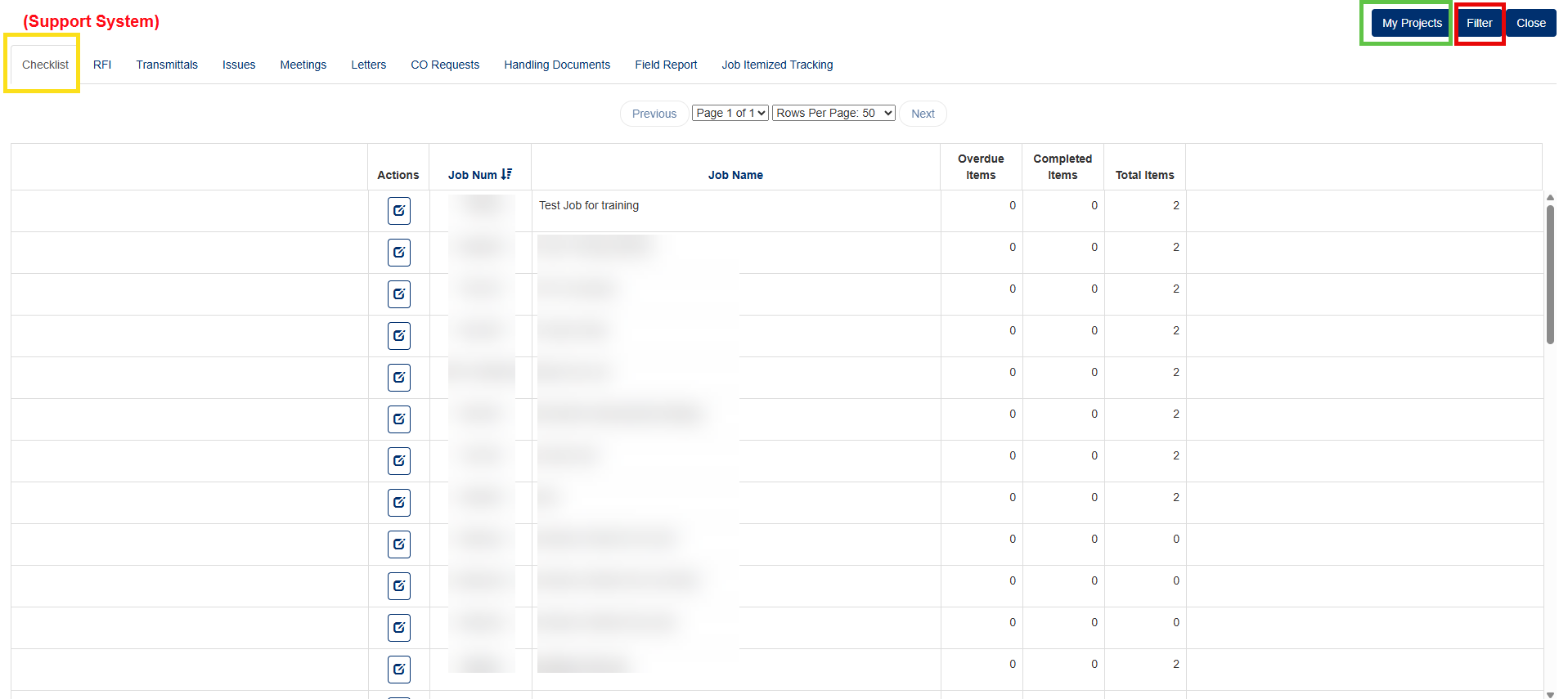
Figure 2
Key Functions
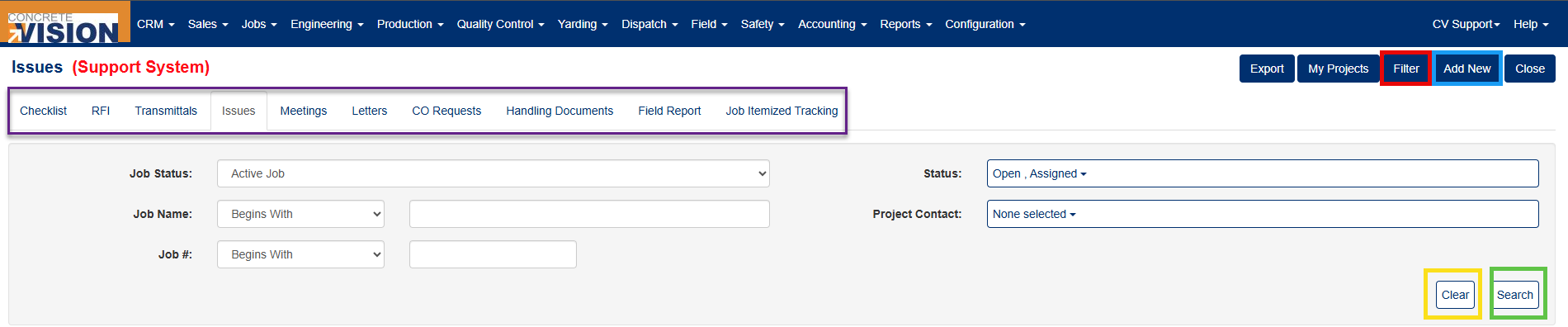
Figure 3
Adding a New Document
- Click on the respective Project Document
- Click the "Add New" button (Blue box, Figure 3)
- Select the job you want to add the document to from the popup window (Figure 4)
- Click "Add New" again to confirm (Red box, Figure 4)
- The system creates a new document and redirects you to the Edit page
- Fill in the required information (see Edit section below)
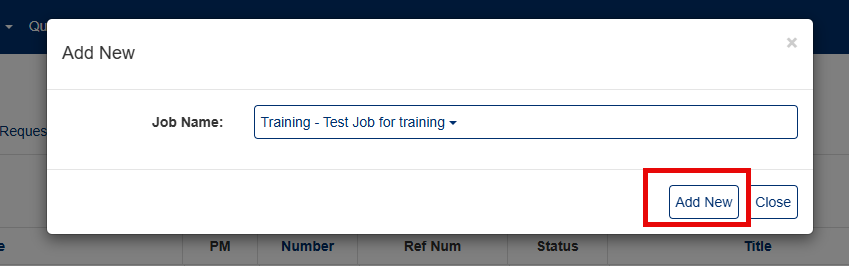
Figure 4
Filtering Documents
Use the "Filter" button (Green button, top right) to narrow down displayed documents by:
- Job Status - Filter by active, completed, or other job statuses
- Job Name - Search for specific job names
- Job # - Filter by job number
- Status - Document status (Open, Assigned, Closed, etc.)
- Project Contacts - Filter by assigned contacts
Quick Filter Tip: Click the "My Projects" button to automatically filter documents where you are listed as the Project Contact (Green box, Figure 2).

Figure 5
Sorting Documents
You can sort the document list by clicking any blue column heading (Green box, Figure 5):
- Job Num #
- Job Name
- Number
- Title
- Cost Type
- Status
- Date
- Date Created
Click the same heading again to reverse the sort order (ascending ↔ descending).
Managing Documents
View/Edit a Document
Click the Edit icon (Yellow box, Figure 5) to open the document's edit page. Each document type has a unique edit page tailored to its specific requirements.
Generate a Report
Click the Report/Printer icon (Orange box, Figure 5) to open a printable report in a new browser tab. From there, you can download or print the document.
Delete a Document
- Click the "X"/Delete button (Red box, Figure 5)
- Confirm the deletion when prompted (Figure 6)
Note: Deleted documents cannot be recovered.
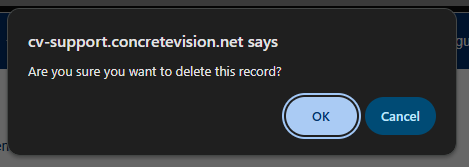
Figure 6
Document-Specific Features
Edit Pages
Each document type (Issues, RFI, Transmittals, etc.) has a customized edit page with fields specific to that document type. Detailed instructions for each document type are covered in separate help articles.
Email Functionality
Email capabilities vary by document type and are explained in the specific documentation for each module.
Was this article helpful?
That’s Great!
Thank you for your feedback
Sorry! We couldn't be helpful
Thank you for your feedback
Feedback sent
We appreciate your effort and will try to fix the article