Overview
The Job Notes screen provides a single location to view all Job notes from newest to oldest. The screen can be filtered for specific notes based on:
- Job Name
- Date Range
- Note Creator
Accessing the Screen
Navigate to Jobs > Job Notes from the main menu (Figure 1).
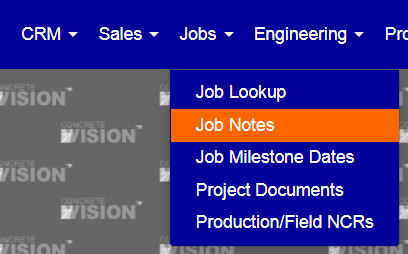
Figure 1
Filtering the Job Notes Screen
To view specific notes in the Job Notes table, select from the filter parameters.
- Click the Filter tab (purple Box Figure 2). The filter tab will expand.
- Select filter options to narrow the search for specific job notes.
- Click the Search button (green Box in Figure 2).
- Click the Clear button (red Box in Figure 2) to remove all filter parameters.
View Your Job Notes Only
To quickly filter to Job Notes where you are the creator, click the My Notes button (Orange Box Figure 2).
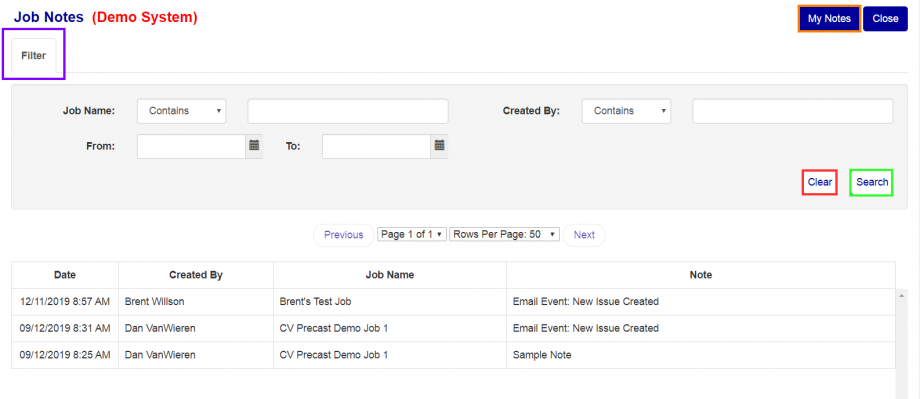
Figure 2
Was this article helpful?
That’s Great!
Thank you for your feedback
Sorry! We couldn't be helpful
Thank you for your feedback
Feedback sent
We appreciate your effort and will try to fix the article