Overview
The Transmittal Project Document allows you to manage project communications. You can edit the following sections:
- General Information
- Distribution List
- Items
- Linked Documents
- Notes
- Attachments
- Emails
- Audit Log
Access Permissions
Important: You can only edit a Transmittal if it is in Open status AND you are one of the following:
- The Creator
- The Requester
- The person with "Ball in Court" responsibility
- On the Distribution list
Users without these roles who need to edit Transmittals must be added to one of these roles.
General Information
The General Information screen appears first when editing a Transmittal. You can navigate to other sections using the tabs under the title. (Figure 1- yellow box)
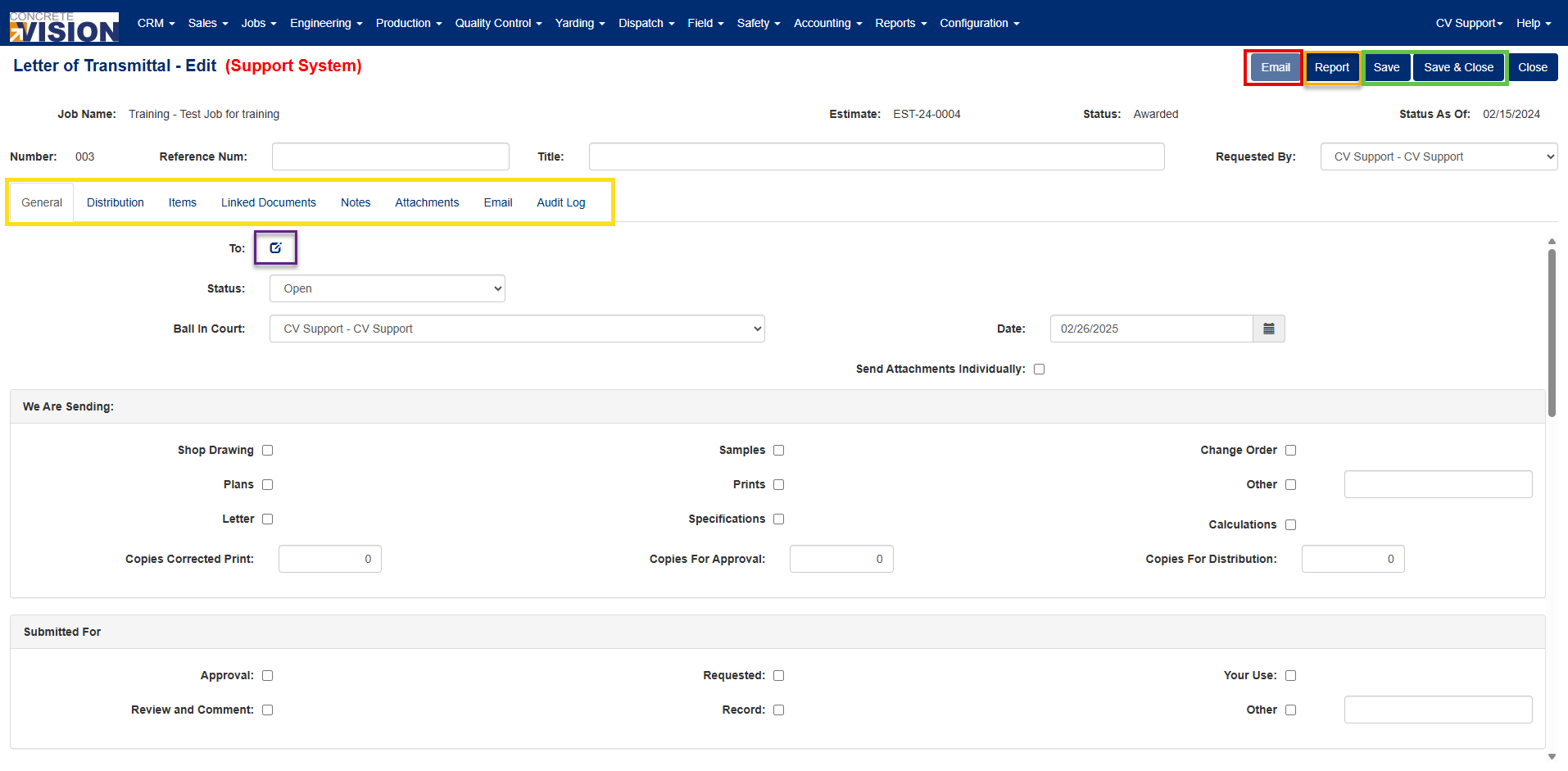
Figure 1
Default Settings
By default:
- The creator of the Transmittal is also the Requester
- The "Ball" starts in the creator's Court
- No one is assigned to the Transmittal initially
Changing Assignment
To change who the Transmittal is assigned to:
- Click the edit icon in the General Information screen (Figure 1 - purple box)
- This will open the "Assigned To" edit screen
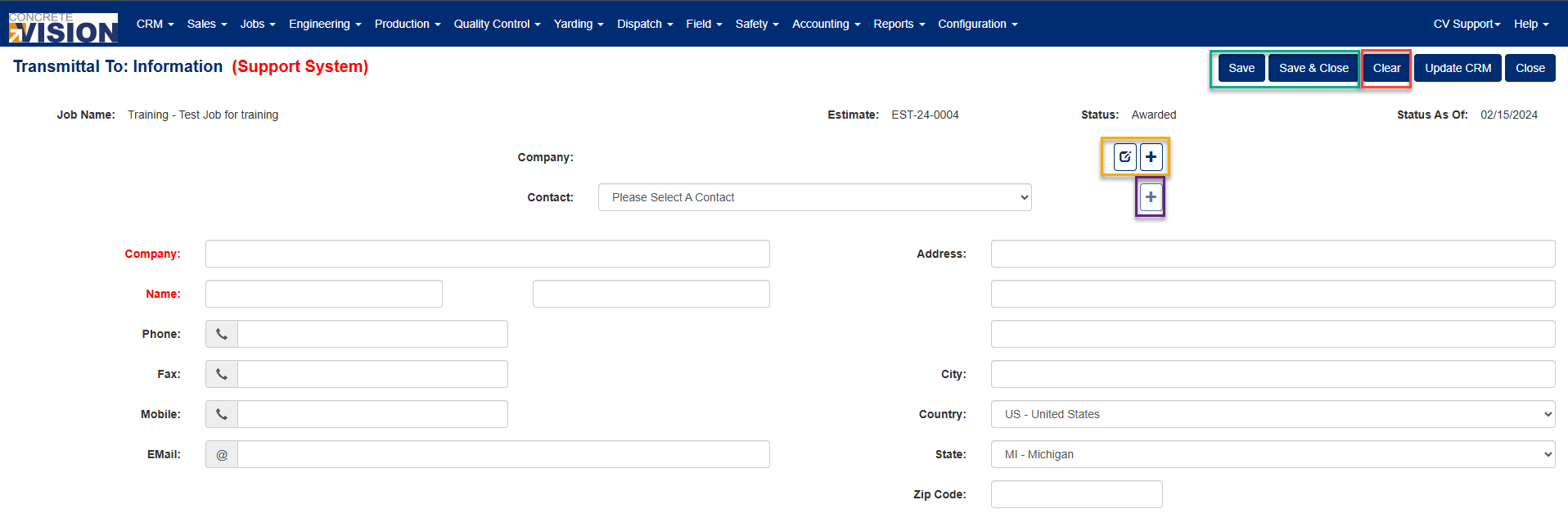
Figure 2
From this screen, you can:
- Edit information for the existing assignee
- Add a new contact as the assignee
- Clear the current assignee by clicking the "Clear" button
When editing assignee information:
- Ensure Company and Name fields are filled out
- Click either "Save" or "Save & Close" to confirm changes. (Figure 2 - Green box)
To change the assigned individual's company:
- Use the "Edit" button to modify the existing company (Figure 2 - Orange box)
- Use the "+/Add" button to select a different company
To change the assignee:
- Select a new contact from the dropdown menu
- Or enter a new contact using the "+/Add" button
Note: Adding a new contact or company will take you to the standard add page for the corresponding information. (Figures 3 & 4 respectively.
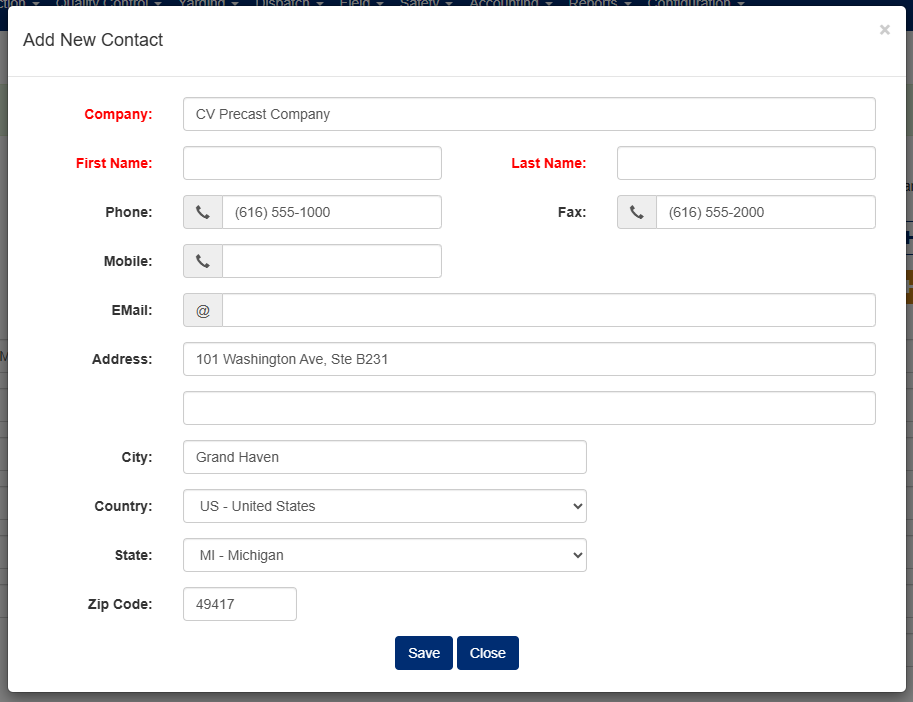
Figure 3
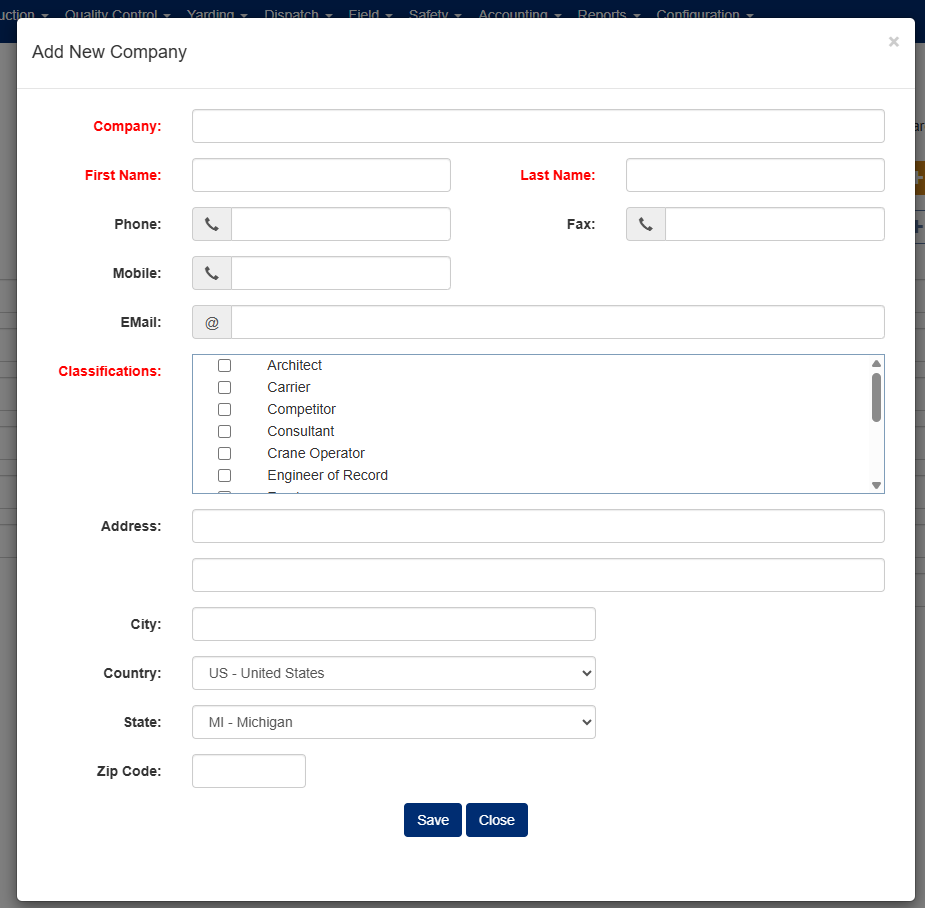
Figure 4
Distribution List
The Distribution list shows everyone involved with the Transmittal and is used for email communications.
To manage the Distribution list:
- Remove a contact: Click the "X" button next to their name (Figure 5 - Red box)
- Add contacts: Click the "+" button to open the Contact search screen (Figure 4 - Green box)
- Check the boxes for all contacts you wish to add
- Click "Save" to add the selected contacts
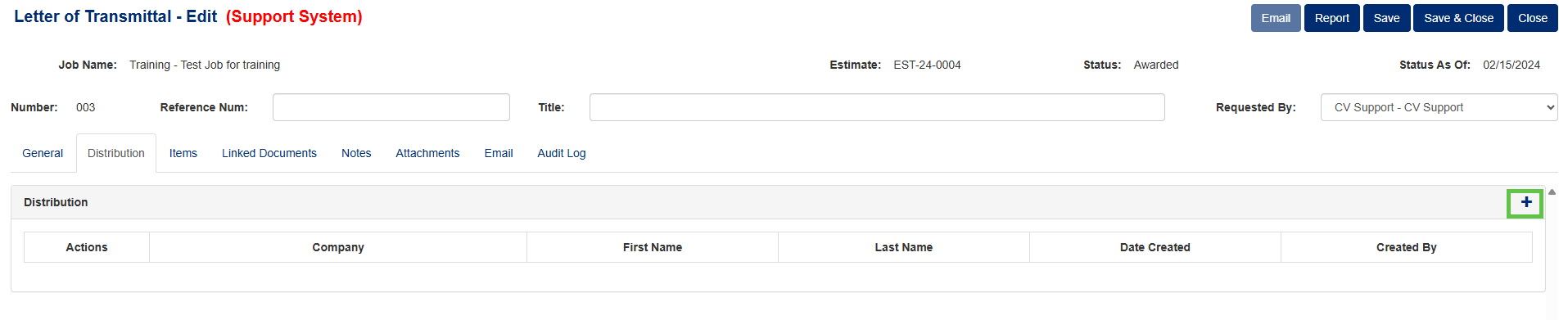
Figure 5
Items
The Items list displays all items included in the Transmittal.
To manage Items:
- Remove an item: Click the "X" button next to the item
- Edit an item: Click the "Edit" button next to the item
- Add a new item: Click the "+" button (Figure 6 - Green box)
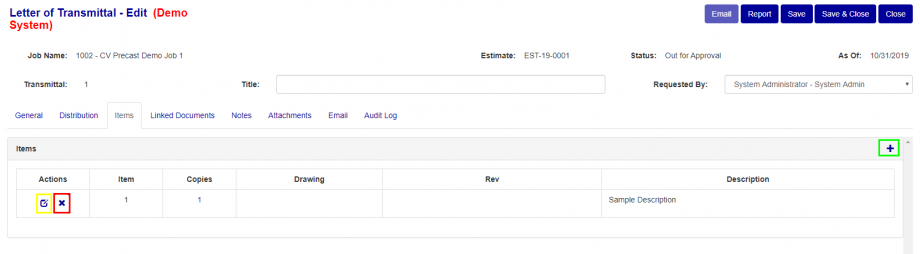
Figure 6
When adding a new item, you must provide:
- Item # (number)
- Copies (quantity)
- Description
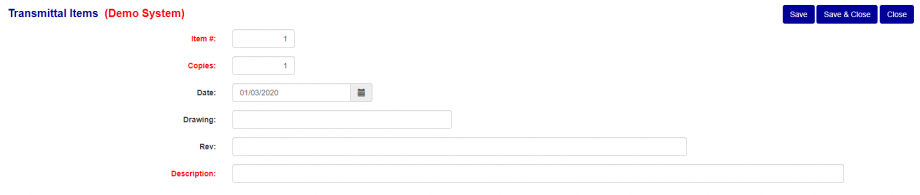
Figure 7
Linked Documents
The Linked Documents list shows all documents connected to this Transmittal.
To manage Linked Documents:
- Remove a document: Click the "X" button next to the document
- Add a new linked document: Click the "+" button (Figure 8 - Green box)

Figure 8
To add a linked document:
- Select the desired document from the dropdown menu
- Click the "Save" button

Figure 9
Notes
This section uses the standard notes functionality.
For detailed documentation, visit: http://support.concretevision.com/documentation/notes/
Attachments
This section uses the standard attachments functionality.
For detailed documentation, visit: http://support.concretevision.com/documentation/attachments/
Important: You can only send an email if the Transmittal status is either "Sent" or "Closed".
Once emails have been sent, you can:
- View email details: Click the "View/folder" button
- Download attachments: Click the PDF link
- Sort the email list: Click on the blue headers (Date, From, or Subject)
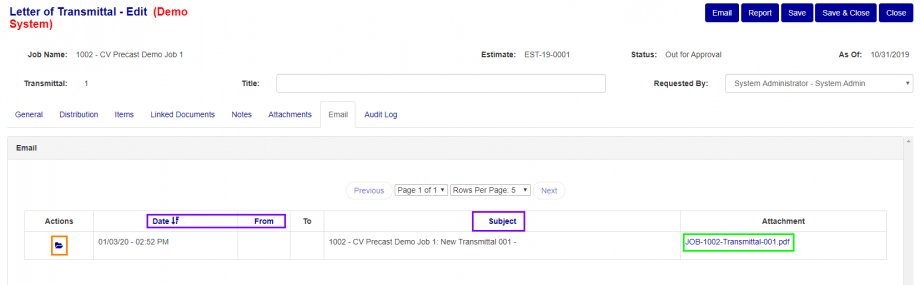
Figure 10
Audit Log
The Audit Log provides a complete history of all changes made to the Transmittal, including:
- Who made each change
- When changes were made
- What was modified
Was this article helpful?
That’s Great!
Thank you for your feedback
Sorry! We couldn't be helpful
Thank you for your feedback
Feedback sent
We appreciate your effort and will try to fix the article