Overview
The Meeting screen in Project Document allows you to manage project meeting materials.
Accessing Project Documents: Meeting
- Navigate to Jobs > Project Documents from the main menu.
- Click the Meeting tab.
Creating a New Project Meeting
From the Meeting screen:
- Click the Add New button. A pop-up window will display.
- Select the job from the dropdown menu.
- Click Add New to add a meeting to the selected job. The Meeting - Edit screen will display.
- Add any meeting content and options.
- Click the Save button to save the information, or the Save & Close button to save the information and return to the Meeting screen.
Editing a Project Meeting
Each meeting in project documents contains seven different tabs. The General info screen is the first edit screen to appear (Figure 1). Navigate to the other edit document screens by using the tabs under the title (Yellow box Fig. 1):
- General info (Fig. 1)
- Topics
- Attendees
- Notes
- Attachments
- Emails
- Audit log
Note: To edit meeting information, meeting must not be in the Voided status AND you are either the creator or organizer.
Edit Meeting - General Tab
By default, the meeting's organizer is assigned to it. To change this, use the provided dropdown.
**The Subject must be defined to save information
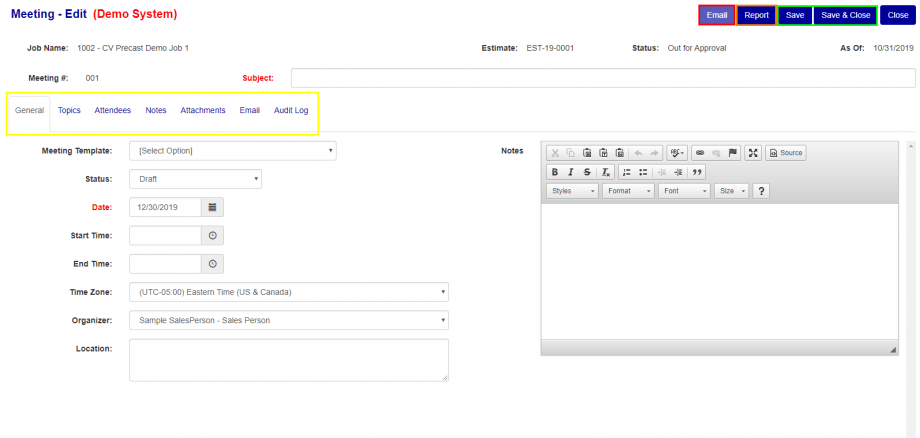
Figure 1
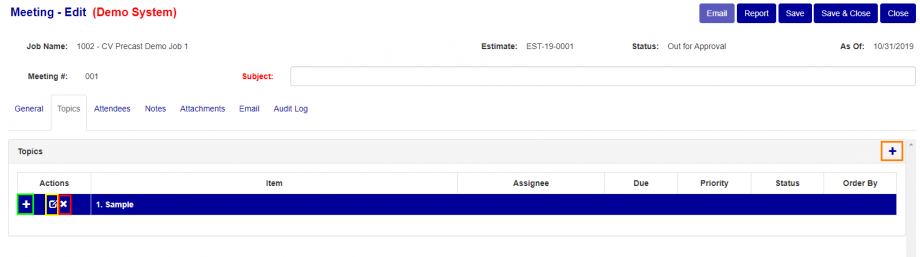
Figure 2
Edit Meeting: Topics Tab
- Add a new topic: Click the “+/Add” Button (Orange box Fig. 2) and fill out the detail on the edit screen (Fig. 3).
- Edit a topic: Click the “Edit” button (Yellow box Fig. 2) on the corresponding topic.
- Remove a topic: Click the “X/Delete” Button (Red box Fig. 2) on the corresponding topic.
- Add detail or sub-topics: Click the “+/Add” Button (Green box Fig. 2) on the corresponding topic. This will redirect you to the edit page for the new detail/sub-topic (Fig. 4). After adding the detail, Save or Save & Close, or use the Save & New which automatically creates and opens the edit for a new detail item/sub-topic.

Figure 3
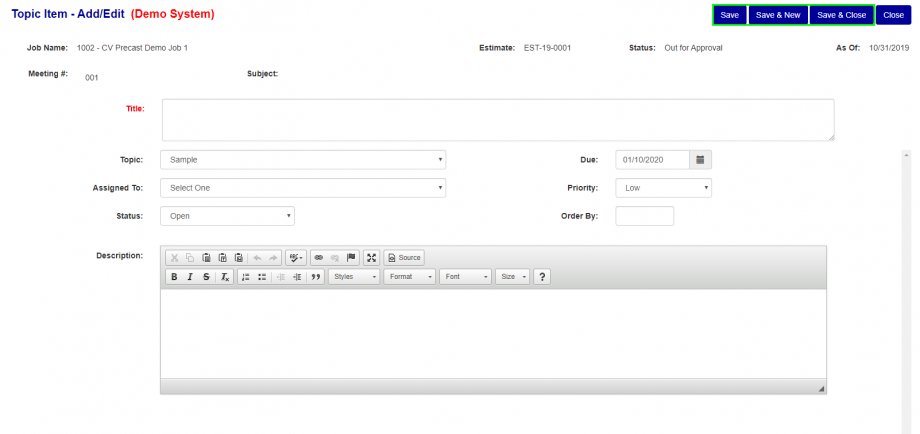
Figure 4
Edit Meeting: Attendees Tab
The Attendees list can be used to show everyone involved with the meeting and is used for emails.
- Remove an individual: Click the corresponding “X” Button (Red box Fig. 5)
- Add a contact or multiple contacts: Click the “+” Button (Green box Fig. 5). This will take you to the standard Contact search screen with the exception that it will check boxes along the first column. Check all contacts to add. Click Save to add them.
Once the meeting has started, use the last column to mark the individuals on the list as N/A, Absent, or Present. Once all attendance has been taken, click Save or Save & Close.
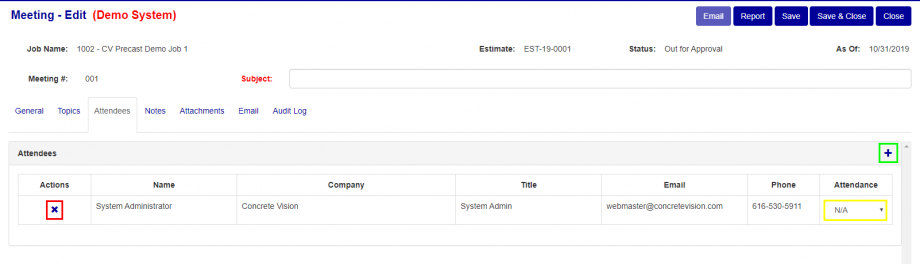
Figure 5
Edit Meeting: Notes Tab
This is the standard notes menu, see the link for documentation
http://support.concretevision.com/documentation/notes/
Edit Meeting: Attachments Tab
This is the standard Attachments menu, see link for documentation
http://support.concretevision.com/documentation/attachments/
Edit Meeting: Email Tab
Important: You can only send emails if you are the Organizer
Once emails have been sent, you can:
- View email details: Click the "View/folder" button
- Download attachments: Click the PDF link
- Sort the email list: Click on the blue headers (Date, From, or Subject)
Edit Meeting: Audit Log Tab
The Audit Log provides a complete history of all changes made to the Meetings, including:
- Who made each change
- When changes were made
- What was modified
Was this article helpful?
That’s Great!
Thank you for your feedback
Sorry! We couldn't be helpful
Thank you for your feedback
Feedback sent
We appreciate your effort and will try to fix the article