Attachments
**The screen included in the figures is an example of functionality for attachments and may not reflect the screen that led you to this page.
There are multiple screens that include the attachments option/tab. This is just a demonstration of functionality using the Issue List screen, but functionality should remain constant throughout the different modules and screens.
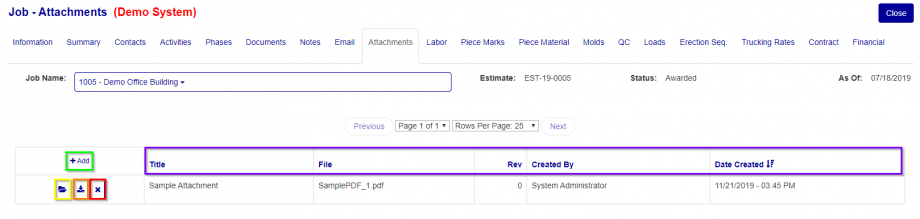
Fig. 1
The attachments function similarly to most list style screens within Concrete Vision with the ability to view, add, and delete attachments by using those functions on the left-most column of the corresponding rows of attachments.
Sort and Order
You can sort the attachments by using the headings of the columns (Purple box Fig. 1). Click on the heading to sort by that heading (by default, attachments are sorted by Date Created and ordered from most recently created to oldest). To change the order (ascending vs. descending) click on the same heading again.
Add Attachment
To add an attachment, click on the “+ Add” Button (Green box Fig. 1). This will open a small window where you must enter a title for the attachment along with choosing a file to attach. Clicking the “Choose File” Button (Orange box Fig. 2) should open your default file explorer where you can select the file to include as an attachment. Once selected, click the “Open” Button (Yellow box Fig. 2) then the “Add” Button (Green box Fig. 2), to add the file.
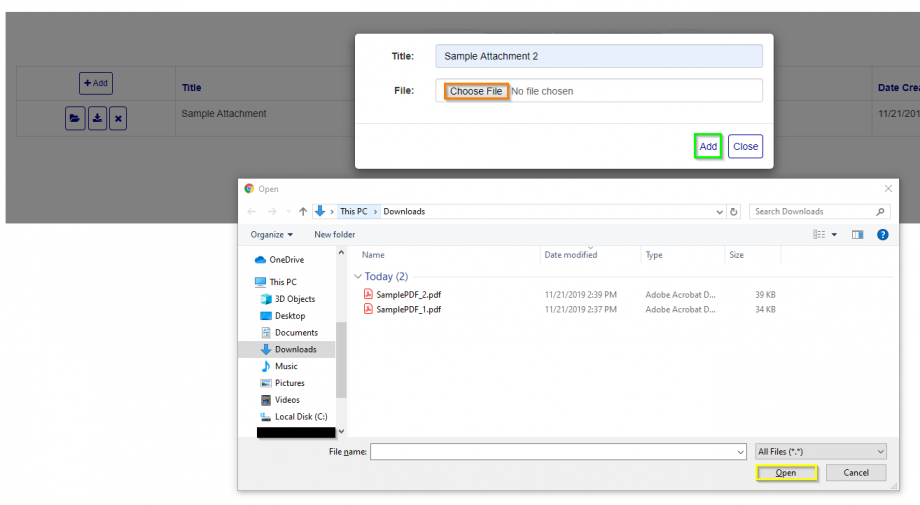
Fig. 2
View/Open
If you want to view an attachment in the browser, you can click the “Open/View” Button (Yellow Box Fig. 1) and the attachment will open in a new tab in the browser.
Download
You can download an attachment by clicking the “Download” Button (Orange box Fig. 1).
Delete
You can delete/remove an attachment by clicking the corresponding “x” Button (Red box Fig. 1) of the attachment, then confirm you wish to delete the attachment.
ATTACHMENTS WITH THE "INCLUDE IN REPORT" OPTION
**The screen and report included in the figures are just an example of the “include in report” functionality for attachments and may not reflect the screen or report that lead you to this page.
You can use the check boxes under the “Include in Report” column to append the attachments to the report you plan on creating.
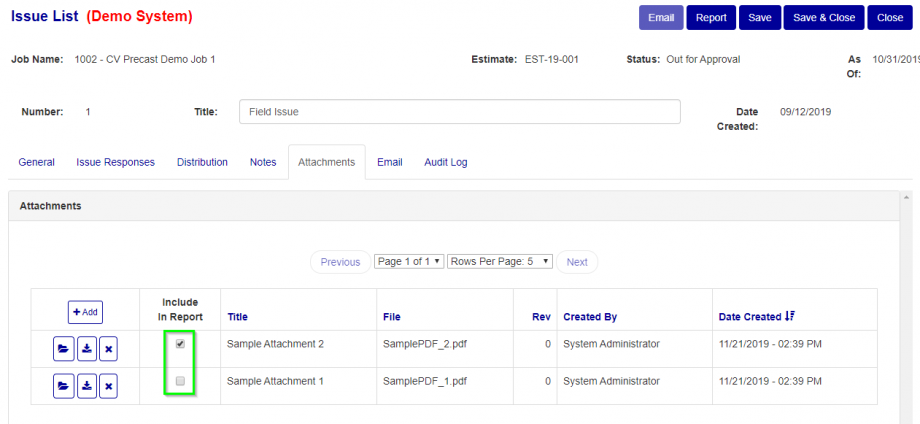
Fig. 3.
The following reports demonstrate how the documents are appended to the report when checked or unchecked.
Only Include Sample Attachment 2
As we can see in Fig. 3, on this screen we have decided to only include Sample Attachment 2 to the report. Doing so will create the following report seen in Fig. 4.
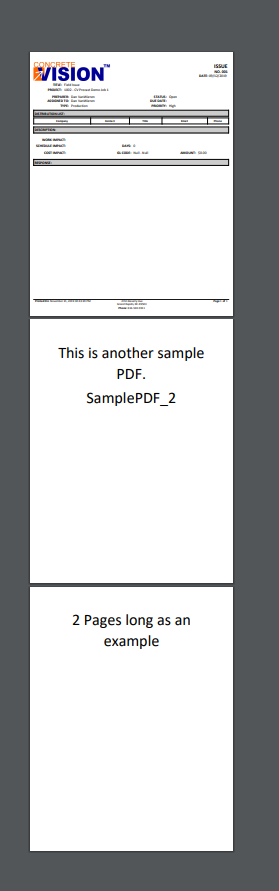
Fig. 4.
Include Both Attachments
If we check both boxes, we get the following report (Fig. 5).
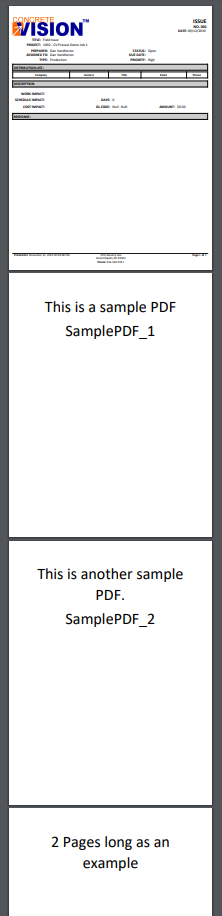
Fig. 5
No Included Attachments
If we were to uncheck both attachments for being included in report, we would get just the report with neither attachment (Fig. 6)
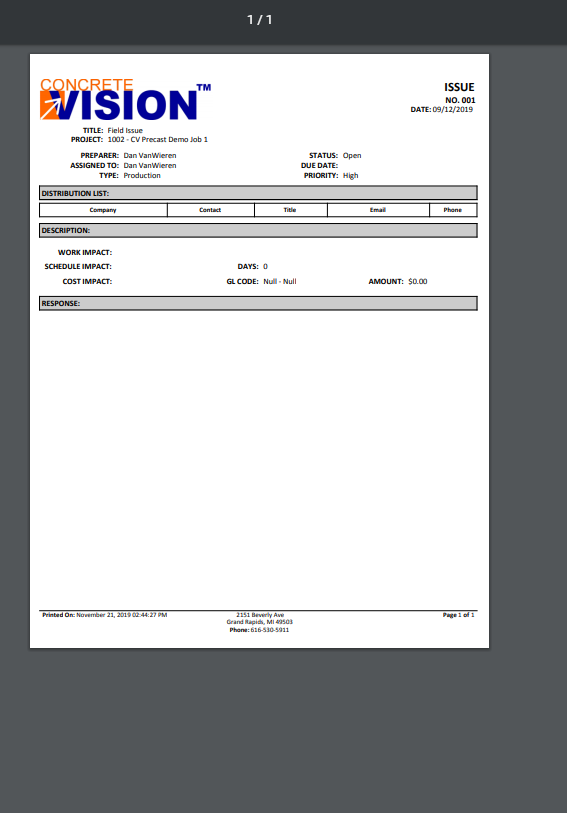
Fig. 6
Was this article helpful?
That’s Great!
Thank you for your feedback
Sorry! We couldn't be helpful
Thank you for your feedback
Feedback sent
We appreciate your effort and will try to fix the article