Overview
The attachments functionality is available across multiple screens and modules in Concrete Vision. While this guide uses the Issue List screen as an example, the same functionality applies throughout the system.
Managing Attachments
The attachments interface functions like other list-style screens in Concrete Vision, allowing you to view, add, and delete files using buttons in the leftmost column of each row.
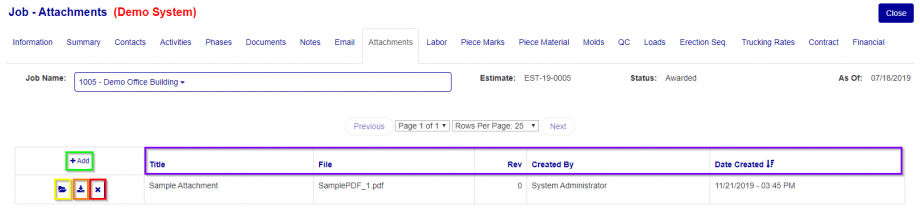
Figure 1
Sorting Attachments
Click any column heading (Purple box, Figure 1) to sort by that column. By default, attachments are sorted by Date Created in descending order (newest to oldest). Click the same heading again to reverse the sort order.
Adding an Attachment
- Click the "+ Add" button (Green box, Figure 1)
- Enter a descriptive title for the attachment
- Click "Choose File" (Orange box, Figure 2) to open your file explorer
- Select the file you want to attach
- Click "Open" (Yellow box, Figure 2)
- Click "Add" (Green box, Figure 2) to complete the upload
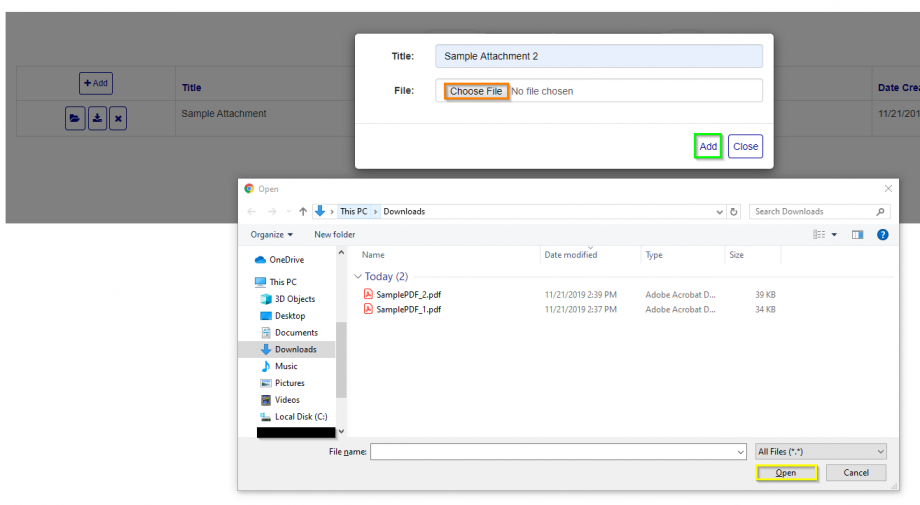
Figure 2
Viewing an Attachment
Click the "Open/View" button (Yellow box, Figure 1) to open the attachment in a new browser tab.
Downloading an Attachment
Click the "Download" button (Orange box, Figure 1) to save the file to your device.
Deleting an Attachment
Click the "X" button (Red box, Figure 1) next to the attachment, then confirm the deletion when prompted.
Including Attachments in Reports
**The screen and report included in the figures are just an example of the “include in report” functionality for attachments and may not reflect the screen or report that lead you to this page.
Some screens allow you to append attachments to generated reports using the "Include in Report" checkbox column.
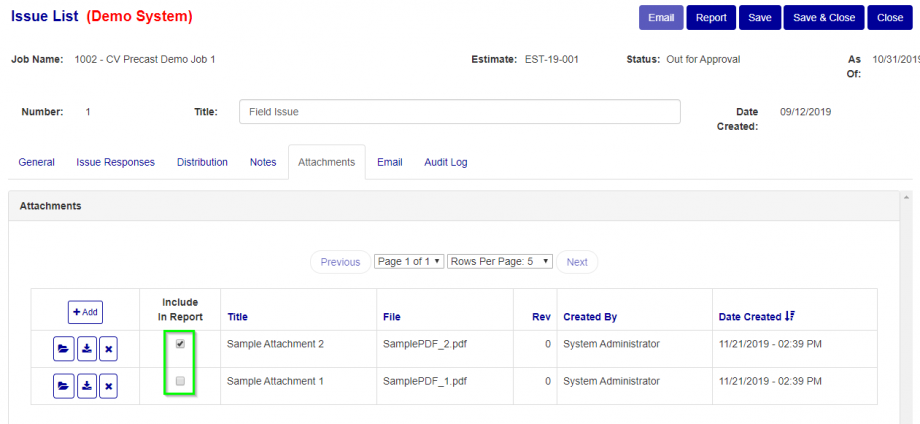
Figure 3
How It Works
Simply check the box next to any attachment you want included in your report. The system will append the selected attachments to the end of your report in the order they appear.
Examples
Including One Attachment: When only "Sample Attachment 2" is checked (Figure 3), the report will display the main content followed by that single attachment (Figure 4).
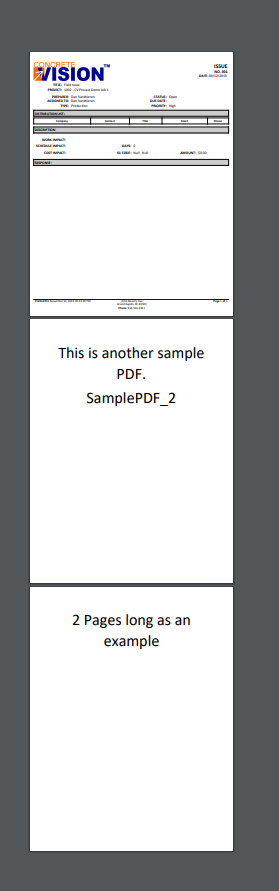
Figure 4
Including Multiple Attachments: When both attachments are checked (Figure 3), the report will include the main content followed by both attachments in sequence (Figure 5).
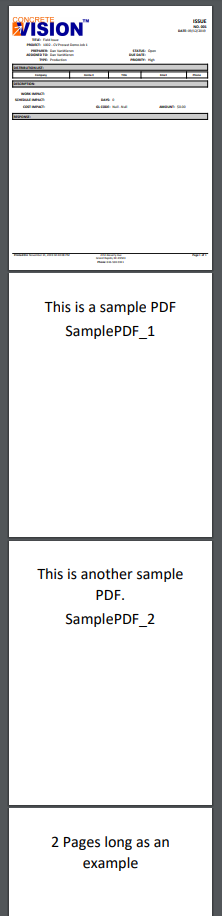
Figure 5
Including No Attachments: When no checkboxes are selected, the report will contain only the main content without any attachments (Figure 6).
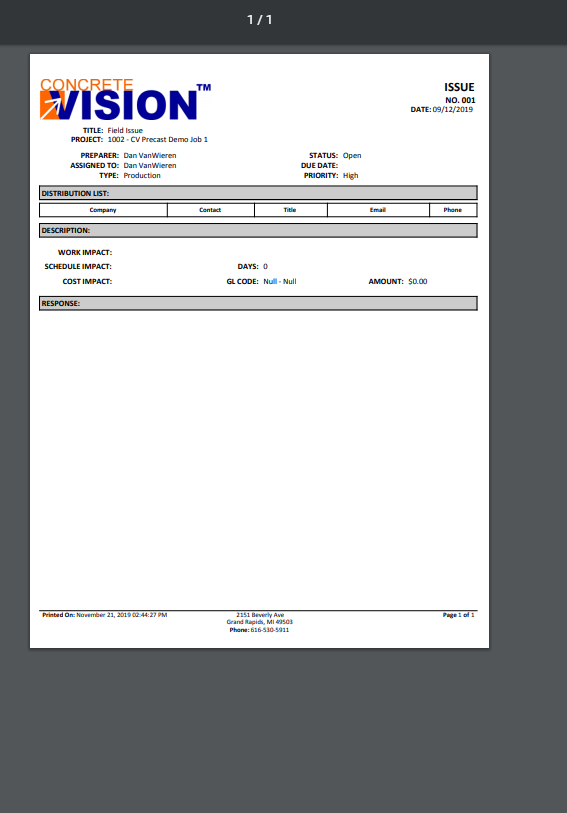
Figure 6
Key Points
- Attachment functionality remains consistent across all Concrete Vision modules
- Attachments are automatically sorted by creation date unless you change the sort order
- The "Include in Report" feature is only available on screens that support report generation
- Multiple attachments can be included in a single report
Was this article helpful?
That’s Great!
Thank you for your feedback
Sorry! We couldn't be helpful
Thank you for your feedback
Feedback sent
We appreciate your effort and will try to fix the article