Overview
The Piece Mark Drawing Explorer allows you to manage piece mark drawings efficiently within the Engineering module. Use this tool to organize, upload, view, and delete piece mark drawings in a structured folder system.
Accessing the Screen
To access the Piece Mark Drawing Explorer interface:
- Navigate to the Engineering menu
- Select Piece Mark Drawing Explorer from the dropdown menu (highlighted in orange in Figure 1)
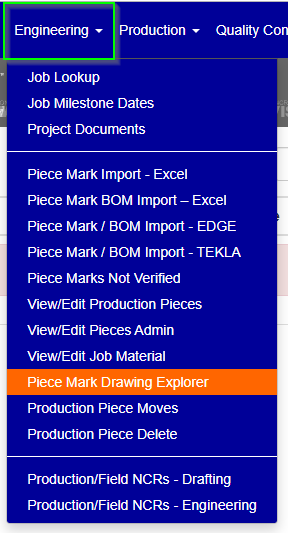
Figure 1
Getting Started
Initial Navigation
When you first open the Piece Mark Drawing Explorer, you'll see the root folder screen (Orange box, Figure 2). This is your starting point for all file management operations.
From here, you can:
- Navigate through folder structures
- Create new organizational folders
- Upload piece mark drawings
- Delete unwanted files
- View existing drawings
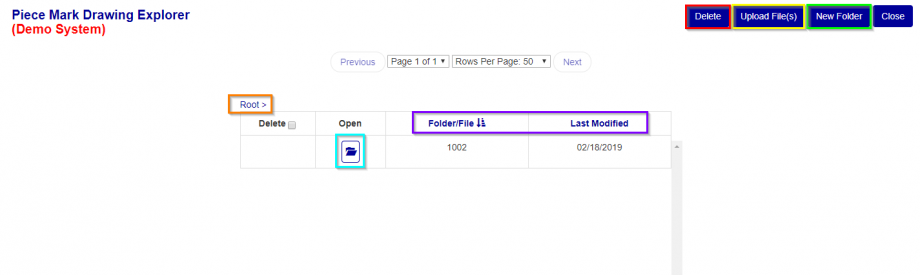
Figure 2
Core Features
1. Folder Navigation
Understanding the Directory Path
The directory path (Orange box, Figure 2) displays your current location within the folder structure:
- Root indicates you're at the top level
- Additional folder names show your navigation depth (e.g., "Root > 1002")
How to Navigate
- Enter a folder: Click the "Open Folder" icon (light blue folder icon, Figure 2)
- Return to parent: Click any folder name in the directory path
- Return to root: Click "Root" in the directory path
2. Organizing Content
Creating New Folders
Important: New folders are created within your currently viewed location.
Steps:
- Navigate to the desired parent folder
- Click the "New Folder" button (Green button at top)
- Enter a descriptive folder name
- Click "Create Folder" to confirm (Green box, Figure 3)
Examples:
- Creating from Root → Path becomes "Root > New Folder"
- Creating from folder 1002 → Path becomes "Root > 1002 > New Folder"
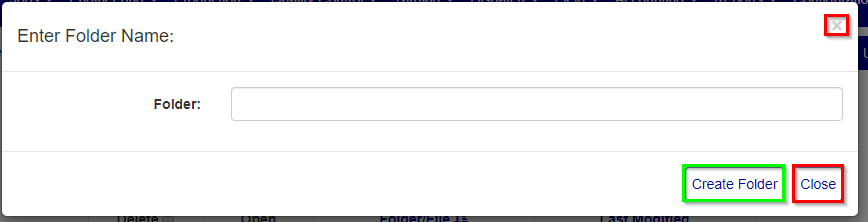
Figure 3
Sorting and Organization
Control how content appears using the sorting options (Purple box, Figure 2):
Sort Options:
- By Name: Click the "Folder/File Name" column header
- By Date: Click the "Last Modified" column header
- Direction: Click the same header again to reverse sort order (ascending ↔ descending)
3. File Management
Uploading Piece Mark Drawings
File Requirements: Only PDF format files are supported.
Steps:
- Navigate to the target folder where you want to upload files
- Click the "Upload File(s)" button (Yellow box, Figure 2)
- Click "Choose Files" in the upload dialog (Yellow box, Figure 4)
- Select one or multiple PDF files from your computer
- Click "Upload Files" (Green box, Figure 4) to complete the upload
Pro Tip: You can upload multiple files simultaneously to save time.
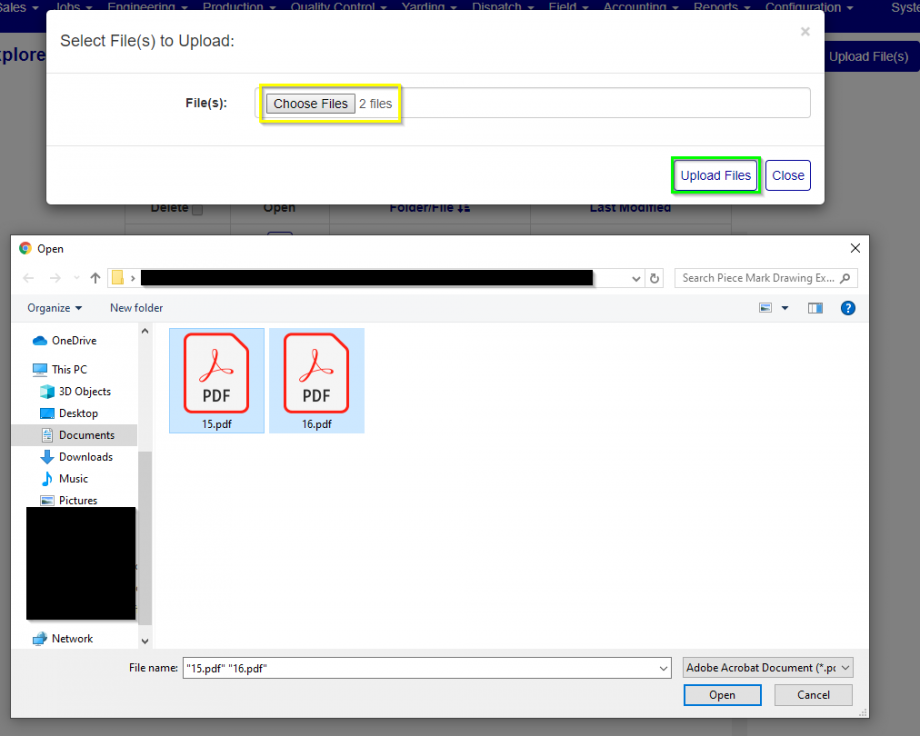
Figure 4
Viewing Drawings
To open and review any piece mark drawing:
- Click the PDF icon in the corresponding file row (Yellow box, Figure 5)
- The drawing will open in your default PDF viewer
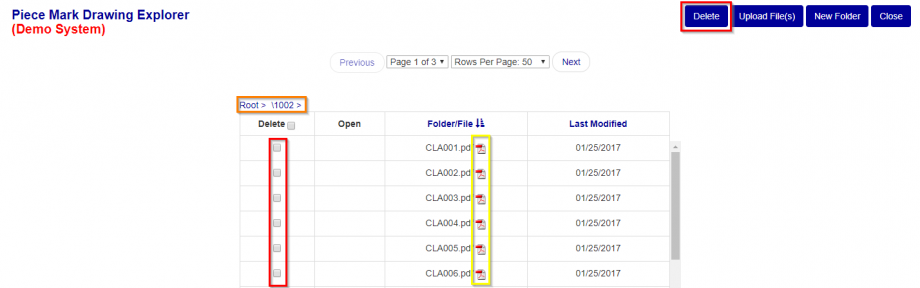
Figure 5
Deleting Files
Caution: File deletion is permanent and cannot be undone.
Steps:
- Navigate to the folder containing files to delete
- Select files by checking the checkbox in each file's row (left red box in Fig. 5)
- Click the "Delete" button (upper red button)
- Confirm the deletion when prompted
Note: You can select and delete multiple files at once.
Was this article helpful?
That’s Great!
Thank you for your feedback
Sorry! We couldn't be helpful
Thank you for your feedback
Feedback sent
We appreciate your effort and will try to fix the article