Overview
The Piece Mark Drawing Explorer provides a centralized interface for managing, viewing, and uploading piece mark drawings (Figure 2). This guide outlines the process for updating revised pieces in Concrete Vision.
Updating Existing Piece Mark Information
You can update piece mark properties, including quantity, using the original import method (Excel, REVIT, or EDGE) as long as none of the pieces are scheduled or produced. Note these exceptions:
- For scheduled piece marks, the new plant location must match the previously imported location
- For pieces beyond preliminary status (with uploaded drawings), the length, width, depth, weight, and SF/CY values must be greater than zero
For piece marks already in production, only quantity changes are permitted. When reducing quantities, ensure there are sufficient pieces in backlog to accommodate the reduction.
Uploading Drawings and Revisions
Access the Piece Mark Drawing Explorer through Engineering > Piece Mark Drawing Explorer (Figure 1).
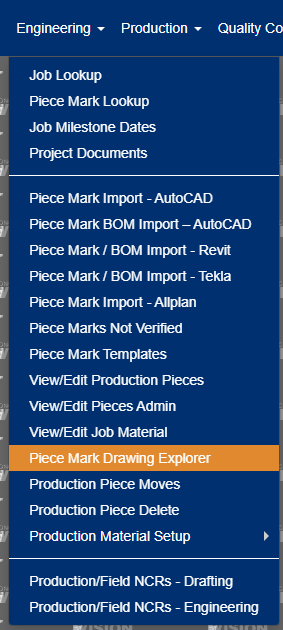
Figure 1
Step 1: Locate the Job
- Find the job number requiring the piece mark drawing
- If the job lacks a folder, create one using the "New Folder" command (green box in Figure 2)
- The folder name must match the job number exactly
- Filter the job list using the dropdown filter (orange box in Figure 2)
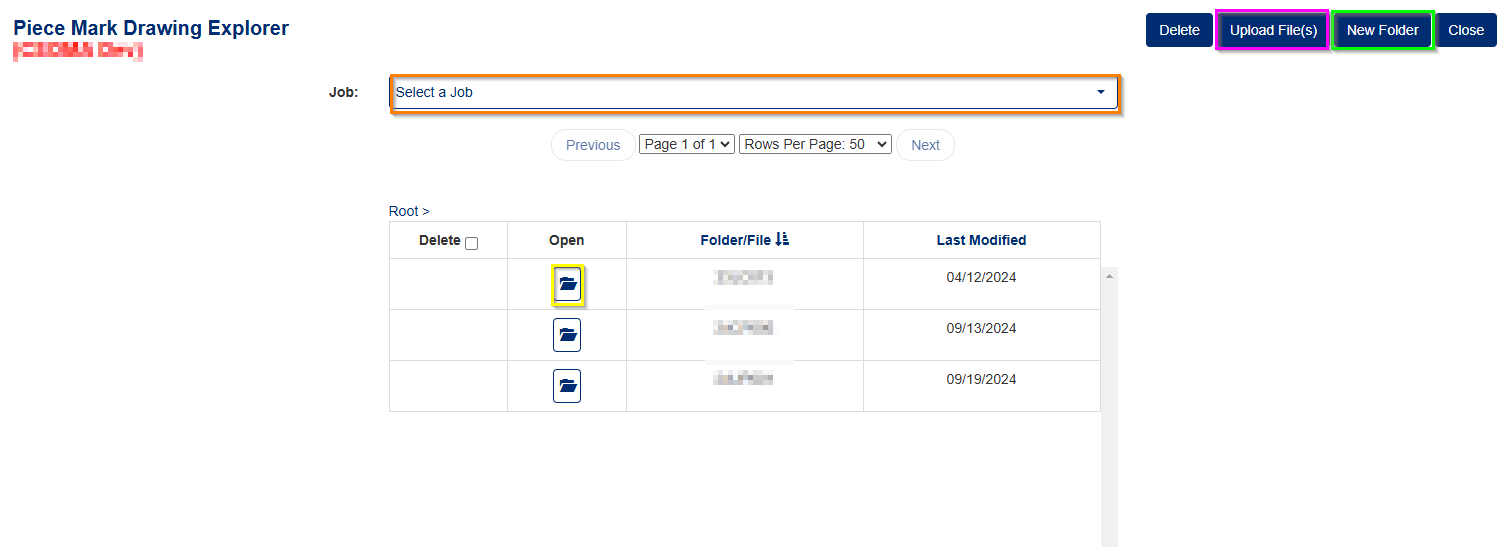
Figure 2
Step 2: Access the Job Folder
- Click the folder icon (yellow box in Figure 2) to open the job folder
- This displays all drawing files associated with the job (Figure 3)
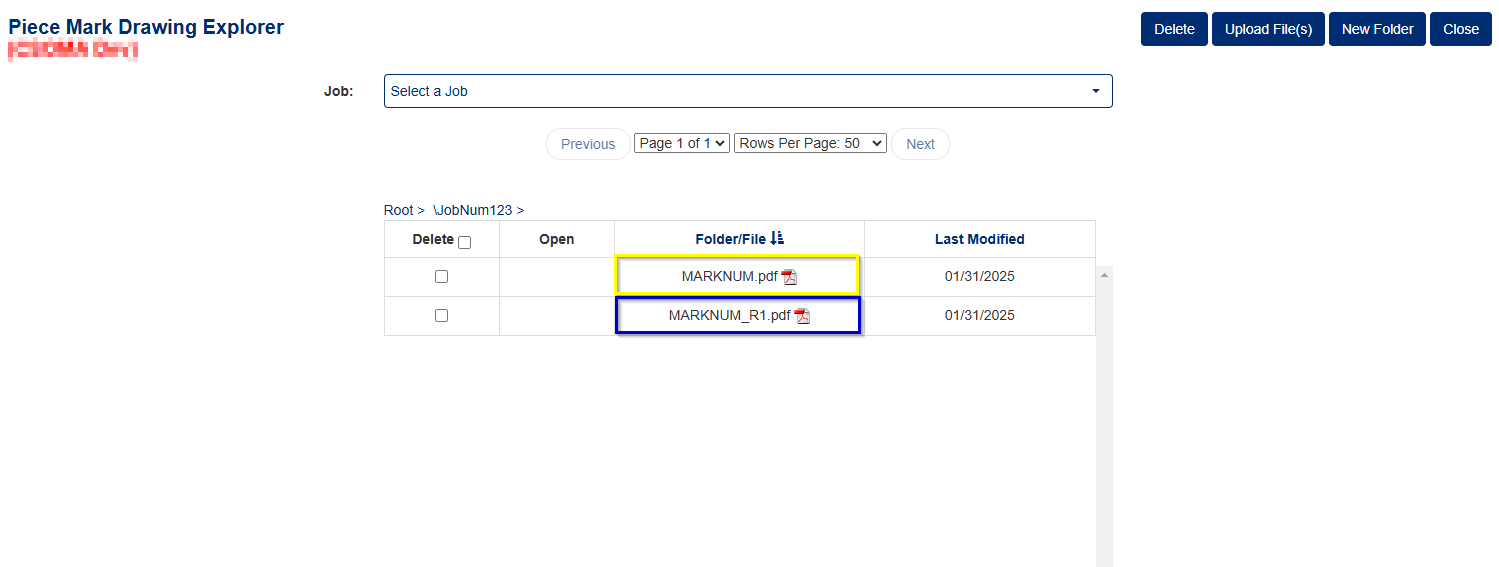
Figure 3
Step 3: Upload Drawings
The example in Figure 3 shows job "JobNum123" with two drawing files:
- Initial drawing for "MARKNUM" (yellow box in Figure 3) - filename matches the piece mark number with PDF file type
- Revision file using naming convention "MARKNUM_R1.PDF" for revision 1
Step 4: Managing Revisions
Note when uploading a revision:
- Use the same piece mark filename plus the current revision number (e.g., "MARKNUM_R1.PDF")
- Ensure the revision number matches the current revision for the piece mark (yellow box in Figure 4)
- The revision number can only be modified when:
- The piece mark is no longer in preliminary status (has an existing drawing)
- The piece mark has not been produced
- Revision numbers can also be updated via piece import
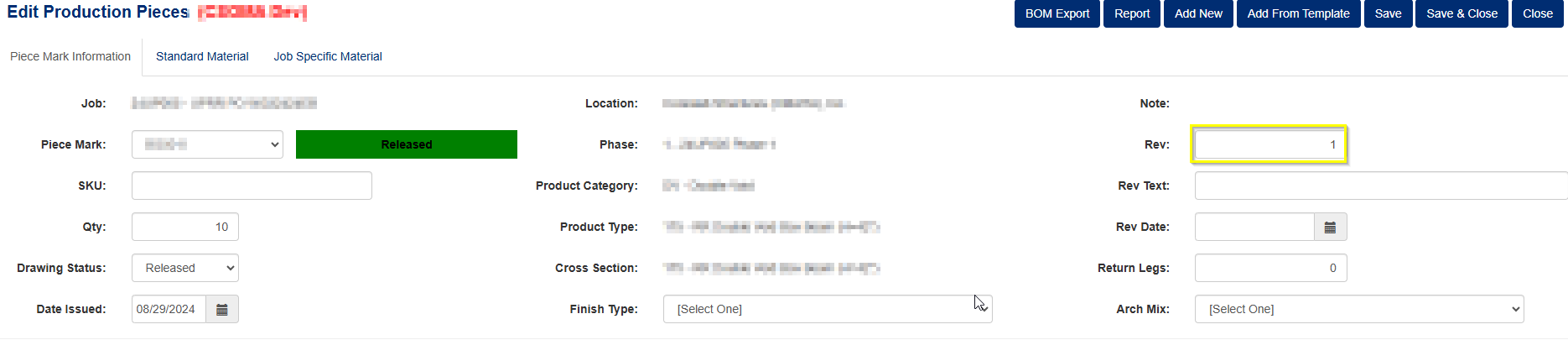
Figure 4
Was this article helpful?
That’s Great!
Thank you for your feedback
Sorry! We couldn't be helpful
Thank you for your feedback
Feedback sent
We appreciate your effort and will try to fix the article