Overview
The Erection Sequence screen, accessible via the Dispatch menu, provides dispatchers with a comprehensive view of job details, including:
- The erection sequence by piece mark and control number for a job
- The current status of each piece in a job
- The load number associated with each piece
- The delivery date of a load
Dispatchers can reference this screen to efficiently plan and schedule loads for pieces within a job. Additionally, loads can be created directly from this screen for any piece with a status of Backlog, Scheduled, or Inventory.
Accessing the Screen
Navigate to Dispatch >Erection Sequences from the main menu (Figure 1).
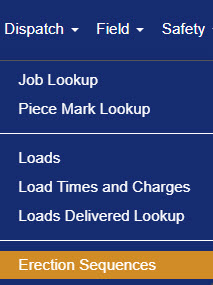
Figure 1
From the Erection Sequences screen (Figure 2), locate the job from the displayed job list. The Filter tab (Purple box, Figure 2) can be used to quickly locate a specific job.
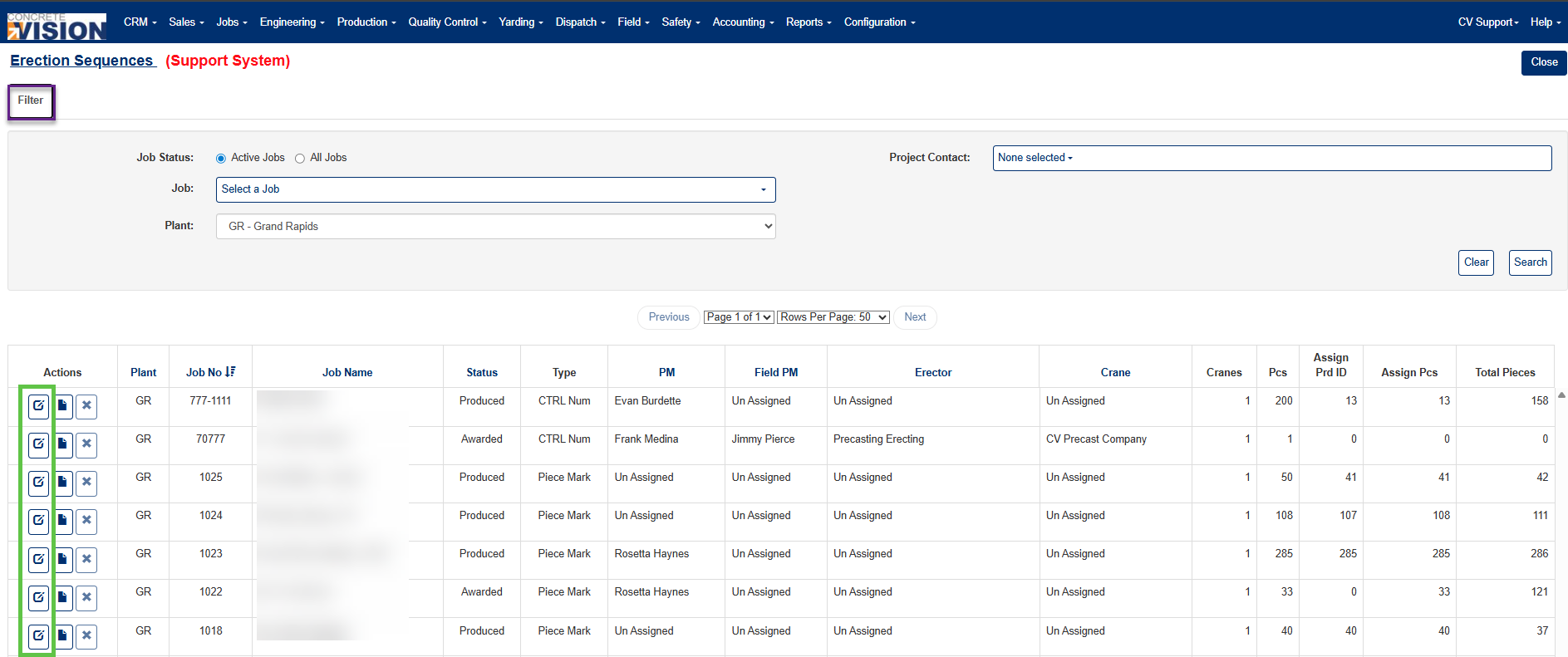
Figure 2
Click the Edit icon (Green box, Figure 2) beside the job to view any scheduled erection sequence.
Filtering the Erection Sequences
- Click the Filter button (Purple box, Figure 2).
- Select your search criteria:
- Job Status: Active or All Jobs
- Job: Job name
- Plant: Plant name
- Project Contact: Responsible personnel
Tip: Use filters when working on large projects with multiple phases or locations to reduce clutter and focus on relevant sequences.
Erection Sequence Screen
The Erection Sequence by Piece Mark screen (Figure 3) displays a table of all piece marks within a job while the Edit Erection Sequence screen (Figure 4) displays a table of all pieces by Control number within a job.
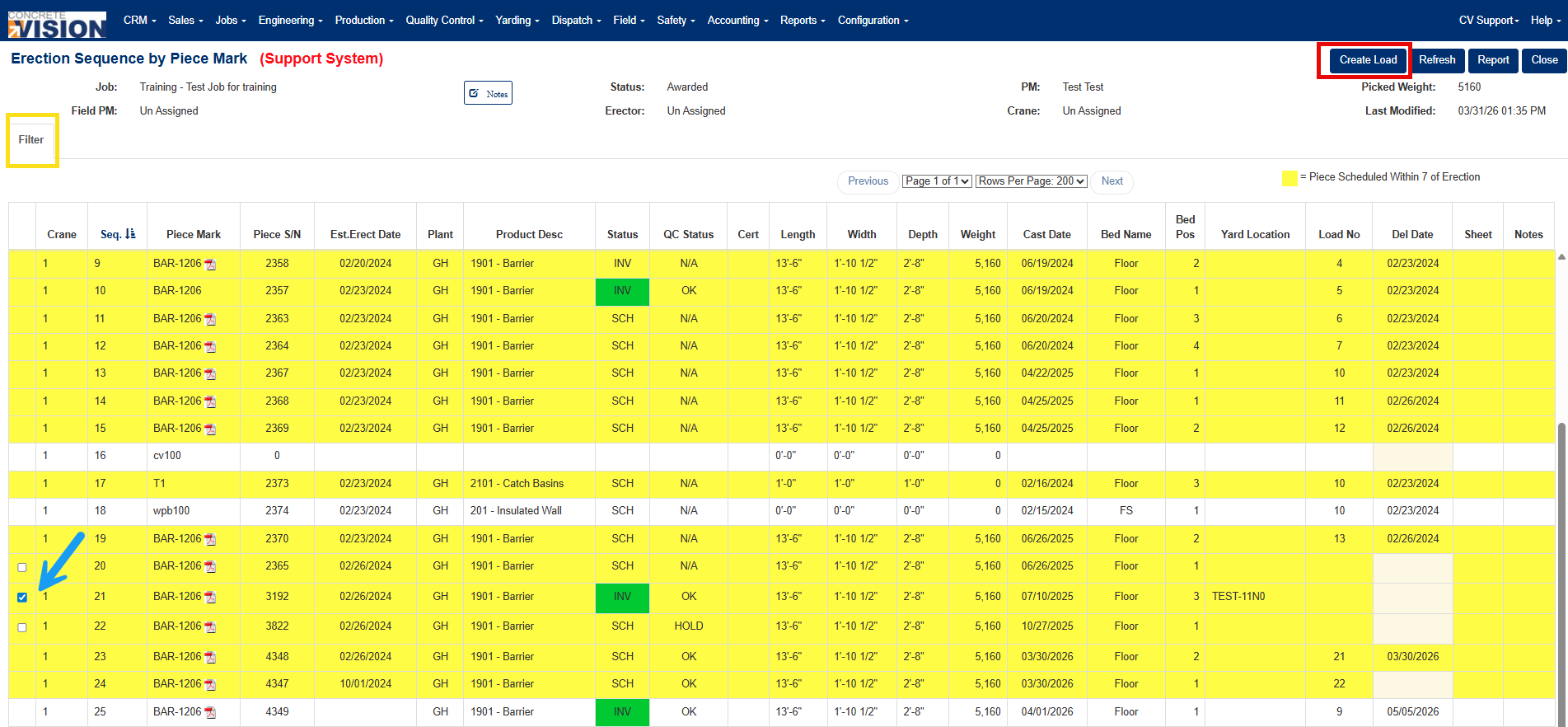
Figure 3
| Column | Description |
|---|---|
| Blank | A checkbox that appears when a piece mark's status qualifies it to be added to a pour. |
| Crane | The crane assigned to erect the piece mark. |
| Seq. | The piece mark's position in the erection sequence. |
| Piece Mark | The piece mark number along with its associated drawing. |
| Piece S/N | The serial number assigned to the piece mark. |
| Est. Erect Date | The anticipated date the piece mark is scheduled to be erected. |
| Plant | The plant location responsible for pouring or that has already poured the piece mark. |
| Product Desc. | A brief description identifying the piece mark. |
| Status | The current status of the piece mark. |
| QC Status | The current quality control status of the piece mark. |
| Cert | The certification number assigned to the piece mark. |
| Length | The length of the piece mark. |
| Width | The width of the piece mark. |
| Depth | The depth of the piece mark. |
| Weight | The weight of the piece mark. |
| Cast Date | The date on which the piece mark was cast or poured. |
| Bed Name | The name of the bed where the piece mark will be or has been poured. |
| Bed Pos | The position on the bed where the piece mark will be or has been poured. |
| Yard Location | The storage location of the piece mark within the yard, if applicable. |
| Load No | The designated load number for the piece mark's delivery. |
| Del Date | The scheduled delivery date of the piece mark to the job site. |
| Sheet | The drawing sheet on which the piece mark appears, indicating its placement within the structure. |
| Notes | Any additional notes or remarks associated with the piece mark. |
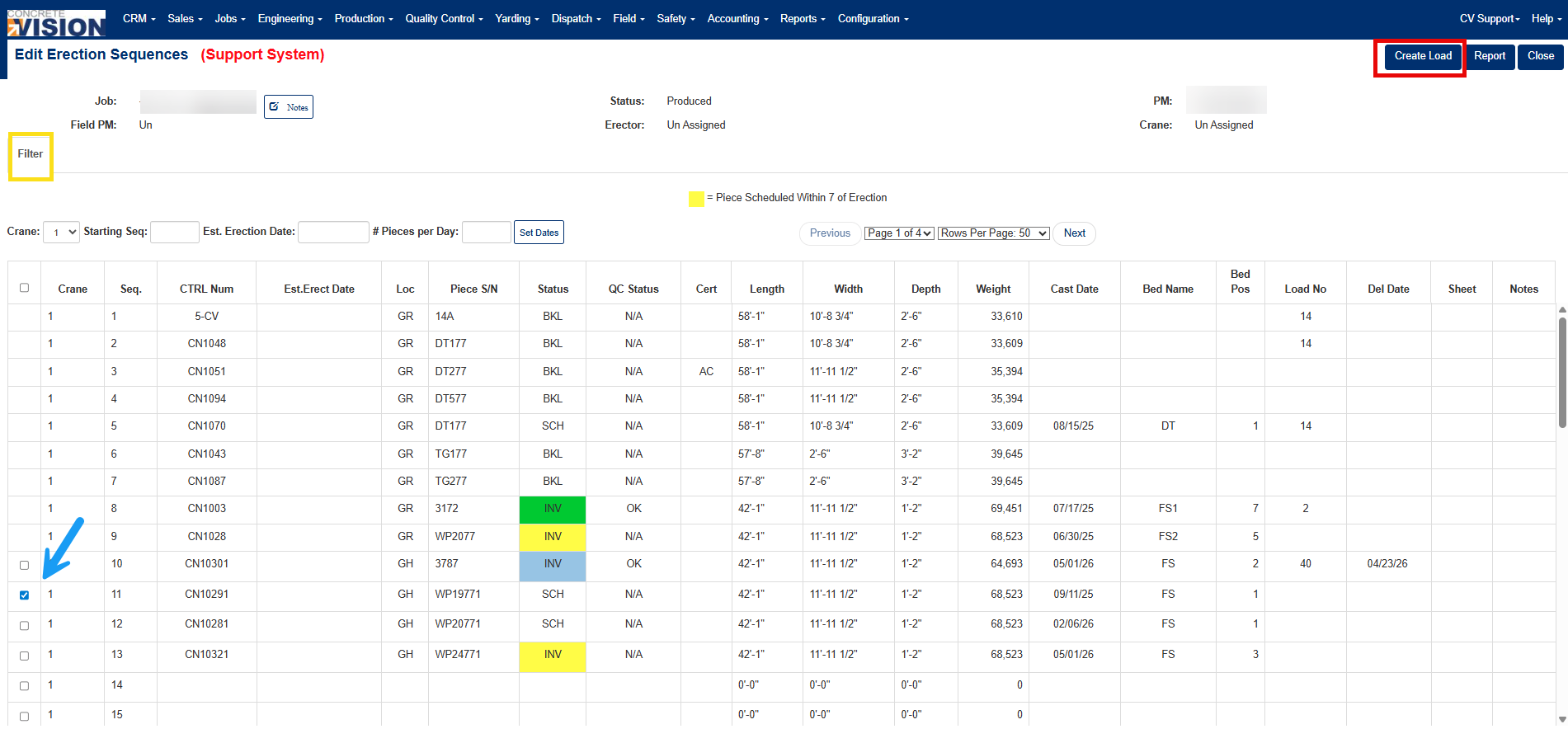
Figure 4
| Column | Description |
|---|---|
| Blank | A checkbox that appears when a piece mark's status qualifies it to be added to a pour. |
| Crane | The crane assigned to erect the piece mark. |
| Seq. | The piece mark's position in the erection sequence. |
| CTRL Num | The control number associated with the piece. |
| Est. Erect Date | The anticipated date the piece mark is scheduled to be erected. |
| Loc | The plant location responsible for pouring or that has already poured the piece mark. |
| Piece S/N | The serial number assigned to the piece mark. |
| Status | The current status of the piece mark. |
| QC Status | The current quality control status of the piece mark. |
| Cert | The certification number assigned to the piece mark. |
| Length | The length of the piece mark. |
| Width | The width of the piece mark. |
| Depth | The depth of the piece mark. |
| Weight | The weight of the piece mark. |
| Cast Date | The date on which the piece mark was cast or poured. |
| Bed Name | The name of the bed where the piece mark will be or has been poured. |
| Bed Pos | The position on the bed where the piece mark will be or has been poured. |
| Load No | The designated load number for the piece mark's delivery. |
| Del Date | The scheduled delivery date of the piece mark to the job site. |
| Sheet | The drawing sheet on which the piece mark appears, indicating its placement within the structure. |
| Notes | Any additional notes or remarks associated with the piece mark. |
Creating a Load for a Piece
A dispatcher can reference the information from the Erection Sequence by Piece Mark or the Edit Erection Sequence screen to make a decision on creating a load for pieces with a status of backlog (BKL), scheduled to pour (SCH), or inventory (INV).
- Locate the checkbox in the left-most column in the piece mark table (Blue arrow, Figures 3&4).
- Check the piece(s) to create a load for.
- Click the Create Load button (Red box, Figures 3 & 4).
- Select the estimated delivery date for the load if known.
- If multiple pieces are checked and each should have its own load, check the Create Single Loads checkbox (Figure 5).
- Click the Add button (Green box, Figure 5).
The Delivery Date column for the piece mark will now display a delivery date (if a date was selected), and a load number will be assigned to the piece mark.
Notes:
- The Create Load button will not be active unless at least one of the checkboxes in the left-most column is checked.
- If no piece marks have a status of BKL, SCH, or INV, no checkboxes will display in the table.
- Pieces must be linked to the Piece Mark table (display a serial number) in order to add them to the load.
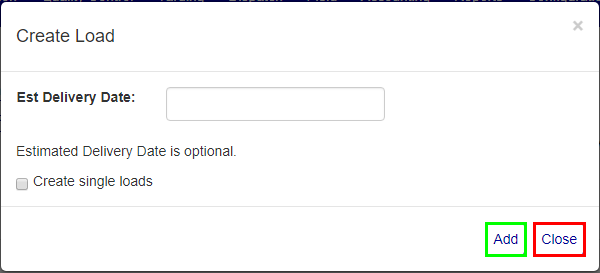
Figure 5
Filtering the Erection Sequence by Piece Mark Screen
Larger jobs will display long lists of piece marks. To find specific piece marks quickly, use the Filter tab on the Erection Sequences by Piece Mark screen.
- Click on the Filter tab to open the Filter menu (Yellow box, Figure 3).
- Search results can be filtered by a variety of variables, including piece mark statuses of QC Hold, QC Not Verified, Additional Work, and Ready to Ship (Figure 6).
- Click the Search button to filter the list by selected variables.
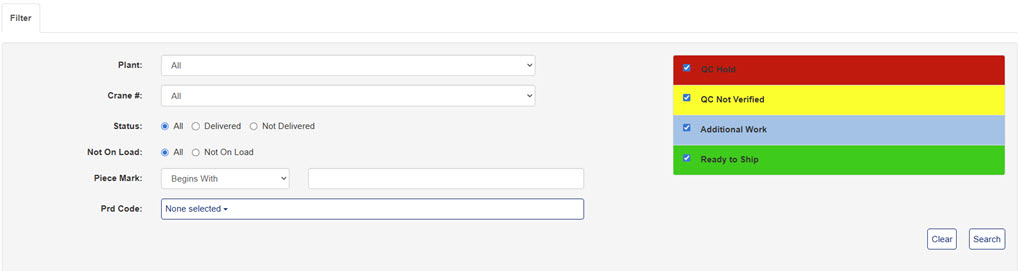
Figure 6
Filtering the Erection Sequence Screen
Larger jobs will display long lists of pieces. To find specific pieces quickly, use the Filter tab on the Edit Erection Sequences screen.
- Click on the Filter tab to open the Filter menu (Yellow box, Figure 4).
- Search results can be filtered by a variety of variables, including piece mark statuses of QC Hold, QC Not Verified, Additional Work, and Ready to Ship (Figure 7).
- Click the Search button to filter the list by selected variables.

Figure 7
Was this article helpful?
That’s Great!
Thank you for your feedback
Sorry! We couldn't be helpful
Thank you for your feedback
Feedback sent
We appreciate your effort and will try to fix the article