Overview
The Erection Sequences feature, accessible via the Field module, enables you to plan and manage the order in which structural elements are erected throughout your construction project. With this tool, you can organize crane assignments, sequence numbers, and piece marks to support efficient workflows and safe construction operations.
Prerequisites
- Access to the Field module
- Appropriate user permissions for erection sequence management
- Basic familiarity with your project's structural elements and piece marks
Accessing the Screen
Navigate to Field > Erection Sequences from the main menu (Figure 1).
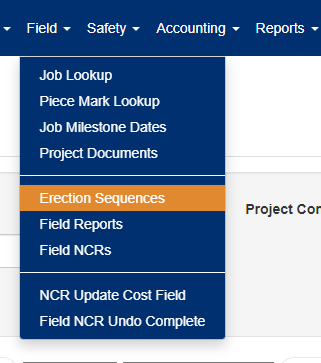
Figure 1
From the Erection Sequences screen (Figure 2), locate the job from the displayed jobs list. The Filter tab (Purple box, Figure 2) can be used to quickly locate a specific job.
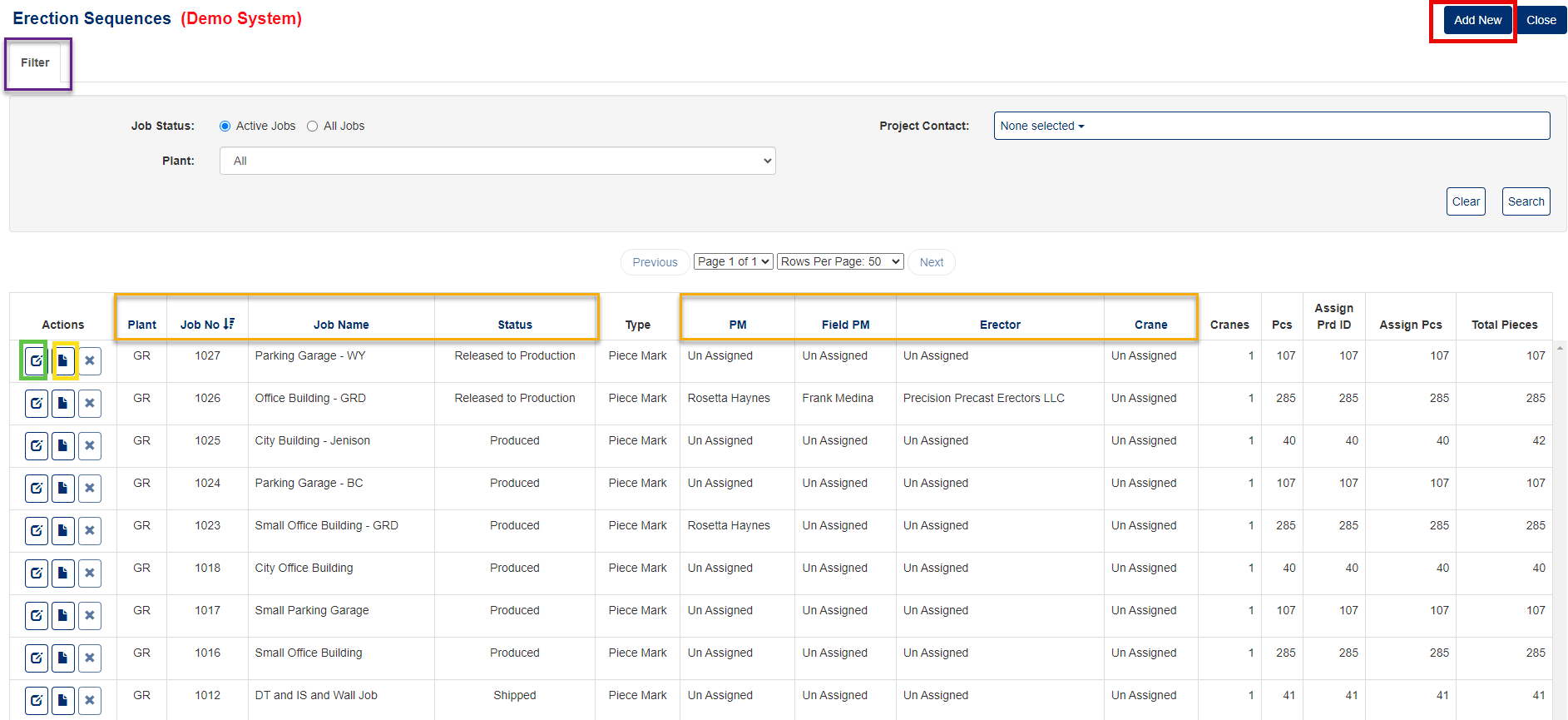
Figure 2
Click the Edit icon (Green box, Figure 2) of the corresponding job to view any scheduled erection sequence.
Filtering the Erection Sequences
- Click the Filter button (Purple box, Figure 2).
- Select your search criteria:
- Job Status: Active or All Jobs
- Job: Job name
- Plant: Plant name
- Project Contact: Responsible personnel
Tip: Use filters when working on large projects with multiple phases or locations to reduce clutter and focus on relevant sequences.
Adding New Erection Sequences
- On the Erection Sequences screen (Figure 2), click the Add New button (Red box, Figure 2).
- In the Add New pop-up window (Figure 3):
- Select Job - Choose the project from the dropdown
- Enter Number of Cranes - Specify how many cranes will be used
- Enter Number of Pieces - Total structural elements to be erected
- Select Type:
- Control Number: Use for systematic numerical sequencing
- Piece Mark: Use when working with specific fabricated elements
- Click Add New (Green box, Figure 3) to create the sequence framework
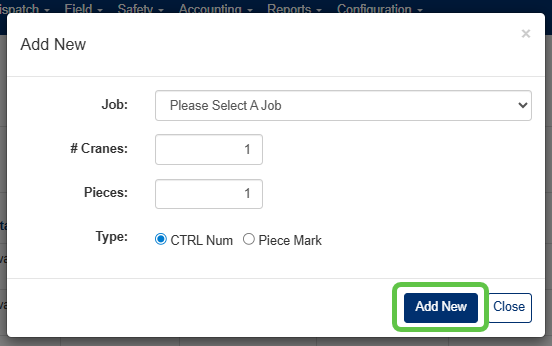
Figure 3
When to Use Each Type:
- Control Number: Best for standardized sequencing across similar structural elements
- Piece Mark: Ideal when working with unique, pre-fabricated components that have specific identification marks
Editing Erection Sequences
Method 1: Edit by Control Number
Use this method when: Working with systematically numbered sequences
- On the Erection Sequences screen, click the Edit icon (green box in Figure 2) next to the job.
- On the Edit Erection Sequences screen, modify the following fields (Green boxes,Figure 4) as needed:
- Crane - Assign or reassign crane numbers
- Seq - Adjust sequence order
- CTRL Num - Update control numbers
- Sheet - Reference drawing sheets
- Notes - Add installation notes or special instructions
- Save your changes:
- Save - Keep the edit window open for additional changes
- Save & Close - Save and return to main view
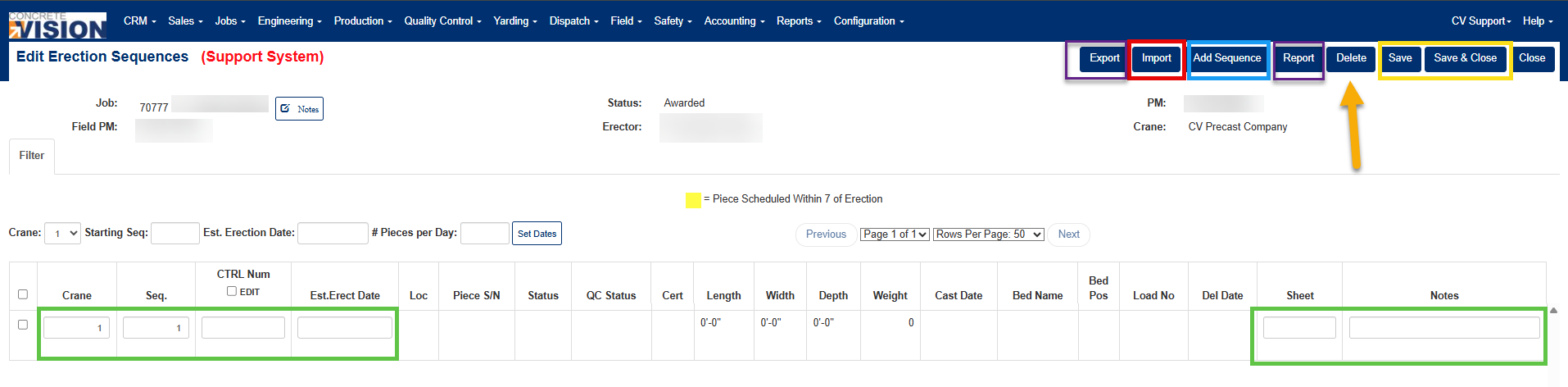
Figure 4
Method 2: Edit by Piece Mark
Use this method when: Working with specific fabricated elements
- On the Erection Sequences screen, click the Edit icon (Green box, Figure 2) next to the job.
- On the Erection Sequences by Piece Mark screen, modify the following fields (Green boxes, Figure 5) as needed:
- Crane - Crane assignment
- Seq - Installation sequence
- Piece Mark - Specific element identifier
- Sheet - Drawing reference
- Notes - Special handling or installation notes
- Choose your Save option (Yellow box, Figure 5)
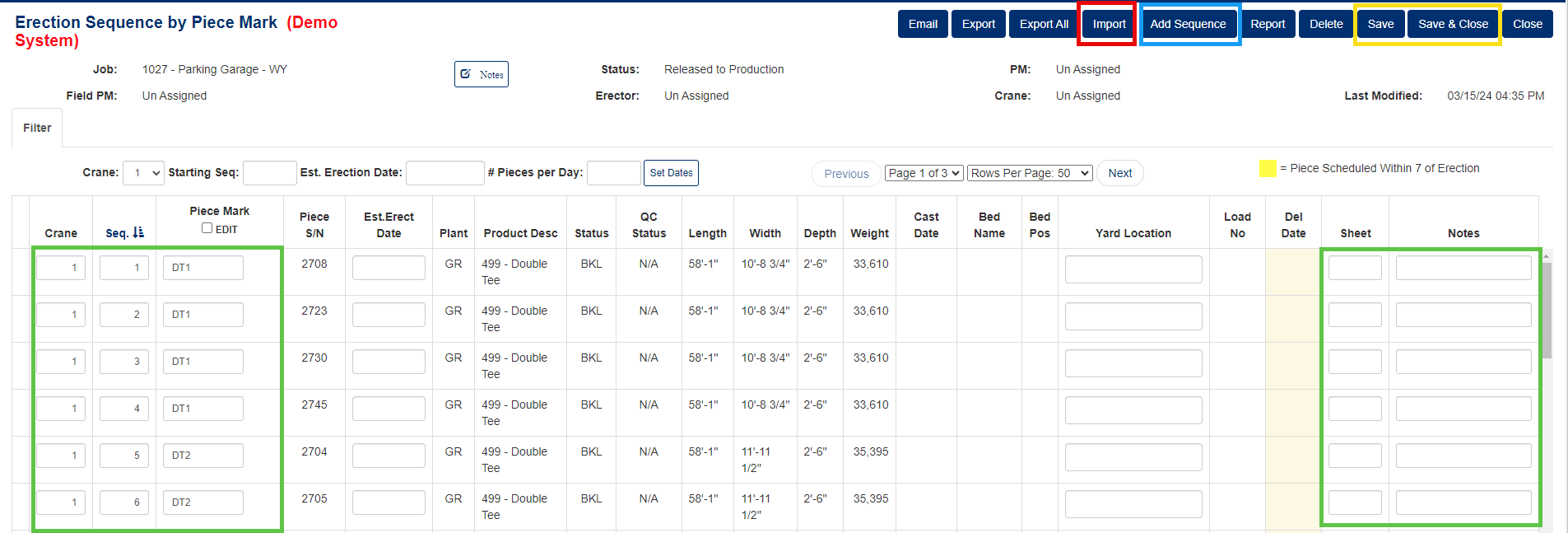
Figure 5
Adding Individual Sequences
To add sequences to an existing plan without creating an entirely new framework:
- Click Add Sequence button at the top of the screen (blue box in Figure 5).
- In the Add Sequence pop-up window (Figure 6):
- Crane # - Enter the crane number
- Pieces - Specify number of pieces for this sequence
- Click Add to insert the new sequence (Green box, Figure 6).
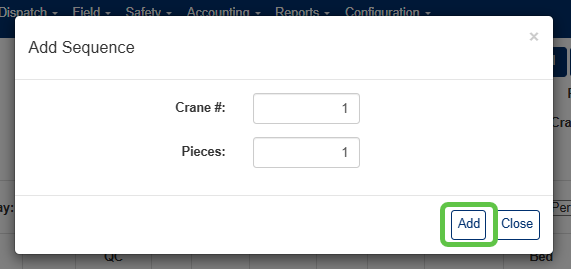
Figure 6
Importing Erection Sequence Data
For large projects or when migrating from other systems, sequence data can be imported from external files.
- Click the Import button (Red box, Figure 5).
- In the Import pop-up window (Figure 7):
- Click the Choose File button.
- Navigate to your import file.
- Select the file.
- Click Import button to process the data (Blue box, Figure 7).
File Requirements:
- Ensure the import file follows the required format
- Include all necessary columns (Crane, Sequence, Control Numbers/Piece Marks)
- Verify data accuracy before importing to avoid conflicts
Note: Always backup existing data before importing large datasets.
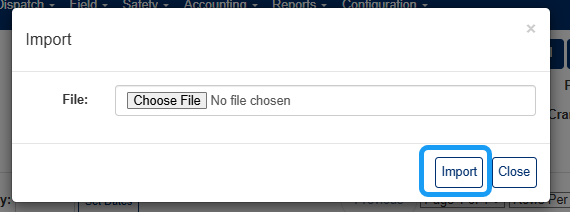
Figure 7
Deleting an Erection Sequence
Click the delete button (Orange arrow, Figure 4)
In the Delete Sequence pop-up window, select either of these options (Figure 8):
- Delete Blank Lines: - Sequences that have no records filled in will be deleted.
- Delete All Records: - Removes all existing sequences.
- Click Submit button to confirm deletion (Blue box, Figure 8).
A confirmation dialog appears asking: "Are you sure you want to delete this record?" (Figure 9)
Click [OK] to permanently delete the Erection Sequence, or Cancel to abort the deletion.
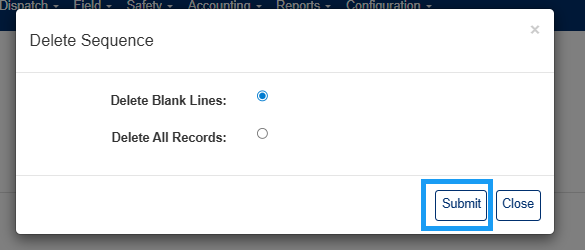
Figure 8
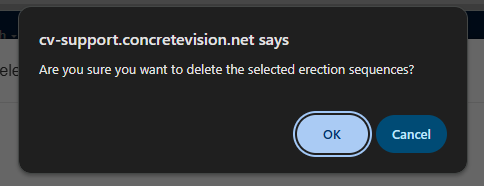
Figure 9
Exporting Erection Sequences
You can export your Erection Sequences in two formats:
Export to PDF:
- Click the [Report] button (Purple box, Figure 4)
- A PDF containing the full list of Erection Sequences will be generated.
Export to Excel:
- Click the [Export] button (Purple box, Figure 4)
- An Excel spreadsheet containing the full list of Erection Sequences will be generated.
Was this article helpful?
That’s Great!
Thank you for your feedback
Sorry! We couldn't be helpful
Thank you for your feedback
Feedback sent
We appreciate your effort and will try to fix the article