Overview
The Field NCR screen, accessed from the Field module, allows users to:
- Viewand filter a list of Field NCRs by plant, job name, and status
- Add new Field NCRs.
- Generate a PDF report of filtered Field NCRs.
- Export a filtered Field NCR list to Excel
- Email Field NCR details directly from Concrete Vision.
- Print a report of a new Field NCR.
Accessing the Screen
Navigate to Field > Field NCRs from the main menu (Figure 1).
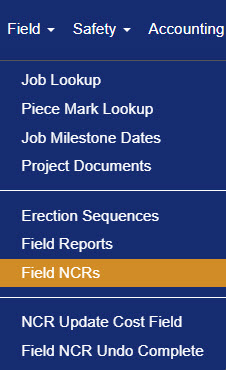
Figure 1
The Field NCR screen (Figure 2) table lists all Field NCRs and can be filtered to refine the displayed list.
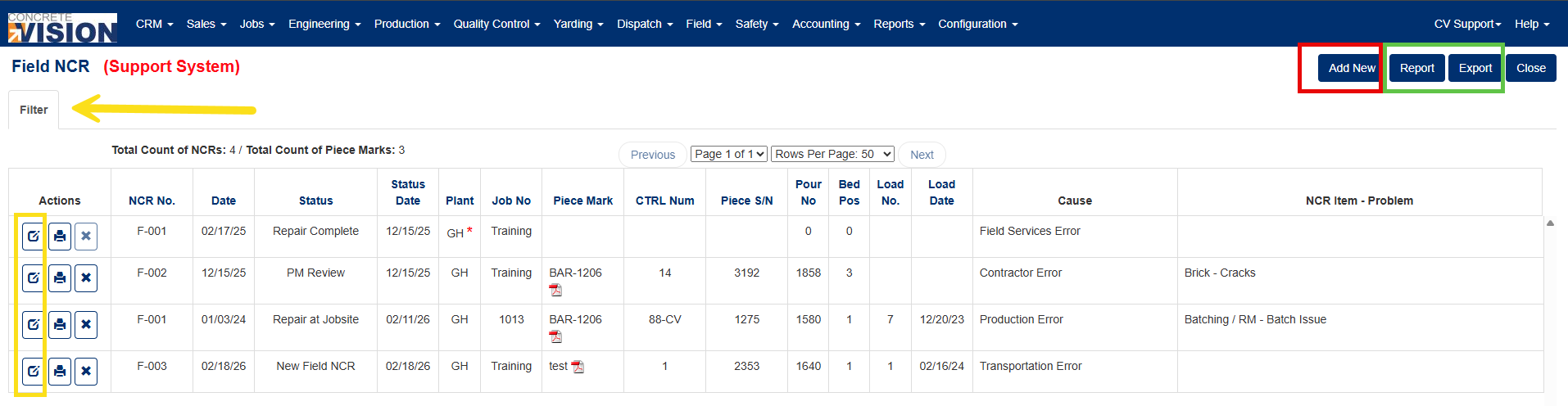
Figure 2
Column Descriptions
| Column | Description |
|---|---|
| NCR No. | Unique Field NCR identifier assigned automatically by the system. |
| Date | Date the Field NCR was created. |
| Status | Current status of the NCR (e.g., New, Repair Complete, Recast – Scrap). |
| Status Date | Date of most recent status update. |
| Plant | Plant where the Piece Mark was produced. |
| Job No. | Job number the Field NCR is assigned to. |
| Piece Mark | Piece Mark name and drawing. Click the PDF icon to view the drawing. |
| CTRL Number | Control number associated with the Piece. |
| Piece S/N | Piece Mark serial number. |
| Pour No. | Pour number of the piece mark. |
| Bed Pos | Bed position where the piece mark was poured. |
| Load No. | Load number for the piece. |
| Load Date | Load date of the piece. |
| Cause | Cause for the Field NCR. Configurable in the Configuration module. |
| NCR Item - Problem | Specific issue for the Field NCR. Configurable in the Configuration module. |
Filtering the Field NCR List
Use the Filter tab (yellow arrow, Figure 2) to locate specific Field NCRs:
- Click the Filter tab
- Select filter criteria such as Plant, Field NCR Status, and Job Name.
- Click Search to apply the filters.
Sorting the Field NCR List
Click any blue column heading to sort the list by that column. Click the same heading again to toggle between ascending and descending order
Viewing a Piece Mark Drawing
To view the piece mark drawing attached to an NCR, click the PDF icon in the Piece Mark column of the table.
Adding a Field NCR
- Click Add New (Red box, Figure 2) from the top right of the Field NCR screen.
- On the Field NCR – Add screen (Figure 3), select the Job from the dropdown menu 1.
- Select the Piece S/N from the dropdown menu 2, then click Add 3.
- In the NCR details section 4, fill in Cause, Cause Description, Cost, E&D Hours, Plant Hours, and Field Hours.
- In the Summary of Problem text field 5, describe the issue.
- In the NCR Items section 6, click + Add to add applicable NCR items.
- In the Action Required text field 7, describe the required corrective action.
- Click Save to save the record, or Save & Close to save and return to the Field NCR list.
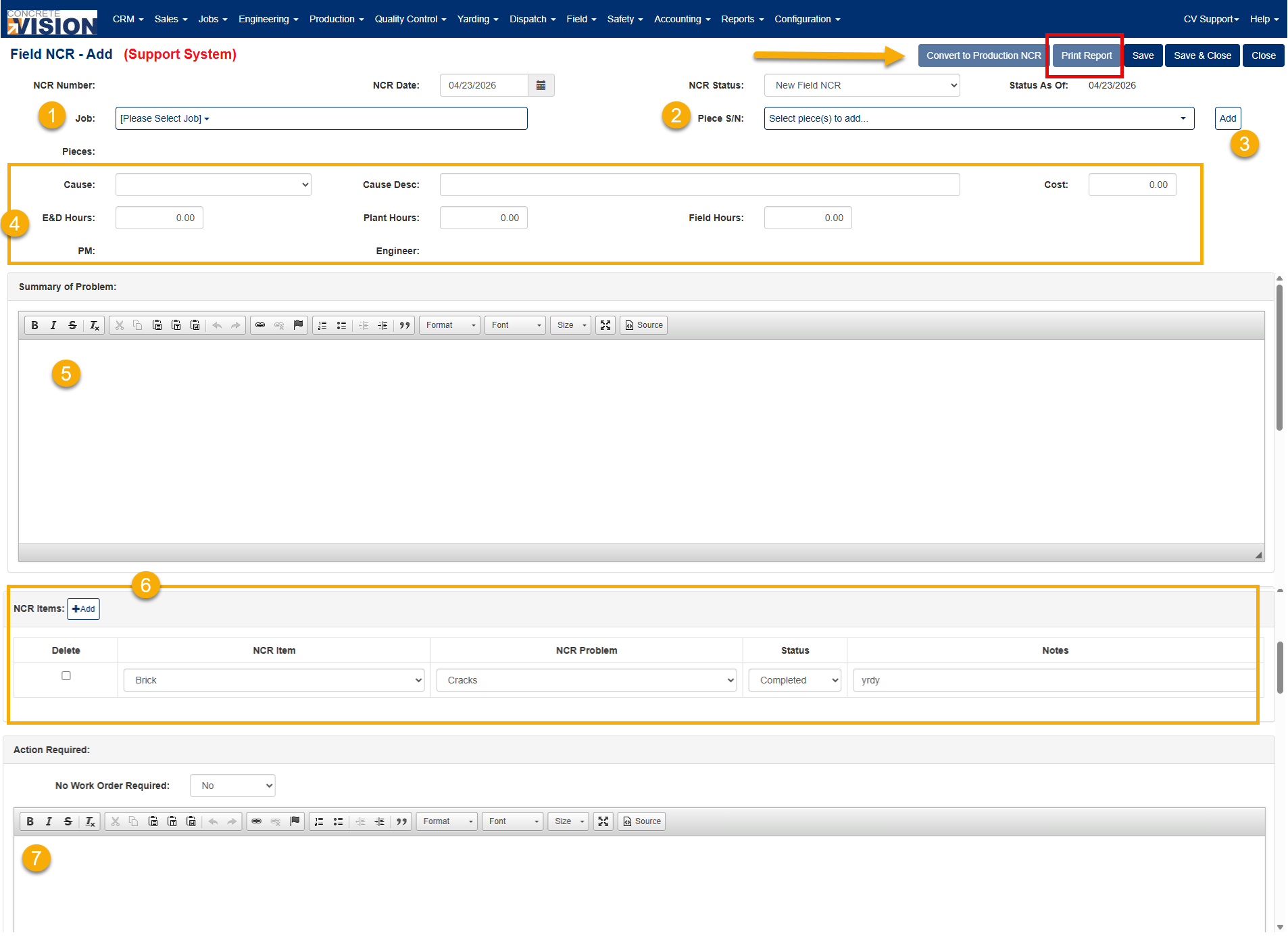
Figure 3
Printing Report of the New Field NCR
Click the Print Report button (Red box, Figure 3) in the top right to generate a PDF report of the newly created Field NCR.
Converting a Field NCR to a Production NCR
If the Field NCR should instead be a Production NCR, click Convert to Production NCR button (Orange arrow, Figure 3). This moves the NCR to the Production module.
Note: This action cannot be undone. Confirm the NCR is correctly categorized before converting.
NCR Statuses
A Field NCR moves through a defined set of statuses that control workflow routing. The table below describes each status and the transitions it allows
| Status | Workflow Notes |
| New NCR | Starting status. Can be moved to any other status. |
| Drafting Review | Can only move to Engineering Review, PM Review, or QC Review. |
| Engineering Review | Can only move to Drafting Review, PM Review, or QC Review. |
| PM Review | Can only move to Drafting Review, Engineering Review, or QC Review.. |
| QC Review | NCR has been reviewed and is awaiting assignment to a repair department. |
| Production Repair | Can only move to QC Review or Final QC Review. |
| Steel Shop Repair | Can only move to QC Review or Final QC Review. |
| Finishing Repair | Can only move to QC Review or Final QC Review. |
| Final QC Review | NCR is back from repair and ready for final review. |
| Repair Complete | Repair has been completed. |
| Recast - Scrap | Piece mark has been scrapped and will be recast. |
| Recast - Stock | Only applies to product categories marked as Hollowcore. |
| Repair Not Needed | NCR is closed without requiring repair. |
| Complete Without Repair | NCR is marked complete without any repair being performed. |
Printing a Report of Filtered NCR List
- Use the Filter tab (yellow arrow, Figure 2) to adjust the displayed list as needed.
- Click the Report button (green box, Figure 2) in the top right of the screen.
Exporting Filtered NCR List to Excel
- Use the Filter tab (yellow arrow in Figure 2) to adjust the displayed list as needed.
- Click the Export button (green box, Figure 2) in the top right of the screen.
Emailing a Field NCR
NCR details can be emailed directly from Concrete Vision. The email body is pre-populated with NCR information, and a PDF of the NCR is automatically attached.
- From the Field NCR screen (Figure 2), click the Edit icon beside the Field NCR.
- On the Field NCR – Add screen, click the Email button in the top right.
- In the Email popup (Figure 4), review the recipients, subject, body, and attachment. Edit as needed, then click Send (Red box, Figure 4)
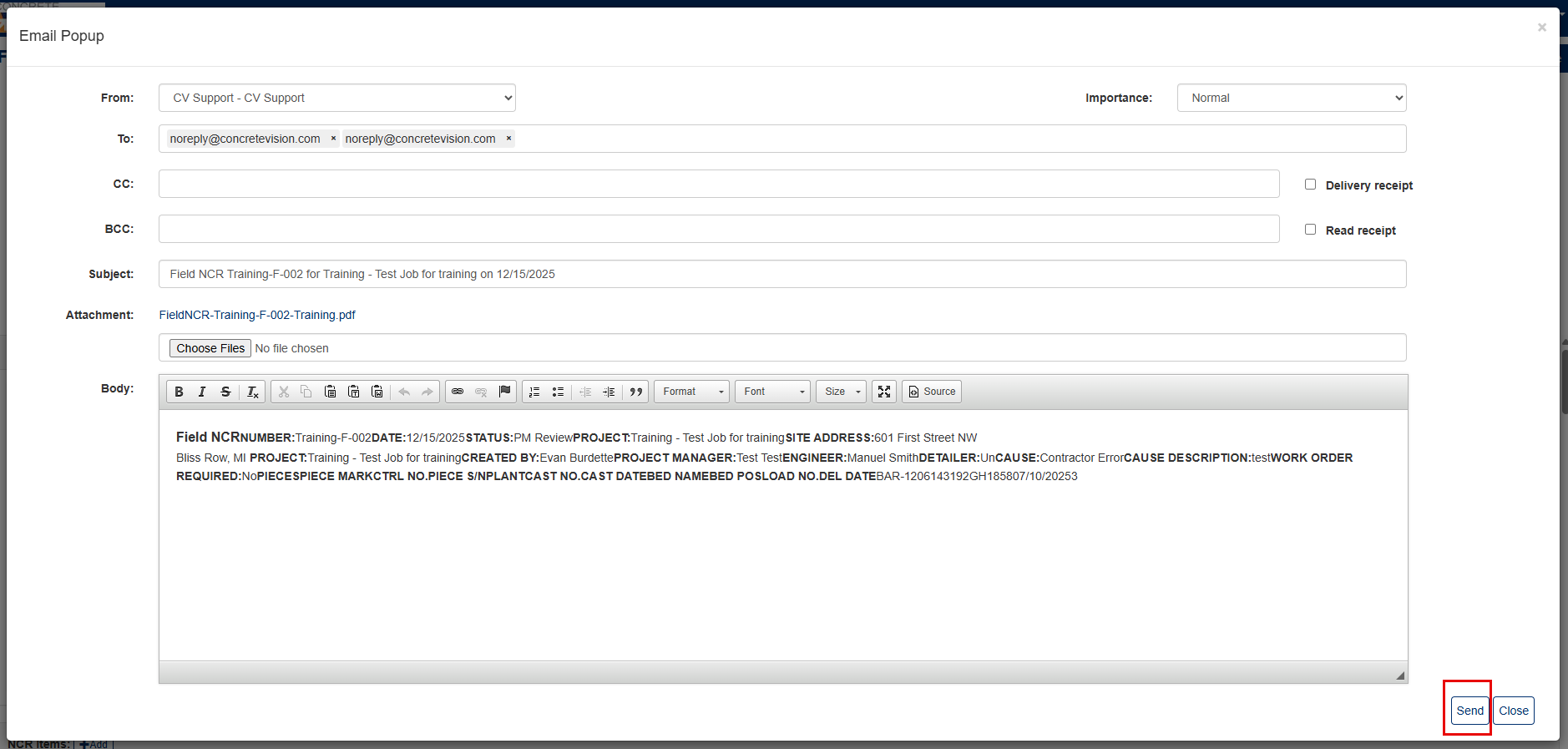
Figure 4
Was this article helpful?
That’s Great!
Thank you for your feedback
Sorry! We couldn't be helpful
Thank you for your feedback
Feedback sent
We appreciate your effort and will try to fix the article