Overview
The purpose of the Field NCR Undo Complete screen is to correct for when a field NCR is accidentally marked as Complete to re-adjust the associated flags and ties to the NCR process.
Accessing the Screen
Navigate to Field > Field NCR Undo Complete from the main menu (Figure 1).
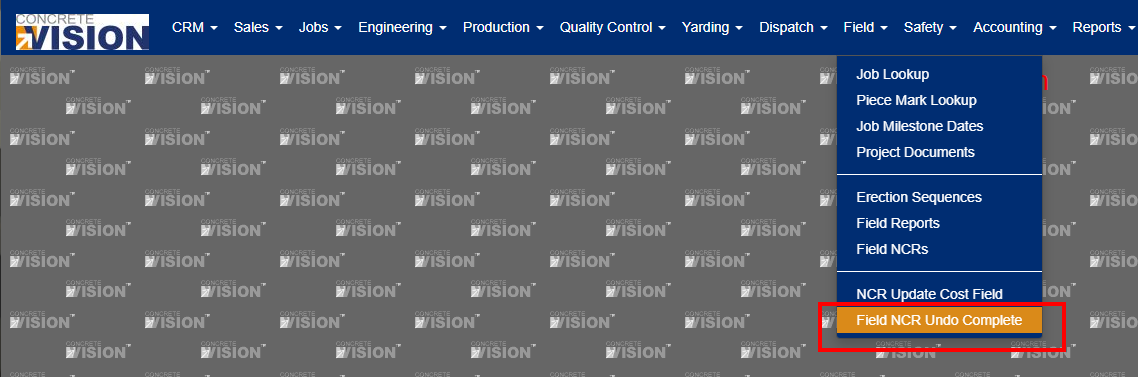
Figure 1
Using the Screen & Filter
The filter on the Field NCR Undo Complete screen is designed to be completed/filled out from left to right since each selection populates the following dropdown:
- Select a Plant from the Plant dropdown (Green box number 1 in Figure 2).
- Select a Job from the Job Name dropdown (Purple box numbered 2 in Figure 2)
- Select a Piece Mark from the Piece Mark Dropdown (Red box numbered 4 in Figure 2).
- Click the Search button (Green box numbered 3 in Figure 4).
Note: The Piece Mark dropdown is OPTIONAL. It is not needed to produce the list of NCRs.
- If any NCRs marked as complete and are able to be undone meet the filter's criteria, they will be listed on the lower/main portion of the screen.
- To clear the selected search criteria, click the Clear button (Red box numbered 2 in Figure 3). The screen will reload with a cleared filter.
- The Plant dropdown *Required (Green box numbered 1 in Figure 2) contains a list of plants that are active with active jobs. Selecting a plant will populate the Job Name dropdown based on the jobs associated to that plant.
- The Job Name dropdown *Required (Purple box numbered 2 in Figure 2) is where you select the job where the NCR was marked as complete. This dropdown is populated by active jobs. The Jobs are ordered by job number then name and can be searched for by either number or name using the search box (Orange box numbered 3 in Figure 2). Selecting a job will populate the Piece Mark dropdown with all Piece Marks that contain a piece that has been marked as closed that fit the Job Name and Plant criteria previously filled out.
- The Piece Mark dropdown *Optional (Red box numbered 4 in Figure 3, and Purple box numbered 1 in Figure 4) is not needed to perform the search to create the list of NCR's to Undo. This dropdown is comprised of Piece Marks that contain a piece that has been marked as closed that fits the Job Name and Plant criteria previously filled out. If you did want to select a Piece Mark this will limit the output of the search to that criteria.

Figure 2

Figure 3
Undoing Completed Field NCR's
From the NCR Undo Complete screen:
- Select the filter parameters and click the Search button to generate the NCR list.
- Click the Undo button (green box in Figure 4) beside the NCR to undo the completion.
- A message will display at the top of the screen indicating that the process has been completed.
View the Piece Mark Drawing
To view the piece mark drawing of a piece in the filtered NCR list, click on the PDF icon (Purple box numbered 2 in Figure 4) next to the piece mark name.
Sort the NCR List
- Click on a blue heading in the filtered NCR list to sort by that column (Orange box numbered 4 in Figure 4).
- Click on the heading again to sort from ascending to descending order.
Navigating the NCR List
The size of the list will depend on how many NCRs meet the filter criteria. Use the standard pager at the top of the screen (Red box numbered 4 in Figure 4) to flip through the list. From this pager:
- Adjust the number of records displayed.
- Adjust the current page.
Note: The pager adjusts on the fly as options are selected. Be aware that if a specific NCR is pulled up, and then the number of records or page is adjusted, it will automatically switch/adjust the records and you might have to relocate that NCR.
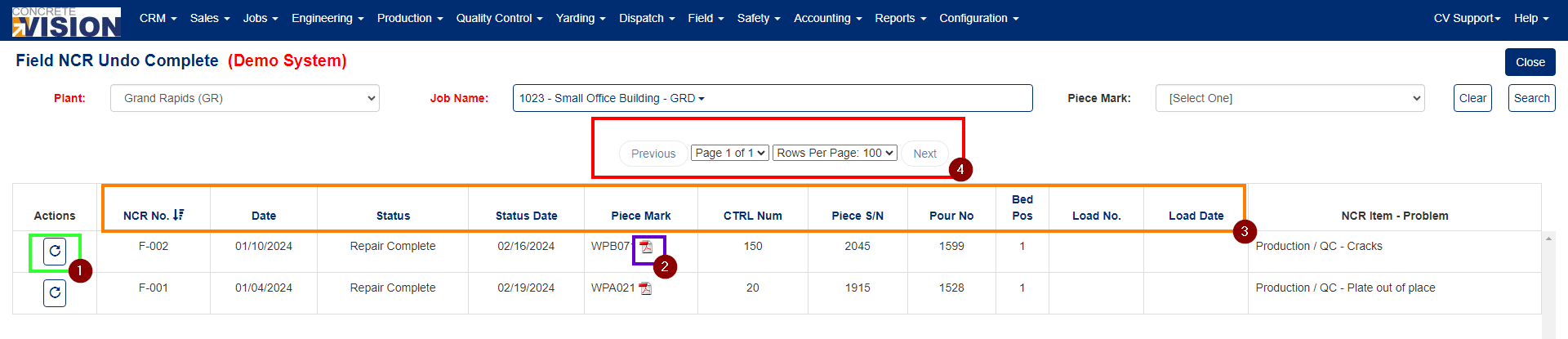
Figure 4
Was this article helpful?
That’s Great!
Thank you for your feedback
Sorry! We couldn't be helpful
Thank you for your feedback
Feedback sent
We appreciate your effort and will try to fix the article