Overview
The NCR Undo Scrap feature allows you to revert previously completed Non-Conformance Reports (NCRs) back to an uncompleted status. This functionality is essential for quality control processes when corrections or additional work is needed on NCRs that were prematurely marked as complete.
Accessing NCR Undo Scrap
To access this feature:
- Navigate to Quality Control in the main menu
- Select NCR Undo Scrap from the dropdown menu
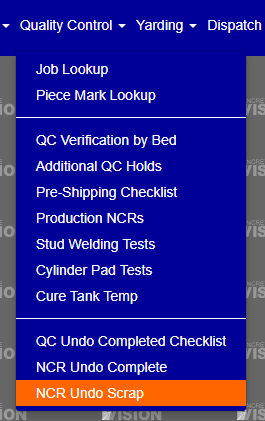
Figure 1
Main Interface
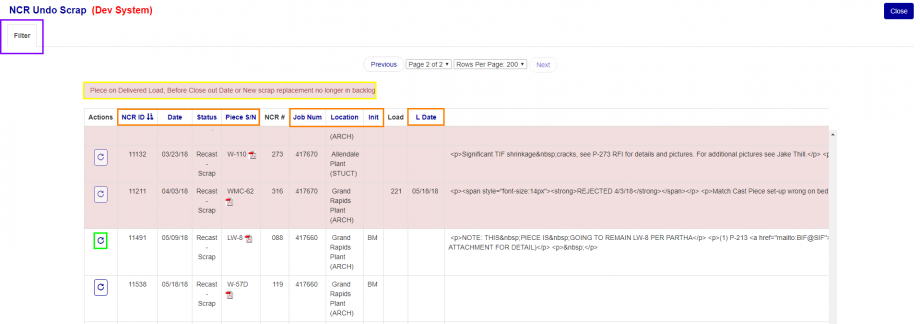
Figure 2
The NCR Undo Scrap screen displays a comprehensive list of all completed NCRs in your system. Each entry shows essential information including:
- NCR identification details
- Completion status
- Associated job information
- Action buttons for available operations
Understanding NCR Status Indicators
- Red background: NCRs that cannot be undone due to their current status
- Normal background: NCRs eligible for undo operations
- Status restrictions: NCRs with certain statuses (Yellow box, Figure 2) are permanently completed and cannot be reverted
Working with the NCR List
Sorting NCRs
The list can be sorted by any column to help you find specific records quickly:
- Change sort column: Click on any column heading to sort by that field
- Change sort direction: Click the same heading again to toggle between ascending and descending order
- Visual indicator: The currently active sort column displays a sort icon (↕) next to the heading

Figure 3
Filtering NCRs
Use the filter functionality to narrow down your search results:
- Open filter menu:
- Click the Filter button at the top of the screen (Purple box, Figure3)
- Set filter criteria:
- Select desired location from the dropdown
- Choose specific job if needed
- Add any other relevant search parameters
- Apply filters: Click the Search button to update the list (Green box, Figure 3)
- Reset filters: Click the Clear button to remove all filter criteria (Red box, Figure 3)
- Close filter menu: Click the Filter button again to hide the filter options
⚠️ Important: Searching and clearing filters will refresh the screen. Save any pending changes before using these functions.
Undoing NCR Completion
Eligibility Requirements
Before attempting to undo an NCR completion, verify:
- The NCR row does not have a red background
- The NCR is not listed among the restricted statuses (shown in the yellow warning area, Figure 2)
Undo Process
To mark an NCR as uncomplete:
- Locate the NCR: Use sorting and filtering if needed to find the specific NCR
- Verify eligibility: Ensure the row has a normal (non-red) background
- Initiate undo: Click the Undo button in the NCR's row (Green box, Figure 2)
- Confirm action: A confirmation dialog will appear - review the details and confirm your selection (Figure 4)
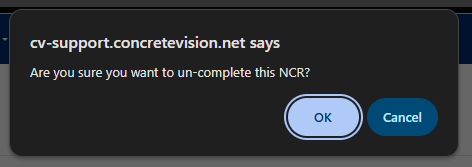
Figure 4
Post-Undo Actions
Once an NCR is successfully marked as uncomplete:
- It will be removed from the completed NCRs list
- The NCR will return to its previous workflow stage
- Quality control processes can resume on the NCR
Was this article helpful?
That’s Great!
Thank you for your feedback
Sorry! We couldn't be helpful
Thank you for your feedback
Feedback sent
We appreciate your effort and will try to fix the article