Overview
The NCR Scrap Reason module allows you to manage scrap reason codes used in nonconformance reporting. This guide explains how to access, create, edit, and manage NCR Scrap Reasons in the system.
Table of Contents
- Accessing the Module
- Managing Scrap Reasons
- Creating a New Reason
- Editing an Existing Reason
- Deleting a Reason
- Exporting Data
- Important Notes
Accessing the Module
Access the NCR Scrap Reason module through:
- Click Configuration in the main menu
- Select Quality Control Setup
- Click NCR Scrap Reason
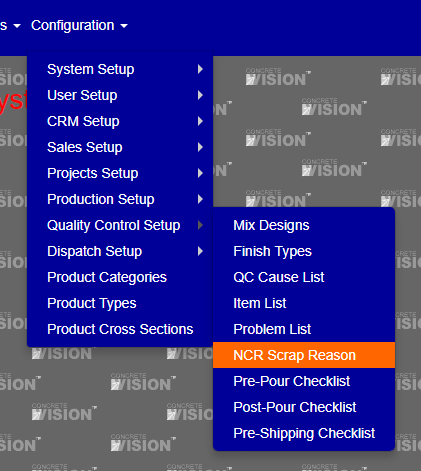
Figure 1
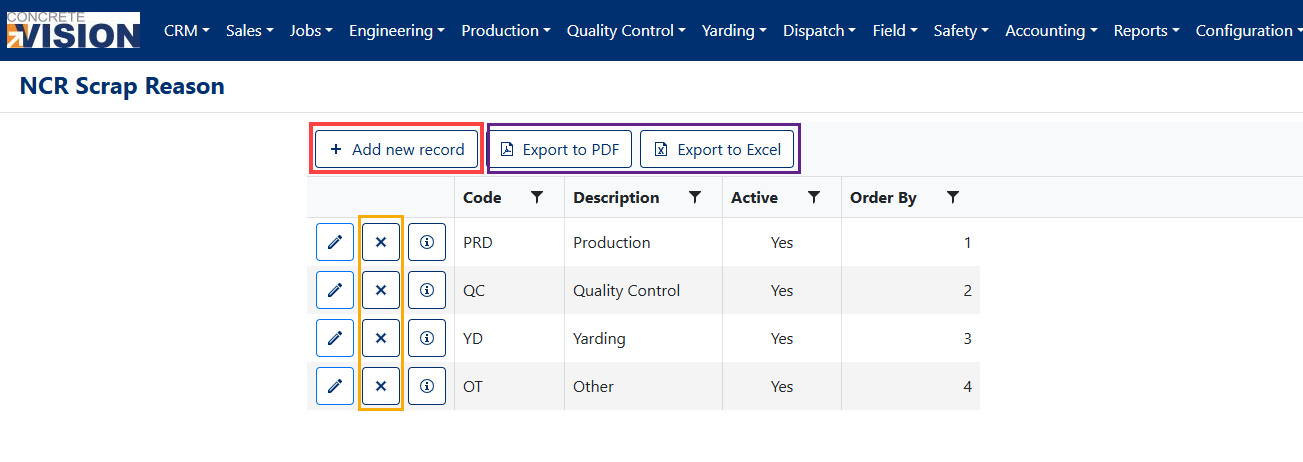
Figure 2
Managing Scrap Reasons
Creating a New Reason
- Click the [+ Add new record] button in the top-left corner of the screen
- Complete the following fields in the Add New dialog:
- Code: Enter a unique identifier (maximum 10 characters)
- Description: Enter a detailed description (maximum 50 characters)
- Active: Toggle on to make the reason available for use
- Order By: Enter a number to control sorting order in lists
- Click the [Save] button to create the record. (green box in Figure 3)
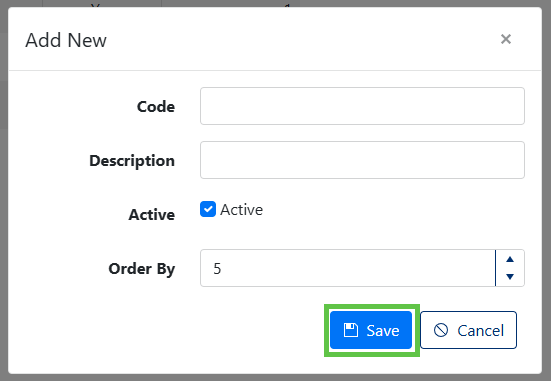
Figure 3
Editing an Existing Reason
- Locate the reason you want to modify in the list
- Click the pencil icon (edit button) to the left of the record
- Update any of the following fields:
- Code (maximum 10 characters)
- Description (maximum 50 characters)
- Active status toggle
- Order By number
- Click the [Save] button to apply your changes. (green box in Figure 4)
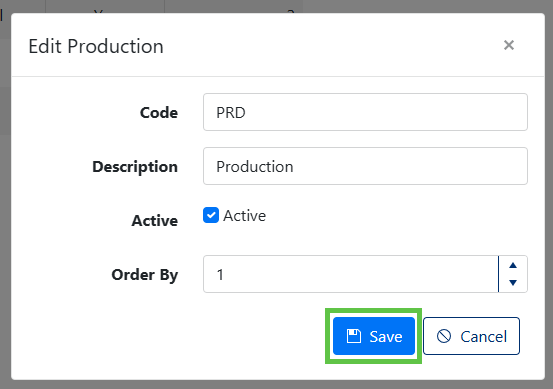
Figure 4
Deleting a Reason
- Locate the reason you want to remove in the list
- Click the [X] button next to the record.
- Confirm deletion by clicking [OK] in the confirmation dialog (Figure 5).
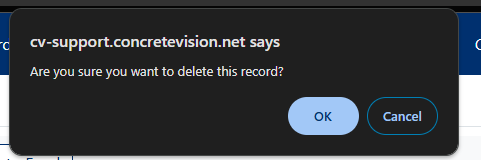
Figure 5
Important: You can only delete NCR Scrap Reasons that are not currently assigned to an NCR. The delete button will be disabled for reasons that are in use.
Exporting Data
You can export your NCR Scrap Reason data in two formats:
- Export to PDF: Generates a PDF document containing the complete list
- Export to Excel: Creates an Excel spreadsheet containing the complete list
Both export buttons are located at the top of the screen next to the Add New Record button. (highlighted in purple in Figure 2)
Important Notes
- Each scrap reason must have a unique Code
- Active status controls whether the reason appears in dropdown menus
- Order By numbers determine how reasons are sorted in selection lists
- Existing reasons that are in use cannot be deleted
- Regular auditing of scrap reasons helps maintain data quality
Was this article helpful?
That’s Great!
Thank you for your feedback
Sorry! We couldn't be helpful
Thank you for your feedback
Feedback sent
We appreciate your effort and will try to fix the article