The Mix Designs module (see Figure 2) is where you can view, add, and edit Mix Designs.
You access the Mix Designs screen from the Configuration menu > Quality Control Setup > Mix Designs (see Figure 1).
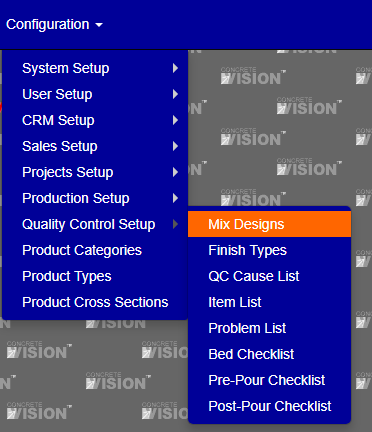
Figure 1
Search By Location
To Add, Edit, and View the mix designs for a specific location just click the "View" button that corresponds to the location to inspect (Green box in Figure 2).
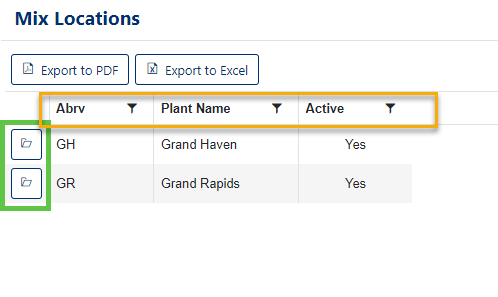
Figure 2
Sort Mix Designs Location Table
** The currently selected heading to sort by will have the sort by icon next to it ( )
)
- Click any of the headings (Orange box in Figure 2) to change the table to be sorted by that headings category.
- Click the same heading again to change the sort by function to be descending instead of the default ascending.
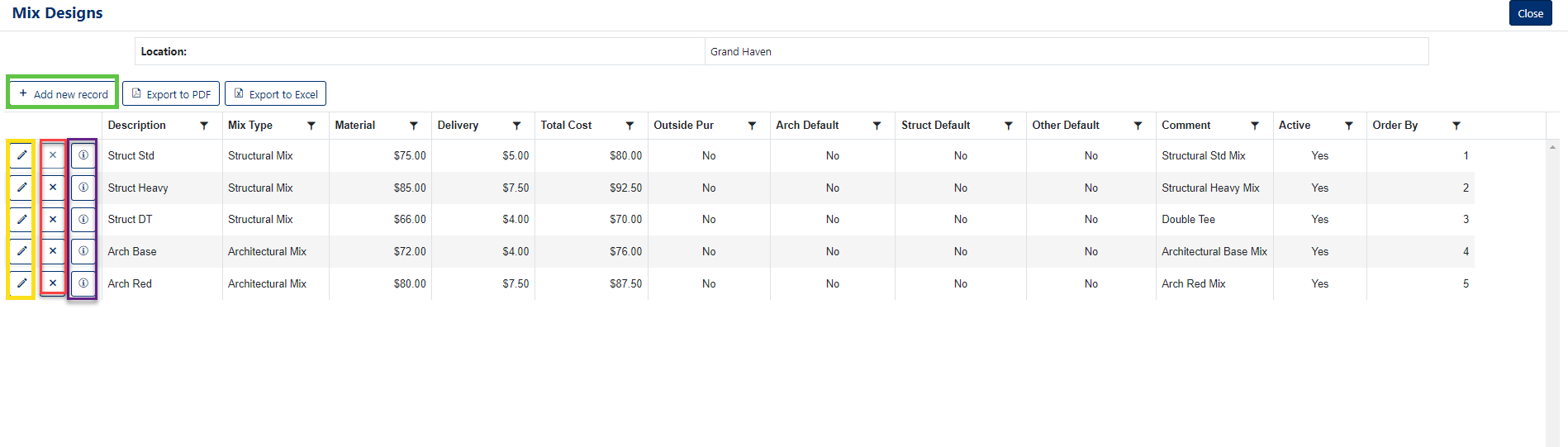
Figure 3
Add Mix Design
- Click the "Add New Record" button from the view Mix Designs screen (Green box in Figure 3) to enter the Mix Designs Add screen (Figure 4).
- Enter a Description. (This is Required)
- Select a Mix Type. (This is Required)
- Enter Materials number.
- Enter a Delivery.
- You can enter a Comment.
- You can mark whether to include the Outside Pur, Arch Default, Struct Default or Other Default.
- You can mark the mix design as Active or Inactive.
- Enter an Order By.
- To add the Mix Design, click the "Update" button on the Add screen (Purple box in Figure 4).
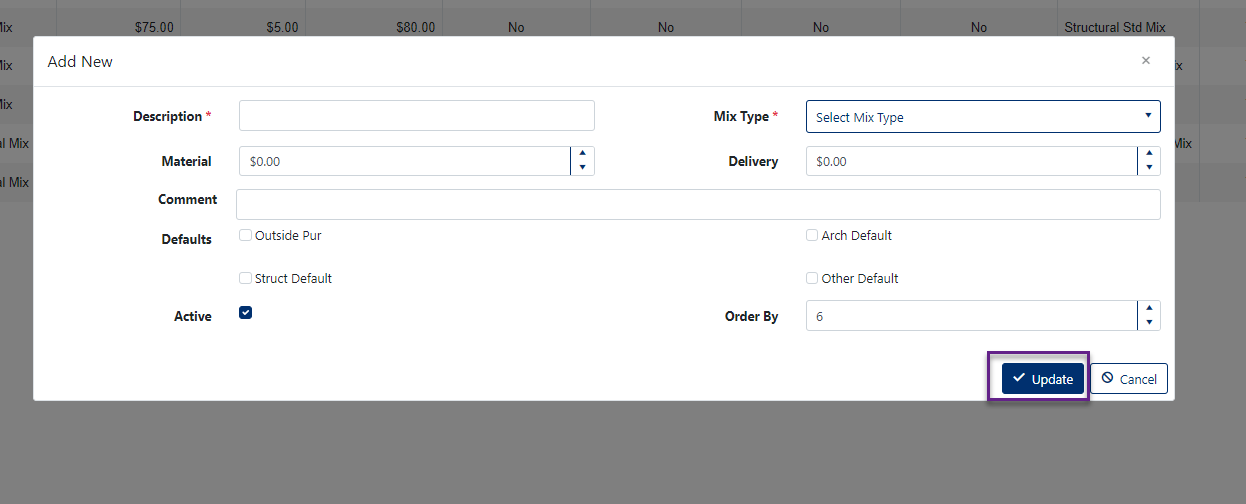
Figure 4
Edit Mix Design
- Click the "Edit" button from the view Mix Designs screen (Yellow box in Figure 3) to enter the Mix Designs Edit screen (Figure 5).
- You can change the Description. (This is Required)
- You can change the Mix Type. (This is Required)
- You can change the Materials number.
- You can change the Delivery.
- You can change the Comment.
- You can mark whether to include the Outside Pur, Arch Default, Struct Default or Other Default.
- You can mark the mix design as Active or Inactive.
- Enter or change the Order By.
- To save the Mix Design changes, click the "Update" button on the Add screen (Purple box in Figure 5).
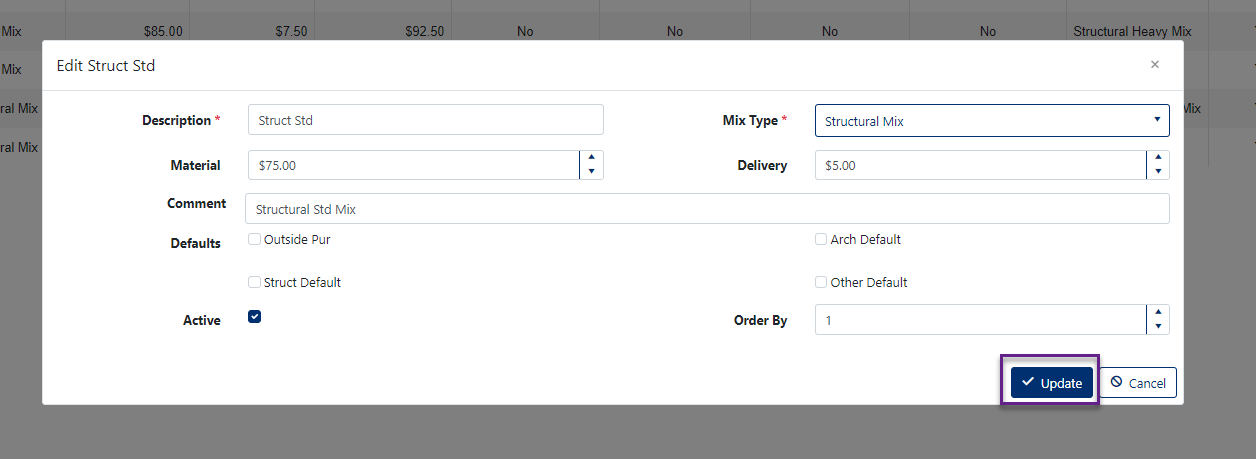
Figure 5
Remove Mix Design
- Click the "Delete" button in the corresponding row of the Mix Design you wish to remove (Red box in Figure 3).
- Click "OK" in the dialogue box that appears to confirm you wish to delete the record.
Was this article helpful?
That’s Great!
Thank you for your feedback
Sorry! We couldn't be helpful
Thank you for your feedback
Feedback sent
We appreciate your effort and will try to fix the article