Overview
The Mix Designs screen is part of the Quality Control module setup. The library of mix designs created on this screen are used in cast mixes, piece mark mixes, and project product code mixes.
Accessing the Mix Designs Screen
Navigate to Configuration > Quality Control Setup > Mix Designs from the main menu (Figure 1).
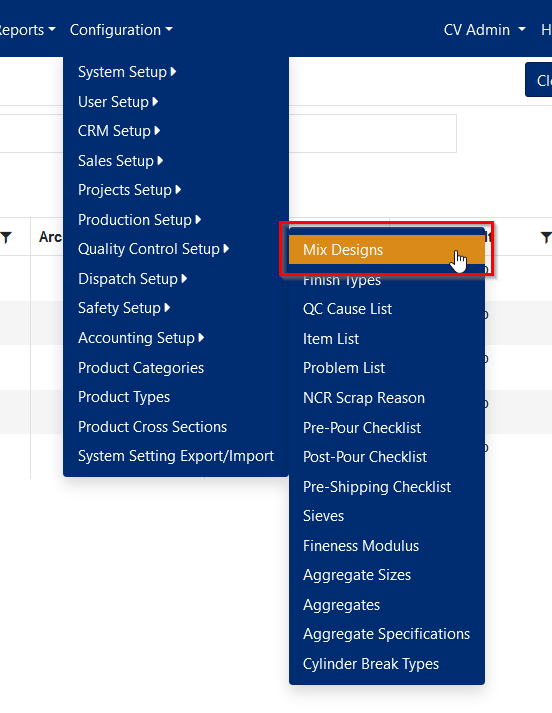
Figure 1
Mix Locations
When you navigate to the Mix Designs from the menu, you will first be presented with a Mix Locations screen (Figure 2). Each location (plant) has its own mix designs. Click the folder icon next to the location name to view or modify the list of mix designs for that plant.
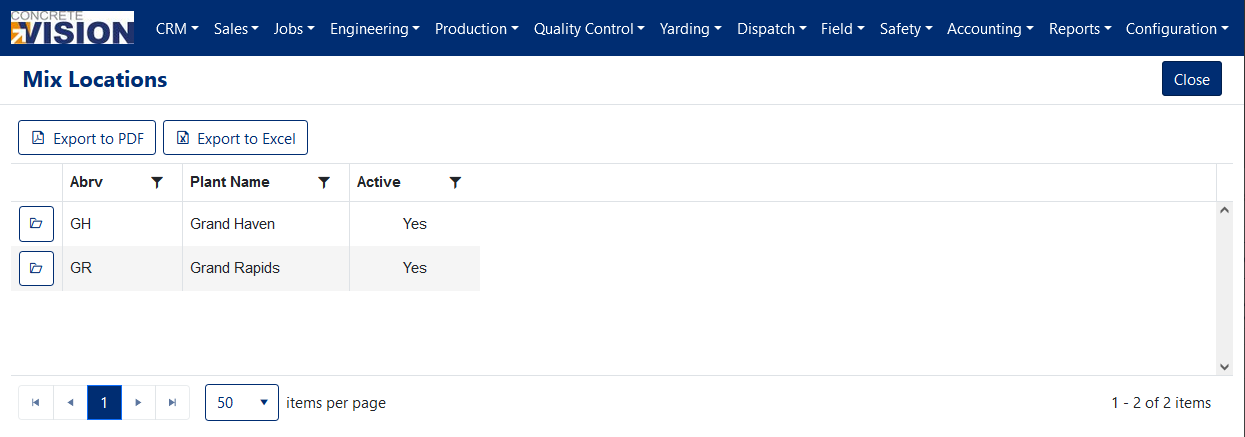 Figure 2
Using the Mix Designs Screen
On the Mix Designs screen (Figure 3), mix designs for that plant can be added, edited, deleted, exported to Excel, exported to PDF, filtered, and sorted.
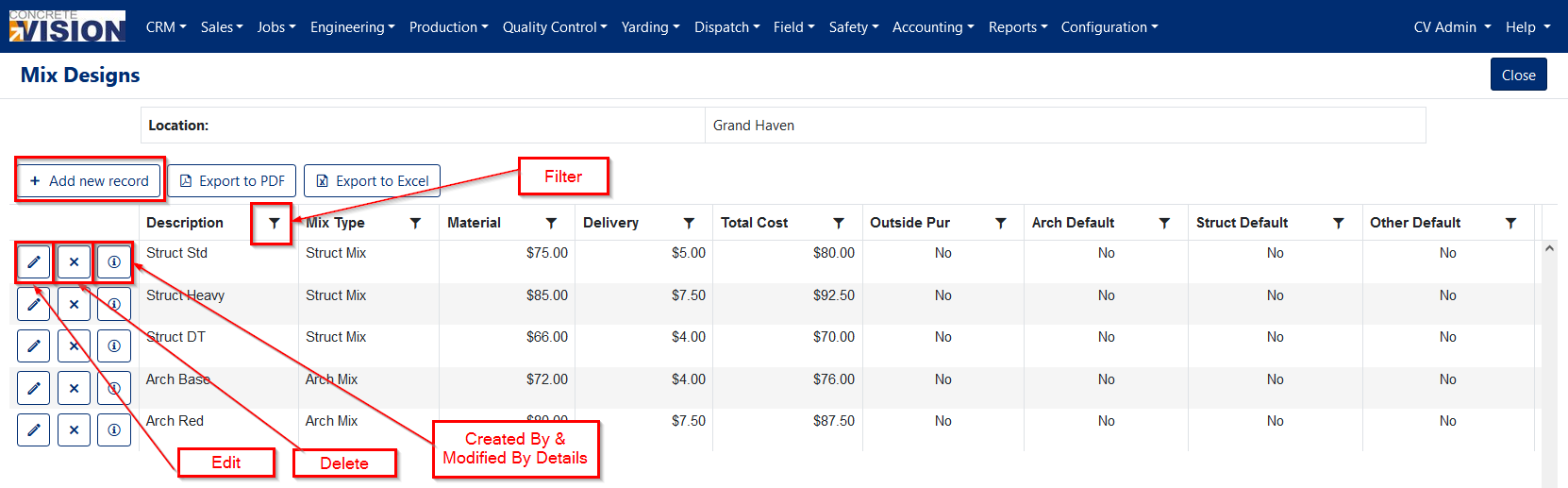
Figure 3
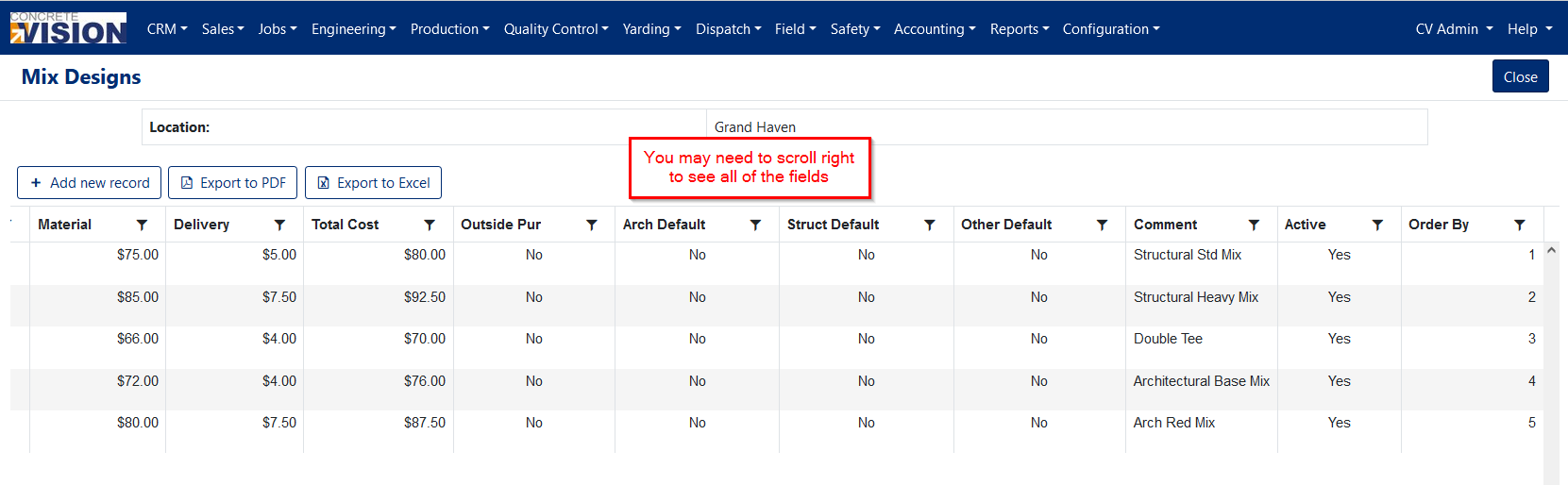
Figure 4
Add a Mix Design
From the Mix Designs screen (Figure 3):
- Click the Add new record button. An Add New dialog box will load (Figure 5).
- Enter a description (name) for the mix design.
- Select a mix type from the dropdown menu.
- Assign a dollar value to the material field.
- Assign a delivery charge.
- Additional details about the mix design can be added in the comment field.
- The mix design can be set as the default for Outside Pour, Architecture, Structural, or Other by checking the appropriate box.
- Make the mix design active in Concrete Vision by checking the Active box.
- Enter an Order By value to determine display order.
- Click the Save button.
Note: The material & delivery cost will be added together in the total cost column of the list of mix designs (Figure 3).
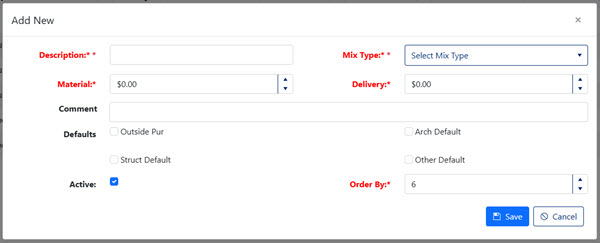
Figure 5
Edit a Mix Design
From the Mix Designs screen (Figure 3):
- Click the Edit icon next to the mix design to modify.
- Make any needed changes.
- Click the Save button.
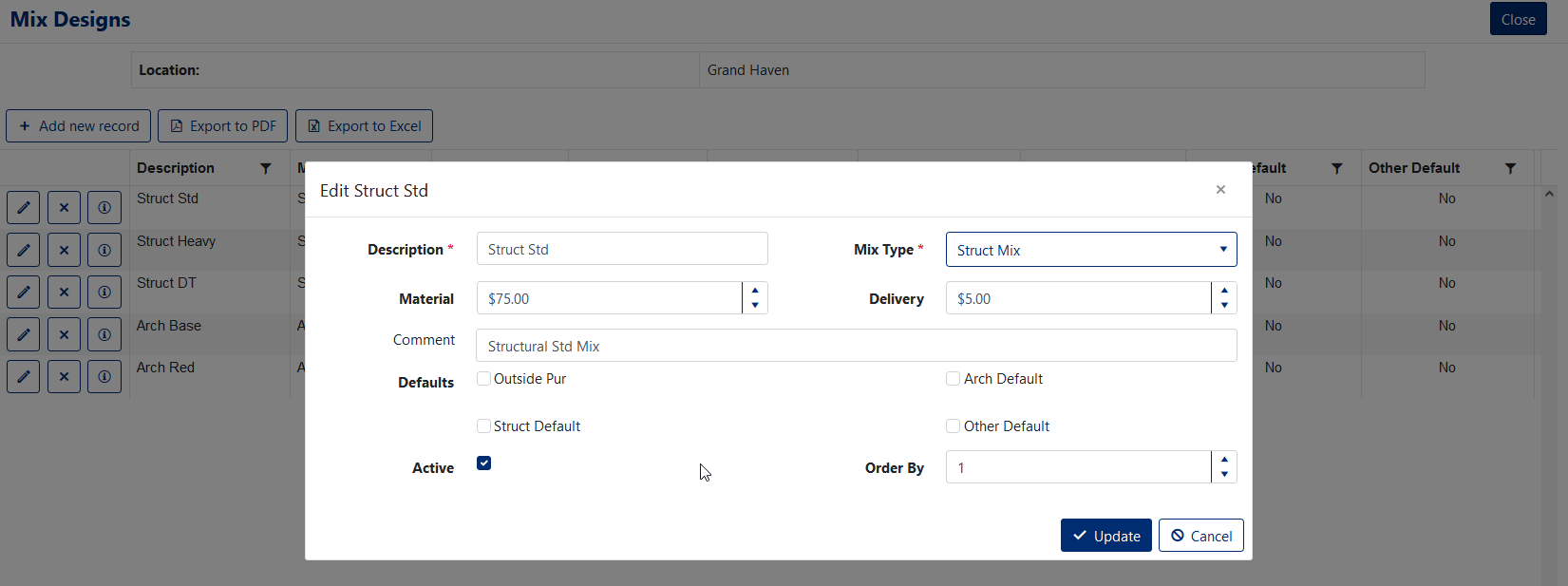
Figure 5
Delete a Mix Design
From the Mix Designs screen (Figure 3):
- Click the Delete icon next to the mix design to remove.
- In the popup window, confirm deletion.
Note: Mix designs that have been assigned to a cast, a piece mark, or a project product code can't be deleted.
Was this article helpful?
That’s Great!
Thank you for your feedback
Sorry! We couldn't be helpful
Thank you for your feedback
Feedback sent
We appreciate your effort and will try to fix the article