Overview
The Piece Mark Lookup screen lets you quickly search for a specific piece mark, view its production status and history, and generate labels or reports.
Accessing the Piece Mark Lookup Screen
The Piece Mark Lookup screen can be accessed in multiple modules in Concrete Vision, including Jobs, Engineering, Production, Quality Control, Yarding, Dispatch, and Field.
To find the Piece Mark Lookup screen from the Jobs module, navigate to Jobs > Piece Mark Lookup from the main menu (Figure 1).
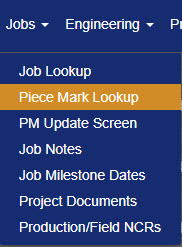 Figure 1
Ways to Look Up a Piece Mark
From the Piece Mark Lookup screen (Figure 2), you can locate a piece mark in three ways:
- Select a job from the Job Name dropdown, then use the Filter tab to narrow results (#1 in Figure 2).
- Enter a serial number directly in the Piece S/N field (#4 in Figure 2).
- Click the Scan button to scan a barcode label with your device camera (#3 in Figure 2).
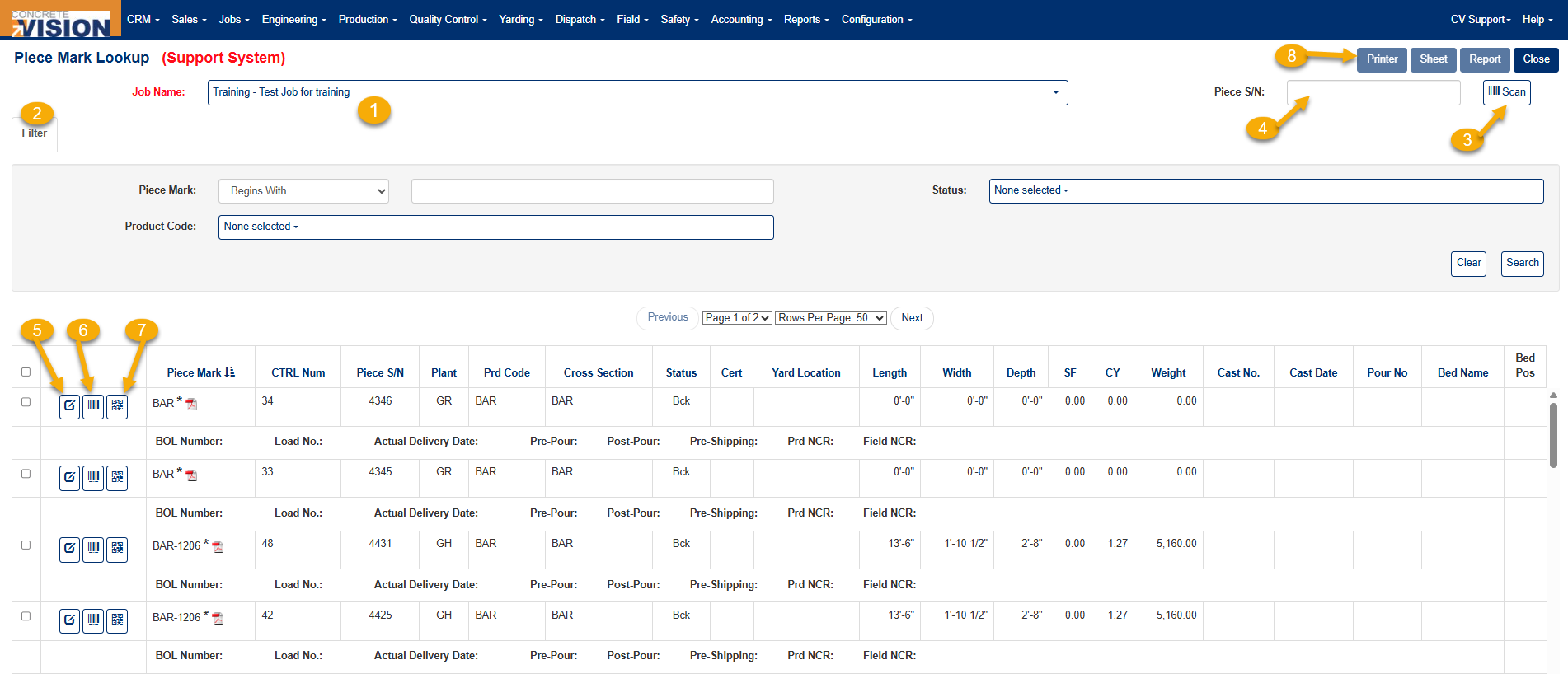
Figure 2
Piece Mark Lookup Screen Layout
The list below corresponds to the numbered labels on Figure 2 and provides a detailed description of the Piece Mark Lookup screen functions.
| Number | Element | Description |
|---|---|---|
| 1 | Job Dropdown | Filter the list by selecting a specific job. |
| 2 | Filter Tab | Opens filter menu. Further refines the list of pieces shown for selected job. |
| 3 | Scan button | Use device to scan label on piece mark. |
| 4 | Piece S/N field | Type a piece serial number here and press Tab to search. |
| 5 | View icon | View Piece Mark Info - Details screen for specified piece mark. |
| 6 | Sheet Labels icon | Generates pdf of the standard CV sheet label for laser printer. |
| 7 | Scan Labels icon | Generates pdf of individual labels for label printer. |
| 8 | Printer, Sheet, Report buttons | Generates labels or a report of multiple piece marks checked on the list. |
How to Scan a Barcode
- Click the Scan button (item 3 in Figure 2). A camera window opens (Figure 3).
- Position the barcode so that the lines appear vertical and the full barcode is visible within the frame — ideally slightly smaller than the full width of the window.
- Once scanned, you are taken directly to the Piece Mark Info – Details screen (Figure 4) for that piece.
Note: Hold the barcode so it's horizontal in the viewing window (lines running up and down), and make sure the entire barcode is visible and slightly smaller than the width of the window for the best scan.
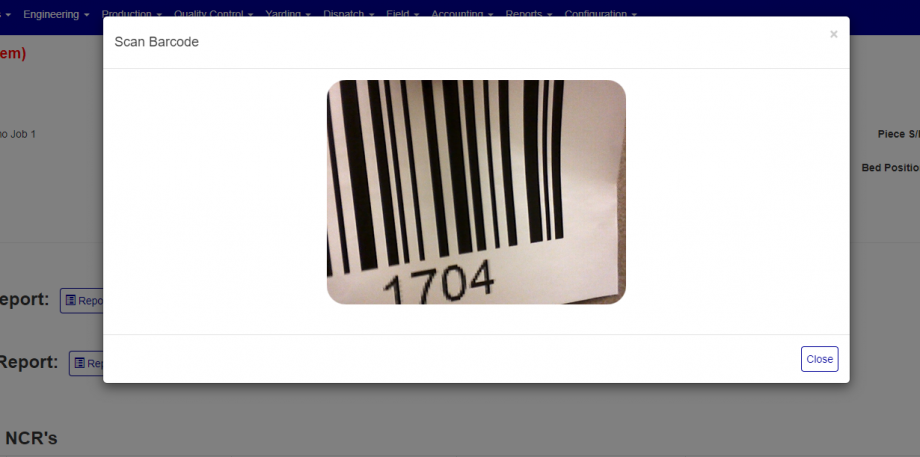
Figure 3
Camera permission: Your browser may ask for permission to use the camera the first time you scan. In Chrome and Firefox the prompt appears near the top-left of the address bar; in Edge it appears at the bottom of the window. Click Allow to continue.
Piece Mark Info – Details screen
After scanning or selecting a piece, the Piece Mark Info – Details screen (Figure 4) displays all production data for that piece, including dimensions, cast details, delivery information, and QC checks. From this screen you can also print labels or generate reports using the Printer, Sheet, and Report buttons.
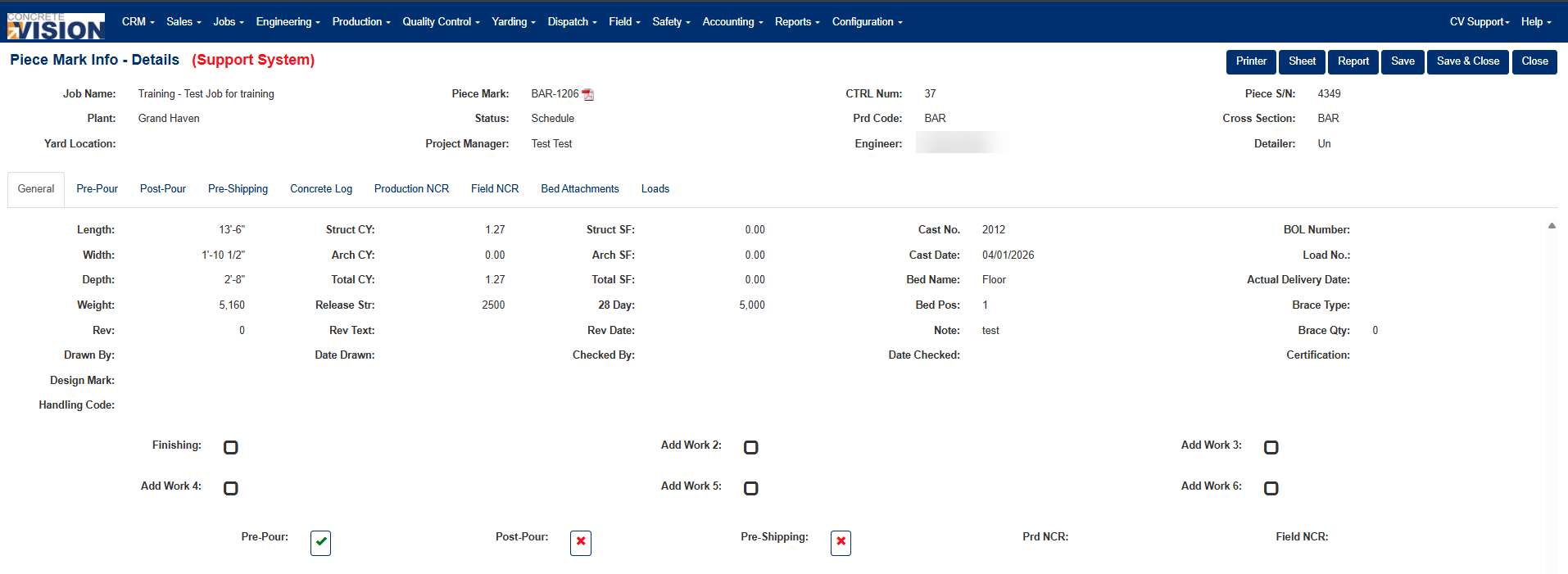
Figure 4
Was this article helpful?
That’s Great!
Thank you for your feedback
Sorry! We couldn't be helpful
Thank you for your feedback
Feedback sent
We appreciate your effort and will try to fix the article