Overview
The Delete Production NCR feature allows authorized users to permanently remove a Non-Conformance Report (NCR) record from the system. When an NCR is deleted, all associated detail and audit log entries are also removed, and the production piece's QC status is automatically updated to reflect any remaining open NCRs.
Accessing the Screen
Navigate to the Quality Control menu and select Production NCR (Figure 1).
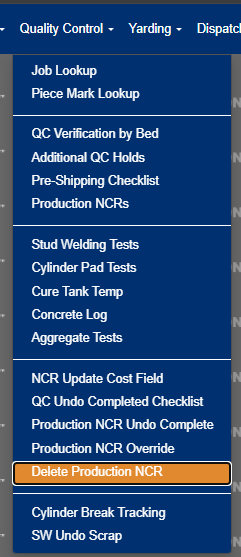
Figure 1
The Delete Production NCR screen (Figure 2) table lists all Production NCRs and can be filtered to refine the displayed list.
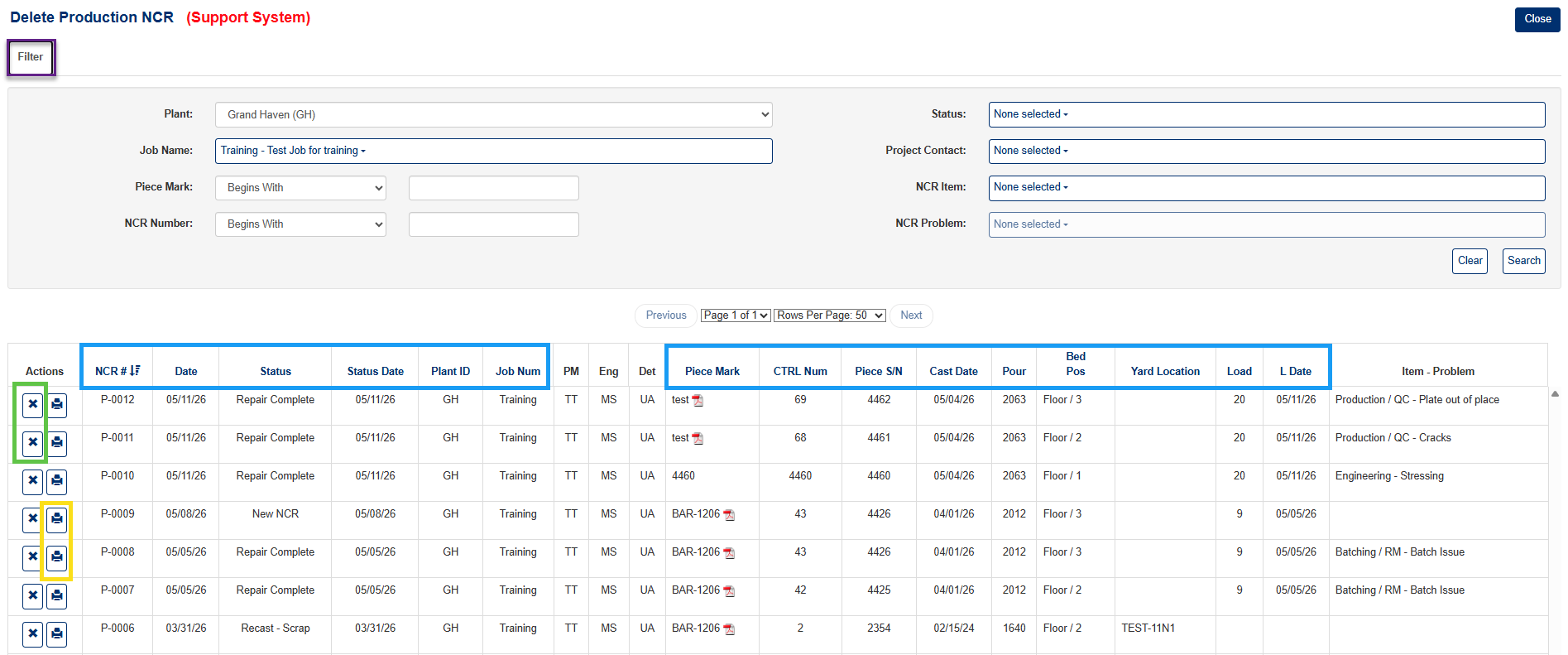
Figure 2
Column Descriptions
| Column | Description |
|---|---|
| NCR No. | Unique NCR identifier assigned automatically by the system. |
| Date | Date the NCR was created. |
| Status | Current status of the NCR (e.g., New, Repair Complete, Recast – Scrap). |
| Status Date | Date of most recent status update. |
| Plant ID | Plant where Piece Mark was produced. |
| Job No. | Job number the NCR is assigned to. |
| PM | Initials of the Project Manager assigned to the job |
| Eng | Initials of the Engineer assigned to the job |
| Det | Initials of the Detailer assigned to the job |
| Piece Mark | Piece Mark name and drawing. Click the PDF icon to view the drawing. |
| CTRL Number | Control number associated with the Piece. |
| Piece S/N | Piece Mark serial number. |
| Cast Date | Date piece is poured. |
| Pour | Pour number of piece mark. |
| Bed Pos | Bed position where piece mark was poured. |
| Yard Location | Where piece mark is located in the yard. |
| Load | Load number for the piece. |
| L Date | Load date of the piece. |
| Item - Problem | Specific issue for the NCR. Configurable in the Configuration module. |
Filtering the Delete Production NCR List
Use the Filter tab (Purple tab, Figure 2) to locate specific NCRs
- Click on the Filter tab.
- Select the filter criterial such as Plant, Status, Job Name, Project Contact, Piece Mark, NCR Item, NCR Number and NCR Problem.
- Click the Search to apply filter.
Sorting the Delete Production NCR List
Sort the list of NCRs using the blue headings in the NCR table (Blue box, Figure 2).
- Click the heading of the column you wish to sort by.
- Click the same heading again to change the direction of the sort (ascending vs. descending).
Steps to Delete a Production NCR
Note: NCR records with a Scrap status cannot be deleted until the Un-Do Scrap process has been completed. The Delete button will still appear for these records, but the action will be restricted.
- From the Delete Production NCR screen, locate the NCR record you wish to delete.
- Use the Filter Panel to search by Plant, Job Name, Piece Mark, NCR Number, or Status to narrow down the results if needed.
- Once the record is located, click the Delete button (X icon) in the Actions column of the results grid (Green box, Figure 2).
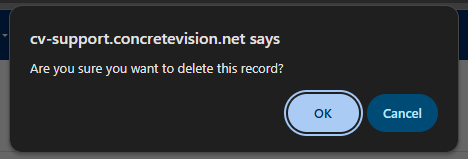
Figure 3
- Confirm deletion in the popup dialog by clicking [OK] (Figure 3).
- The record will be permanently deleted from the system.
- A Record Deleted Successfully! confirmation message will appear at the top of the screen (Figure 4).
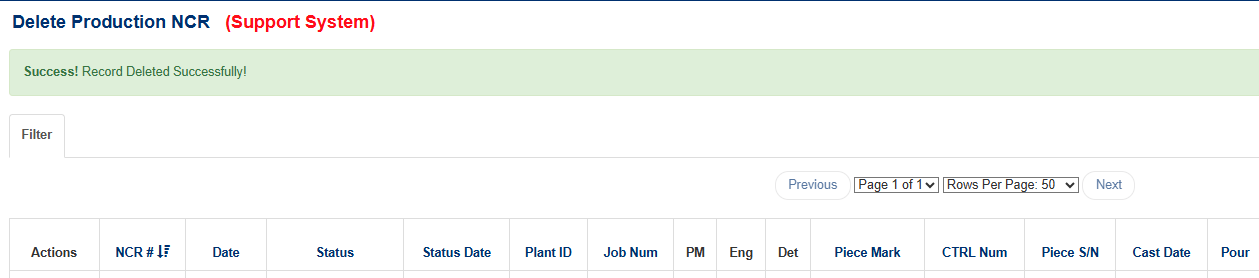
Figure 4
What Happens When an NCR is Deleted
When an NCR is deleted, the following occurs automatically:
- All associated audit log entries are removed.
- All associated NCR detail records are removed.
- The NCR record itself is permanently deleted.
- The production piece's QC Check status is updated:
- If no other open NCRs exist for the piece, the QC status is reset to clear.
- If other open NCRs remain for the piece, the QC status is updated to reflect the next open NCR.
Was this article helpful?
That’s Great!
Thank you for your feedback
Sorry! We couldn't be helpful
Thank you for your feedback
Feedback sent
We appreciate your effort and will try to fix the article