Overview
The Quality Control Problems screen is part of the Quality Control module setup. Possible problems, a subset of NCR items, are created on this screen. The problems then display in Concrete Vision on the Production/Field NCRs - Add/Edit screen in the NCR Problem dropdown selections (Figure 1) depending on which NCR item is selected.
For example: NCR Item = Structural / Material, so NCR problem options in the dropdown are Exposed Reinforcement, Low Cylinder Break, or Misplaced Embed.
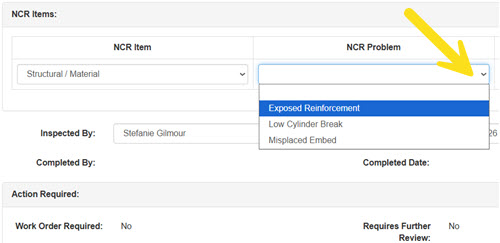
Figure 1
Accessing the Quality Control Problems Screen
Navigate to Configuration > Quality Control Setup > Problem List from the main menu (Figure 2).
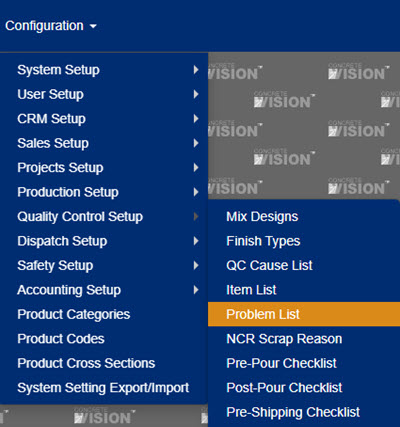
Figure 2
Using the Quality Control Items Screen
The Quality Control Problems screen (see Figure 3) is where you can add and edit QC Problems.
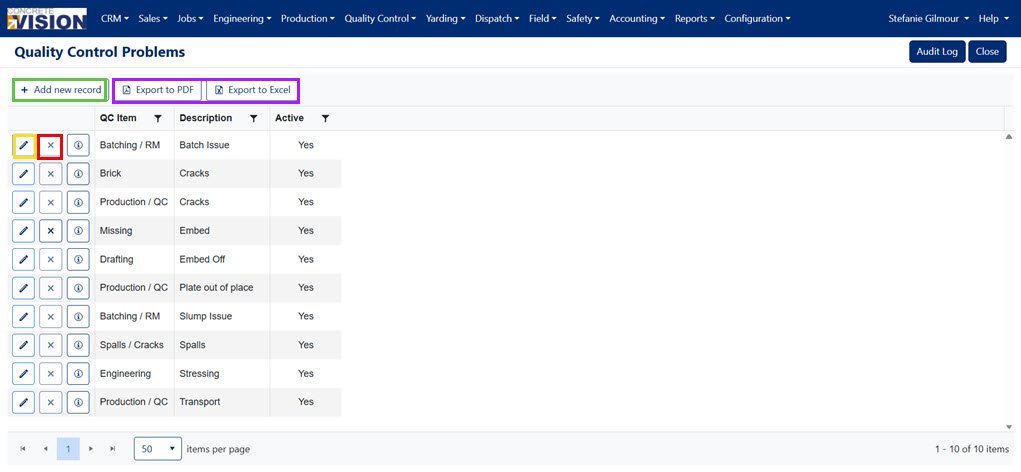
Figure 3
Add a Quality Control Problem
QC Problems are a subset of QC Items in Concrete Vision. From the Quality Control Problems screen (Figure 3):
- Click the Add New Record button (green box in Figure 3).
- In the dialog box that appears (Figure 4), select a QC Item from the dropdown.
- Enter a description for the problem.
- The Active box is checked by default to ensure the QC problem will display in CV.
- Click the Save button (Figure 4).
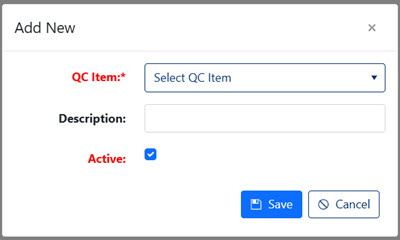
Figure 4
Edit a Quality Control Problem
From the Quality Control Problems screen (Figure 3):
- Click the Edit icon (yellow box in Figure 3).
- Make any needed modifications.
- Click the Save button (Figure 4).
Delete a Quality Control Problem
From the Quality Control Problems screen (Figure 3):
- Click the Delete icon (red box in Figure 3).
- In the dialog box that appears, confirm deletion.
Note: QC Problems that are in use by Concrete Vision cannot be deleted.
Was this article helpful?
That’s Great!
Thank you for your feedback
Sorry! We couldn't be helpful
Thank you for your feedback
Feedback sent
We appreciate your effort and will try to fix the article