Overview
The NCR Update Cost Field screen allows authorized users to view, filter, and update labor hours and repair costs across Production and Field Non-Conformance Reports (NCRs). Rather than navigating to each NCR individually, users can manage hours and cost data for multiple records from a single, scrollable list — with every change tracked in an audit log.
Accessing the Screen
Navigate to Quality Control > NCR Update Cost Field from the main menu.
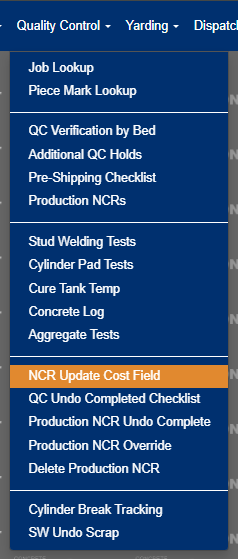
Figure 1
Screen Layout
The screen is organized into three main areas:
- Tab Bar — Toggle between Production NCRs and Field NCRs
- Filter Panel — Collapse/expand to refine the NCR list
- Data Grid — Scrollable list of NCRs with inline editable cost fields
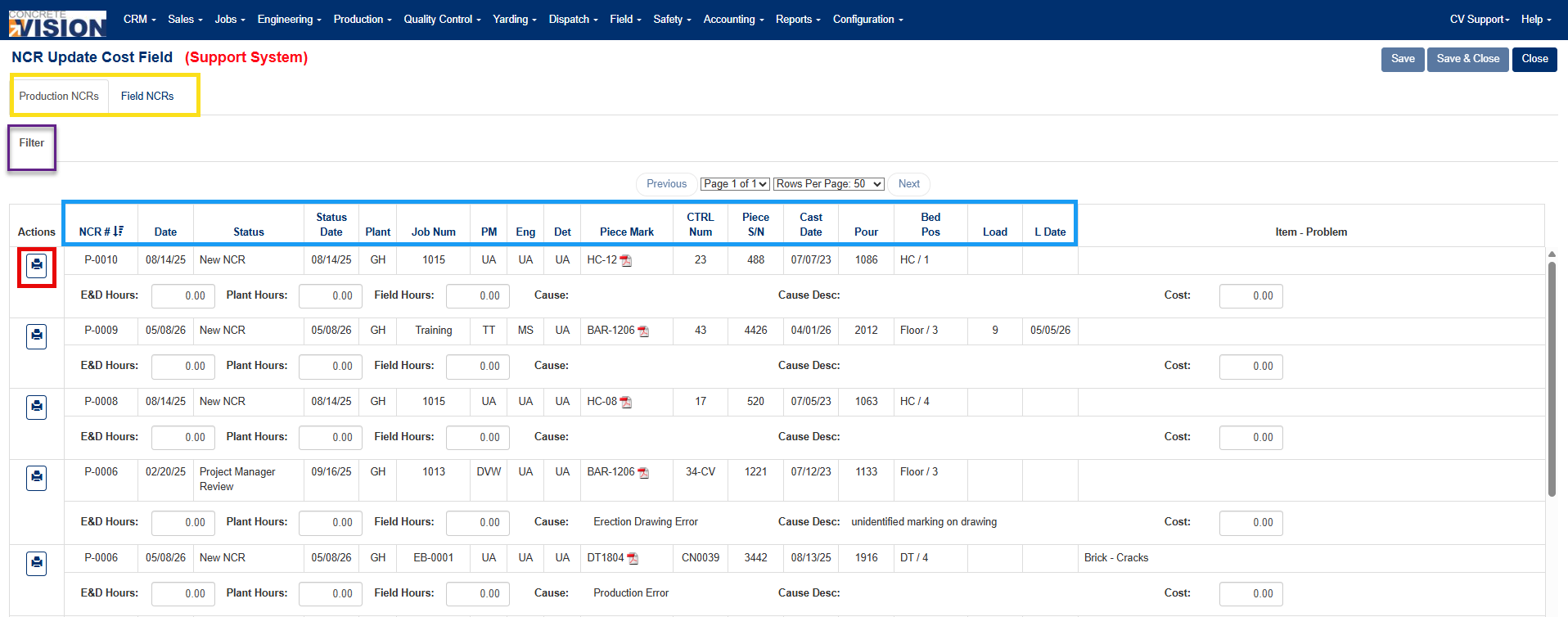
Figure 2
Using the Filter Panel
Click the Filter tab to expand the filter panel. The following filters are available:
| Filter | Description |
|---|---|
| Plant | Filter by one or more plant locations |
| Status | Filter by NCR status (open, in-progress, closed, etc.) |
| Job Name | Filter by project; list updates automatically based on selected plant |
| Start Date / End Date | Filter by NCR creation date range |
| Project Contact | Filter by Project Manager, Engineer, or Detailer assigned to the job |
| QC Item | Filter by defect category |
| QC Problem | Filter by specific problem; list updates automatically based on selected QC Item |
Click Search to apply filters or Clear to reset all filters to their defaults.
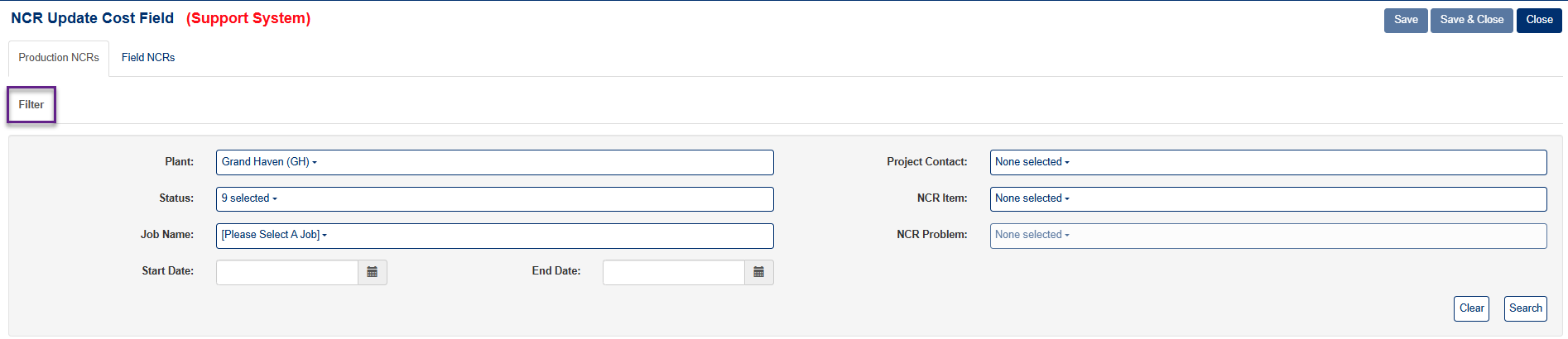
Figure 3
Updating Production Hours and Cost
Each Production NCR in the list displays two rows (Figure 2):
- Row 1 — Identifying information: NCR number, date, status, status date, plant, job number, PM/Engineer/Detailer, piece mark, control number, serial number, cast date, pour, bed position, load number, delivery date, and QC items/problems.
- Row 2 — Editable fields: E&D Hours, Plant Hours, Field Hours, Cause, Cause Description, and Cost.
To update a record:
- Locate the NCR in the list.
- Click into the ED Hours, Plant Hours, Field Hours, or Cost field in the second row.
- Enter the updated value and click out of the field (blur).
- The Save and Save & Close buttons will activate if any value has changed.
- Click Save to save and remain on the screen, or Save & Close to save and return to the main menu.
Note: The Save buttons remain disabled until at least one field value has been changed from its original value. If you revert a change back to the original, the buttons will disable again.
Updating Field Hours and Cost
Each Field NCR in the list displays rows (Figure 4):
- Row — Identifying information: NCR number, date, status, status date, plant, job number, PM/Engineer/Detailer, items/problems, cause, description, cost, E&D Hours, Plant hours, Field hours.
To update a record:
- Locate the NCR in the list.
- Click into the ED Hours, Plant Hours, Field Hours, or Cost field in the second row.
- Enter the updated value and click out of the field (blur).
- The Save and Save & Close buttons will activate if any value has changed.
- Click Save to save and remain on the screen, or Save & Close to save and return to the main menu.
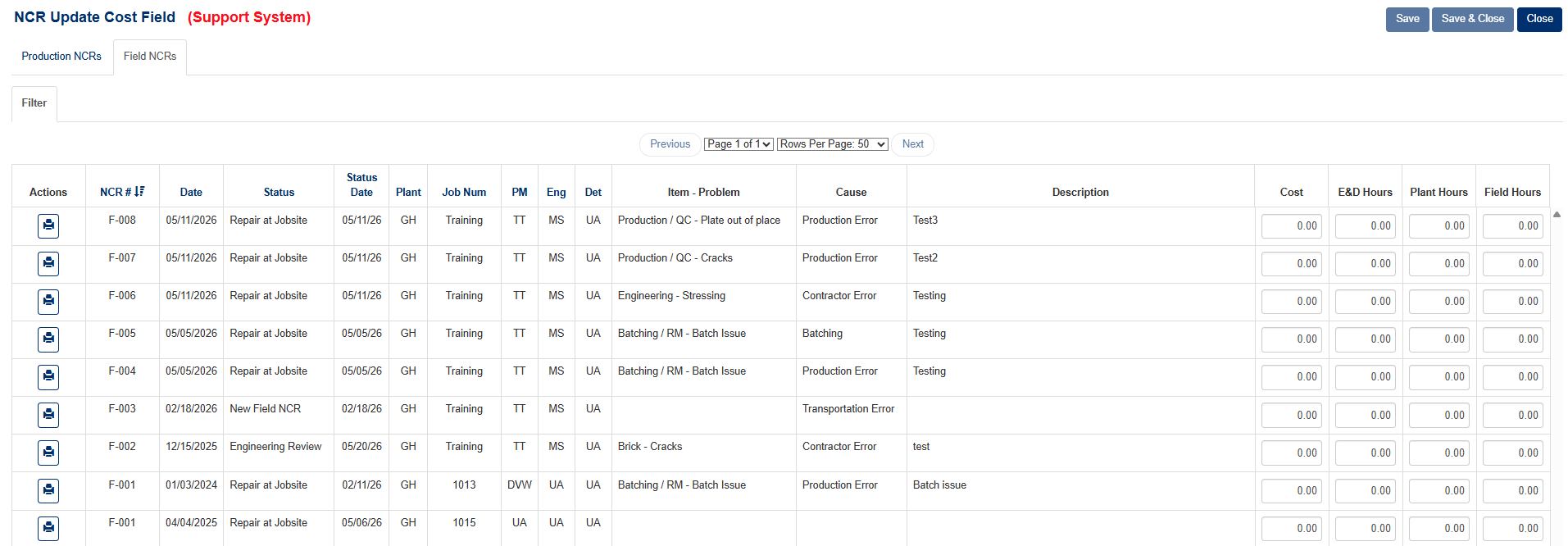
Figure 4
Printing an NCR Report
Click the Printer icon in the Actions column of any row to open the NCR report for that record in a new tab (Red box, Figure 2).
Audit Logging
Every change to hours or cost fields is recorded automatically. When a save is performed, the system logs the following for each changed field:
- NCR ID
- Field name (e.g., "ED Hours", "Plant Hours")
- Old value
- New value
- Date and time of the change (UTC)
- Name of the user who made the change
A system note ("NCR hours and cost updated") is also posted to the NCR's note history (Figure 5).
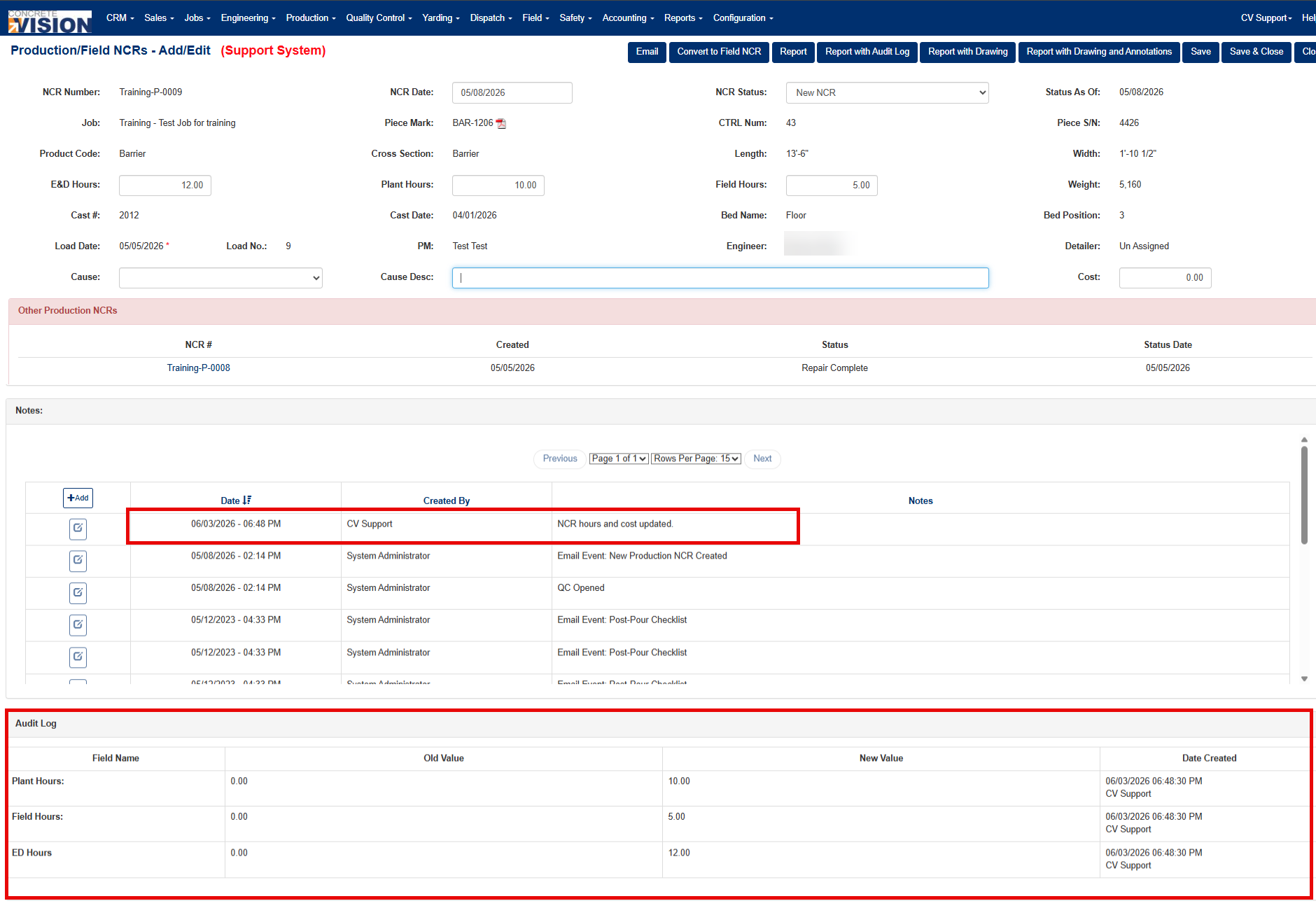
Figure 5
Was this article helpful?
That’s Great!
Thank you for your feedback
Sorry! We couldn't be helpful
Thank you for your feedback
Feedback sent
We appreciate your effort and will try to fix the article