Overview
Job Regions are geographic or organizational territories used to categorize and organize jobs within your system. They help you segment work by location, allowing for better reporting, analysis, and workflow management.
Accessing Job Regions
Navigate to the Job Regions screen through the menu path:
Configuration > Sales Setup > Job Regions
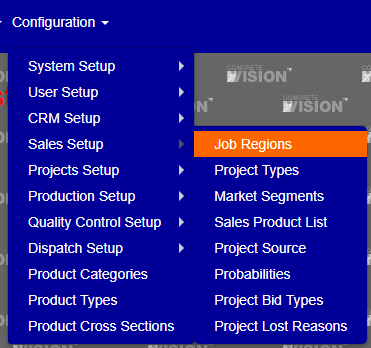 Figure 1
The Job Regions screen displays all existing regions in a table format, showing:
- Abbreviation: Short code for the region
- Description: Full region name
- Active Status: Whether the region is currently in use
- Order By: Numerical sort order

Figure 2
Add New Job Region
Follow these steps to create a new Job Region:
Step 1: Open the Add Dialog
Click the "Add new record" button located at the top of the Job Regions table (Red box, Figure 2).
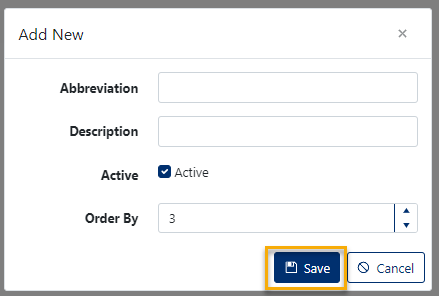
Figure 3
Step 2: Complete the Required Fields
Abbreviation (Required)
- Enter a short code for the Job Region (e.g., "US", "CA", "MW")
- Purpose: Used in reports, dropdowns, and data exports
Description (Required)
- Enter the full name of the Job Region (e.g., "United States", "Canada", "Midwest")
- Purpose: Displayed to users throughout the system
Active Status
- Default: Checked (Active) when creating new regions
- Leave checked to make the region immediately available
- Uncheck only if you're preparing the region for future use
Order By
- Enter a number to control the display sequence in lists and dropdowns
- How it works: Lower numbers appear first (e.g., 1, 2, 3...)
- Tip: Use increments of 10 (10, 20, 30) to allow for easy insertion of new regions later
Step 3: Save
Click the Save button to create the new Job Region (Orange box, Figure 3).
Edit Job Region
Step 1: Open the Edit Dialog
Click the pencil icon in the row of the Job Region you want to modify (Green box, Figure 2).
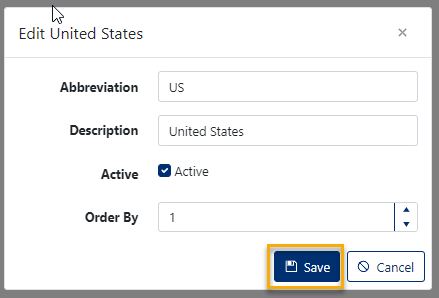
Figure 4
Step 2: Modify Fields
You can update any of the following:
- Abbreviation (Required): Change the short code
- Description (Required): Update the full name
- Active Status: Toggle between Active/Inactive
- Note: Deactivating a region doesn't delete historical data, but removes it from active selection lists
- Order By: Change the display sequence
Step 3: Save Changes
Click the Save button to apply your modifications (Orange box, Figure 3).
Delete a Job Region
Note: Deleting a Job Region may affect historical data and reports. Consider deactivating the region instead if it has been used in existing jobs.
Steps to Delete
- Locate the Region: Find the Job Region you wish to remove in the table
- Click Delete: Click the 'x' button on the right side of the corresponding row (Yellow box, Figure 2)
- Confirm Deletion: A confirmation dialog will appear asking "Are you sure you want to delete this record?" (Figure 5)
- Complete: Click [OK] to permanently delete the region, or [Cancel] to abort
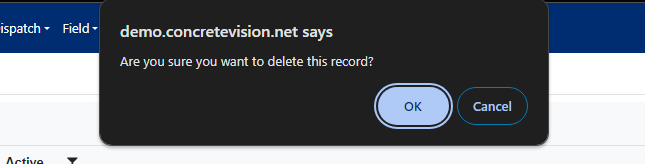
Figure 5
Was this article helpful?
That’s Great!
Thank you for your feedback
Sorry! We couldn't be helpful
Thank you for your feedback
Feedback sent
We appreciate your effort and will try to fix the article