Overview
The Job Number/Name/Status Update module is your centralized hub for managing critical job information. This powerful tool allows you to:
- Search efficiently - Quickly locate specific jobs using multiple search criteria
- Update seamlessly - Modify job details including estimates, numbers, names, and statuses
- Export easily - Generate reports and data exports from a single interface
- Track progress - Monitor job statuses across your entire project portfolio
This streamlined approach saves time by consolidating job management tasks into one convenient location.
Getting Started
Accessing the Module
- Navigate to the main menu - Look for the blue navigation bar at the top of your screen
- Click on "Accounting" menu - This will open the accounting dropdown menu
- Select "Job Number/Name/Status Update" (Figure 1)
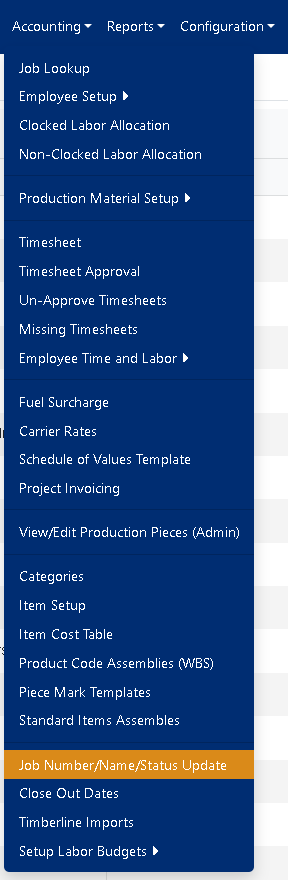
Figure 1
Understanding the Job Information Table
When you first open the module, you'll see a comprehensive table displaying all your jobs with the following columns:
- Est Num - Estimate number associated with the job
- Job Num - Unique job identifier
- Job Name - Descriptive name of the project
- Job Status - Current status (Cancelled, Completed, etc.)
- Mfg Plant - Manufacturing plant assignment
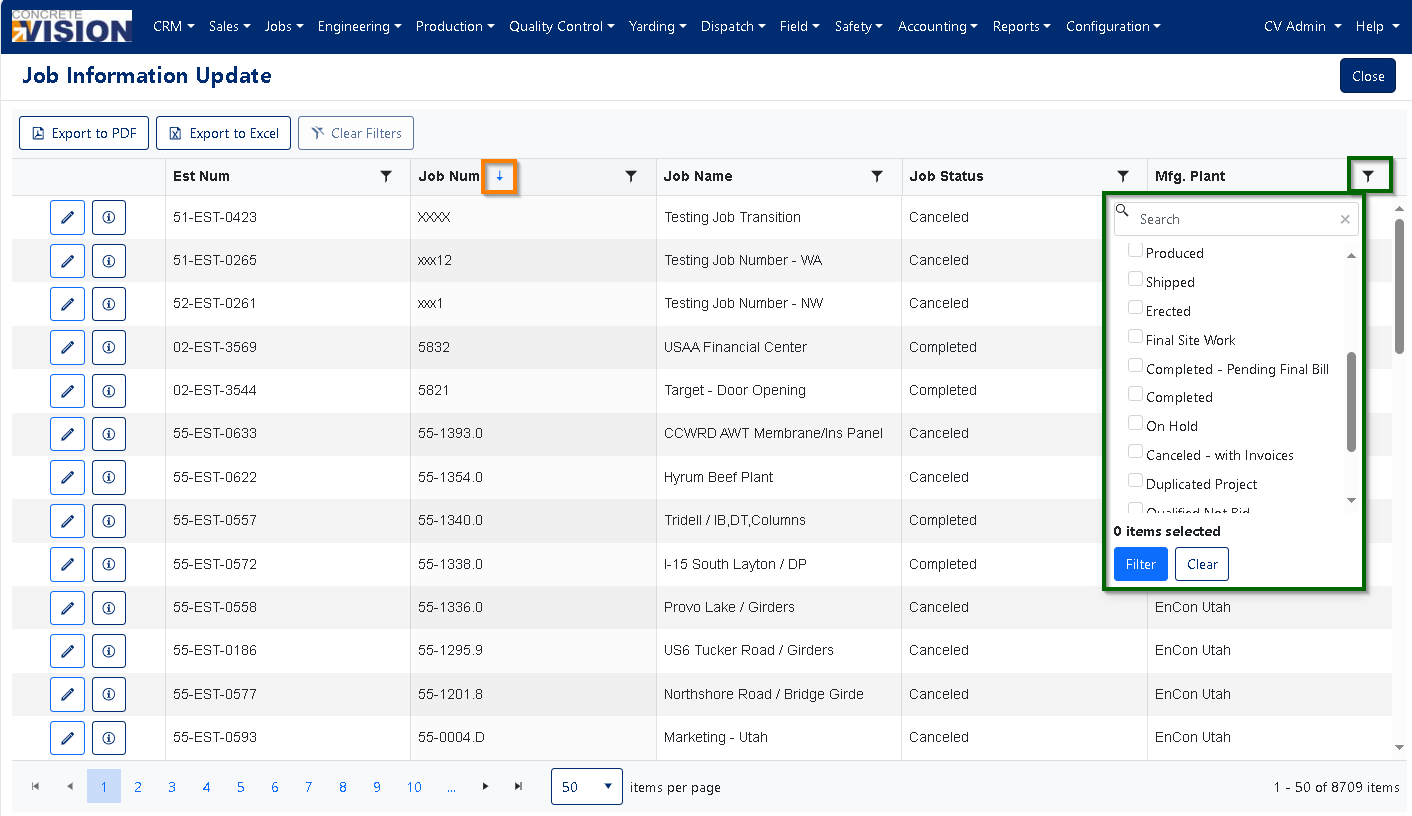
Figure 2
Sorting and Filtering Jobs
Sorting Your Data
To sort by any column:
- Click the column heading - This will sort the data in ascending order (A-Z, 1-9)
- Click the same heading again - This reverses the sort to descending order (Z-A, 9-1)
- Look for the arrow indicator - Small arrows next to column names show the current sort direction (Orange box, Figure 2)
Filtering Results
To filter data by specific criteria:
- Locate the filter icon - Look for the small funnel icon to the right of any column heading (Green box, Figure 2)
- Click the filter icon - A dropdown menu will appear with filtering options (Green box, Figure 2)
- Select your criteria - Choose from available values or enter custom search terms
- Apply the filter - The table will automatically update to show only matching results
Available filter options include:
- Job status categories (Cancelled, Completed, Active, etc.)
- Specific manufacturing plants
- Date ranges (for estimate or job numbers)
- Custom text searches for job names
Editing Job Information
Quick Edit Process
To modify job details:
- Find the Job to edit - Use sorting and filtering to locate the specific job
- Click the "Edit" button - Located to the left of each job row (marked with a pencil icon)
- Update the information - The Edit Item dialog will open with editable fields (Figure 4)
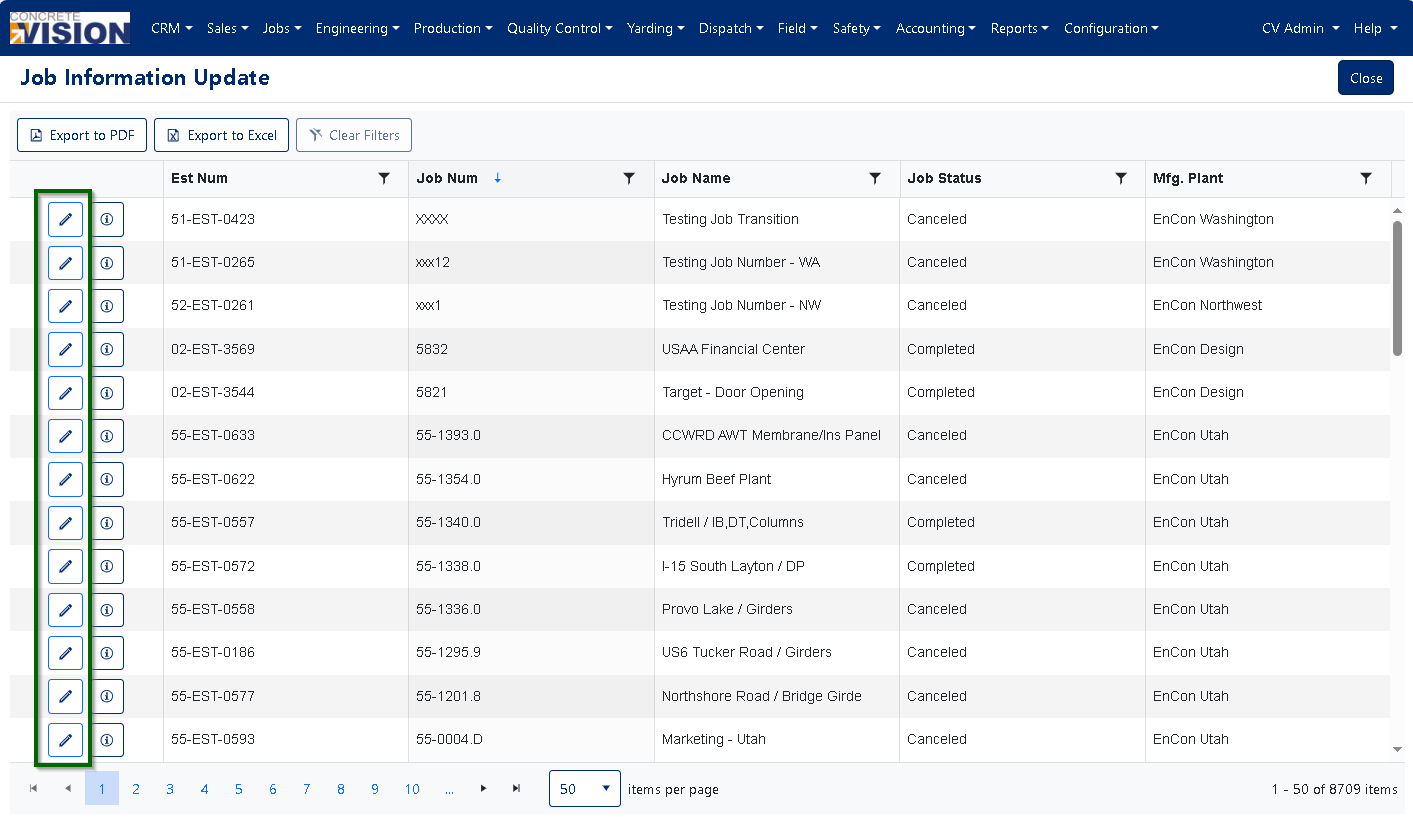
Figure 3
Editable Fields
Est Num (Estimate Number)
- Optional field for linking estimates to jobs
- Accepts alphanumeric values
- Can be left blank if not applicable
Job Num (Job Number)
- Unique identifier for the job
- Should follow your organization's numbering conventions
- Cannot duplicate existing job numbers
Job Name (Required)
- Descriptive name for easy identification
- Should be clear and specific (e.g., "Downtown Office Complex - Phase 1")
- Required field - cannot be left empty
Job Status (Required)
- Select from predefined status options:
- Active - Job is currently in progress
- Completed - Job has been finished
- Cancelled - Job has been terminated
- On Hold - Job is temporarily paused
- Planning - Job is in preliminary stages
Saving Changes
To save your modifications:
- Review all changes - Double-check that all information is correct
- Click the "Save" button - Located at the bottom of the Edit Item dialog (green button)
- Confirm the update - You'll return to the main table with your changes reflected
- Cancel if needed - Click "Cancel" to discard changes and return to the table
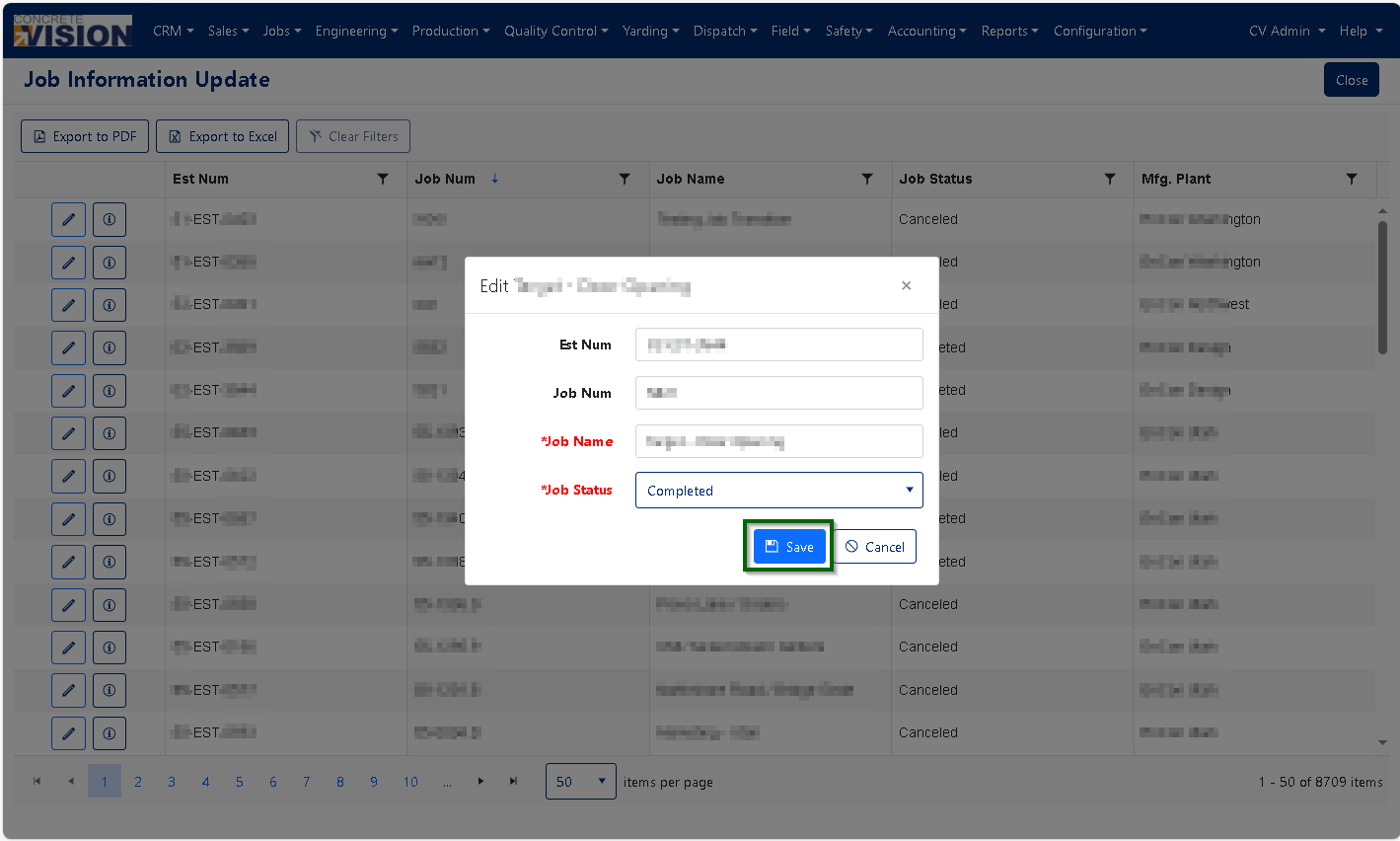
Figure 4
Audit Information
Tracking Changes
Click the info icon (i) next to any Job Information to view: (Figure 2)
- Who created the record and when
- Who last modified the record and when
- Complete change history for accountability
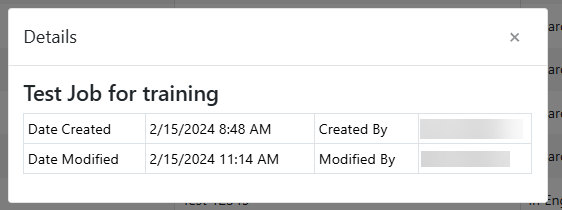
Figure 5
Was this article helpful?
That’s Great!
Thank you for your feedback
Sorry! We couldn't be helpful
Thank you for your feedback
Feedback sent
We appreciate your effort and will try to fix the article