Overview
The Material Categories screen displays all material categories and material subcategories available in CV. These material categories are utilized to organize Material Items and Material Assemblies.
Accessing Material Categories Screen
The Material Categories screen can be accessed through Accounting menu > Production Material Setup > Material Categories (Figure 1).
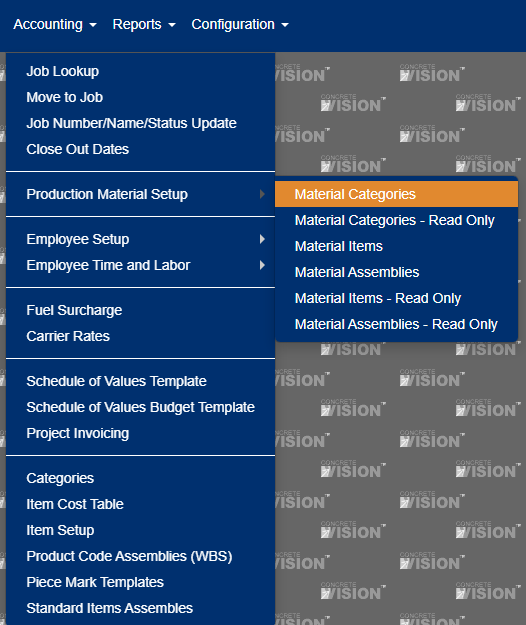
Figure 1
Material Categories Screen
The Top-level categories are highlighted in blue (Figure 2). On the Material Categories screen, you can:
- Add New category
- Edit an existing category
- Delete an existing category.
- Export the material categories list as either a PDF or excel file.
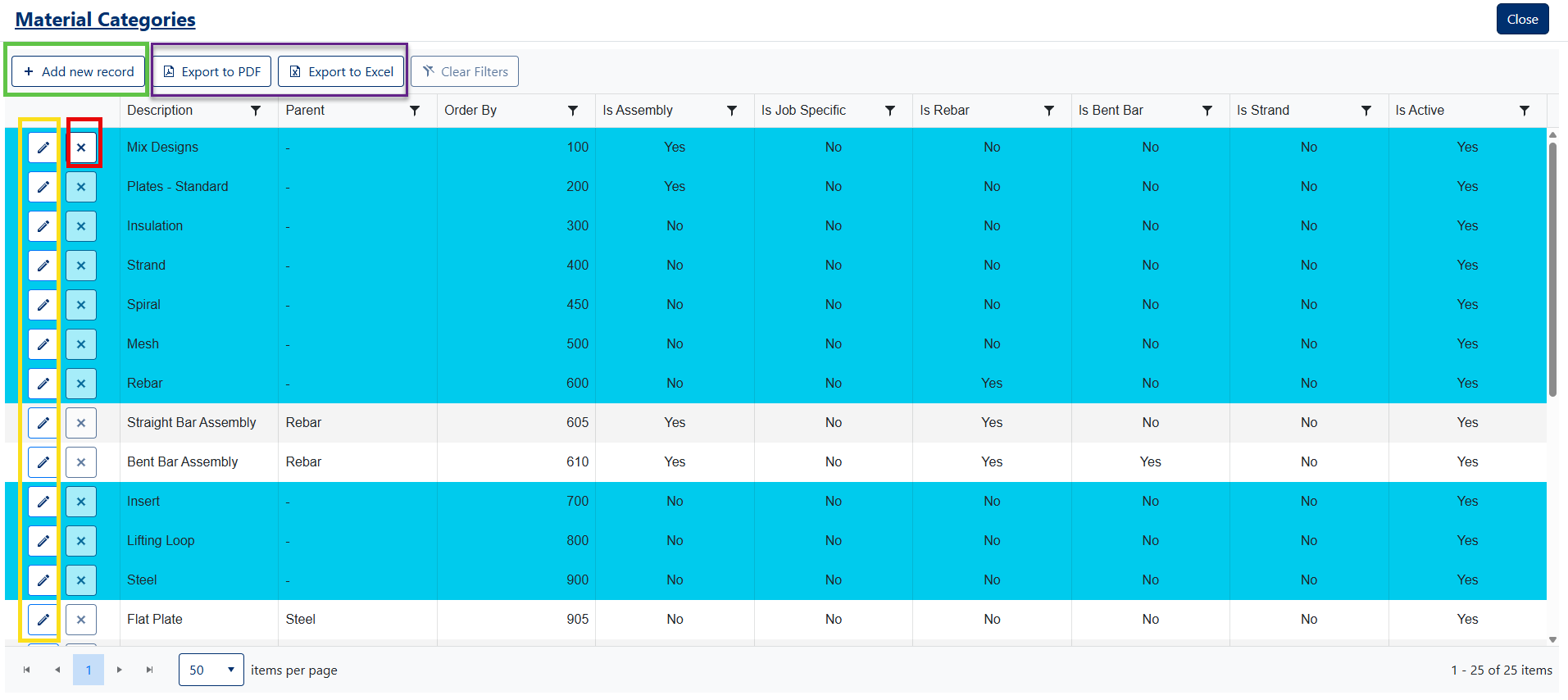
Figure 2
Managing Material Categories
Creating a new Material Category
- Click the Add New Record button (Green box, Figure 2).
- Fill fields in popup window (Figure 3).
- Click the Save button to create new record (Green box, Figure 3).
Field Descriptions
| # | Field | Required | Notes |
| 1 | Parent | If the new category is a subcategory, select its parent category from the list. | |
| 2 | Description | ✓ | Brief description of material category |
| 3 | Order By | Sets the ordering of the category for the drop down lists in CV | |
| 4 | Is Assembly | Sets which screen (Material Assemblies or Material Items) this category will show up in | |
| 5 | Is Rebar | Flags category as "Rebar" (used to filter down material in some reports). | |
| 6 | Is Bent Bar | Flags category as "Bent Bar" (used to filter down material in some reports). | |
| 7 | Active | Sets the active status of a category. Only active categories will show up in filters and when adding new items/assemblies. |
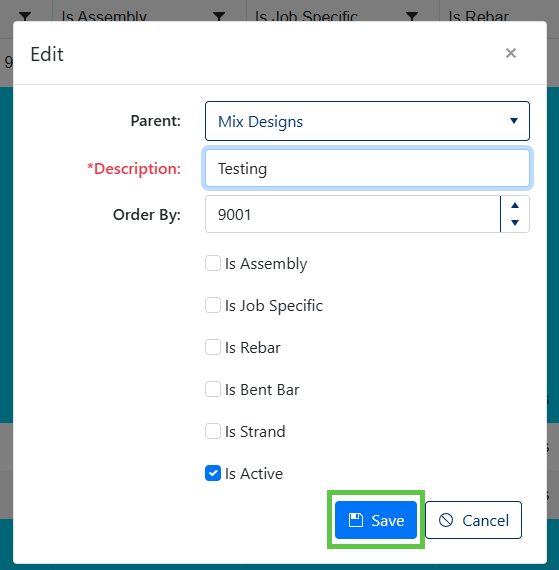
Figure 3
Editing a Material Category
- Click the Edit button of the corresponding Material Category (Yellow box, Figure 2).
- Modify fields in popup window (Figure 3).
- Click the Save button to apply your changes (Green box, Figure 3)
Deleting a Material Category
- Click the X button next to the Material Category you wish to delete (Red box, Figure 2).
- Confirm deletion in the pop up dialog by clicking OK (Figure 4).
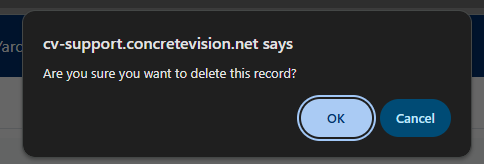
Figure 4
Note: A category cannot be deleted if it's currently assigned to a material item, a material assembly or is a top-level category with subcategories assigned to it.
Exporting Material Categories
Export to PDF
Click the [Export to PDF] button to generate a complete list of Material Categories in PDF format (Purple box, Figure 2)
Export to Excel
Click the [Export to Excel] button to export all Material Categories to an Excel spreadsheet (Purple box, Figure 2)
Was this article helpful?
That’s Great!
Thank you for your feedback
Sorry! We couldn't be helpful
Thank you for your feedback
Feedback sent
We appreciate your effort and will try to fix the article