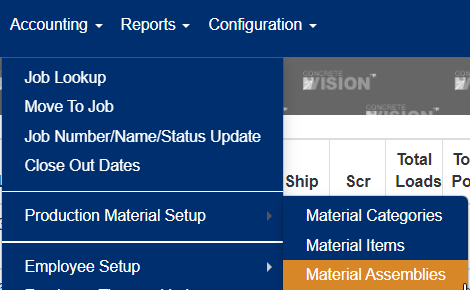
You can access the Materials Assemblies setup screen from "Accounting > Production Material Setup > Material Assemblies," as shown below:
This will bring you to the material assemblies list screen shown below. From this screen, you can edit, add, or delete an existing material assembly (provided the material assembly is not a default “Internal” item). You can also print out the list report or export to Excel. The filter section allows you to filter down the list by various criteria.

The Add/Edit screen (shown below), allows you to add or edit a material assembly. The following is a brief description of each field in a material assembly:
- Category – The material category this material assembly belongs to.
- Material Num – Value that should uniquely identify this material assembly. This field is used in the production material imports to map an imported material item to this standard material.
- Embed Label – Material embed value.
- Description – Description of the material assembly. In the edge import, this value is used to try and map imported material to standard material IF no match is found using the “Material ID” field.
- Bend Type – Material bend type (if applicable).
- Material Cost – Dollar cost of the material.
- GL Code – Accounting general ledge classification.
- Material Weight – Total material weight.
- BOM Unit – Material unit code (i.e. SQFT, Each, LNFT, etc.).
- Material Waste – Material waste factor.
- Purchase Unit – Unit material is purchased as.
- Unit Conversion – Unit conversion factor.
- Order By – Value specifying material order in material reports and list screens.
- File – Material drawing file.
- Active – Sets active status of material. In-active materials won’t show in lists used to assign standard material to production.
- Production – Flag used to specify whether this material shows up under the job material “Production” tab.
- CIP – Flag used to specify whether this material shows up under the job material “CIP” tab.
- Erection – Flag used to specify whether this material shows up under the job material “Erection” tab.
- Add Sub Assembly (button) - Allows you to specify which material items make up this assembly component. Material assembly "sub item" fields are described below:
- Category - Drop down list used to filter down the material items "Item" list.
- Item - The material "sub item" that makes up part of the assembly.
- Order By - List order of the material within the assembly.
- Qty - How many items of this material are used to make up the assembly.
- Dim Length - Dimension length of the material sub item component.
- Bend Type - Bend type of the material sub item component.
- Dim A-Z - Dimensions (if applicable) of the material sub item.

Was this article helpful?
That’s Great!
Thank you for your feedback
Sorry! We couldn't be helpful
Thank you for your feedback
Feedback sent
We appreciate your effort and will try to fix the article