Overview
The CRM Data Import Utility allows you to bulk import company and contact information from Excel spreadsheets into your CRM system. This tool uses a secure, multi-step process to ensure data accuracy before final integration.
Accessing Company/Contact Import
To access the Company/Contact Import configuration:
- Navigate to the CRM tab in the main menu
- Select Company/Contact Import from the dropdown menu (Figure 1)
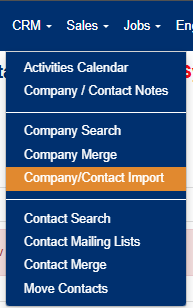
Figure 1
Getting Started
Step 1: Download the Excel Template
- Navigate to the Company/Contact Import screen
- Click Excel Template Download to get the properly formatted template (Yellow box, Figure 2)
- Use this template to structure your import data with the correct column headers

Figure 2
Step 2: Prepare Your Data
Ensure your Excel file contains:
- Company Information: Name, address, phone, email, website
- Contact Details: Names, titles, phone numbers, email addresses
- Classification Flags: Use Yes/Y/True/T/1 for true values, anything else for false
- Lookup Values: Use exact matches for Credit Rating and Payment Terms
Import Process
Phase 1: Upload Data
- Click Choose File button (Green box, Figure 2)
- Select your prepared Excel file
- Click Upload to begin the import process (Red box, Figure 2)
- The system will:
- Read data from the "Data" sheet starting at row 3
- Validate country/state combinations
- Map credit ratings and payment terms
- Convert text flags to boolean values
- Store data in staging area
Phase 2: Verify Data
- Locate your import batch in the results grid, identified by your username (Figure 3)
- Click on the Edit button to open up the record. (Green box, Figure 3)
- Click the Verify button (checkmark icon) for your batch (Red box, Figure 4)
- The system will run validation checks and mark records as verified
- Check the "Results" column to see verification progress (e.g., "3 of 3") (Blue box, Figure 5)

Figure 3

Figure 4
Phase 3: Review and Edit (Optional)
- Click the Edit button (pencil icon) to review individual records (Green box, Figure 3)
- Make any necessary corrections to the imported data
- Ensure all critical information is accurate before moving to production.

Figure 5
Phase 4: Move to Production
- Once verification is complete, click the Move button (Purple box, Figure 3)
- The system will:
- Insert new company records
- Update existing company information
- Insert new contact records
- Update existing contact information
- View the success message showing counts of inserted/updated records
Was this article helpful?
That’s Great!
Thank you for your feedback
Sorry! We couldn't be helpful
Thank you for your feedback
Feedback sent
We appreciate your effort and will try to fix the article