Overview
This document will show users with permission how to import Time in 3 different ways.
- By Date and hours
- Start Date, Start Time, End Date, and End Time
- Job Allocation
Accessing the Screen
- You can access the Employee Time Import screen from the Accounting menu > Employee Time and Labor > Employee Time Import. (Figure 1)
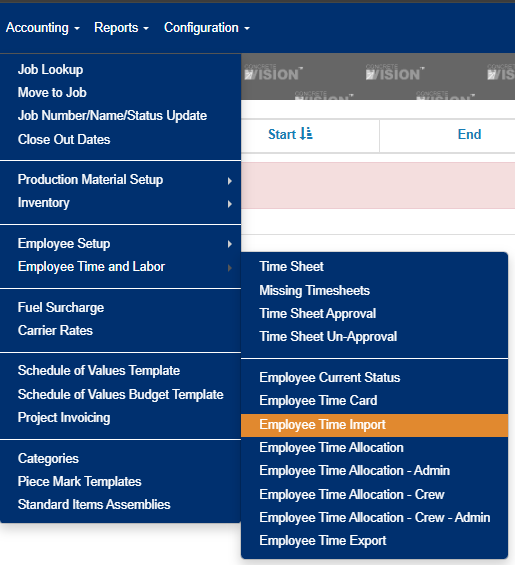
Figure 1
Import Templates
Each Import type (Number 1 in Figure 2) has a Template that can be downloaded. To download, click on the Import Type you want to use, then click on the Template button (Number 2 in Figure 2). An Excel spreadsheet will download to your browser. Each Excel template has two tabs; a 'Data' tab and 'Instructions' tab in them.
 Figure 2
Import Time
1. Once you have an Excel ready to import and save, click on the Choose File button. (see Figure 2)
2. Click Upload.
Once the file is uploaded the screen will tell you how many records were uploaded. If your results are equal you can click the Move button, this will move the time to the allocation screen.
If your records are not equal click the Edit button to see the results.
Edit Import Time
This allows you to view/edit the time being imported. Any data that won't move to the allocation table will be in red (Red box, Figure 3). This can happen if an employee's number is wrong, or the data being imported is not formatted right and so on.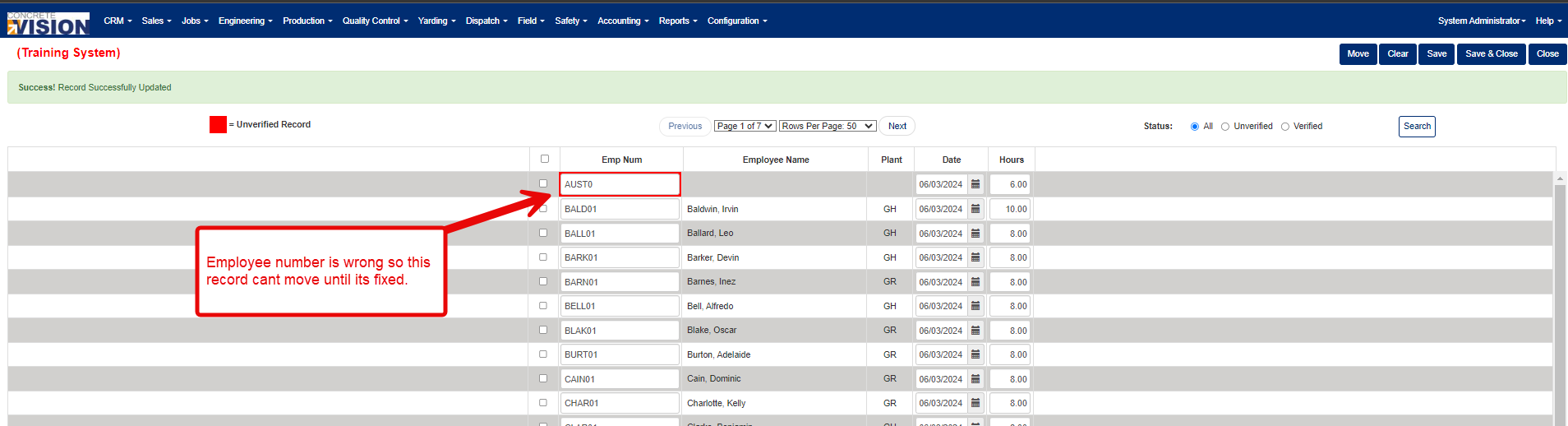
Figure 3
Was this article helpful?
That’s Great!
Thank you for your feedback
Sorry! We couldn't be helpful
Thank you for your feedback
Feedback sent
We appreciate your effort and will try to fix the article