Schedule Start Screen
Purpose
The Schedule Start screen allows you to set or modify the start time for employees on a specific date. This setting overrides any preassigned shift for the selected date.
Location:
Navigate to Accounting > Employee Setup to access the Schedule Start screen.
How to Update Start Time for Employees
Select the Date
Choose the specific date for which you want to update employee start times.Apply Filters
Use filters to narrow down the list of employees by employee name, crew, department, or plant.Click “Search”
This action sets the selected day and displays any employees who already have a start time assigned.Select Employees
Check the box next to each employee whose start time you wish to modify.Apply to All (Optional)
A global checkbox is available to apply the start time change to all filtered employees on the screen. This is optional and can save time if updating a large group.Set Start Time
Enter the new start time in the Time field.Click “Change”
Once you’re ready, click Change to apply the updated start times to the selected employees.
Additional Options
Export
Export the filtered employee list and schedule data from the screen for external use or reporting.Import
Import schedule start times in bulk using a predefined file format to streamline data entry.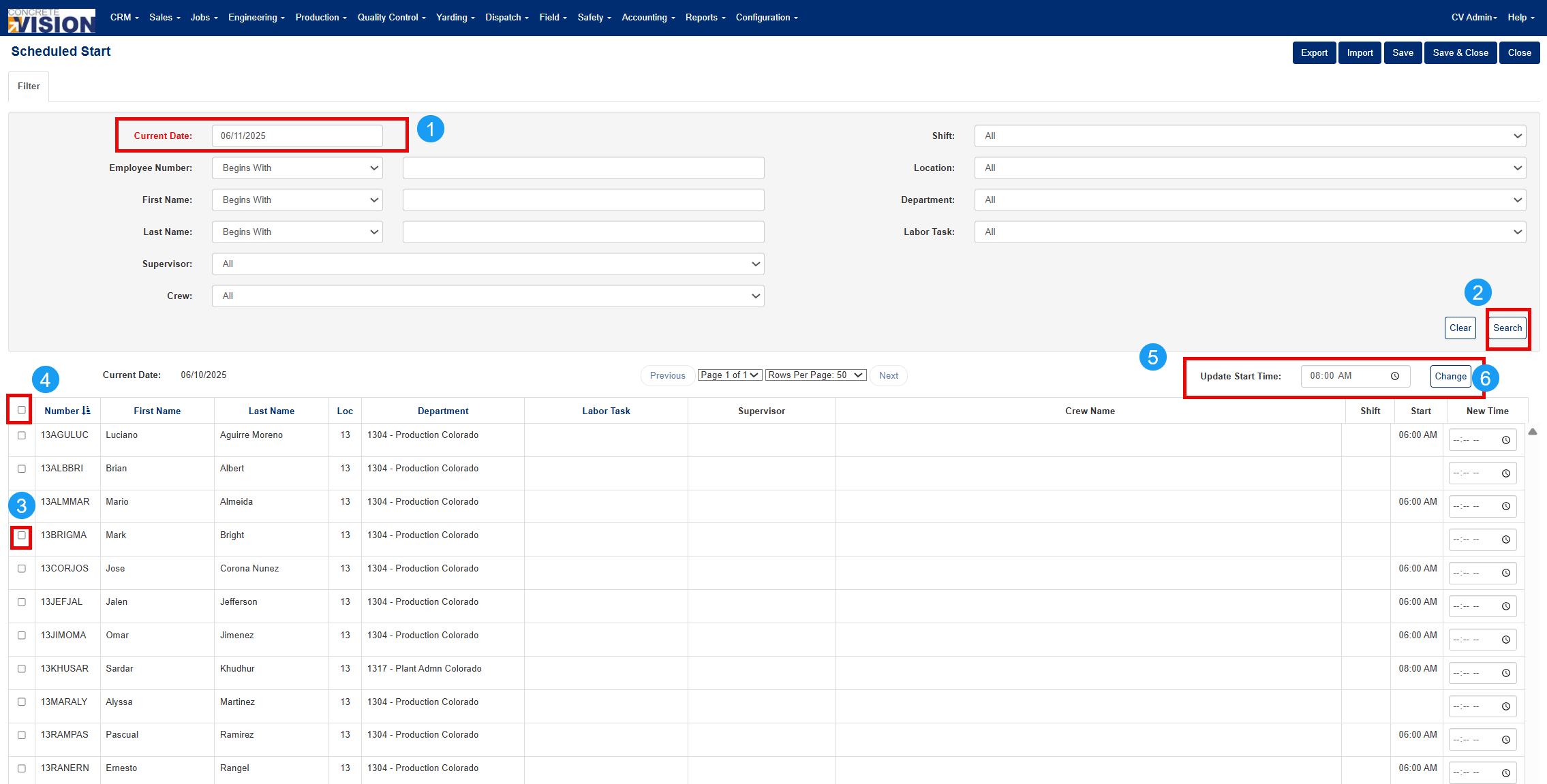
Was this article helpful?
That’s Great!
Thank you for your feedback
Sorry! We couldn't be helpful
Thank you for your feedback
Feedback sent
We appreciate your effort and will try to fix the article