The Undo Missed Pour screen allows you to reverse the flagging of a scheduled bed/casting pour that was mistakenly marked as missed from the Schedule Bed - Edit screen within the Production Planning module.
You access the Undo Missed Pour screen from the Production menu > Undo Missed Pour (see Figure 1).
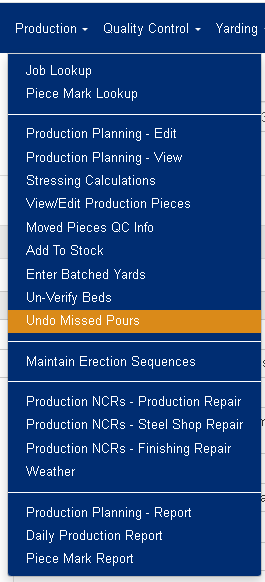
Figure 1
Result Views:
The Undo Missed Pour screen has three different views (Month, Week and Day) (see the View images below ). The default view is the month view. To switch between the different views, click on the tabs of the desired view (see purple box in Figure 6 below). To navigate between the previous/next date ranges, use the arrow keys on the left/right side of the screen (see blue boxes in Figure 6 below).
Month View:
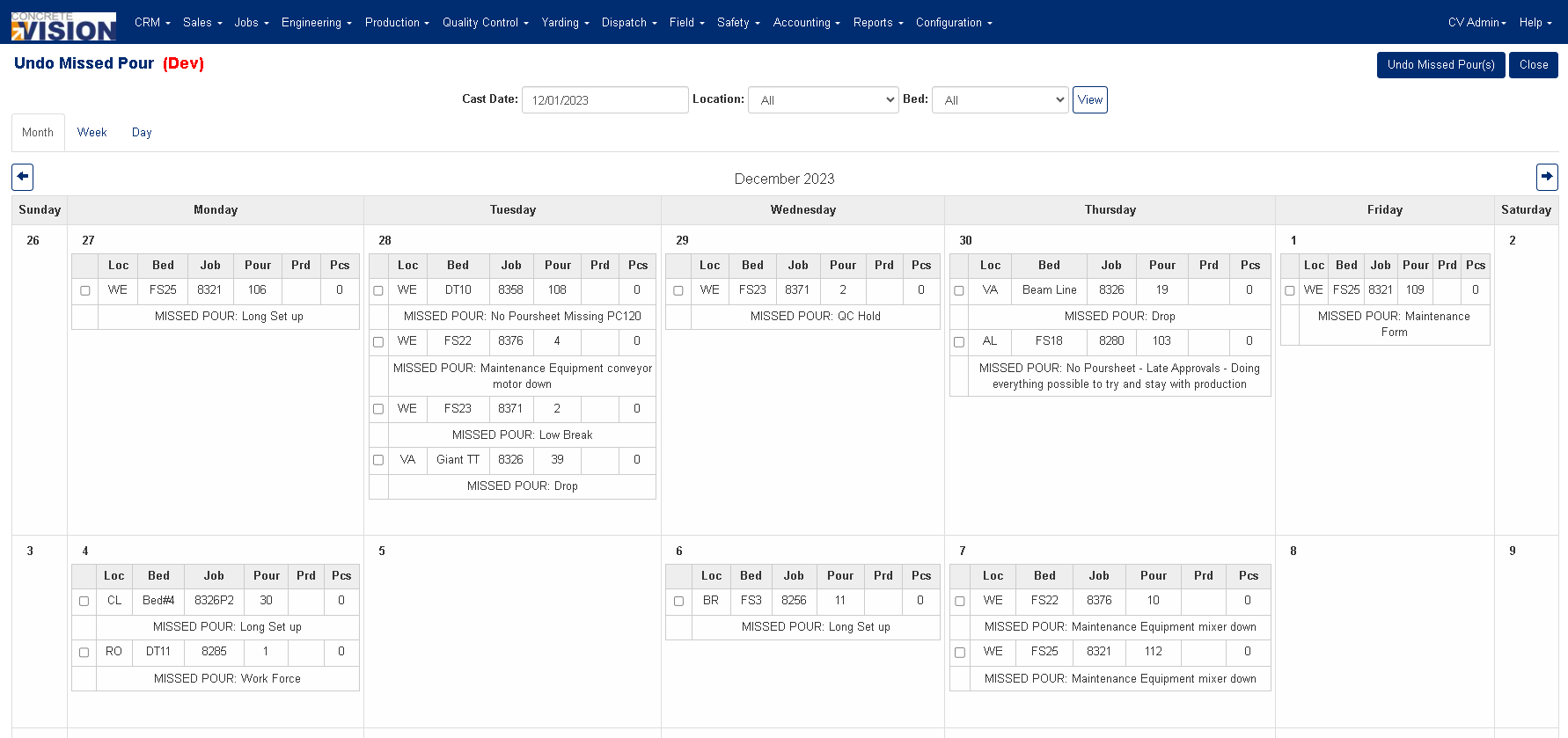
Figure 2
Week View:
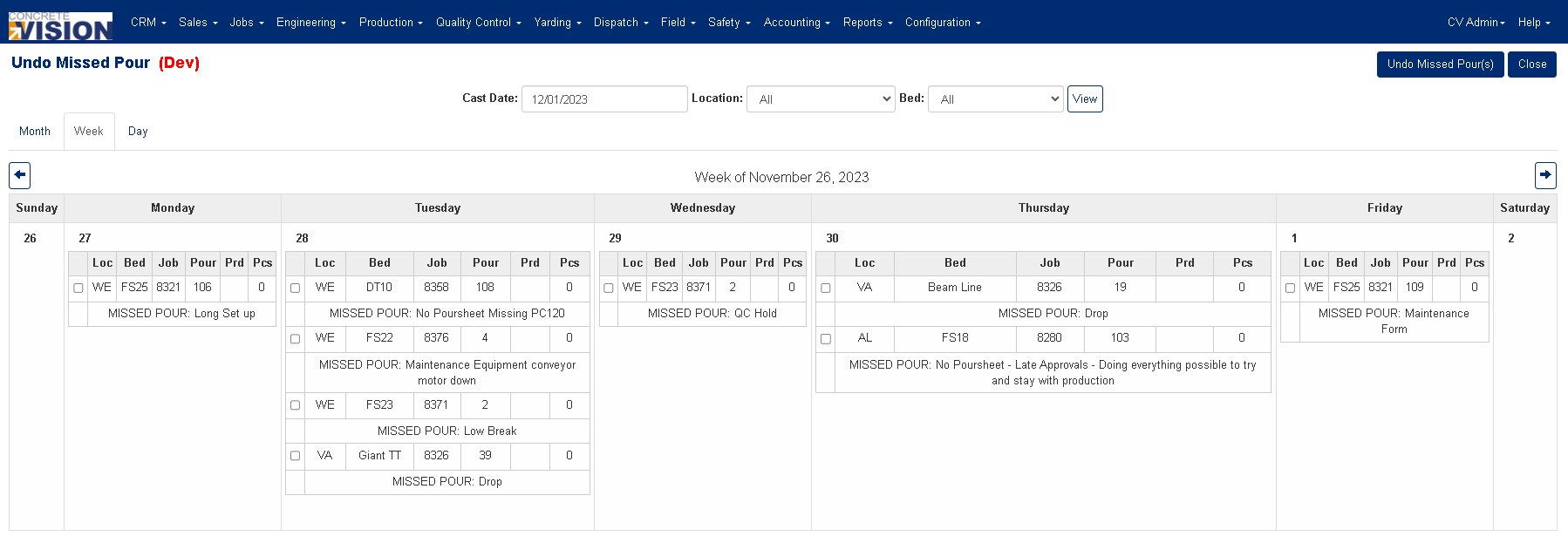
Figure 3
Day View:
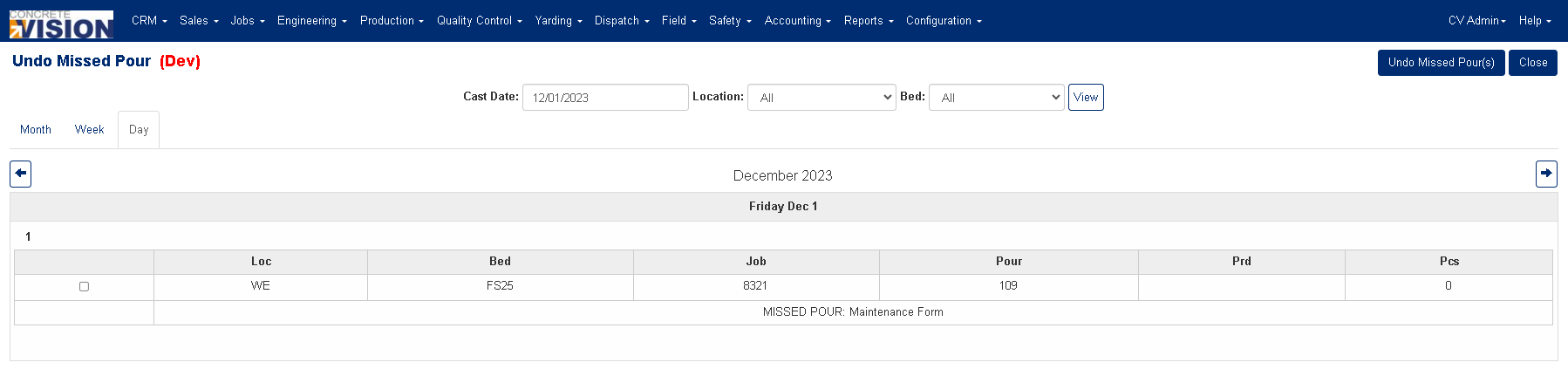
Figure 4

Figure 5
Filtering Results:
- Enter or Select a Cast Date (valid date Required)
- Select the Location (optional)
- Select the Bed (optional)
Note: Please reload the screen to start a new filtered search which changes the location, as the Bed list will need to be reset.
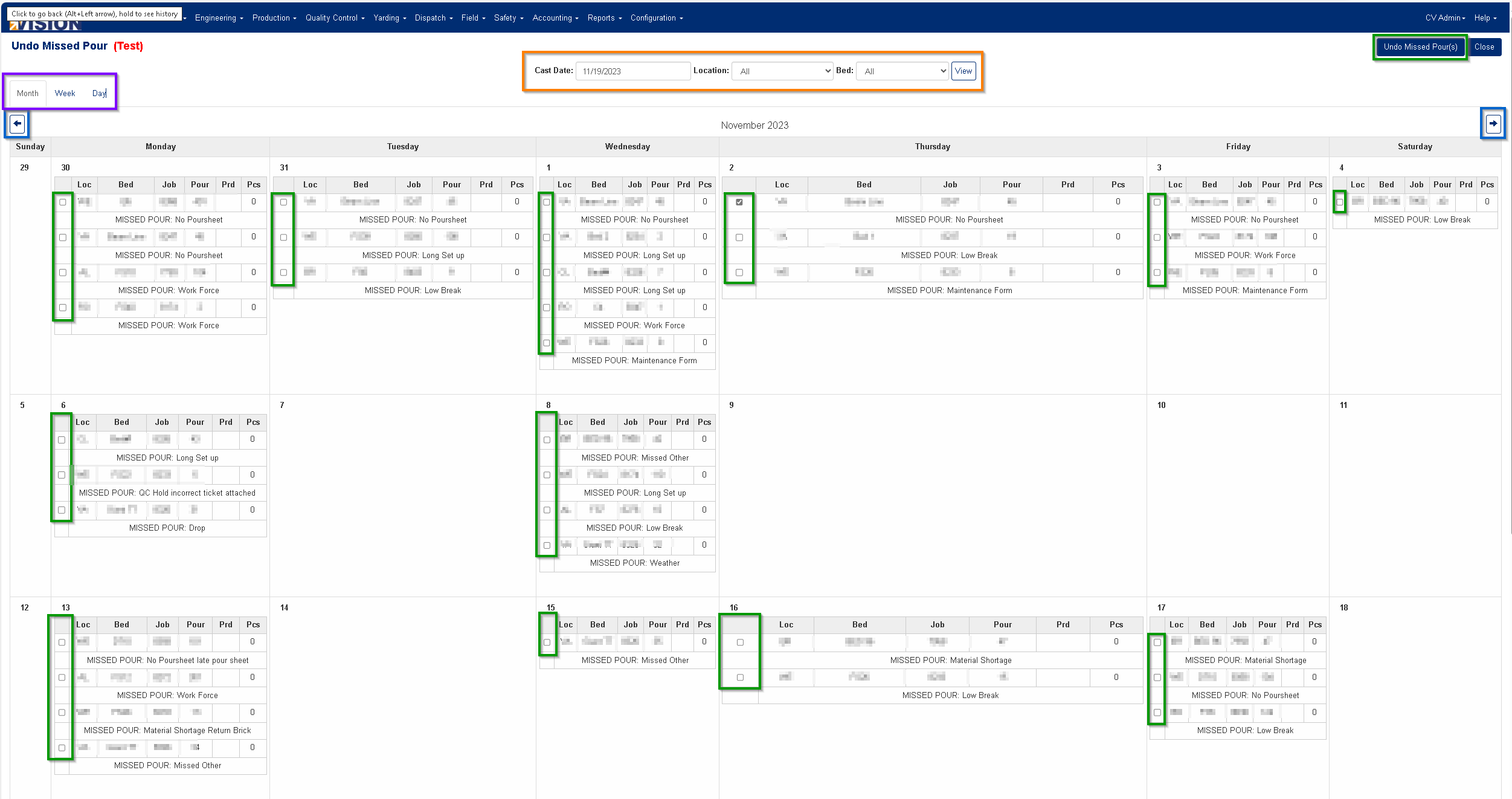
Figure 6
Choosing the Missed Pour(s) to undo:
- Click on the check box to the left of the corresponding pour you want to undo. (see green boxes in Figure 6 above)
- Once you have selected the pours, click on the [Undo Missed Pour(s)] button, found on the top right of your screen. (see green box in Figure 6 above)
- You will be prompted "Are you sure you want to undo the selected missed pours?"
- If you click on [OK] the Missed Pour will be undone.
Was this article helpful?
That’s Great!
Thank you for your feedback
Sorry! We couldn't be helpful
Thank you for your feedback
Feedback sent
We appreciate your effort and will try to fix the article