Location
Accounting > Employee Time and Labor
Purpuse
Once employees have been set up in the Employee Setup section (either through HR or the Manager area), follow these steps to configure crews effectively.
1. Designate a Crew Leader
- Navigate to Employee Setup and select the employee you wish to designate as the crew leader.
- Check the Supervisor checkbox.
- Click Save.
- This action will enable the Crew tab at the top of the interface.
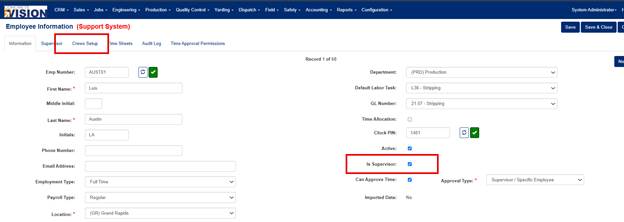
2. Create a New Crew
- Click the Crew tab.
- In the top-right corner, click Add New to create a new crew under the selected supervisor.
- Choose the appropriate Location.
- Enter a Crew Name (avoid using the name of the crew leader).
- Mark the crew as Active.
- Fill out the remaining crew-related fields as needed.
- Click Save to complete the crew setup.
Add Employees to a Crew
- Edit the crew you just created.
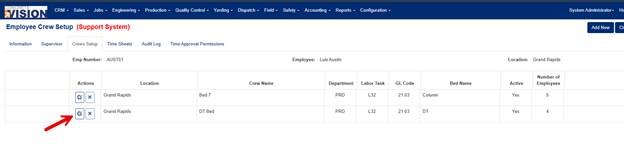
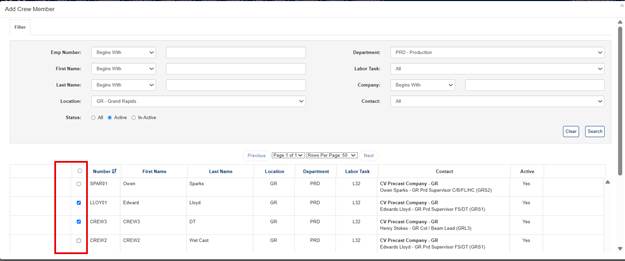
- Click Add Crew Members.
- A list of all employees (set up via Employee Setup) will appear.
- Select the employees to be added to the crew. You can choose multiple employees.
- Click Save when done.
Note: You can return at any time to modify crew membership by adding or removing employees.
Crew Allocation
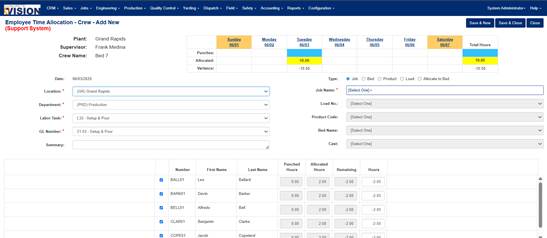
Crew allocation works similarly to the Time Allocation screen, but it streamlines the process by displaying all crew members in one interface.
Allocate Crew Time
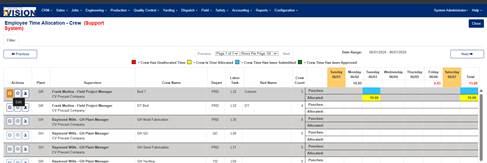
- Go to Employee Time Crew Allocation under the Accounting section.
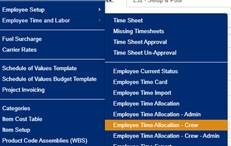
- Use this screen to allocate time to entire crews or individual crew members.
- Time can only be allocated if entries have already been made for those employees within the crew.
Was this article helpful?
That’s Great!
Thank you for your feedback
Sorry! We couldn't be helpful
Thank you for your feedback
Feedback sent
We appreciate your effort and will try to fix the article