Overview
This document will show users with permission how to:
- Setup up employees in the Time System so they can approve time
- Allocate time / Edit time
- Submit time
- Approve time
Accessing the Screens
- Employee Time Setup Manager screen - Accounting menu > Employee Setup > Employee Setup - Manager
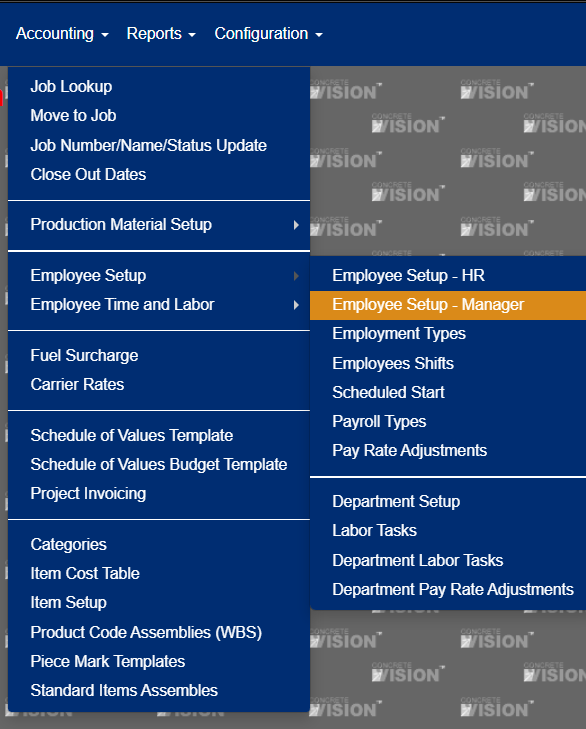
Figure 1
- Employee Time Allocation screen - Accounting menu > Employee Time and Labor > Employee Time Allocation
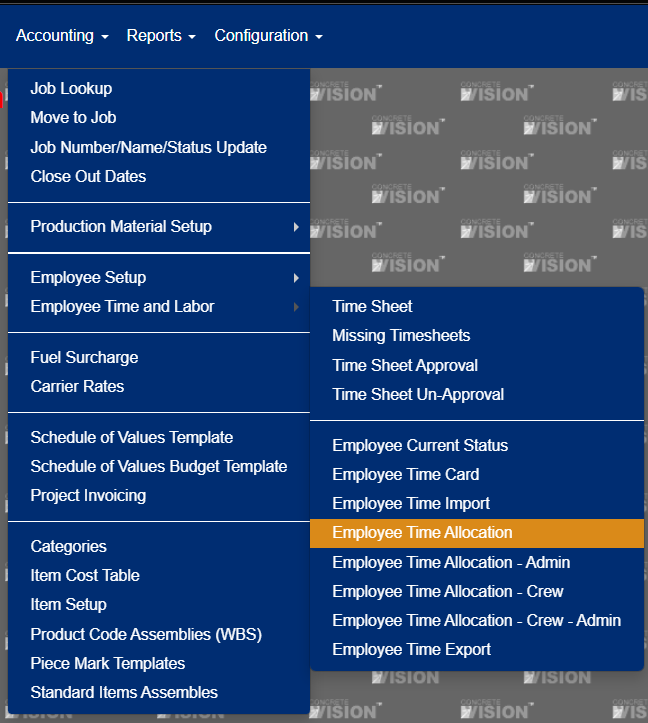
Figure 2
- Employee Time Allocation Admin screen - Accounting menu > Employee Time and Labor > Employee Time Allocation - Admin.
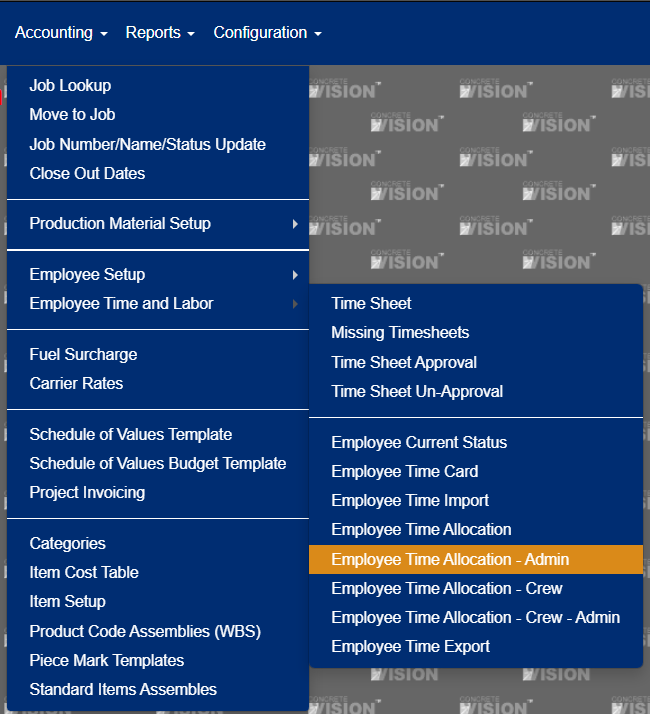
Figure 3
Setup users that can approve time
The first step is to set up users that can approve time. These are usually the same users that are allocating time.
- Navigate to the Employee Time Setup Manager screen.
- Locate and Edit the User.
- Select the check box 'Can Approve Time'.
- Select the Approved type from the dropdown.
All Employees = All employees that are setup in the Time System. Once new employees are added, they will be automatically added for this approval user. (see Figure 4).
Specific Plants = Allows you to select the plant that gives you all employees in the Plant. Once this option is selected and saved, you must click on the 'Time Approved Permissions' tab at the top of the screen and select the Plant or Plants needed. (Used for multiple plant customers) (see Figure 4).
Supervisor/Specific Employees = With this option, you would use the 'Supervisor' tab at the top of the page to select users they can approve. (see Figure 4).
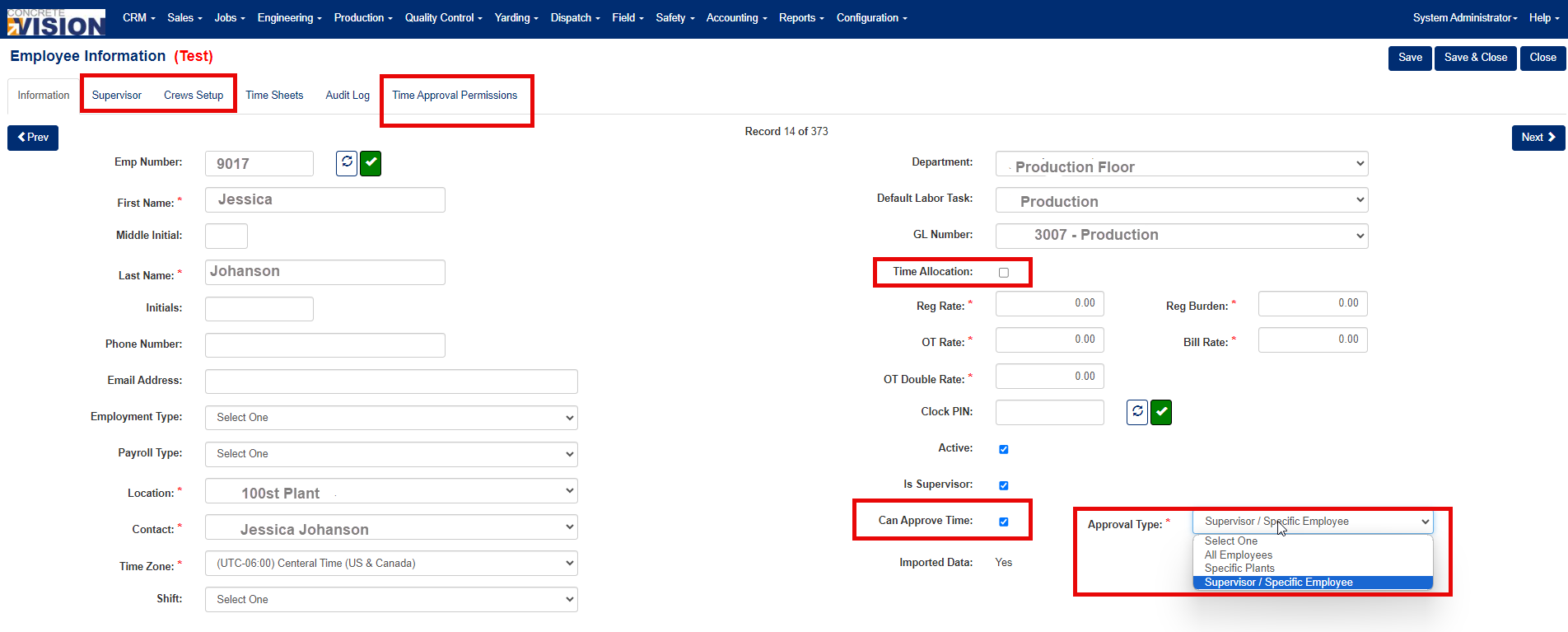
Figure 4
Allocating time:
To allocate time that has been entered through the punch clock or imported.
- Navigate to the Employee Time Allocation screen - Accounting menu > Employee Time and Labor > Employee Time Allocation.
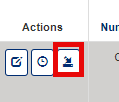
- Click the Edit button on the employee (Red box in Figure 5)
- Click on the day you would like to allocate at the top of the screen. (Figure 6)
- Here you will be able to allocate the time to a Job, Bed, Product Code of a job or Load. First, make sure all the data on the right side starting with location is correct. (Figure 7) Note: This information is setup from the Employee Setup Screen.
- For hours, you can allocate the entire amount that needs to be allocated (default value) or you can change how much time you want to allocate. Note, you can add as many allocations as needed for the allocation amount. Click 'Save & New' at the top right of the screen and this will let you allocate more time or the remaining time.
- Once complete click Save and close and move to the next day.
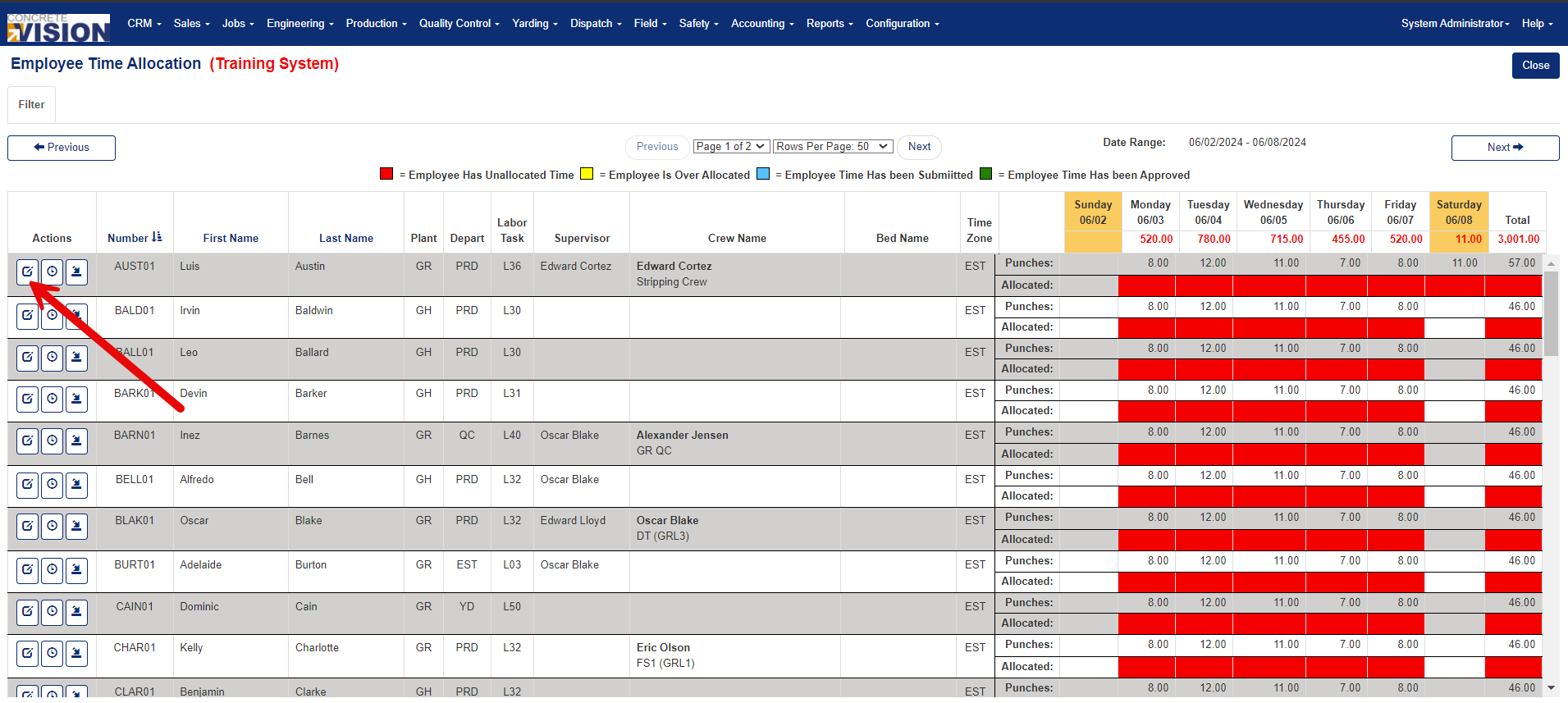
Figure 5
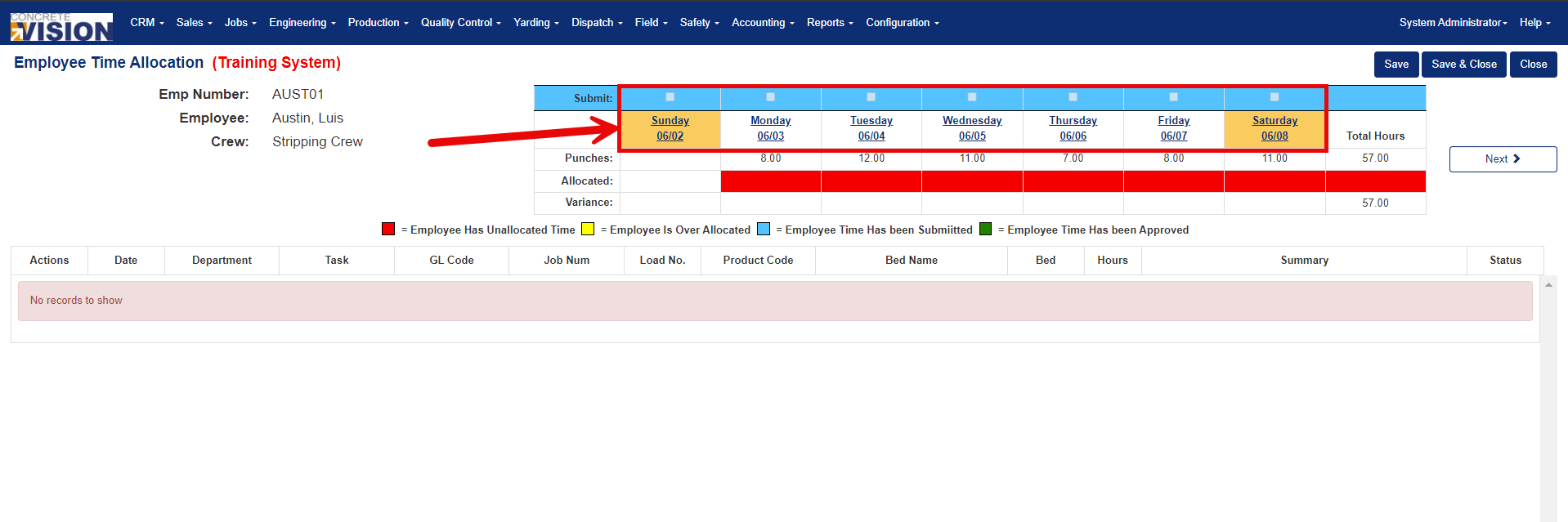
Figure 6
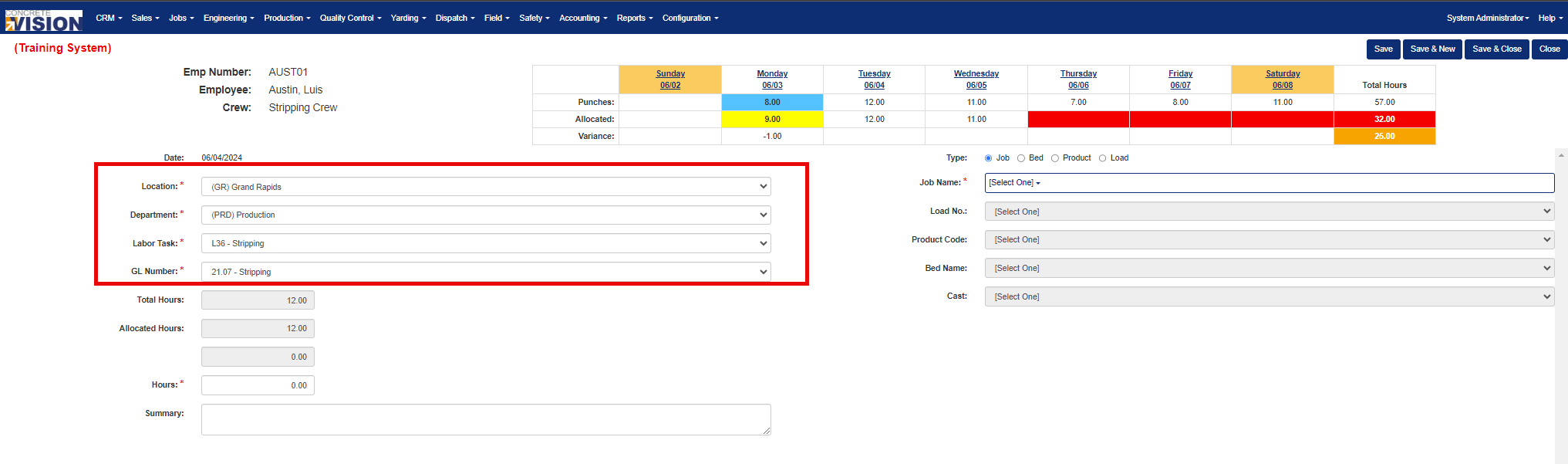
Figure 7
Submit Time:
Once all time has been added for the day, click on the blue check box at the top of the day to be submitted and click 'Save'. You can click on multiple days and click 'Save'. (Figure 8)
This will turn the time blue and say 'Submitted' and will let the final approval team know that all time and adjustments have been made.
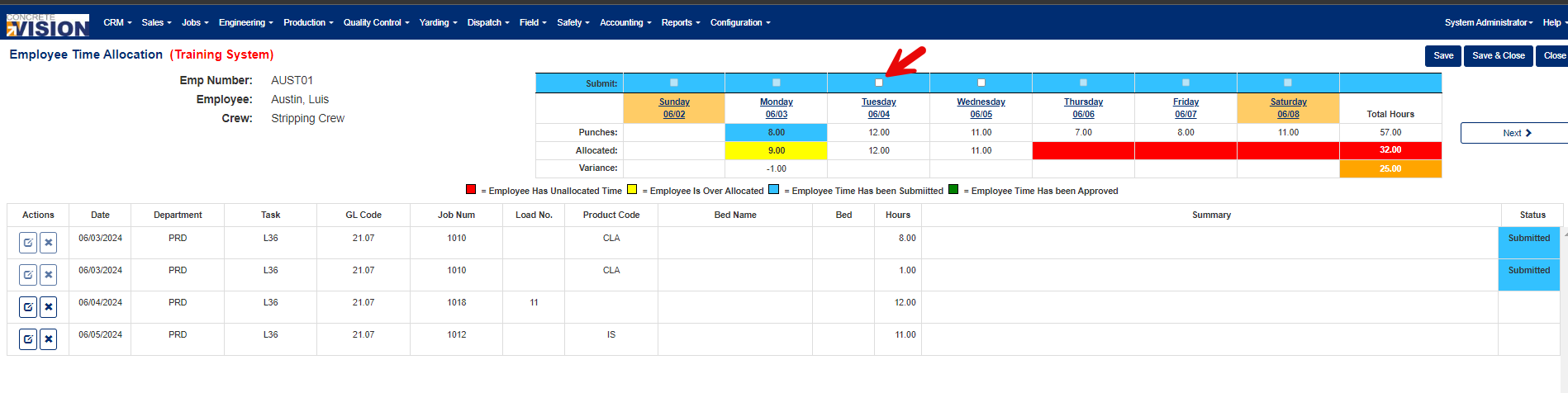
Figure 8
Approve Time:
To approve time submitted and move the allocated time to the job labor hours:
- Navigate to the Employee Time Allocation - Admin screen.
- Click Edit on the employee you want to approve
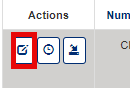
3. If all the time is correct and correctly allocated, click on the Green Check Box at the top of the day and click 'Save' (Red arrow in Figure 9). You can select multiple days.
Time is now approved and moved to the Job.
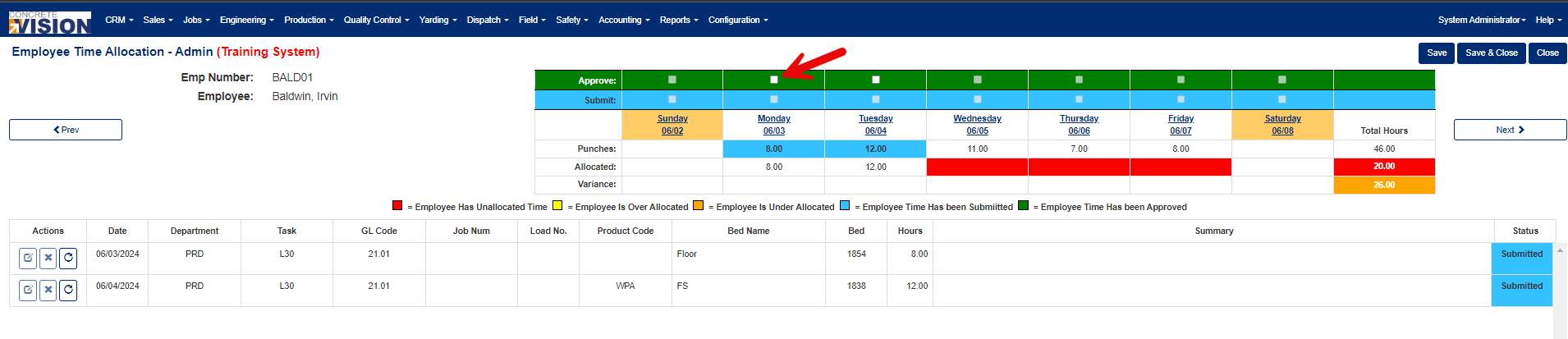
Figure 9
Edit Import/Punch, Submitted or Approved Time:
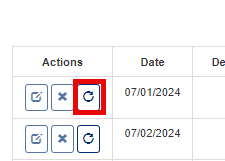
Undo Submitted or Approved Time – To do this click on the Reopen button on the employee you want to undo from the Employee Time Allocation Admin screen. This needs to be done before you can edit imported/punch time.
Edit Import/Punch Time – From the Employee Time Allocation Screen or Employee Time Allocation - Admin screen, click on the Edit button.
To Edit Imported time click on the Imported Time button
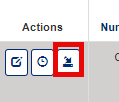
To Edit punch time, click on the Punched Time button
Was this article helpful?
That’s Great!
Thank you for your feedback
Sorry! We couldn't be helpful
Thank you for your feedback
Feedback sent
We appreciate your effort and will try to fix the article