You access the Time Sheet Un-Approval screen from the Accounting > Employee Time and Labor sub-menu, shown below.
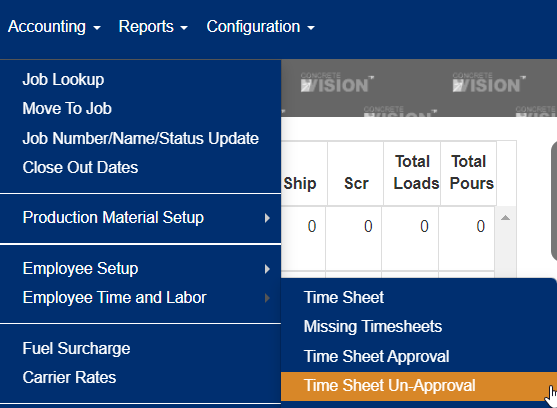
Figure 1
The Time sheet Un-Approval screen (see Figure 2) is where you can reject non-submitted time sheets.
List Un-Submitted Time sheets
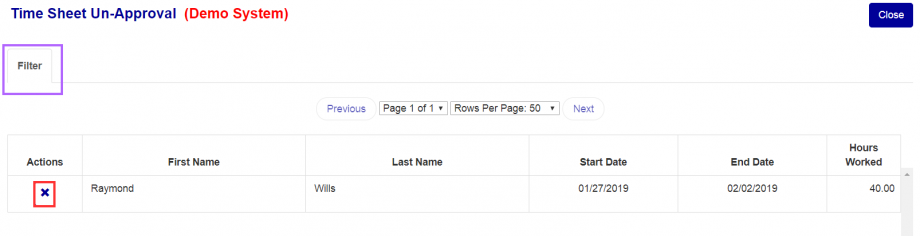
Figure 2
On the list screen you can view some basic information for the time sheets that match the applied filter (The default filter includes last week, the current week, and next week as well as all contacts).
Filter for List Screen
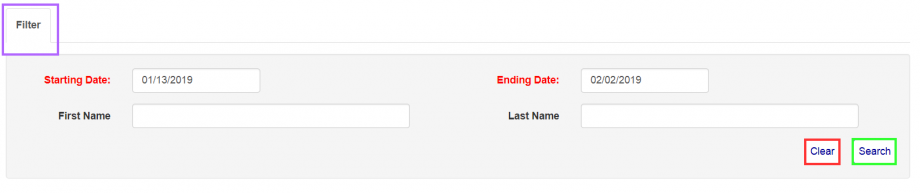
Figure 3
- Click the "Filter" button at the top of the screen (Purple box in Figure 2) to open the filter menu (Figure 3) to search for specific results
- You can enter, change, and select any of the inputs/items to obtain specific results or fewer.
- To clear/reset a current filter press the "clear" button (Red box in Figure 3).
- To re-generate the table using the filter click the "search" button (Green box in Figure 3)
- To close/hide the filter press the "Filter" button again (Purple box in Figure 3).
Un-Approve Time sheet
To un-approve a time sheet click the "X" button (red box in Figure 2), then click the "ok" button on the dialogue box confirming the un-approval.
Was this article helpful?
That’s Great!
Thank you for your feedback
Sorry! We couldn't be helpful
Thank you for your feedback
Feedback sent
We appreciate your effort and will try to fix the article