You access the Time Sheet screen from the Accounting > Employee Time and Labor sub-menu, shown below.
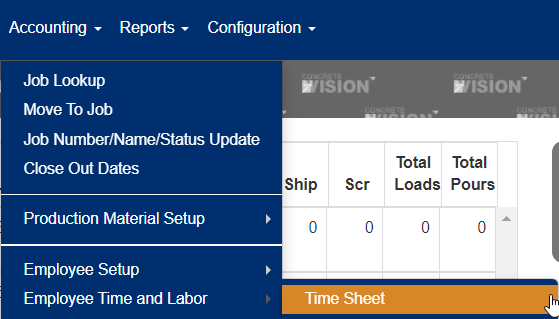
Figure 1
The Timesheet screen (see Figure 2) is where you can add, edit and delete time for the selected week.

Figure 2
Switch Employee
To switch employee time sheets use the selector list (see Orange box in Figure 2) and click on the employee to view/edit their time sheets.
View/Print Time Sheet and Detailed Time Sheet
To open a tab to view either the summary or detailed time sheet for an employee press either the "Timesheet" or "Timesheet Detail" buttons accordingly (see Teal/Blue and Purple boxes in Figure 2).
Submit Timesheet.
- Press the "Submit" button (see Yellow box in Figure 2).
- Click "OK" in the dialogue box that appears to confirm you wish to submit the time sheet.
Delete Time
- Mark the checkbox(s) in the corresponding row of the time you wish to remove (see Yellow box in Figure 3).
- Press the "Delete" button (see Red box in Figure 2).
- Click "OK" in the dialogue box that appears to confirm you wish to delete the record
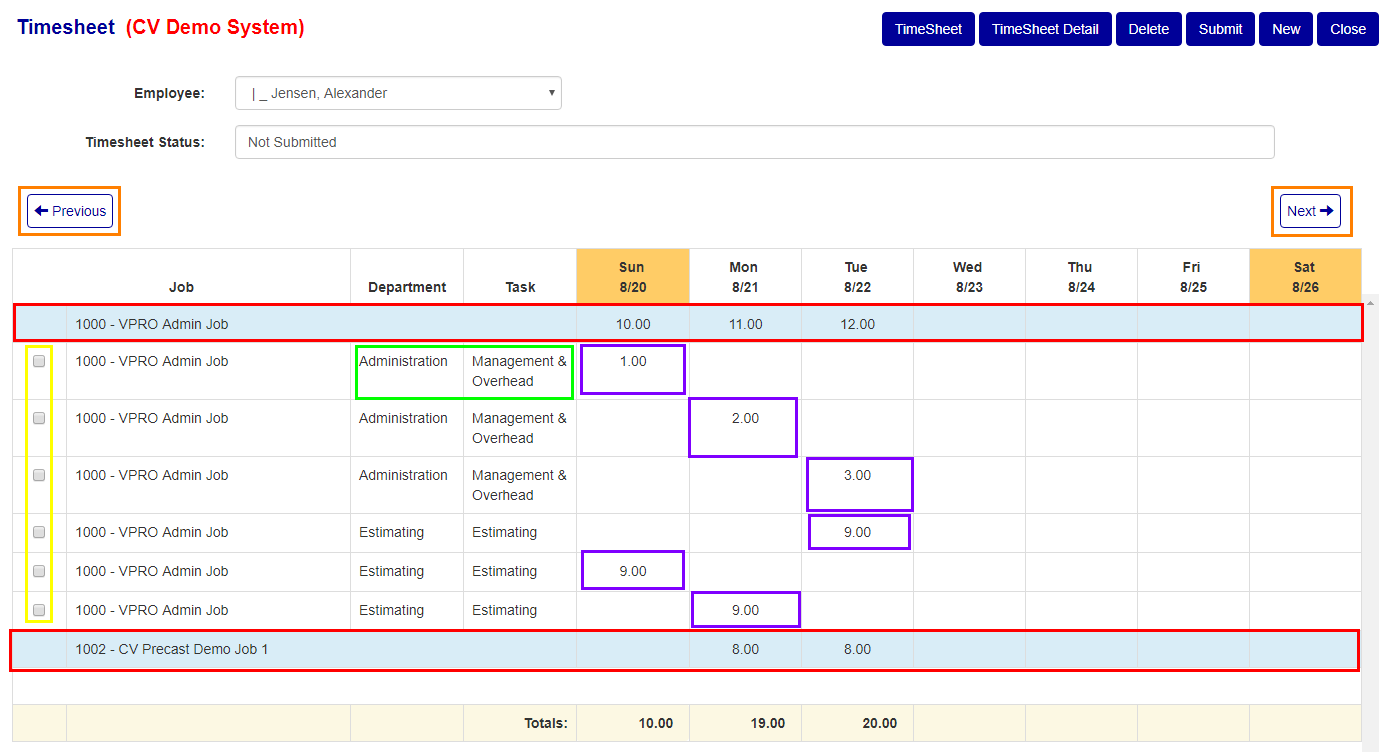
Figure 3
Switch Week
To navigate back and forth from weeks use the "Previous" and "Next" buttons (see Orange box in Figure 3).
Open Time Detail
Click on the jobs heading/Summary to drop down a detailed list of the time for a job (see Red box in Figure 3).
Add Time
** Clicking inside a specifics jobs time entry (see Purple box in Figure 2) will allow you add time with the information pre-filled out to match that jobs information.
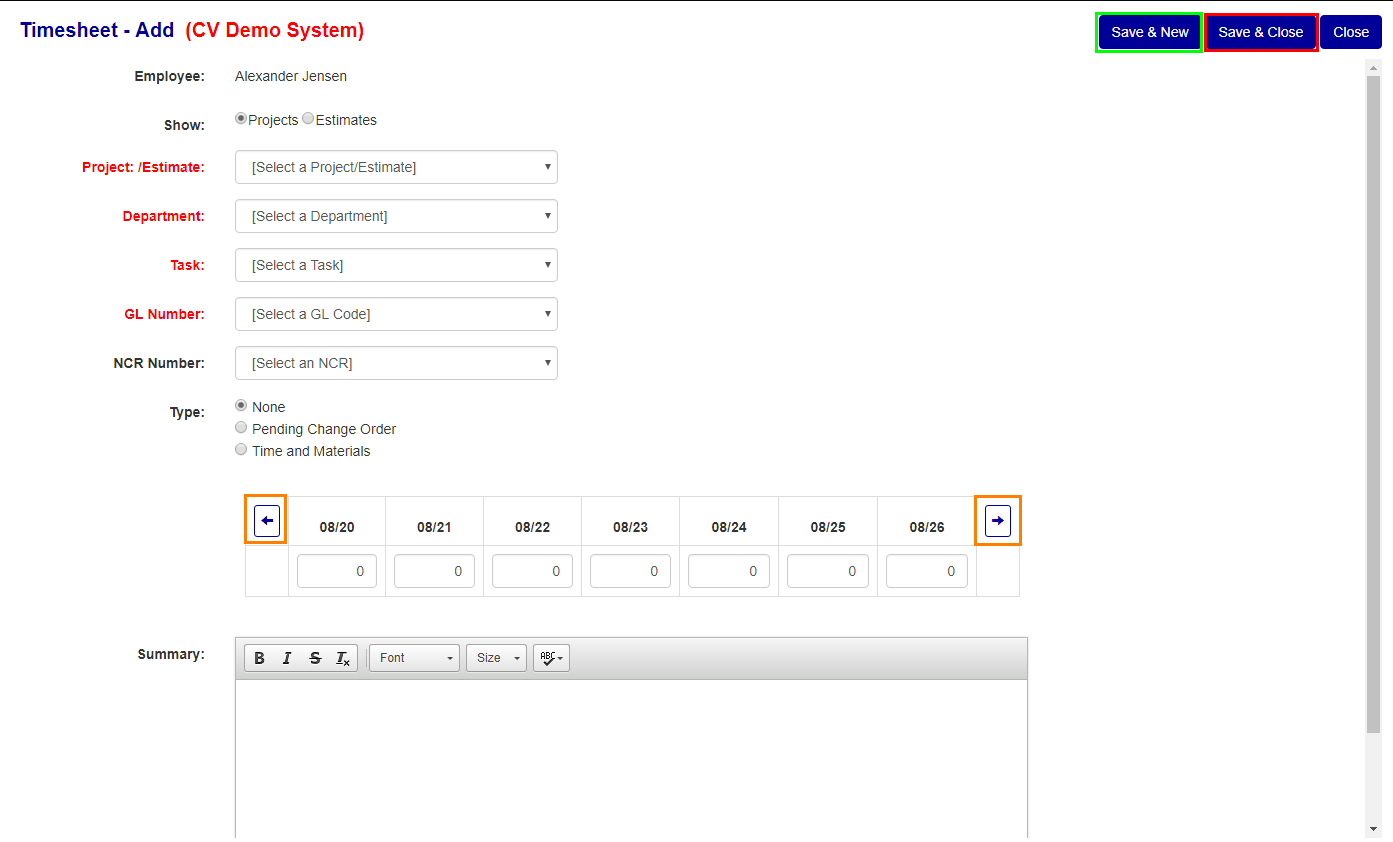
Figure 4
** Navigating to a different week (see Orange box in Figure 4) will delete any selected/entered items.
Click the "New" button (see Green box in Figure 2) to add time for the week:
- You can mark whether you worked on a project or estimate.
- Select a project or estimate.
- Select a department.
- Select a task under the selected department.
- Select a GL number associated with the department.
- If available you can select and NCR.
- You can mark the type as none, pending change order, or time and material.
- Enter in a time for at least 1 of the days presented.
- You can enter in a summary of what the time was spent on.
- Click the "Save & New" button to add the time and start a new time entry. (see the Green box in Figure 4)
- Click the "Save & Close" button to add the time and move back to the employee time screen. (see the Red box in Figure 4)
Edit Timesheet
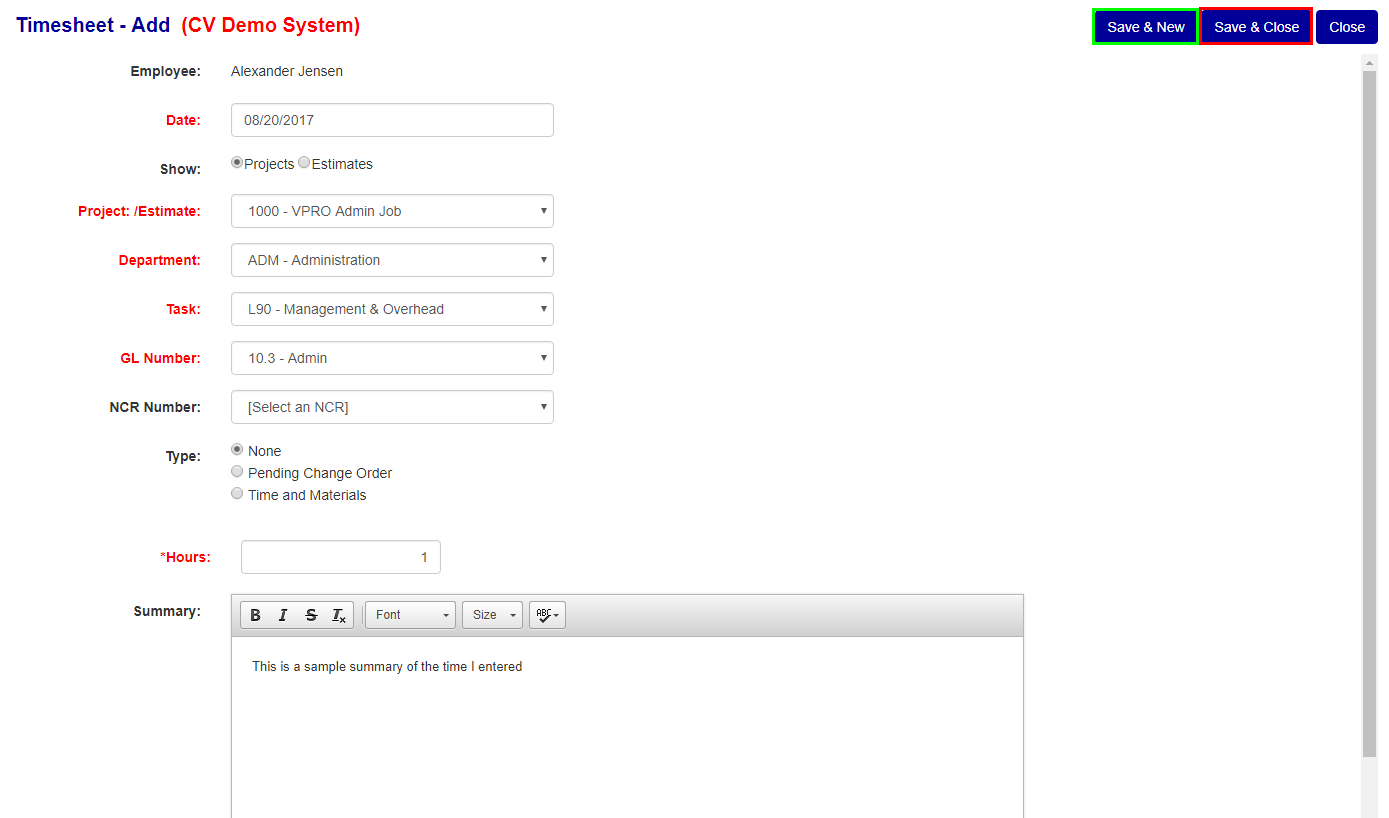
Figure 5
** If you don't click on either the Save or Save and Close button and navigate off this screen, your changes will be lost.
To edit a time, migrate to the edit page by clicking the department or task corresponding to the time entry (see Green box in Figure 3), just update any one of the input values and then select the Save or Save and Close button to save your changes.
Was this article helpful?
That’s Great!
Thank you for your feedback
Sorry! We couldn't be helpful
Thank you for your feedback
Feedback sent
We appreciate your effort and will try to fix the article