Overview
Labor Tasks allow you to track and bill for different types of work performed by employees. This screen lets you create, modify, and manage labor tasks with billing rates and activity status.
Accessing Labor Tasks
Navigation Path: Accounting menu > Employee Setup > Labor Tasks
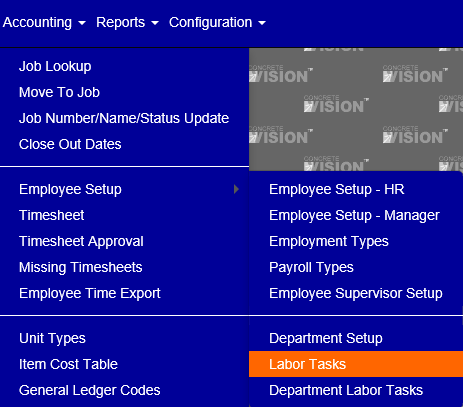
Figure 1
Managing Labor Tasks
Viewing and Sorting Tasks
The main Labor Tasks screen displays all tasks in a sortable grid. Click any column header to sort by that field—the arrow icon indicates the current sort direction (ascending/descending).
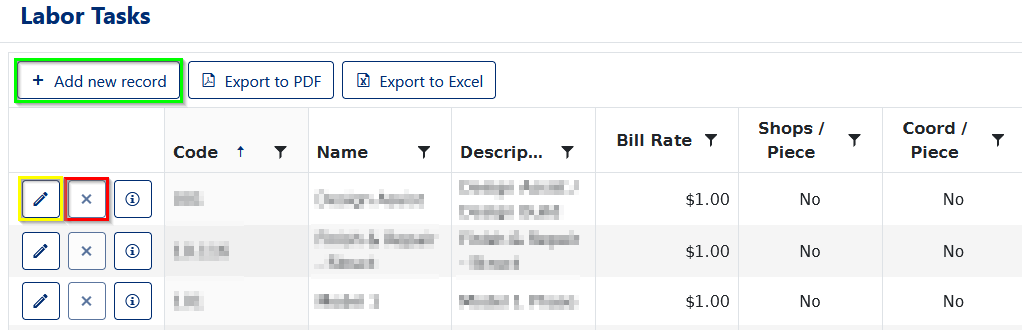 Figure 2
Adding a New Labor Task
- Click the "Add New Record" button (Green box, Figure 2)
- Complete all required fields (*marked with asterisk):
- Code*: Unique identifier for the task
- Name*: Descriptive task name
- Description*: Detailed explanation of the task
- Bill Rate*: Hourly or unit billing rate
- Optionally check future-release columns (Shops/Piece, Coord/Piece, etc.)
- Set task status to Active or Inactive
- Click "Update" to save (Green box, Figure 3)
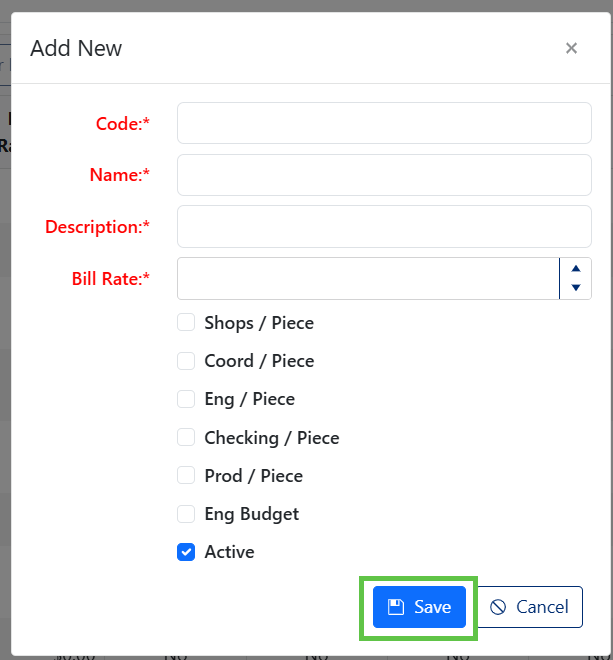
Figure 3
Editing an Existing Labor Task
- Click the pencil icon next to the task you want to edit (Yellow box, Figure 2)
- Modify any required or optional fields
- Click "Update" to save changes (Green box, Figure 4)
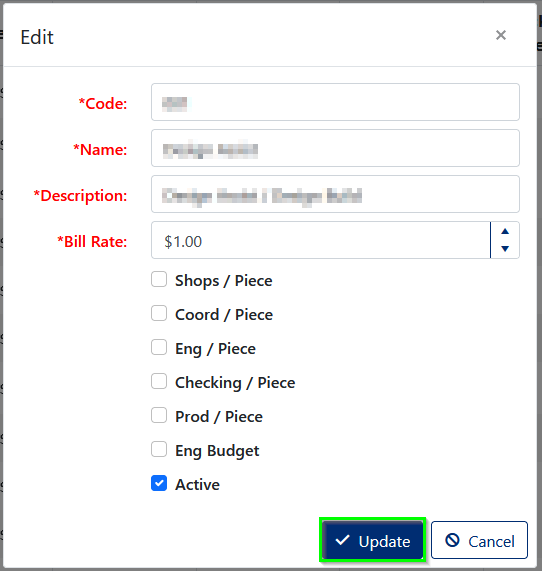
Figure 4
Deleting a Labor Task
Important Restrictions: You can only delete labor tasks that are:
- NOT imported from another system
- NOT currently assigned to any:
- Department/Labor Task
- Employee Time Allocation
- Employee Time Sheet
- Employee Time Card
- Employee
To delete:
- Click the "X" button in the task's row (Red box, Figure 2)
- Click "OK" in the confirmation dialog
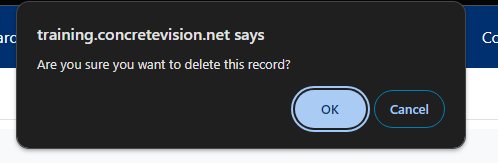
Figure 5
Export Options
Use the buttons at the top of the screen to export your labor tasks:
- Export to PDF – Creates a PDF document
- Export to Excel – Creates a spreadsheet file
Was this article helpful?
That’s Great!
Thank you for your feedback
Sorry! We couldn't be helpful
Thank you for your feedback
Feedback sent
We appreciate your effort and will try to fix the article