Overview
The User Logins - View screen allows you to view, search, and export Concrete Vision users. You can review user settings established by a Concrete Vision administrator, including access permissions and production planning options.
Accessing User Logins - View
Navigate to the User Logins - View screen using the following path:
Configuration menu → User Setup → User Logins → User Logins - View
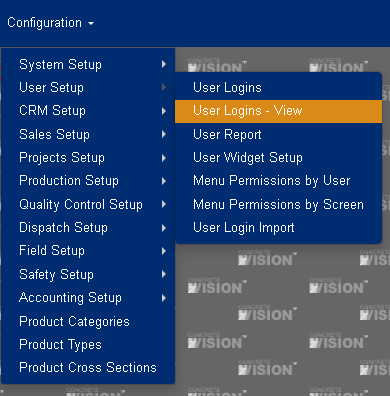
Figure 1
Finding Specific Users
You can quickly locate any user by using the sorting and filtering tools available in the column headers.
Search and Filter Options
- Sort: Click any column header to sort users alphabetically or numerically
- Filter: Use the filter icons in column headers to search for specific criteria
- Export: Export the complete user list for external use
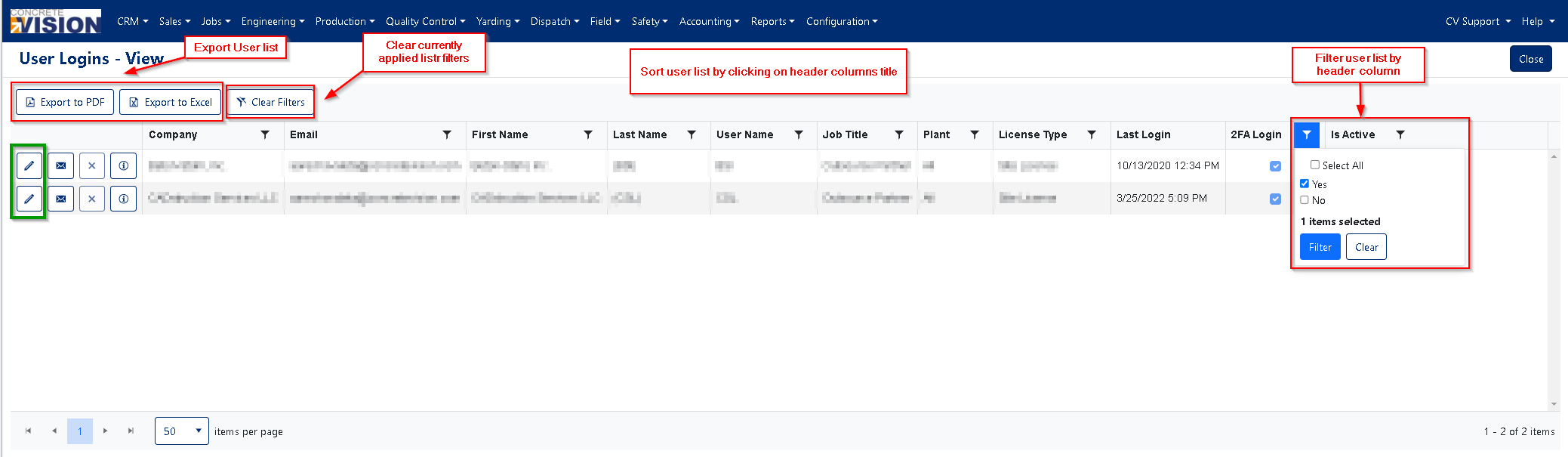
Figure 2
Viewing User Details
To View an Existing User:
- Locate the user in the list using the search/filter tools
- Click the Edit button (Green box, Figure 2) next to the user's name
- The User Information details window will open, displaying:
- Company
- Contact information
- User ID
- Plant assignment
- Time zone
- License type
- Login credentials
- CRM permissions and access levels
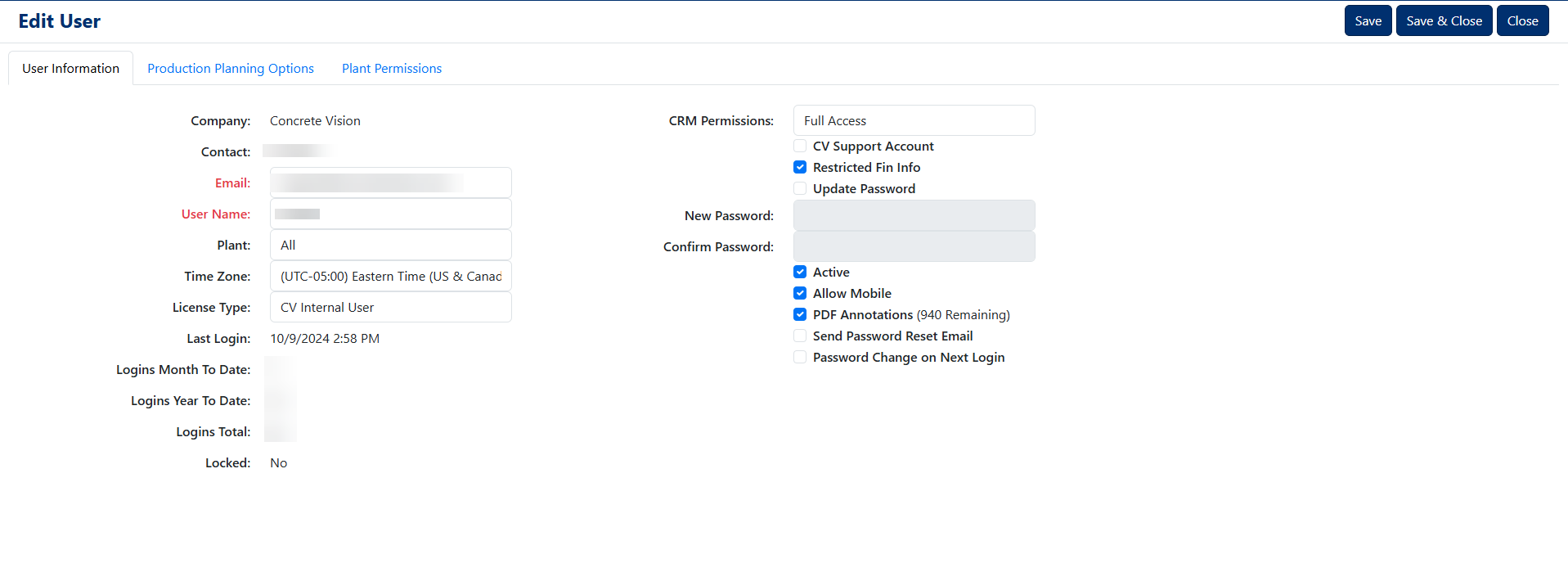
Figure 3
Viewing Production Planning Options
To see which production planning beds are assigned to a user:
- Open the user's details (click the Edit button)
- Click the "Production Planning Options" tab (Yellow box, Figure 4)
- Review the assigned production planning bed options
This screen displays all production planning configurations specific to the selected user, including bed assignments and related settings.
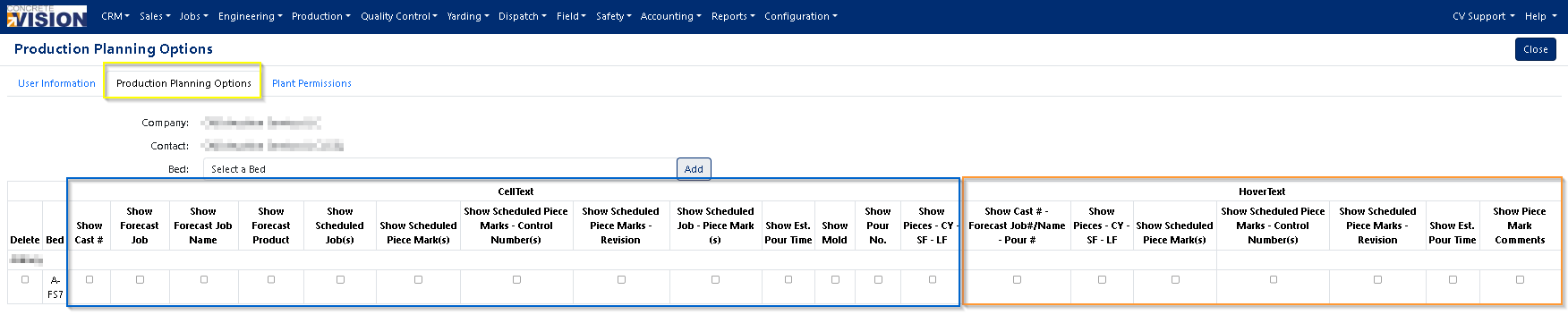
Figure 4
Viewing Plant Permissions
To review a user's plant view and edit permissions:
- Open the user's details (click the Edit button)
- Click the "Plant Permissions" tab
- Review the assigned permissions in two columns (Orange boxes, Figure 5):
- View Permissions: Plants the user can view
- Edit Permissions: Plants the user can modify
This screen shows which plants the user has access to and their permission level for each location.
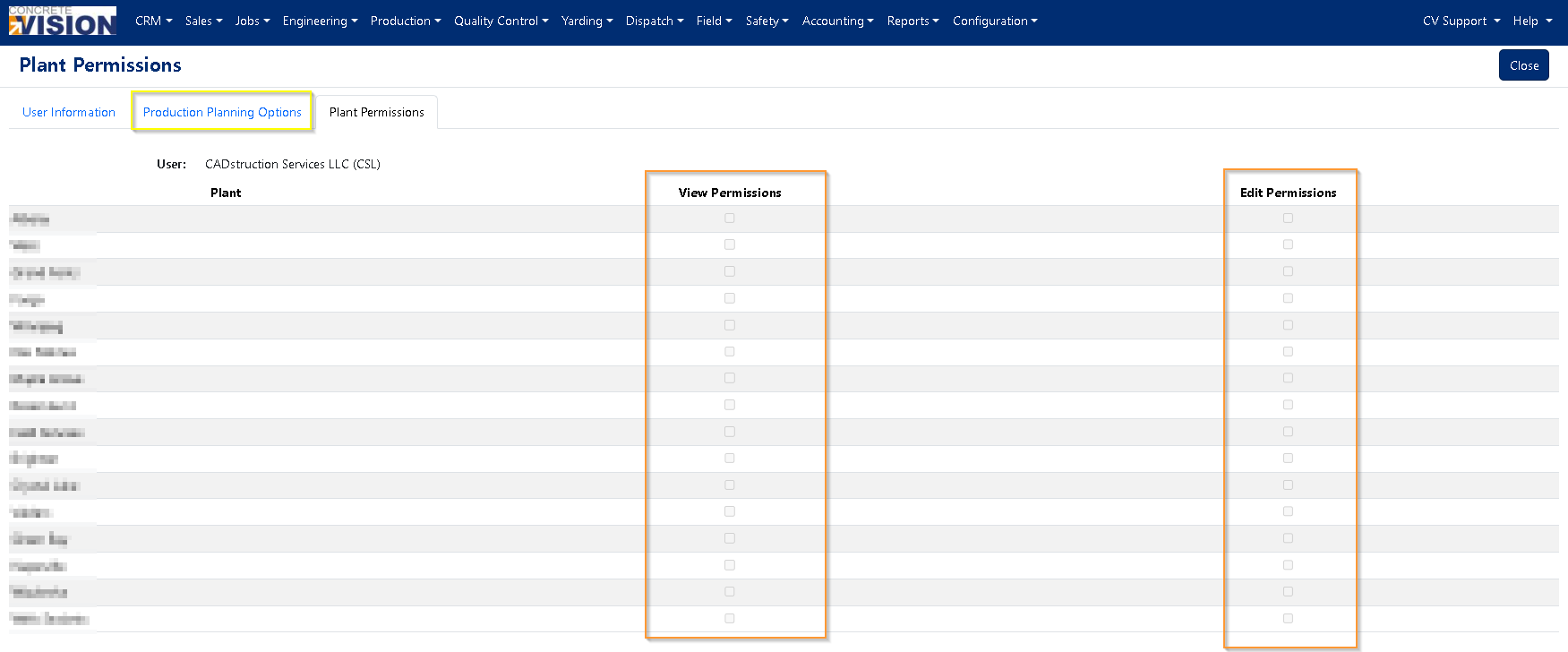
Figure 5
Key Features Summary
- User Search: Sort and filter users by multiple criteria
- User Details: View comprehensive user information and settings
- Production Planning: Review assigned production planning bed options
- Plant Permissions: Check view and edit access for each plant location
- Export Capability: Generate user lists for reporting and analysis
Tips for Administrators
- Regularly review user permissions to ensure appropriate access levels
- Use the export function to maintain records of user configurations
- Check production planning assignments when troubleshooting user access issues
- Verify plant permissions align with organizational security policies
Was this article helpful?
That’s Great!
Thank you for your feedback
Sorry! We couldn't be helpful
Thank you for your feedback
Feedback sent
We appreciate your effort and will try to fix the article