Overview
General Ledger (GL) Codes are account categories used to organize and track financial transactions in Concrete Vision. A company's accounting department will have information on the general ledger codes to use in CV.
Note: Depending on your system, this is either General Ledger Code or Cost Code.
Key Features:
- Organize financial data into logical categories
- Connect estimates, labor, and material costs
- Support hierarchical structures with parent and sub-codes
- Optional code types for additional categorization
Accessing General Ledger Codes
Navigate to the General Ledger Codes setup screen: Configuration menu → Accounting Setup → General Ledger Codes (Figure 1)
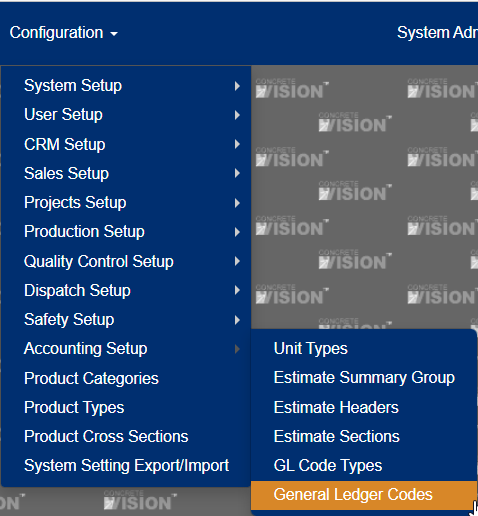
Figure 1
Understanding GL Code Types
General Ledger Code Types are categories or types of accounts that GL Codes fall under. Each general ledger code has an optional code type. GL codes will tie back to estimates, labor, and material in Concrete Vision.
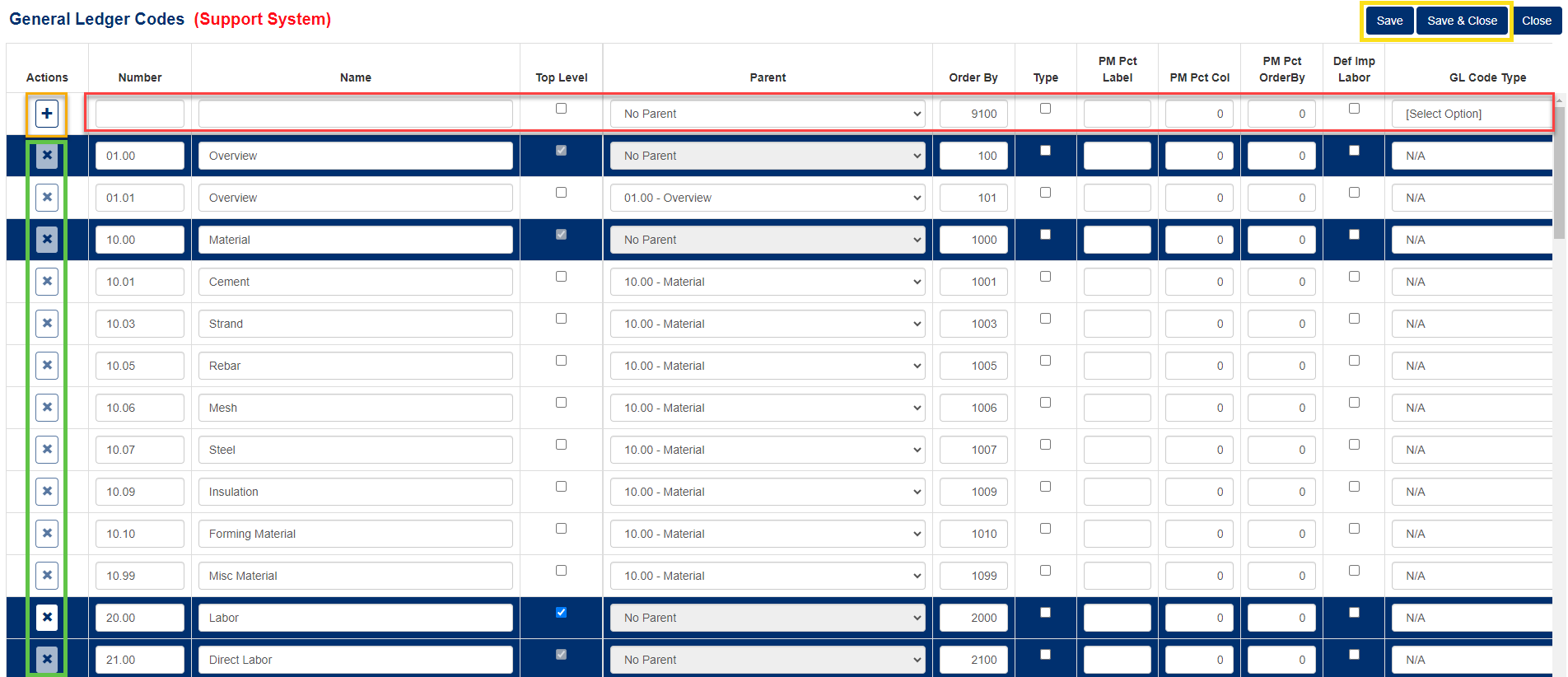
Figure 2
Managing General Ledger Codes
Adding a New GL Code
Enter Basic Information (Red box, Figure 2)
- Number: Enter the GL Code number in the first field (required)
- Name: Provide a descriptive name for the GL Code (required)
Configure Hierarchy
- Top Level: Check this box if this GL Code will have sub-codes beneath it
- Parent: If this is a sub-code, select the parent GL Code from the dropdown
Set Display Order
- Order By: This field auto-populates with the next available number but can be modified to control the display sequence (required)
Additional Settings
- Type: Select an appropriate GL Code Type if available
- PM Pct Label: Project Management percentage label (if applicable)
- PM Pct Col: Project Management percentage column (if applicable)
- PM PCT Order by: Display order for PM percentage (if applicable)
- Def Imp Labor: Check if this should default for imported labor
Save Your Changes
- Click the '+' button to add the record to the list (Orange box, Figure 2)
- Click 'Save' or 'Save & Close' to finalize the new GL Code (Yellow box, Figure 2)
⚠️ Important: Always save your changes before navigating away from the screen, or your work will be lost.
Editing an Existing GL Code
To modify any GL Code, simply update the desired field values:
Modify Fields: Click on any field to edit its value
- Update the Number, Name, or other properties as needed
- Adjust hierarchy settings (Top Level, Parent)
- Change the display order or type assignments
Save Changes: Click 'Save' or 'Save & Close' to apply your modifications (Yellow box, Figure 2)
⚠️ Remember: Changes are not permanent until you save them.
Deleting a GL Code
Prerequisites for Deletion:
- The GL Code must not have any sub-codes assigned to it
- The GL Code must not be currently assigned to any Department or Labor Task
If either condition is not met, the delete button will be disabled.
Deletion Process:
- Click the "Delete" button in the corresponding row (Green box, Figure 2)
- Confirm the deletion by clicking "OK" in the confirmation dialog (Figure 3)
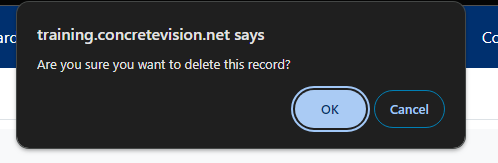
Figure 3
Best Practices
Planning Your GL Code Structure
- Use logical numbering: Implement a consistent numbering scheme (e.g., 1000-1999 for Assets, 2000-2999 for Liabilities)
- Plan for growth: Leave gaps in your numbering for future additions
- Create hierarchies: Use parent/sub-code relationships for detailed cost tracking
Related Features
General Ledger Codes integrate with several other Concrete Vision modules:
- Estimates: GL Codes categorize estimate line items
- Labor Tracking: Connect labor costs to appropriate GL accounts
- Material Management: Assign material costs to specific GL categories
- Project Management: Track project costs by GL Code for better analysis
Was this article helpful?
That’s Great!
Thank you for your feedback
Sorry! We couldn't be helpful
Thank you for your feedback
Feedback sent
We appreciate your effort and will try to fix the article