Overview
The Categories screen, not to be confused with the Product Categories screen, is used to organize accounting items.
Accessing the Categories Screen
Navigate to Accounting > Categories from the main menu (Figure 1).
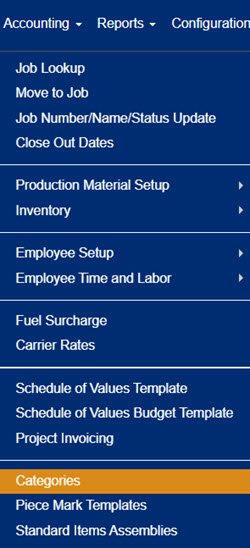
Figure 1
Using the Categories Screen
The Categories screen (Figure 2) is where you can edit, add, and view Categories. Current parent categories display with a blue background.
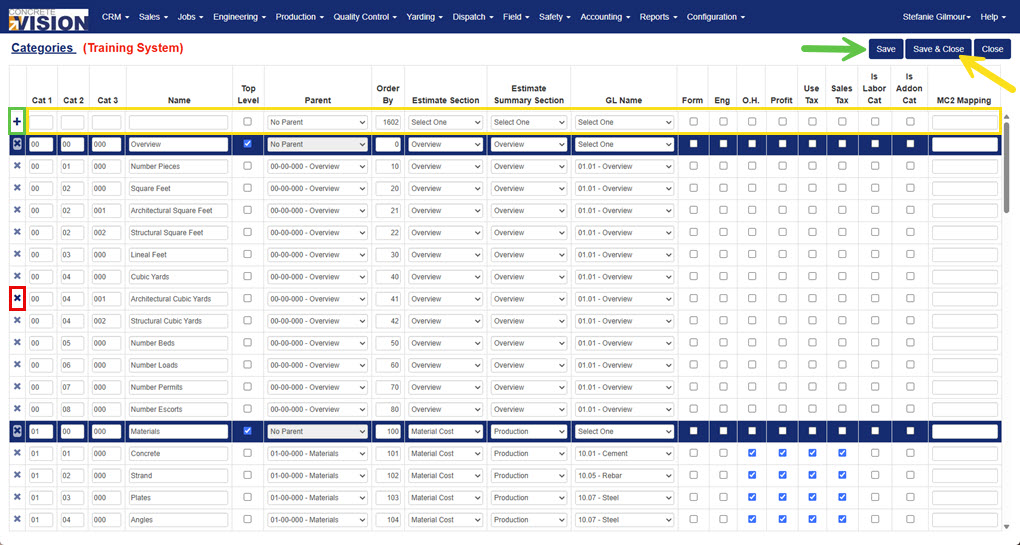
Figure 2
Add a Category
To add a new category from the Categories screen (Figure 2), fill in the blanks fields in the first row (yellow box in Figure 2):
- Enter a Cat 1.
- Enter a Cat 2.
- Enter a Cat 3.
- Enter a name for the category.
- IF the new category is a top level category, check the top level box.
- IF the new category is a subcategory, select its parent category. If not, leave as "No Parent."
- Enter an Order By number to determine display order.
- Select an Estimate Section.
- Select an Estimate Summary Section.
- Select a General Ledger Name.
- Check any of the include items on the right of the screen if they apply.
- Enter MC2 Mapping information if applicable.
- To add the category, click the Plus icon (green box in Figure 2).
Edit a Category
From the Categories screen (Figure 2):
- Edit any field in a category's row as needed.
- Click the Save button (green arrow in Figure 2) to save changes or the Save & Close button (yellow arrow in Figure 2) to save changes and return to the previous screen.
Note: Changing item to or from top level status requires adjustments of the parent selector.
Delete a Category
From the Categories screen (Figure 2):
- Click the Delete icon (red box in Figure 2) in the corresponding row of the Category to remove.
- Click the OK button in the dialogue box that appears to confirm deletion of the record.
Note: A Category can only be deleted if it is not in use.
Was this article helpful?
That’s Great!
Thank you for your feedback
Sorry! We couldn't be helpful
Thank you for your feedback
Feedback sent
We appreciate your effort and will try to fix the article