Overview
This guide explains how to control when concrete pieces can be released for production using two key features: Override Preliminary and PM Ticket Requirements. These features work together to ensure pieces meet your project's approval requirements before production begins.
Understanding Piece Release Status
By default, pieces added to a job remain in Preliminary Status until certain conditions are met. Pieces in Preliminary Status cannot be produced - they must be "released" first.
Override Preliminary Feature
What It Does
The Override Preliminary feature allows you to bypass the standard preliminary approval process, immediately releasing pieces for production when they're added to a job.
When to Use
- Checked: Pieces are released immediately upon upload, even without drawings attached
- Unchecked: Pieces remain in Preliminary Status until drawings are attached
Important Limitations
⚠️ Critical: Override Preliminary only works before adding pieces to the job. You cannot enable this feature after pieces have already been added.
How to Access Override Preliminary
- Navigate to Job menu → Job lookup (Figure 1)
- Select your desired job
- Click the Contract Tab
- Scroll down to the Job Overrides/Cancel Bid Fields section
- Check or uncheck the Override Preliminary option (Red box, Figure 2)
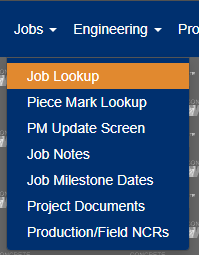
Figure 1
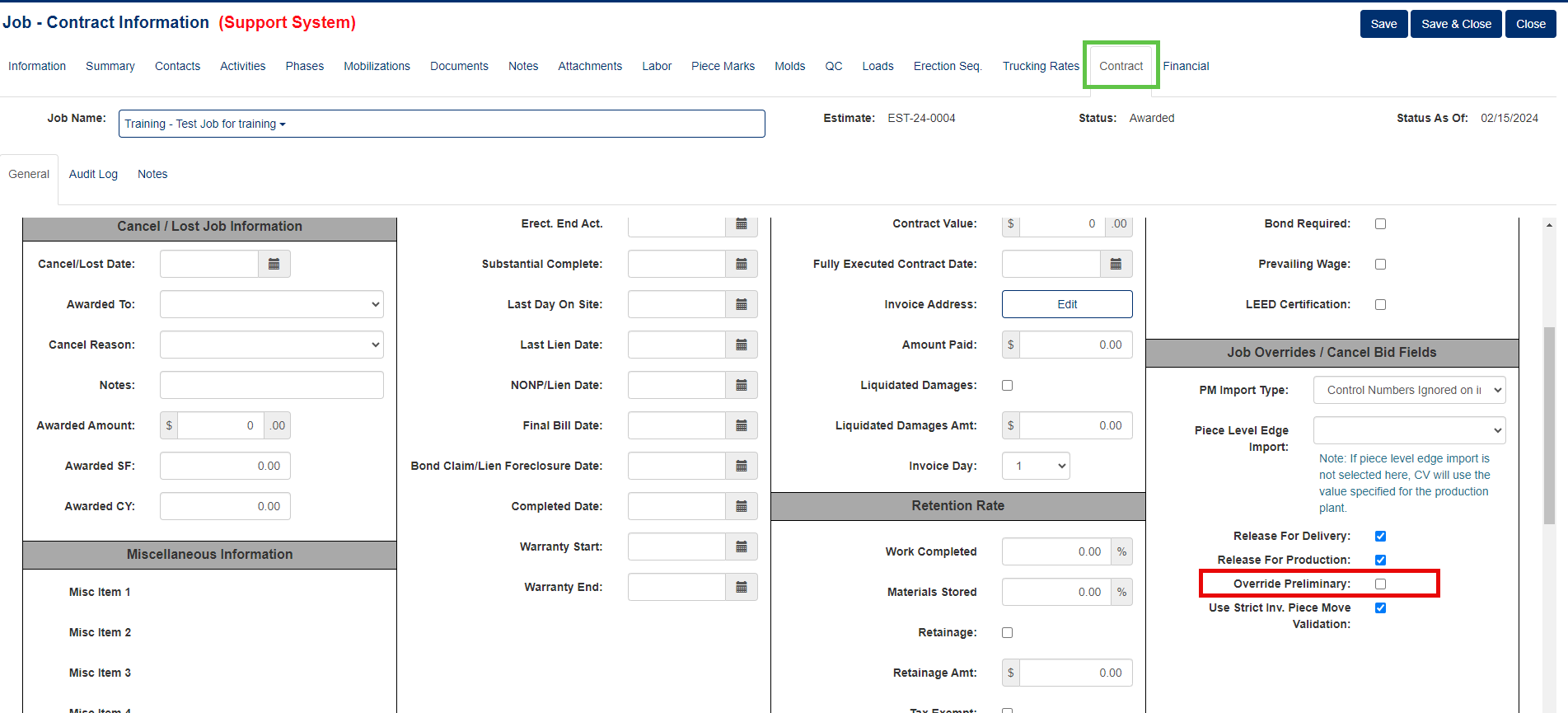
Figure 2
PM Ticket Requirements
What It Does
PM Ticket Requirements add an additional approval layer for specific product categories. When enabled for a product category, pieces cannot be released until both a drawing AND a PM ticket are uploaded.
How It Works
When PM Ticket Req (Red box, Figure 3) is selected in Product Categories (Configuration menu > Product Categories):
- Pieces remain in Preliminary Status until PM ticket is uploaded
- Even with Override Preliminary enabled, pieces will be released immediately (bypassing the PM ticket requirement)
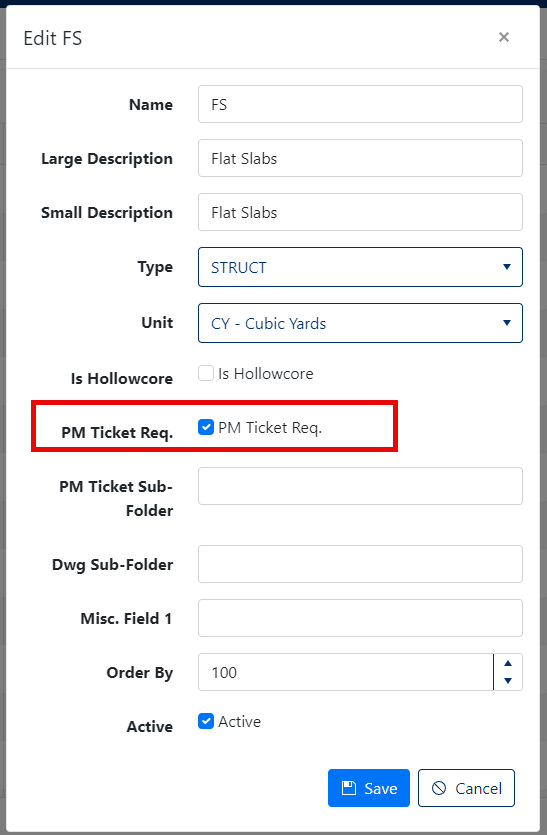
Figure 3
How These Features Work Together
| Override Preliminary | PM Ticket Req | Result |
|---|---|---|
| ❌ Unchecked | ❌ Not Required | Pieces need drawings to be released |
| ❌ Unchecked | ✅ Required | Pieces need both drawings AND PM tickets |
| ✅ Checked | ❌ Not Required | Pieces released immediately |
| ✅ Checked | ✅ Required | Pieces released immediately (PM ticket bypassed) |
Best Practices
Before Starting a Job
- Review requirements: Determine if your project needs PM ticket approval
- Set Override Preliminary: Enable only if you want immediate release without standard approvals
- Configure product categories: Set PM Ticket requirements for relevant categories
During Job Setup
- Configure Override Preliminary before adding any pieces
- Ensure all team members understand the approval workflow
- Verify that necessary drawings and PM tickets are prepared
Was this article helpful?
That’s Great!
Thank you for your feedback
Sorry! We couldn't be helpful
Thank you for your feedback
Feedback sent
We appreciate your effort and will try to fix the article