Overview
The Weather Tracking System allows you to record, manage, and export weather observations for company locations. You can log temperature, weather conditions, date, and time for various sites and generate reports for analysis.
Accessing the Screen
Navigate to the Weather Tracking module from the main menu. The system will default to showing weather records for your assigned location for the current week (Figure 1)
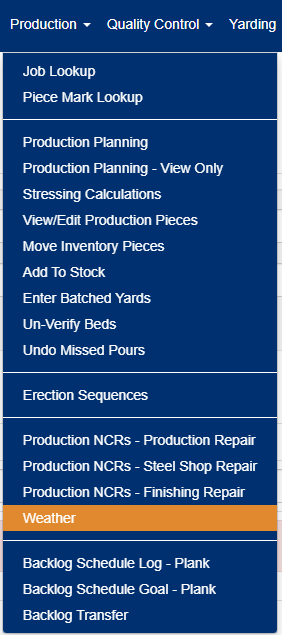
Figure 1
Screen Layout
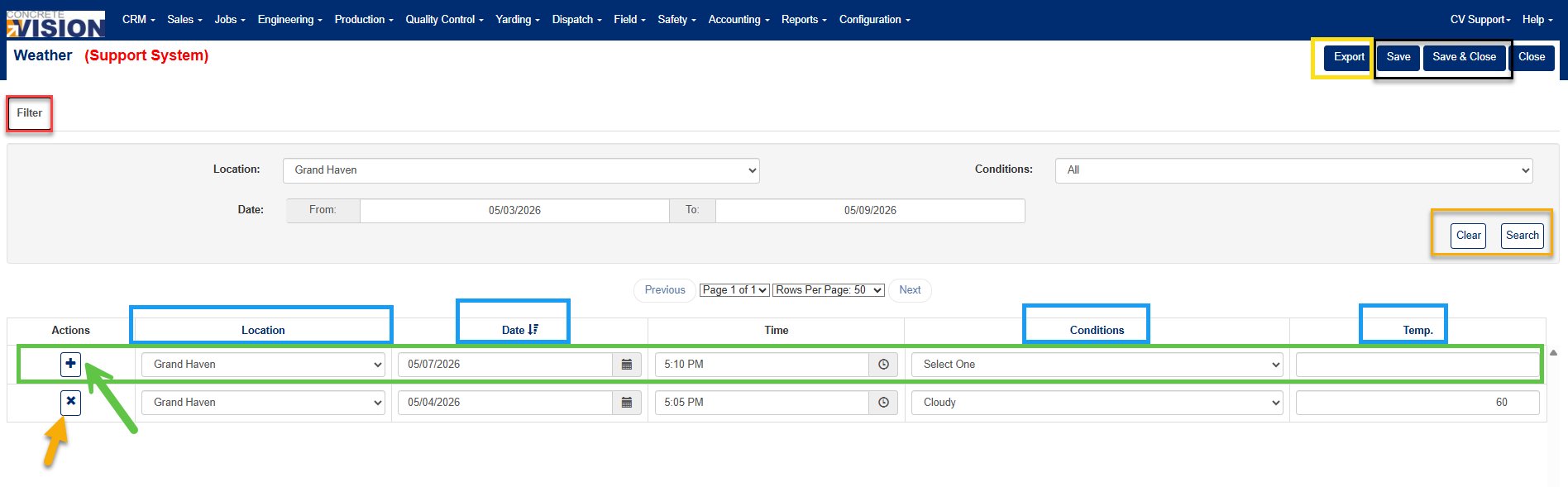
Figure 2
Filtering Weather Records
The following filters are available:
| Filter | Options | Default |
| Location | Select a specific company location or choose "All" to view all locations | Your assigned location |
| Conditions | Filter by weather condition type (Sunny, Cloudy, Rainy, etc.) or choose "All" to view all weather conditions | ALL |
| Date Range: From Date | Start date for the date range | Current week start (Sunday) |
| Date Range: To Date | End date for the date range | Current week end (Saturday) |
Using Filters
- Click the Filter tab to expand the filter panel (Red box, Figure 2)
- Select your desired filter criteria:
- Choose a location from the dropdown
- Select weather condition (optional)
- Enter or select date range using the date picker
- Click Search to apply filters (Orange box, Figure 2)
- Click Clear to reset all filters to defaults (Orange box, Figure 2)
Sorting the Weather Records
Click on column headers to sort by (Blue box, Figure 2):
- Location
- Date
- Conditions
- Temperature
Click again to reverse sort order (ascending/descending).
Adding New Weather Records
- Locate the + button at the top of the data grid (Green box, Figure 2)
- Fill in all required fields:
- Location - Select company location (defaults to your location)
- Date - Select observation date (defaults to today)
- Time - Enter observation time (defaults to current time)
- Conditions - Select weather condition from dropdown
- Temp - Enter temperature (numeric value only)
- Click the + button in the Actions column (Green arrow, Figure 2)
- System validates your entry and displays success message
Validation Rules
- All fields are required
- Location must be selected (not "Select One")
- Date must be valid format
- Time must be valid format
- Conditions must be selected (not "Select One")
- Temperature must be a numeric value
Editing Existing Records
- Locate the record you want to modify in the grid
- Click directly in the field you want to change:
- Location - Select from dropdown
- Date - Click calendar icon to select date
- Time - Click clock icon to select time
- Conditions - Select from dropdown
- Temp - Type new temperature value
- Make changes to as many records as needed
- Click Save to apply changes or Save & Close to apply and exit (Black box, Figure 2)
You can edit multiple records at once. All changes are validated before saving.
Deleting Weather Records
- Locate the record you want to remove
- Click the X button in the Actions column (Orange box, Figure 2)
- Confirm the deletion when prompted (Figure 3)
- Record is permanently removed from the system and success message displays confirming deletion.
Note: Deletions are permanent and cannot be undone.
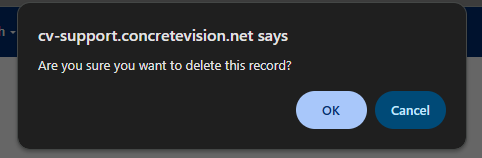
Figure 3
Field Validation and Error Messages
Common Validation Errors
| Error | Cause | Solution |
|---|---|---|
| Red border on Location | "Select One" still selected | Choose a valid location |
| Red border on Date | Date field is empty | Enter or select a valid date |
| Red border on Time | Time field is empty | Enter or select a valid time |
| Red border on Conditions | "Select One" still selected | Choose a weather condition |
| Red border on Temperature | Empty or non-numeric value | Enter a numeric temperature |
Error Alert
If you attempt to save with validation errors, an alert displays: "Please fix errors on the screen"
Review all fields with red borders and correct them before saving.
Date and Time Entry
Date Picker
- Click the calendar icon to open date picker
- Navigate months using arrows
- Click a date to select
- Or manually type date in format shown (typically MM/DD/YYYY)
Time Picker
- Click the clock icon to open time picker
- Select hour and minute
- Toggle AM/PM
- Time increments in 5-minute intervals
- Or manually type time in format HH:MM AM/PM
Exporting Weather Data
- Apply any desired filters to narrow down records
- Click the Export button in the header (Yellow box, Figure 2)
Was this article helpful?
That’s Great!
Thank you for your feedback
Sorry! We couldn't be helpful
Thank you for your feedback
Feedback sent
We appreciate your effort and will try to fix the article