Overview
The Un-Verify Beds feature returns a verified Production (casting) Bed to an editable status so changes can be made. Once a casting bed has been verified (indicated by a green background in Production Planning), it becomes locked and cannot be modified. Use this feature when you need to make changes to previously verified beds.
When to Use Un-Verify Beds
You may need to un-verify a bed when:
- Corrections are needed to production data
- Schedule changes require bed adjustments
- Production errors need to be fixed
- Updates to piece information are necessary
Understanding Verified Beds
Once a casting bed is verified on the Production Planning screen (Figure 1), it displays with a green background. A verified bed is locked and cannot be modified.
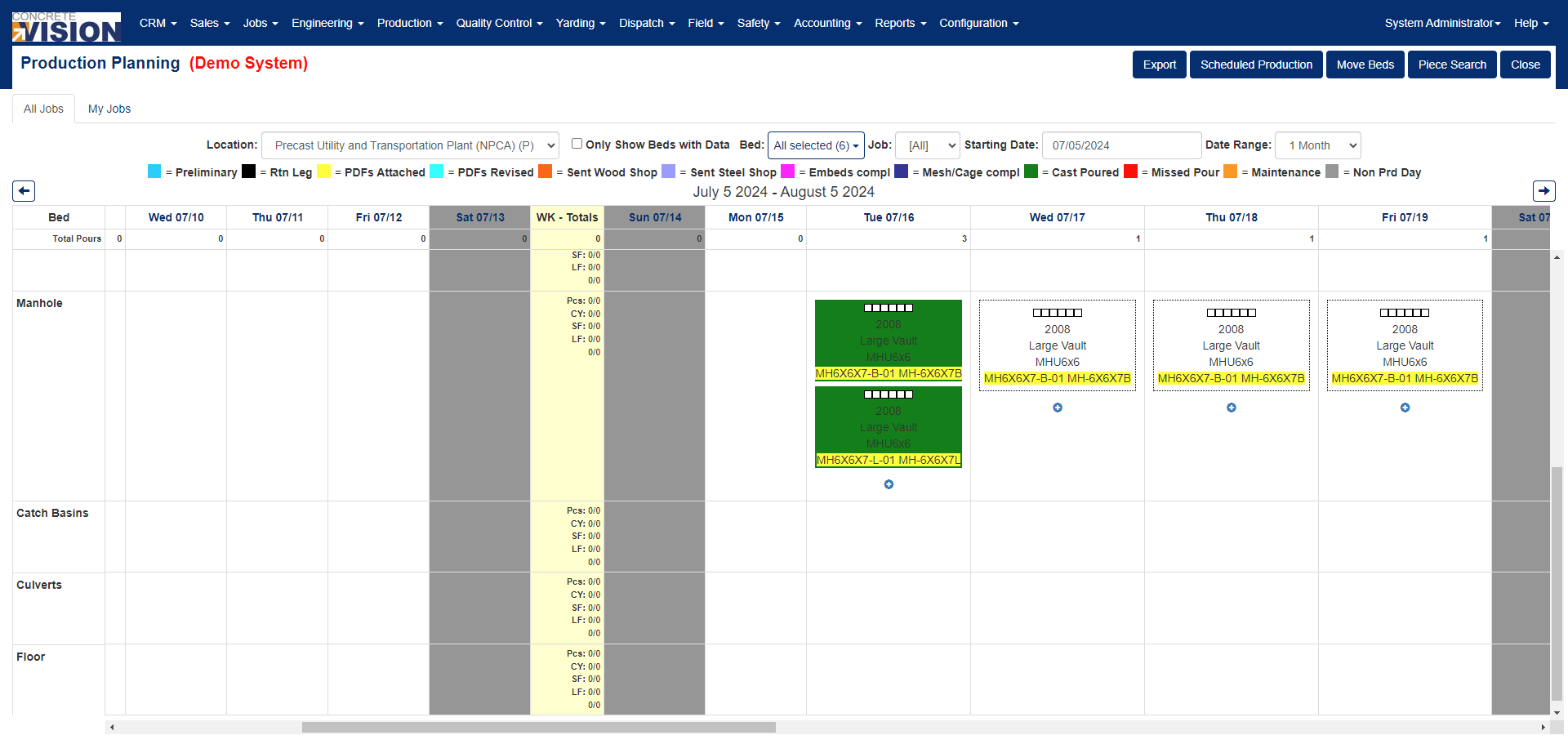
Figure 1
For example: On the Production Planning screen (Production menu > Production Planning) in Figure 1, with a Location and Starting Date selected, all of the casting beds for July 16, 2024, have been verified and display a green background.
Accessing Un-Verify Beds Screen
Navigate to Production > Un-Verify Beds from the main menu (Figure 2).
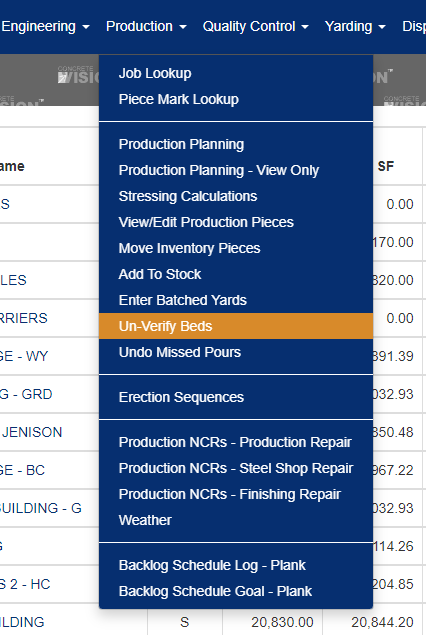 Figure 2
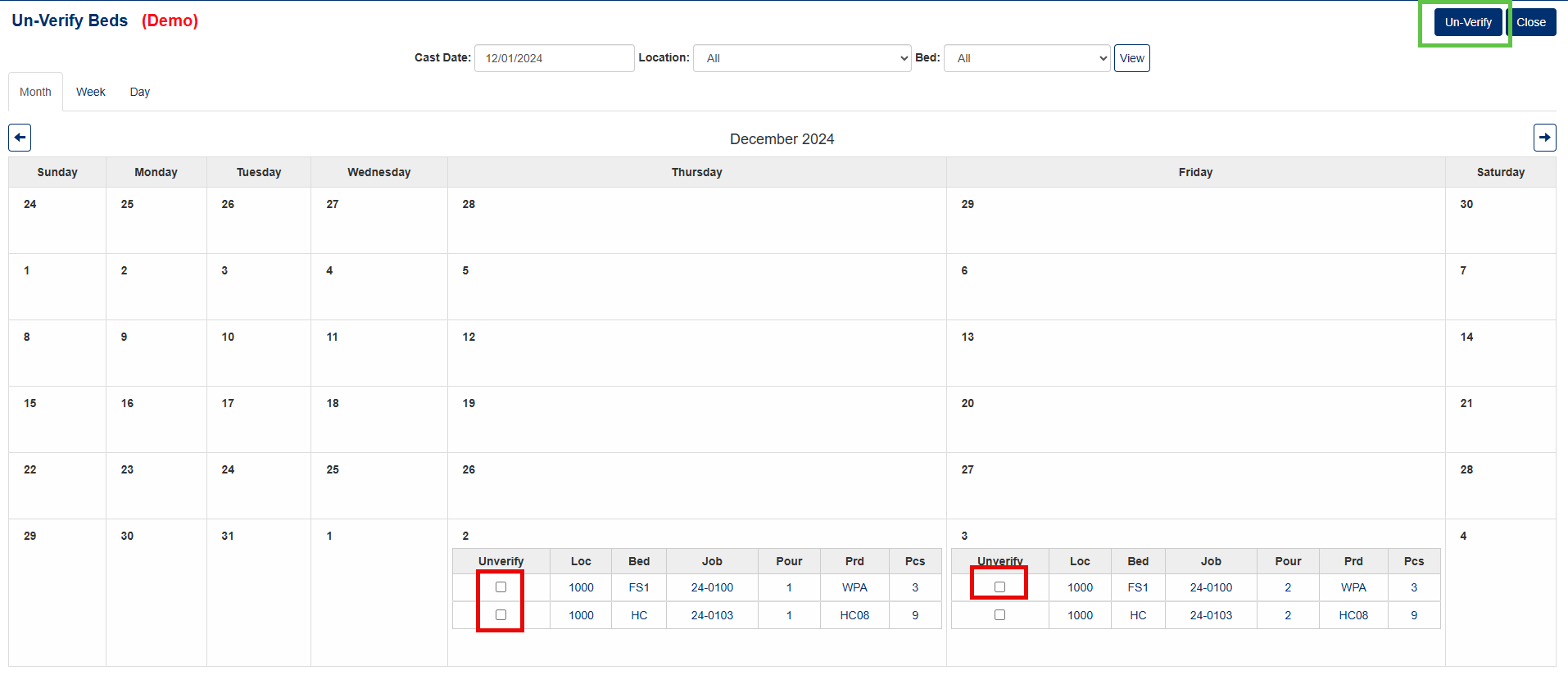
Figure 3
How to Un-Verify a Bed
On the Un-Verify Beds screen (Figure 3):
- Select the checkbox of the casting bed(s) you want to un-verify (Red box, Figure 3).
- Click 'Un-verify' button to confirm selection (Green box, Figure 3)
- A confirmation dialog will appear (Figure 4) asking: "Are you sure you want to unverify the selected bed(s)?"
- Click OK to proceed and confirm cancelation (Figure 4).
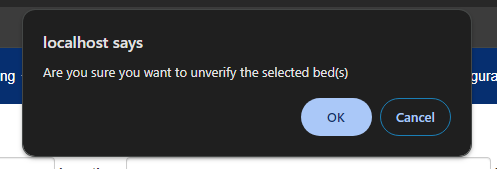
Figure 4
After clicking OK:
- The bed will be removed from the Un-Verify Beds screen (Figure 5).
- This confirms the bed has been successfully un-verified.
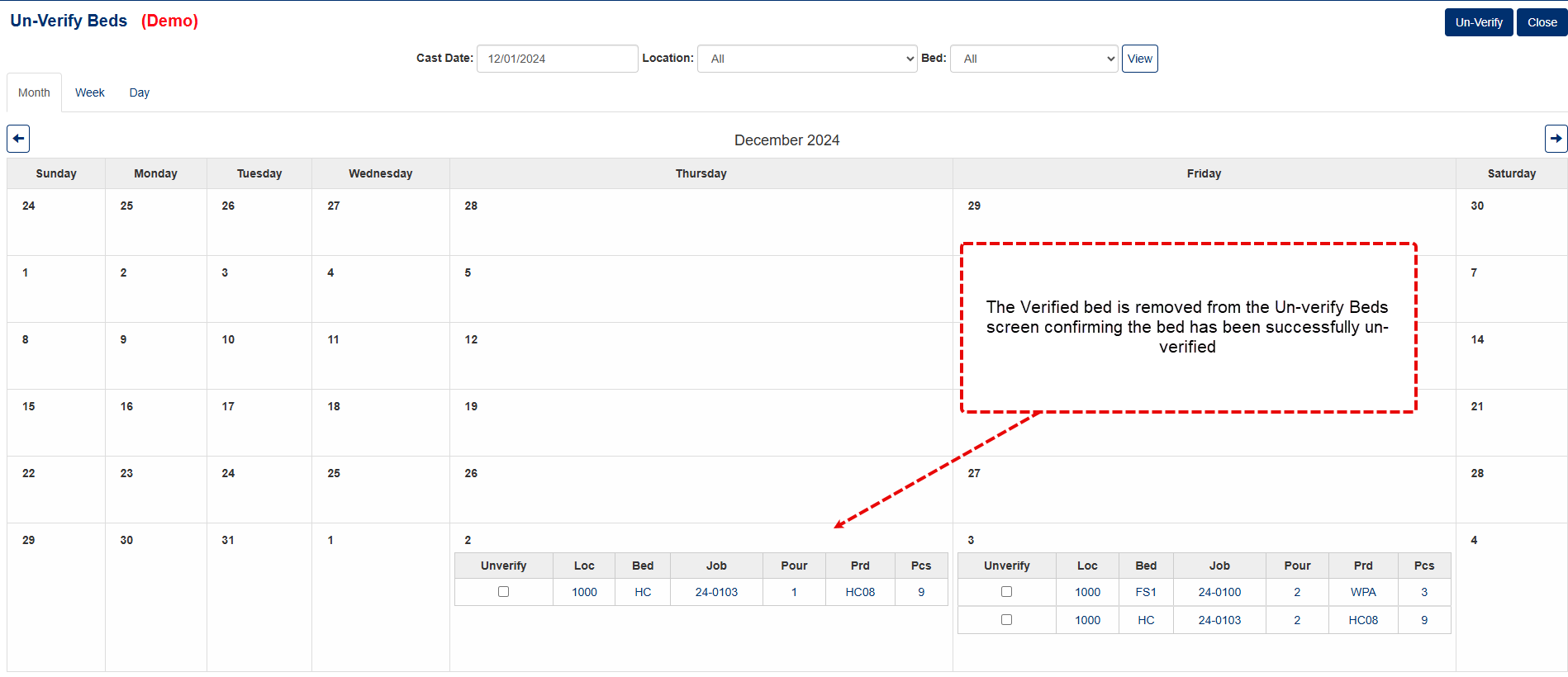
Figure 5
Edit an Un-Verified Bed
Return to the Production Planning screen (Figure 6). The previously verified bed will now be available for editing again, allowing you to make necessary changes (Red box, Figure 6).
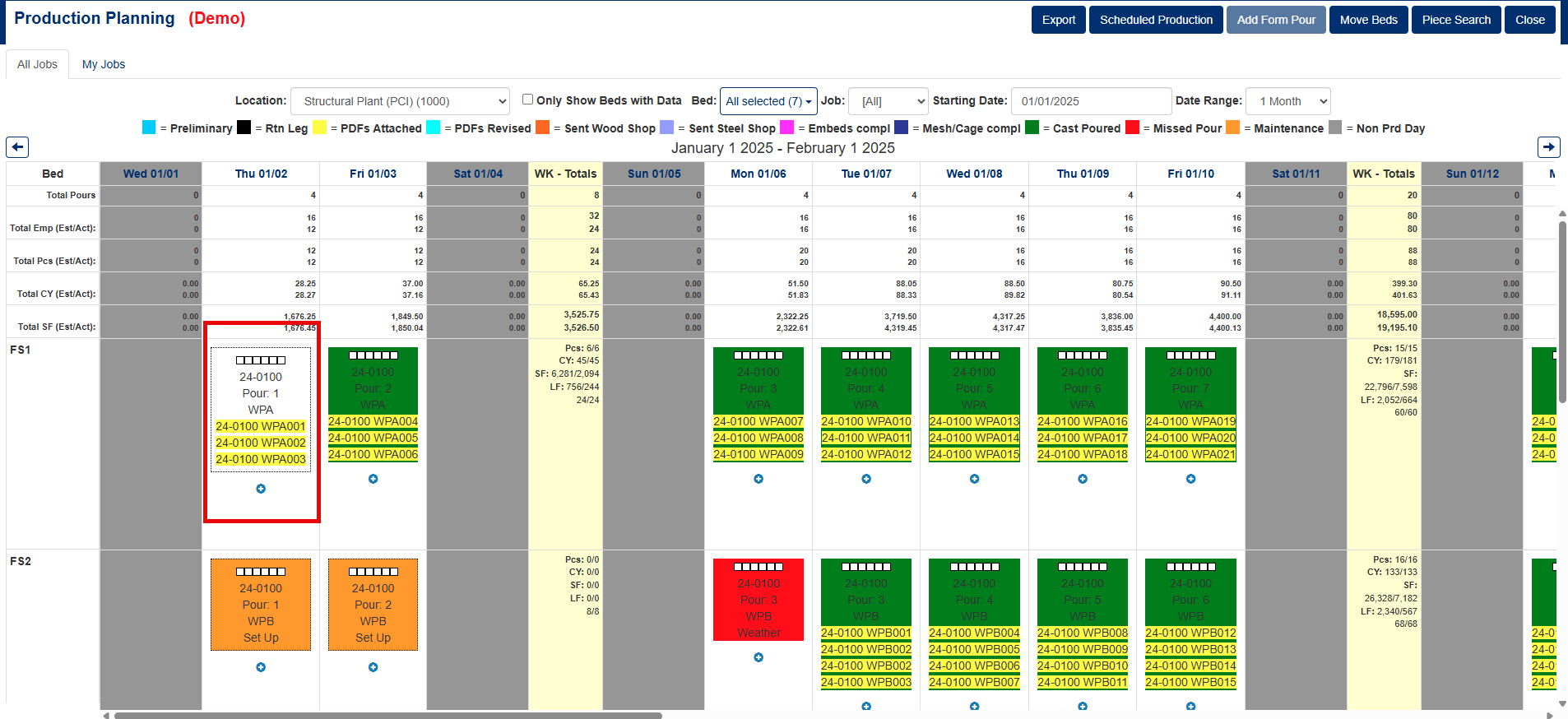
Figure 6
Important Notes on Un-Verifying Beds
- Once a bed is un-verified, it immediately becomes editable in Production Planning.
- You can un-verify multiple beds simultaneously by selecting them together.
- The bed will need to be re-verified after making your edits.
- Changes made to un-verified beds should be reviewed carefully before re-verifying.
Was this article helpful?
That’s Great!
Thank you for your feedback
Sorry! We couldn't be helpful
Thank you for your feedback
Feedback sent
We appreciate your effort and will try to fix the article