Overview
Activity Codes define the types of activities you can add to the Calendar in Concrete Vision. These codes help categorize and organize different activities throughout the system. Refer: Helpdesk : Activities Calendar
Accessing Activity Codes
Navigate to: Configuration menu → CRM Setup → Activity Codes
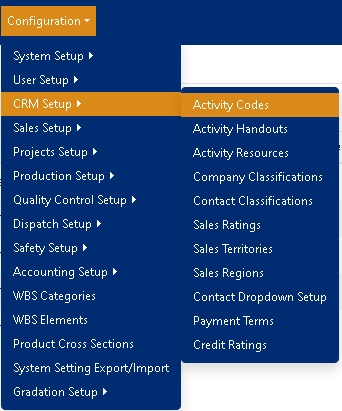
Figure 1
Activity Codes Interface
Finding Specific Activity Codes
You can easily locate any Activity Code by:
- Sorting: Click on any column header to sort the grid (Figure 2 - red outline)
- Filtering: Use the filter options in the column headers to narrow down results
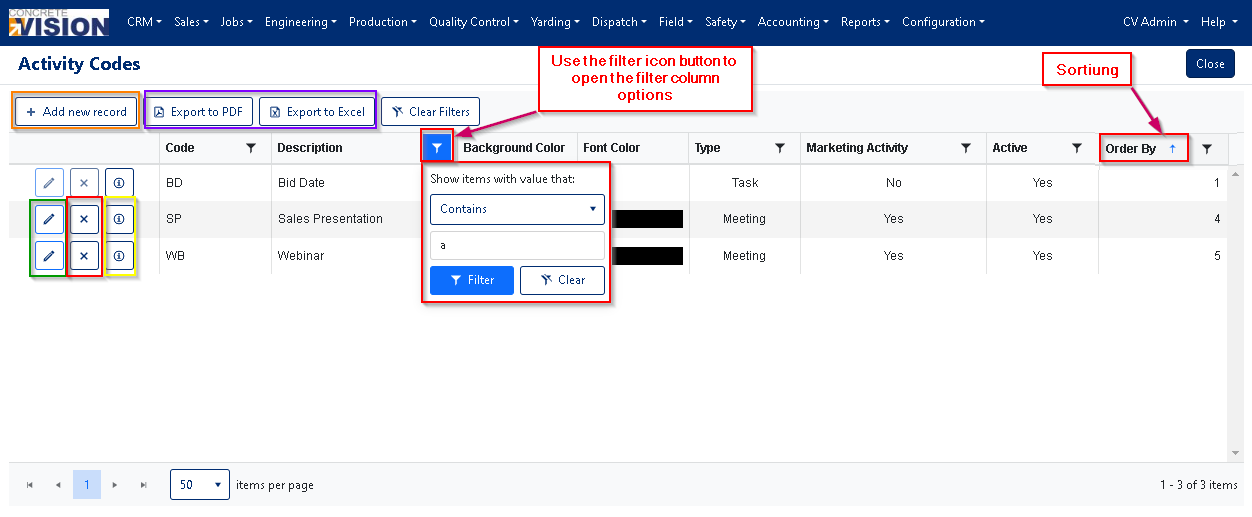
Figure 2
Audit Information
The information icon (i) to the left of each Activity Code displays:
- Who created the record
- Who last modified the record
- Date and time of the last change (Figure 2 - yellow outline)
Managing Activity Codes
Creating a New Activity Code
Open the Add New Window:
- Click the [+ Add new record] button at the top of the grid
Enter Details:
- Code: Enter a unique code (Required, max 10 characters)
- Description: Provide a descriptive name (Required, max 50 characters)
- Background Color: Select a background color for visual identification
- Font Color: Choose text color for the activity
- Type: Select the appropriate activity type from the dropdown
- Marketing Activity: Check this box if the activity is marketing-related
- Active: Enable/disable the activity code
- Order By: Set the display order priority number
Save:
- Click the [Save] button to create the new Activity Code (Figure 3 - orange outline)
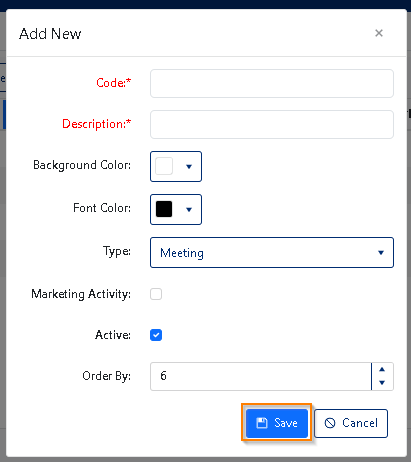
Figure 3
Editing an Activity Code
Open the Edit Window:
- Click the edit (pencil) icon to the left of the Activity Code you want to modify (Figure 2 - Green outline)
- Note: System-defined items are not editable
Modify Details:
- Update any of the fields as needed (Code, Description, colors, type, etc.)
- All field requirements remain the same as during creation
Save Changes:
- Click the [Save] button to apply your changes (Figure 4 - orange outline)
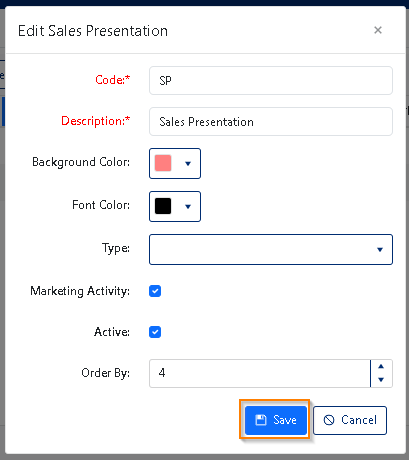
Figure 4
Deleting an Activity Code
Click the [X] button next to the Activity Code you wish to delete
- Note: You can only delete Activity Codes that are not assigned to any activities
- If an Activity Code is in use, the delete button will be disabled
Confirm deletion in the popup dialog by clicking [OK]

Figure 5
Exporting Activity Codes
Export to PDF
- Click the [Export to PDF] button to generate a complete list of Activity Codes in PDF format (Figure 2 - Purple outline)
Export to Excel
- Click the [Export to Excel] button to export all Activity Codes to an Excel spreadsheet (Figure 2 - Purple outline)
Best Practices
- Create descriptive, easily recognizable codes
- Use consistent naming conventions
- Assign meaningful background and font colors for better visual organization
- Regularly review and clean up unused Activity Codes
- Set logical order numbers to organize related activities together
Was this article helpful?
That’s Great!
Thank you for your feedback
Sorry! We couldn't be helpful
Thank you for your feedback
Feedback sent
We appreciate your effort and will try to fix the article